

Is your Windows PC feeling sluggish despite having decent hardware? Background apps may be to blame. In this gearupwindows guide, we’ll show you how to detect and resolve hidden performance issues using the free tool SysGauge.
What Is SysGauge and Why Choose It?
SysGauge is a powerful system-monitoring utility for Windows. It offers real-time tracking of essential system metrics like CPU usage, RAM consumption, disk activity, USB device usage, and network throughput. Unlike Windows’ built-in Resource Monitor, SysGauge provides greater flexibility, visual dashboards, and the ability to export performance data for analysis or reporting.
Whether you’re diagnosing system lag, identifying hardware bottlenecks, or monitoring long-term resource usage, SysGauge can help. It’s lightweight, intuitive, and highly customizable—even in the free version.
Main Features of SysGauge
- Detailed CPU Monitoring: Track overall and per-core processor usage. Easily detect resource-hungry processes or background tasks slowing down your PC.
- USB Device Monitoring: Monitor the performance of connected USB devices to identify potential issues with external drives or peripherals.
- Network Throughput Insights: View real-time upload/download speeds and monitor average network performance over time.
- Disk Performance Metrics: Analyze disk I/O performance, including read/write speed and IOPS, to detect storage bottlenecks.
- Advanced Memory Monitoring: Go beyond simple RAM usage and view average, minimum, and maximum memory stats over time.
- Custom Monitoring Profiles: Set up monitoring dashboards tailored to your focus area—whether it’s CPU, disk, or network.
- Exportable Reports: Save performance insights in PDF, Excel, HTML, or Text format to document and share findings.
How to Monitor System Performance with SysGauge?
After installing SysGauge, launch the program to see its live dashboard displaying real-time system statistics.

Step 1. Click the Add button in the toolbar to select which system metrics you want to monitor—like CPU usage, RAM, network activity, or disk performance.
Step 2. Choose a performance counter from the list and click Add again. It will now appear in your main monitoring window.
Step 3. Click Start to begin live monitoring. You’ll see graphs and meters updating in real time based on your system activity.
Step 4. To save these insights, click the Save button and choose your preferred output format—PDF, Excel, HTML, or plain text. This is great for troubleshooting logs or reporting performance trends.
Step 5. Click the Options icon (gear symbol) to access basic settings. While the free version does not support advanced notifications like email alerts or proxy settings, you can still customize display preferences and thresholds for certain counters.
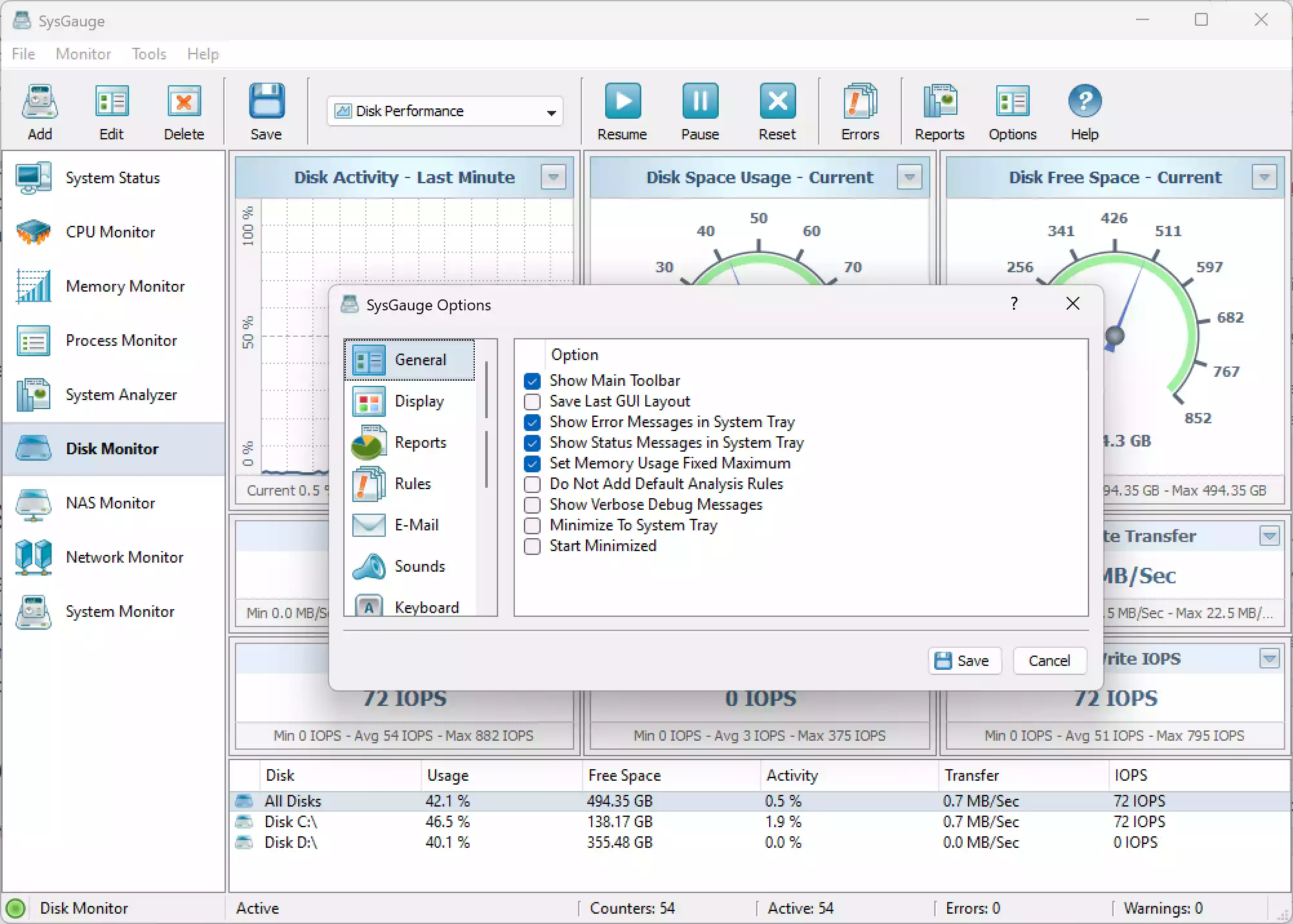
SysGauge also offers visual tools like Visual Graph and Meter view modes. These help you quickly detect abnormal spikes, persistent loads, or patterns in system behavior—useful for troubleshooting and performance analysis.
Is SysGauge Free?
Yes, SysGauge is free for personal use and works with both Windows 10 and Windows 11. It supports 32-bit and 64-bit systems. While there’s a Pro version with additional features like alerting, the free edition offers more than enough for everyday system monitoring and optimization.
Download and Install SysGauge
To get started, visit the official SysGauge website and download the installer. It’s a small, quick install that won’t bog down your system. Once installed, you’ll have immediate access to essential performance tools in one streamlined dashboard.
Optimize Windows Performance Further
SysGauge helps you identify what’s slowing your PC—but fixing those issues requires action. Once you’ve found resource hogs, consider these guides for further tuning:
Disable unnecessary startup items using the steps in this Windows 10 startup guide. For deeper control, use Microsoft Autoruns to disable background apps that don’t appear in Task Manager.
You can also explore how to manage Windows services to disable those that aren’t essential to performance.
By combining SysGauge monitoring with these optimization steps, you’ll significantly improve system responsiveness.
Conclusion
SysGauge is a robust, user-friendly alternative to Resource Monitor. With features like custom dashboards, real-time charts, and exportable reports, it helps you understand and solve performance issues with confidence. While advanced alerts are locked behind a Pro upgrade, the free version covers all the essentials.
Pair it with tools like Autoruns and Windows service management, and you’ll have a faster, more stable PC in no time.