

Google Chrome doesn’t have a traditional Safe Mode like Firefox, but you can still launch it in a special troubleshooting mode where all extensions, add-ons, and custom settings stay disabled. This is the easiest way to fix crashes, pop-ups, blank pages, or issues caused by faulty extensions.
What is Chrome Safe Mode?
Chrome’s Safe Mode is essentially a clean launch where extensions don’t load, experimental flags are ignored, and only default components run. This helps you quickly find out if your browser issues are caused by an extension, a corrupted profile, or a custom setting.
Method 1 — Open Chrome in Safe Mode Using the Disable-Extensions Command
You can start Chrome with extensions turned off using a simple shortcut trick.
Step 1. Close Chrome completely from the Task Manager.
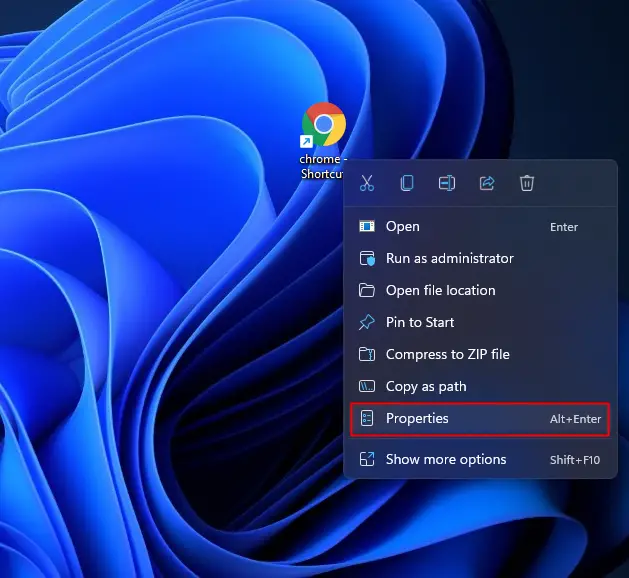
Step 2. Right-click your Chrome desktop shortcut and choose Properties.
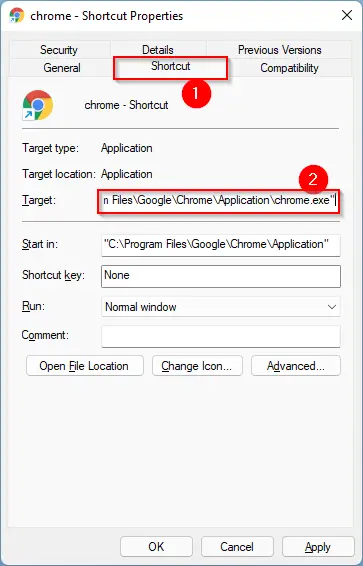
Step 3. In the Target box under the Shortcut tab, go to the end of the text and add this command:
--disable-extensions
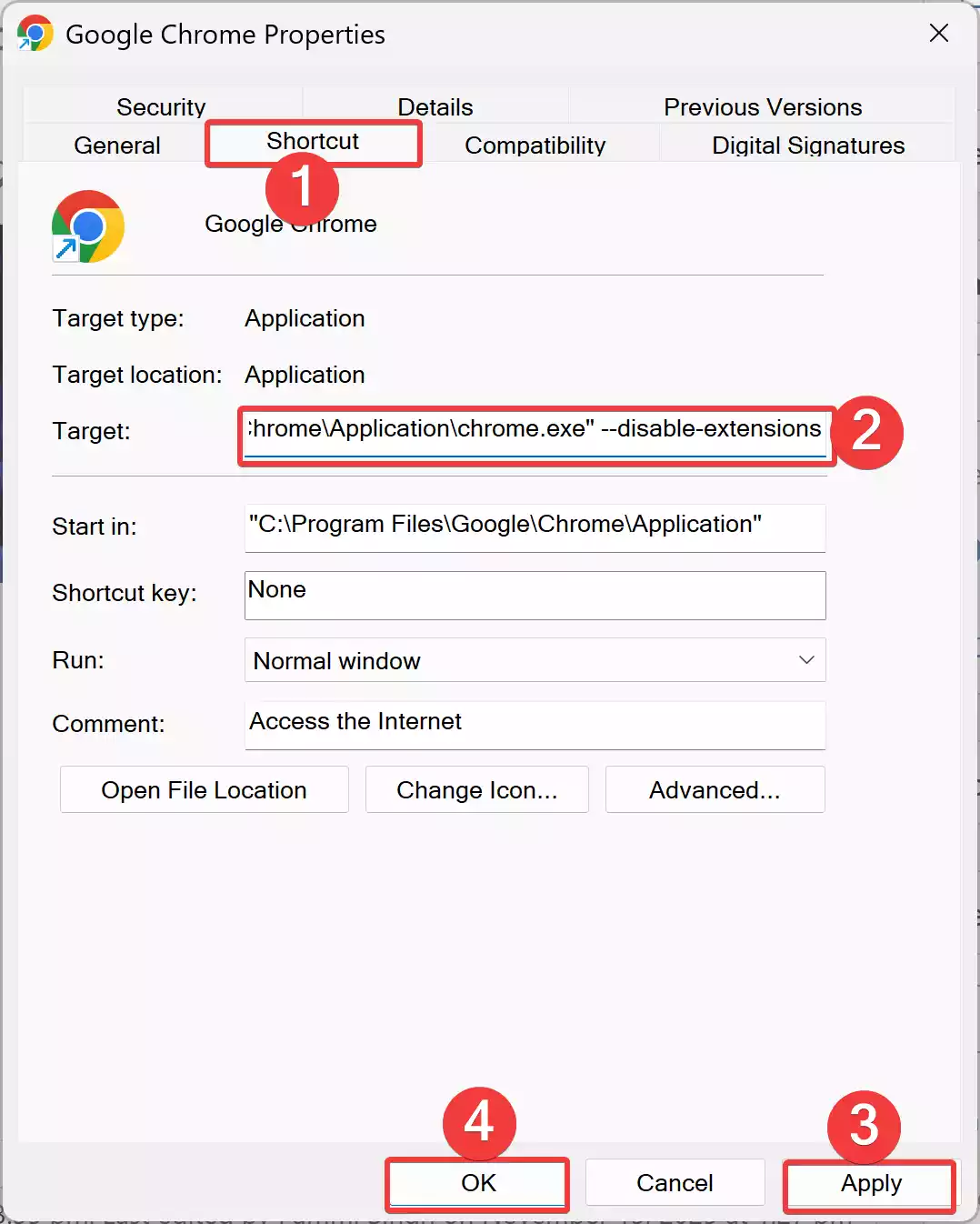
Step 4. Click Apply → OK.
Step 5. Open Chrome using this shortcut — it will launch with all extensions disabled.
To manage or disable extensions permanently, follow this guide: How to manage, install, uninstall, enable, or disable extensions on Chrome.
Method 2 — Start Chrome with a Fresh Temporary Profile
If your main Chrome profile is corrupted, a temporary new profile can load Chrome cleanly like Safe Mode.
Step 1. Press Windows + R and enter:
chrome.exe --user-data-dir="C:\ChromeSafeMode"
Step 2. Chrome will open with a brand-new profile and no extensions.
This does not modify your real Chrome data — it only loads a clean workspace so you can test if Chrome functions normally.
Method 3 — Turn Off Extensions Manually Without Opening Chrome
If Chrome crashes instantly on launch, an extension is usually the cause. You can disable them manually:
Step 1. Open this folder:
%LOCALAPPDATA%\Google\Chrome\User Data\Default\Extensions
Step 2. Rename the extension folders (add .off at the end).
Step 3. Relaunch Chrome — it should start without the problematic add-ons.
Once Chrome starts, you can clean extensions properly using this tutorial: How to manage Chrome extensions.
Method 4 — Use Chrome’s Internal Troubleshooting Pages
Chrome includes internal pages that help diagnose DNS and network issues, which sometimes look like crashes.
Step 1. Open Chrome.
Step 2. Type the following in the address bar and hit Enter:
chrome://net-internals/#dns
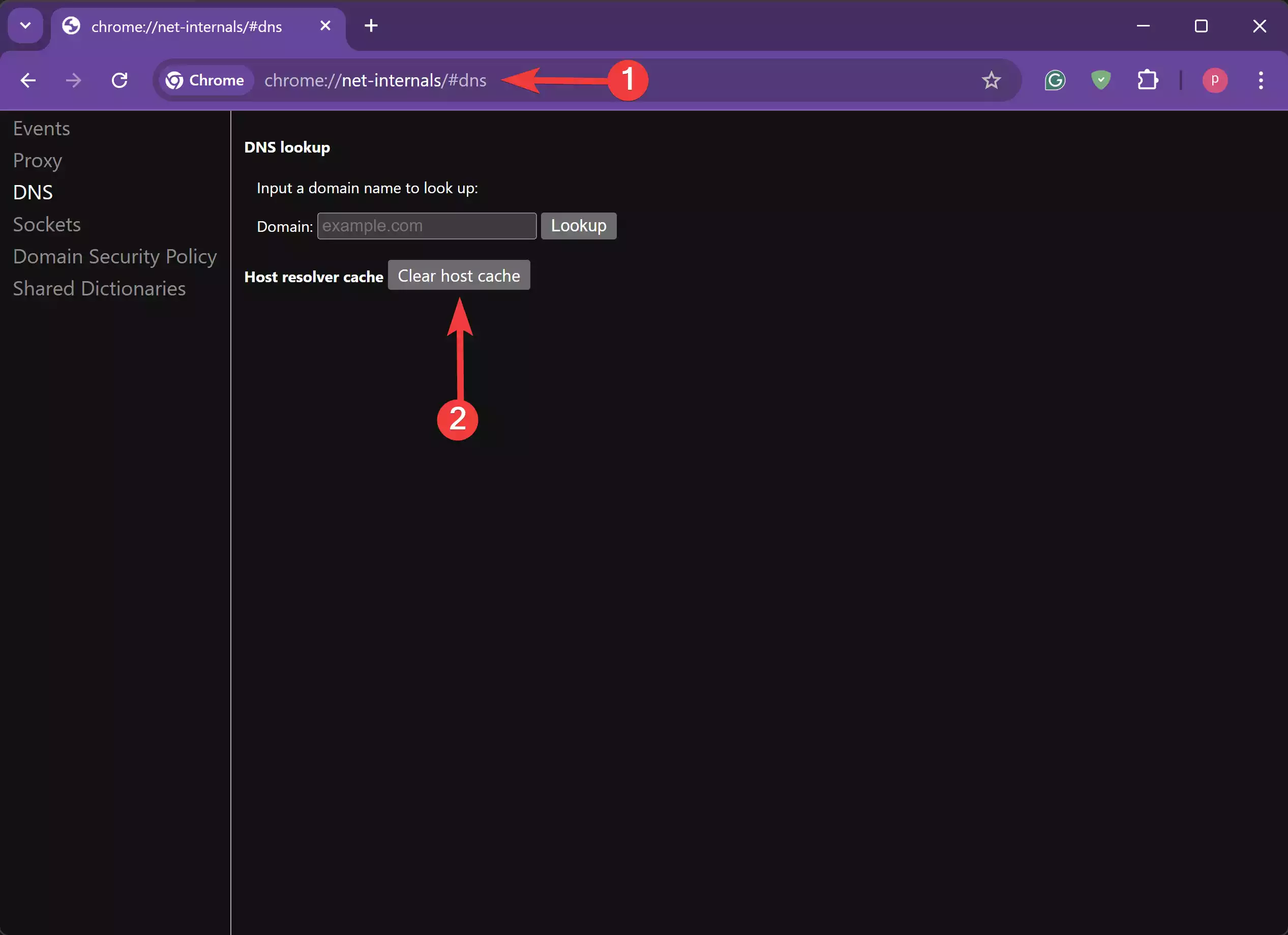
Step 3. Click Clear host cache and relaunch.
For reference, here is the Edge host-cache guide (same DNS clearing concept also applies to Chrome): How to clear host cache in Edge.
When Chrome Safe Mode Helps
Chrome Safe Mode is useful when:
• Chrome opens but closes instantly.
• New tabs are spawning automatically.
• Large websites refuse to load.
• Pop-ups appear even without browsing.
• Chrome becomes slow after installing new extensions.
How to Recover Your Tabs After Opening Chrome in Safe Mode
Since Safe Mode disables extensions, sessions may not auto-restore. If you want to reopen your last tabs manually, use this guide: How to restore recently closed tabs in Chrome/Firefox/Opera/Edge.
Pros
• Easy to diagnose faulty extensions.
• Doesn’t delete your Chrome data.
• Works even if Chrome crashes instantly.
• Lets you test Chrome with a clean environment.
Considerations
• Chrome does not have a dedicated “Safe Mode” button like Firefox.
• Command-line Safe Mode must be launched manually each time.
• Some issues may be related to corrupted browsing history or cached data. To analyze such issues deeper, review this privacy troubleshooting guide: How to stop Chrome or Edge from saving browsing history and data.
FAQs
Does Chrome have an official Safe Mode?
No, but launching Chrome with extensions disabled works exactly like Safe Mode for troubleshooting.
Will I lose my data when launching with a temporary profile?
No. Your main Chrome data stays untouched. The temporary profile only helps diagnose issues.
Is Safe Mode permanent?
No, Chrome returns to normal mode on the next launch unless you continue using the command-line flags.
How do I return to my original Chrome profile?
Just close the temporary instance and launch Chrome normally. All your bookmarks and passwords will be intact.
Conclusion
Chrome’s Safe Mode isn’t a dedicated feature, but launching it with disabled extensions or a clean temporary profile gives you the same troubleshooting power. Use it to quickly identify corrupt extensions, DNS issues, or profile problems. If Chrome loads properly in Safe Mode, you can safely re-enable features one by one until you find what caused the issue.