

Accurate date and time settings are crucial for many aspects of our digital lives. However, there may be situations where you want to prevent users from changing these settings on Windows 11 or Windows 10. In this user-friendly guide, we will explore two methods to achieve this: using the Group Policy Editor and tweaking the Registry Editor.
Please note that both methods require administrative access to the computer. Make sure you have the necessary permissions before proceeding. Additionally, it’s always advisable to create a backup of your system before making any changes to the registry.
How to Stop Windows Users from Changing the Date and Time?
Method 1: Use the Group Policy Editor
The Group Policy Editor is a powerful tool that allows system administrators to control various aspects of computer behavior. Here’s how you can prevent users from changing the date and time settings using this method:-
Step 1. Press the Windows key + R on your keyboard simultaneously to open the Run window.
Step 2. Type “gpedit.msc” into the text box and hit Enter. This will open the Group Policy Editor.
Step 3. In the Group Policy Editor window, navigate to the following path:-
Computer Configuration > Administrative Templates > System > Locale Services
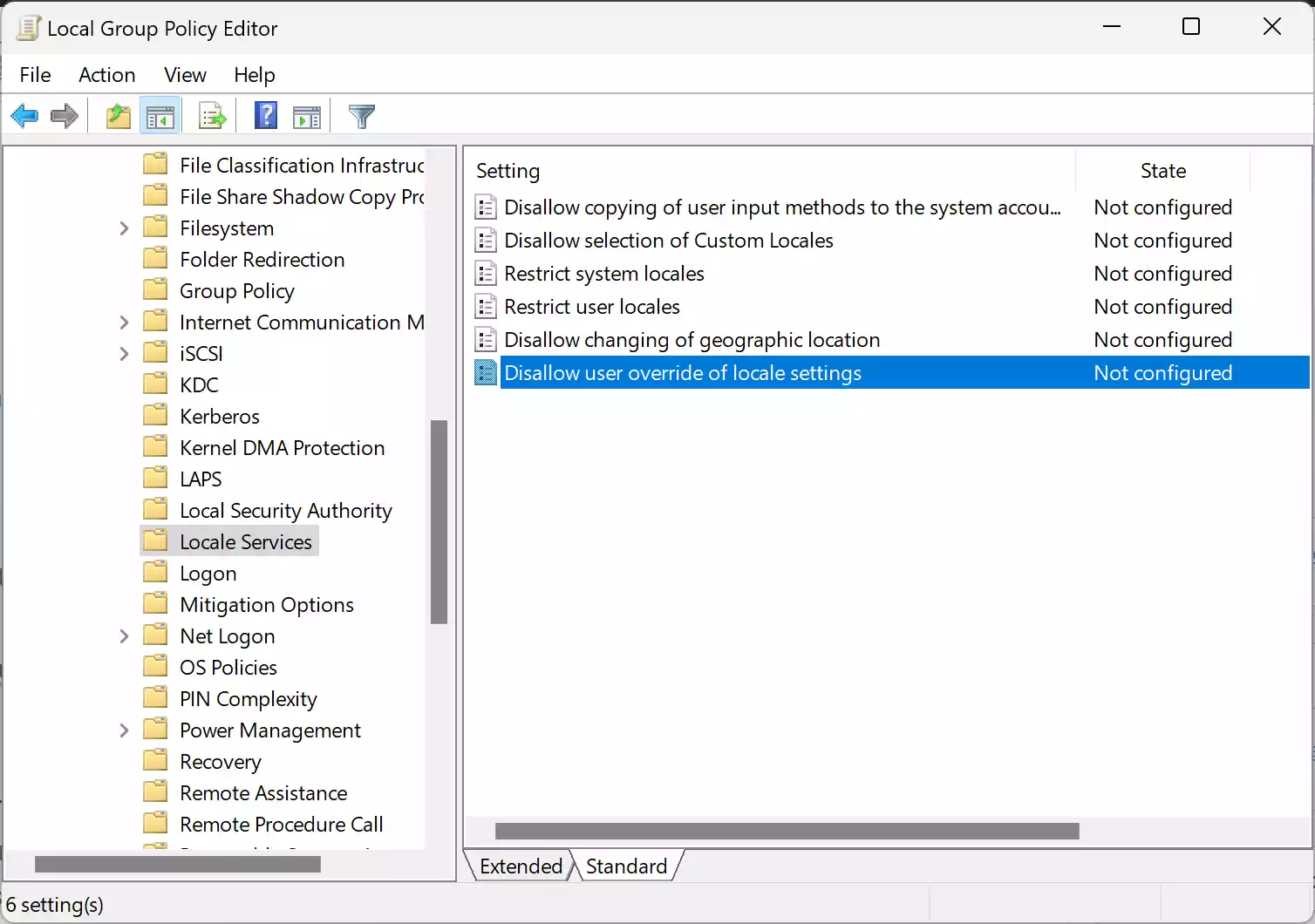
Step 4. On the right-hand pane, double-click on the “Disallow user override of locale settings” policy.
Step 5. In the pop-up window, select the “Enabled” radio button.
Step 6. Click Apply and then OK to save the changes.
By following these steps, users will be unable to modify the date and time settings on their Windows 11 or Windows 10 computers. However, administrators will still have the ability to make changes.
To revert to the default settings later, open the Group Policy Editor, navigate back to the “Disallow user override of locale settings” policy, and change the value to “Not Configured” or “Disabled.”
Method 2: Tweak the Registry Editor
If you have Windows Home Edition or have disabled the Group Policy Editor, you can use the Registry Editor to prevent users from changing the date and time settings. Proceed with caution and follow these steps:-
Step 1. Open the Run command dialog box by pressing the Windows key + R.
Step 2. Type “regedit” into the field and press Enter. This will open the Registry Editor.
Step 3. In the Registry Editor window, navigate to the following path:-
Computer\HKEY_CURRENT_USER\Software\Policies\Microsoft

Step 4. Right-click on the Microsoft folder and select New > Key.
Step 5. Name the new key “Control Panel.”

Step 6. Now, right-click on the “Control Panel” folder and select New > Key.
Step 7. Name the new key “International.”
Step 8. Next, right-click on the “International” folder and select New > DWORD (32-bit) Value.
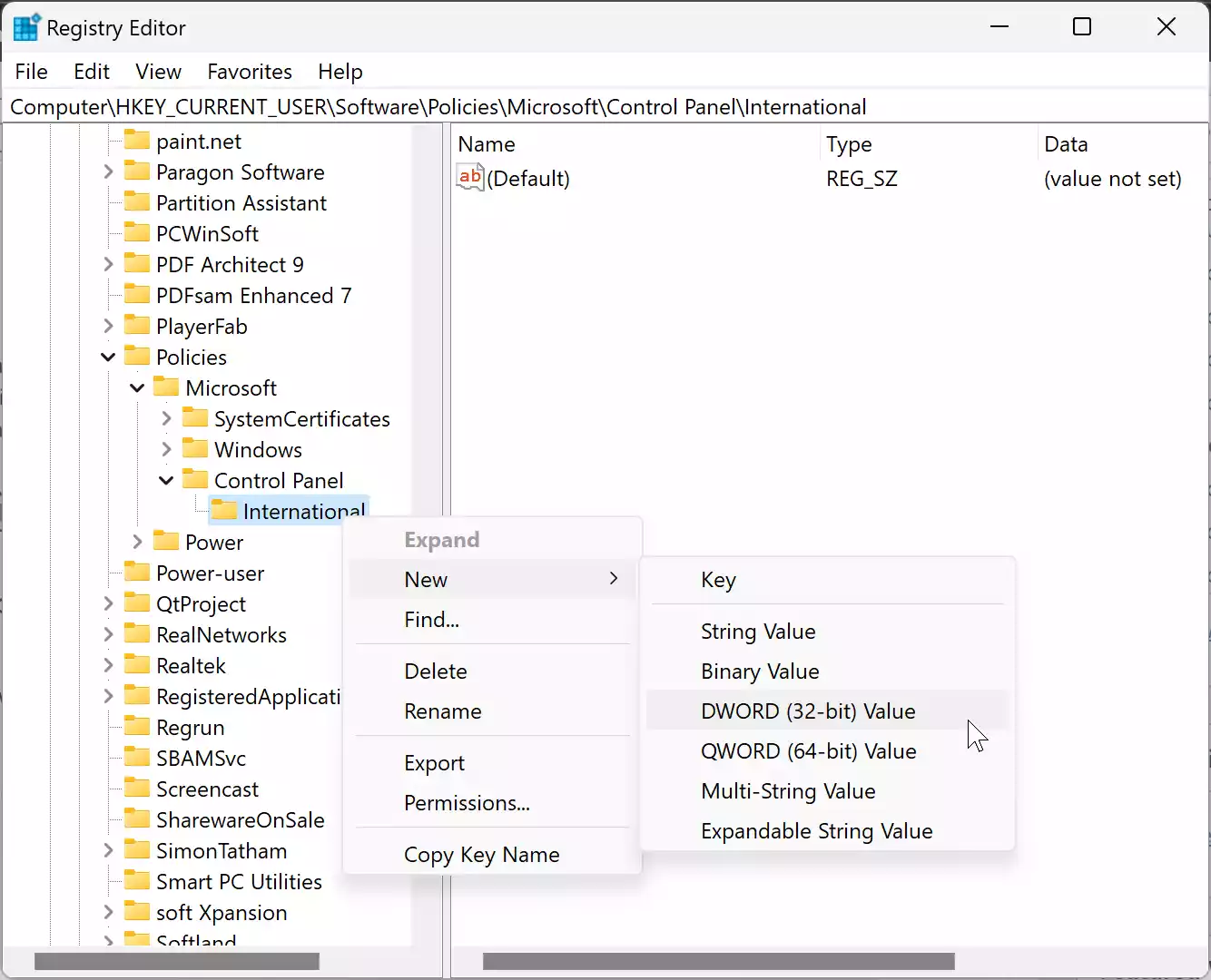
Step 9. Name the newly created value “PreventUserOverrides.”
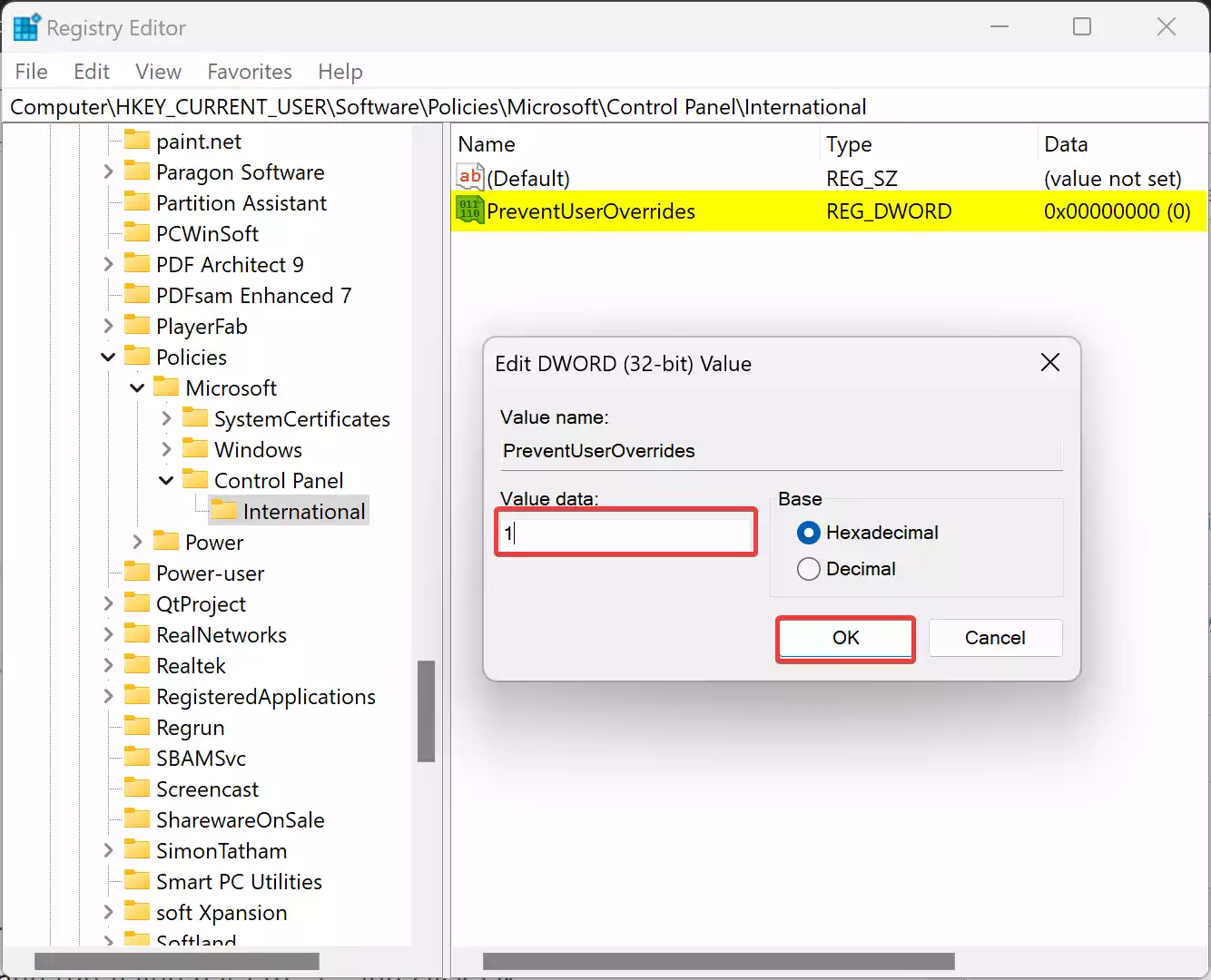
Step 10. Double-click on the “PreventUserOverrides” DWORD value.
Step 11. In the pop-up window, change the Value data to “1” and click OK.
Step 12. Close the Registry Editor window and restart your computer for the changes to take effect.
By following these steps, users will no longer be able to modify the date and time settings on their Windows 11 or Windows 10 computers.
To undo this restriction, either delete the “PreventUserOverrides” DWORD value from the registry or change the value to “0.” This will allow users to change the date and time settings again.
Conclusion
By implementing these methods, you can prevent users from changing the date and time settings on your Windows 11 or Windows 10 computer. Whether you use the Group Policy Editor or tweak the Registry Editor, it’s important to have administrative access and exercise caution when modifying system settings. Enjoy a more controlled computing experience with accurate date and time settings, ensuring better synchronization and improved security.