

With the default configuration of a Microsoft Office Word document, it doesn’t print any hidden text. In case you want to print all hidden text, you need to change the default settings of MS Word. With the help of this tutorial, you can print hidden text in MS Word.
What is hidden text or paragraph in a Microsoft Word Document?
Microsoft Word lets you hide text or a paragraph in MS Word documents. In case you want to keep some paragraphs but do not want to show them in your document, you can hide the text or paragraph in your document. It is possible to hide text or paragraphs in an MS Word document and keep working on the document. However, as said at the start of the post, hidden texts do not appear in the printed version of a document. If you want to print out an MS Word document with hidden text, follow this tutorial.
How to print hidden text or paragraphs in MS Word on a Windows PC?
Follow these steps to print hidden text or paragraphs in MS Word on a Windows PC:-
Step 1. Open the Microsoft Office Word document on your computer.
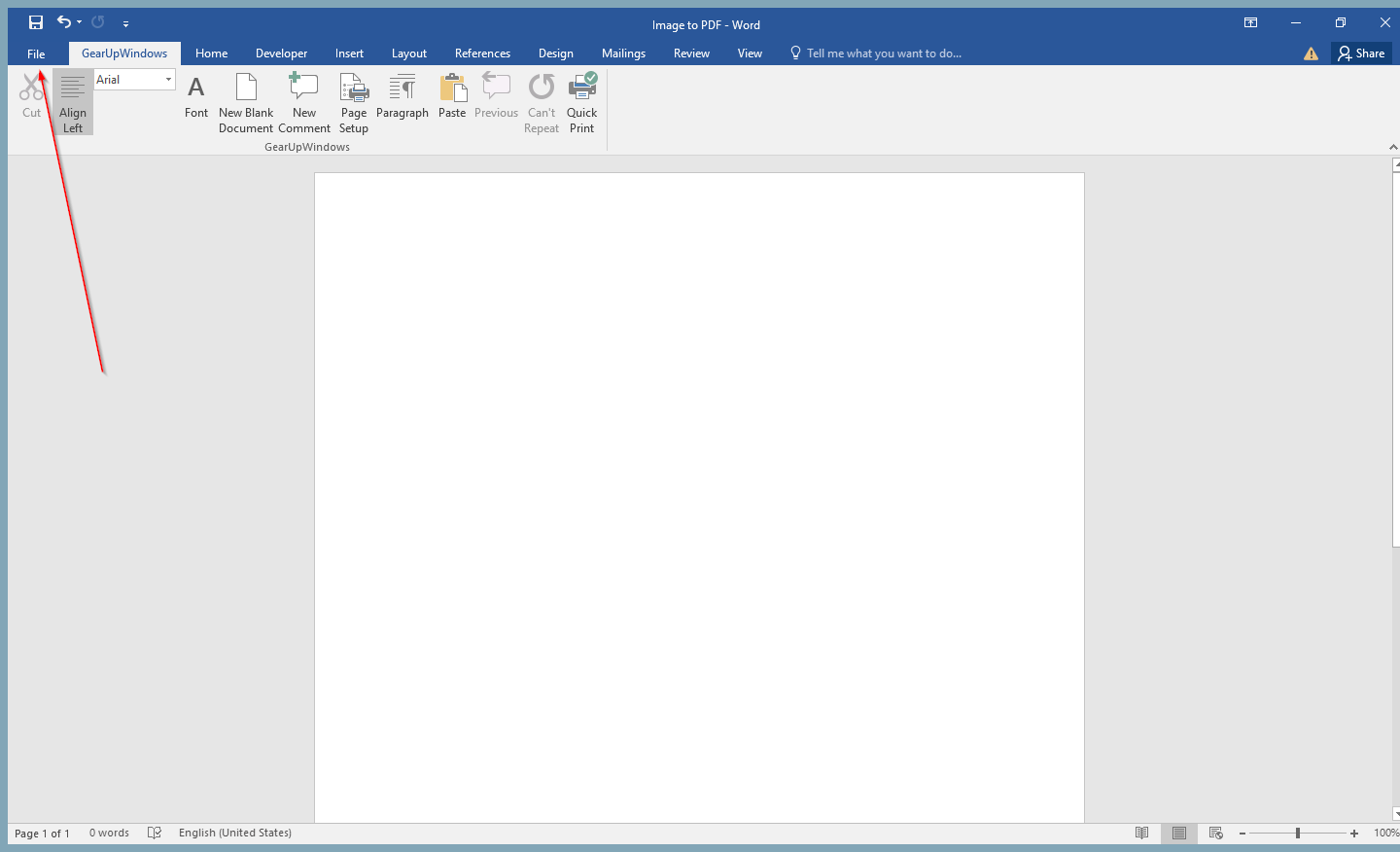
Step 2. Click on the File tab.
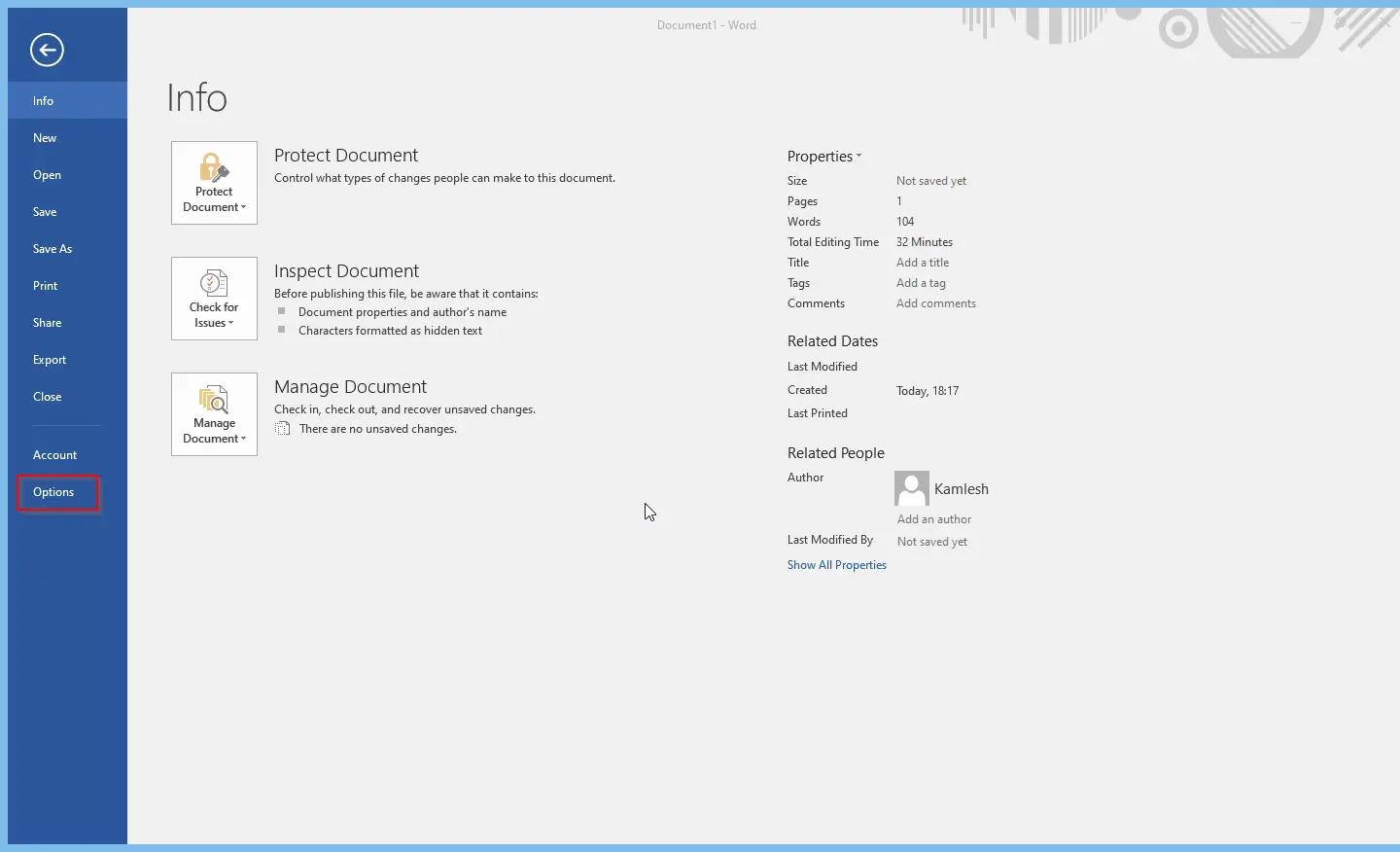
Step 3. Click on the Options left-side menu that appears after clicking on the File tab.
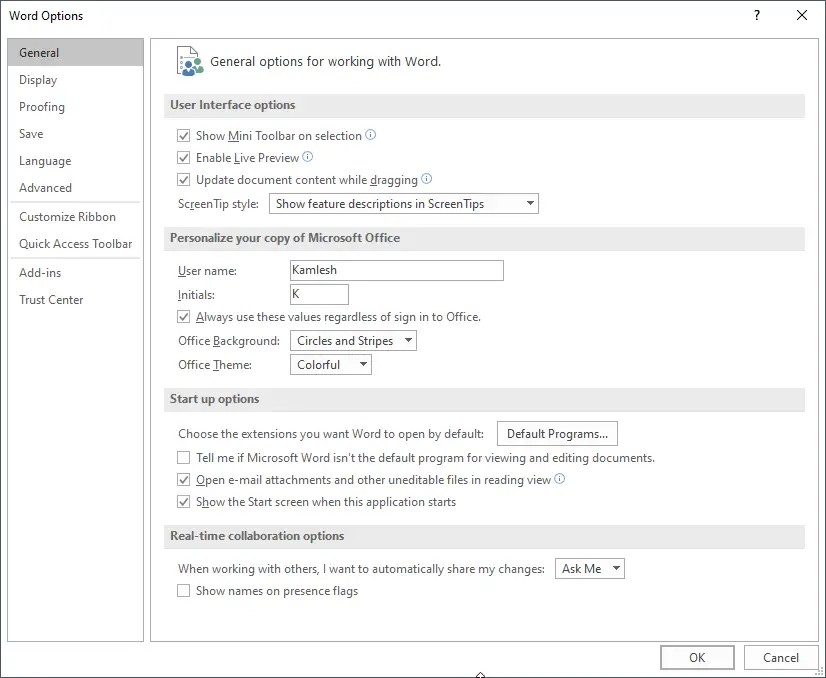
Step 4. The Word Options window will appear.
Step 5. Click the Display tab.
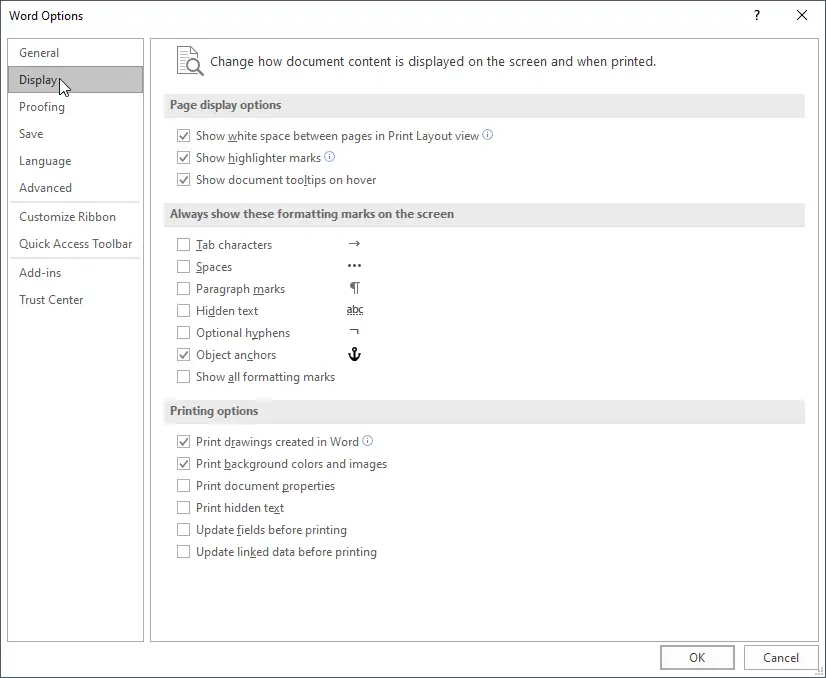
Step 6. In the Printing options section, click on the checkbox “Print hidden text.”
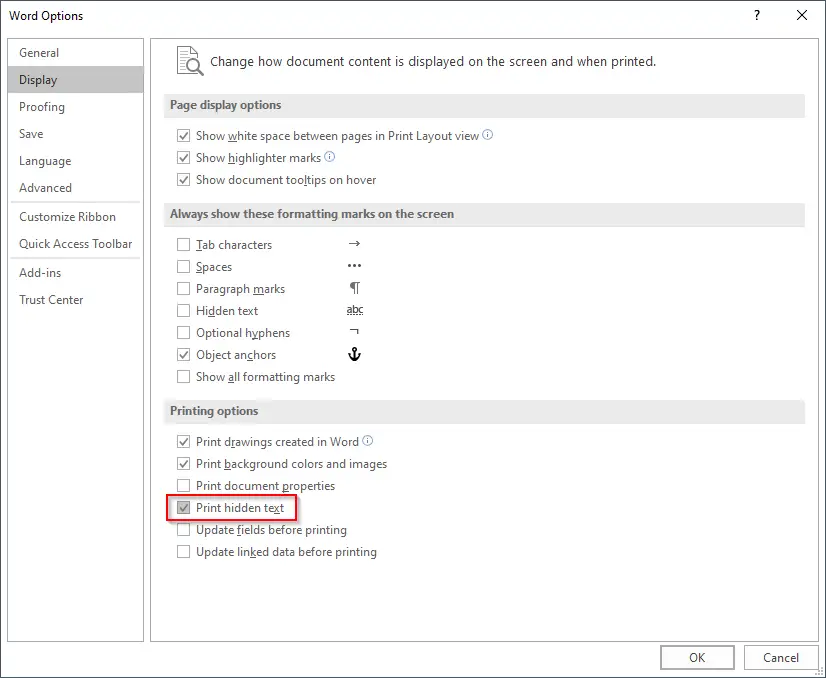
Step 7. Click the OK button to exit the Word Options window.
If you want to test that in print-out hidden text or a paragraph appears in print-out or not, press the Ctrl + P keys from the keyboard to see your MS Word document’s preview.
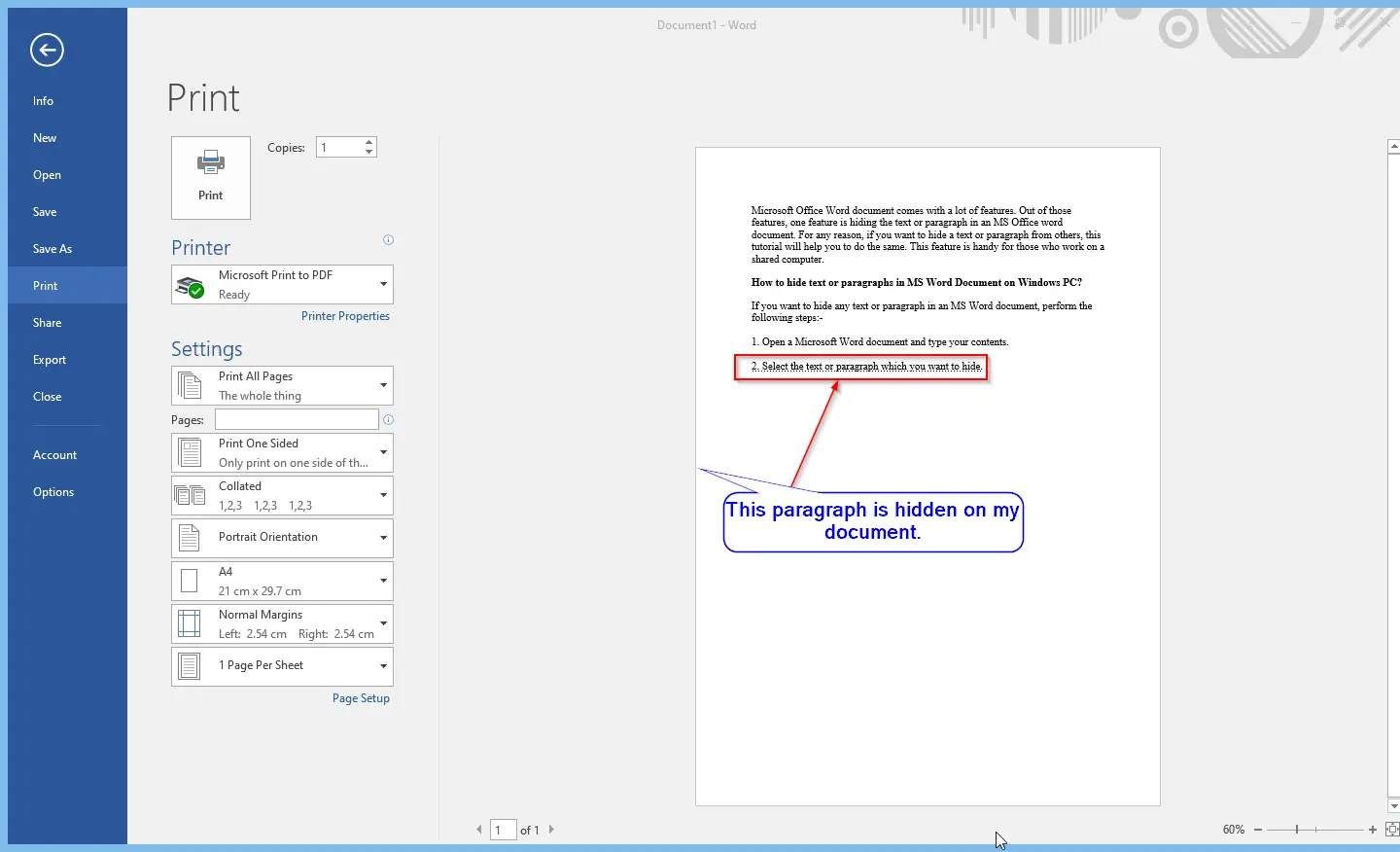
Once you are satisfied with the Microsoft Word document’s preview, select the printer and take a printout.
That’s all!
Let me know if any problems taking the printout of your document with hidden text or paragraphs.