

Microsoft Edge comes as an inbuilt app with Windows 10, with many features that can help improve your browsing experience. One can install & uninstall themes in the Microsoft Edge browser and disable or change the Edge Background Image. It also allows going back to the previous page using the Backspace Key.
Out of the various features, one of the highlights of the Edge browser is its ability to reset your browser settings, which will clear your browsing history and even turn your settings back to their default. This is a great option if you have accidentally changed a setting or want to revert to the default settings on the Edge browser, and you’re not sure how to turn it back.
How to reset Microsoft Edge to default settings?
To fully reset Microsoft Edge, you can do two things: reset your settings and clear your browsing data. If you don’t want to wipe the data, you can only perform the first procedure. To do the factory reset in the Microsoft Edge browser, do the following:-
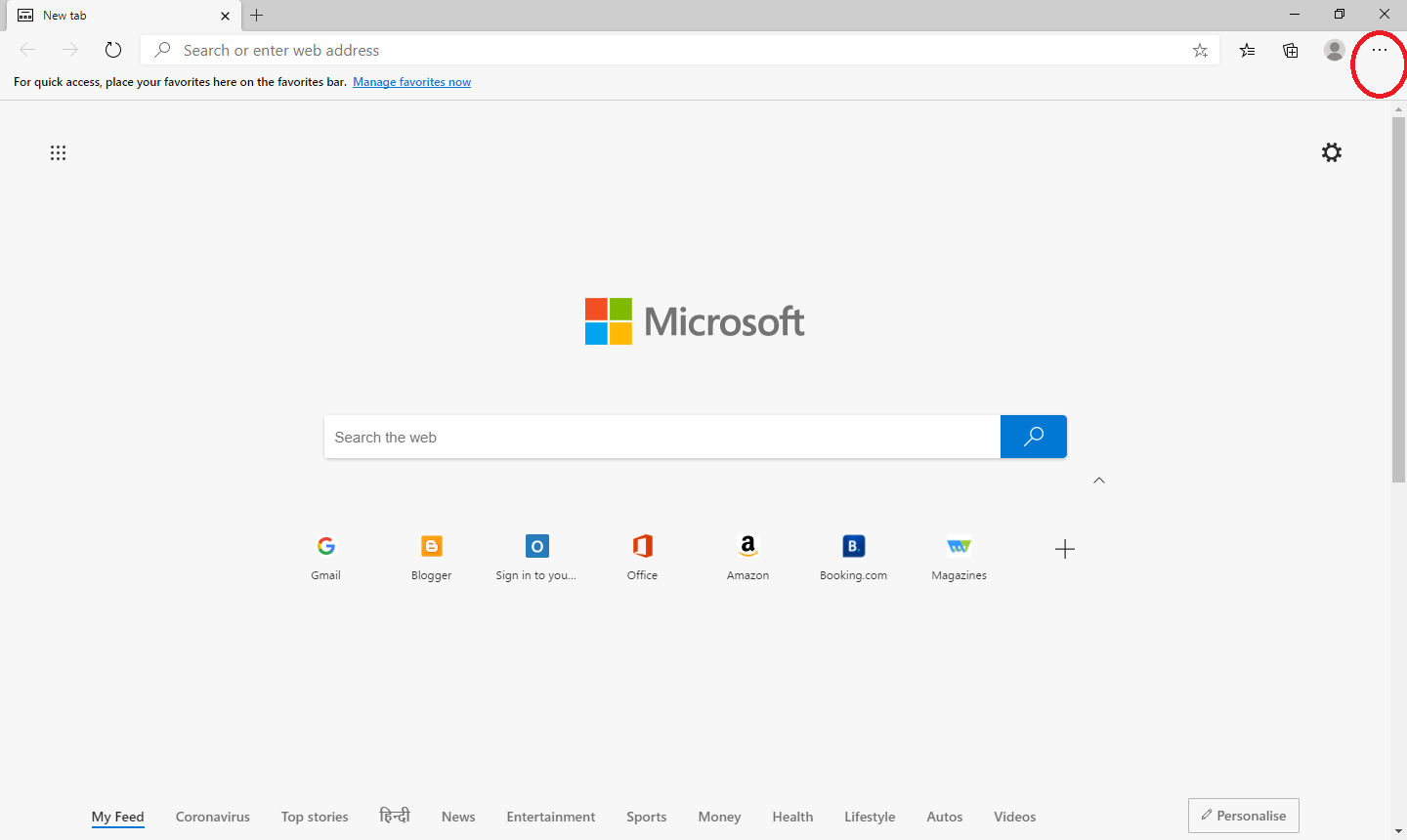
Step 1. Launch Microsoft Edge on your Mac or Windows PC and click the three dots in the top-right corner.
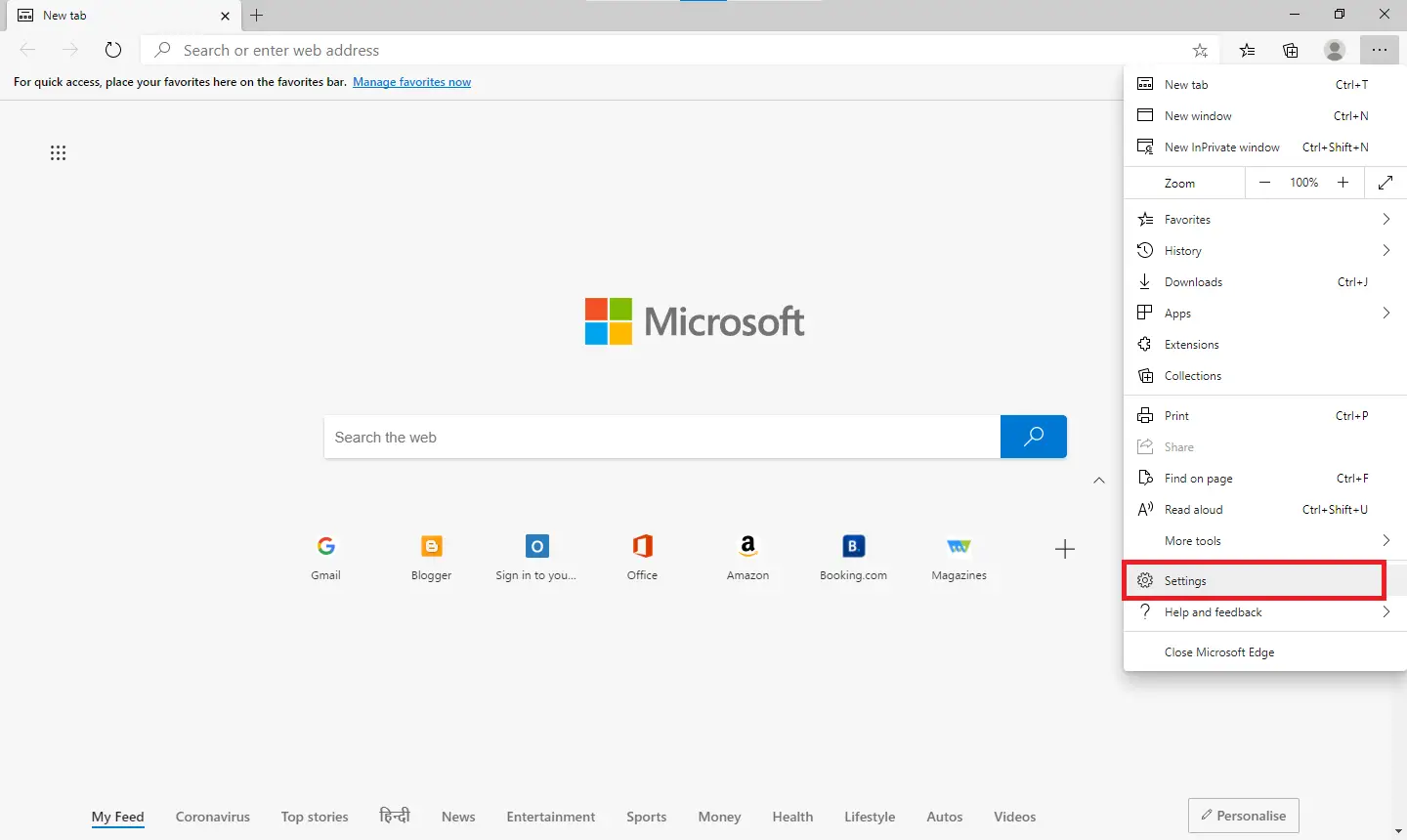
 Step 2. From the available options, click Settings.
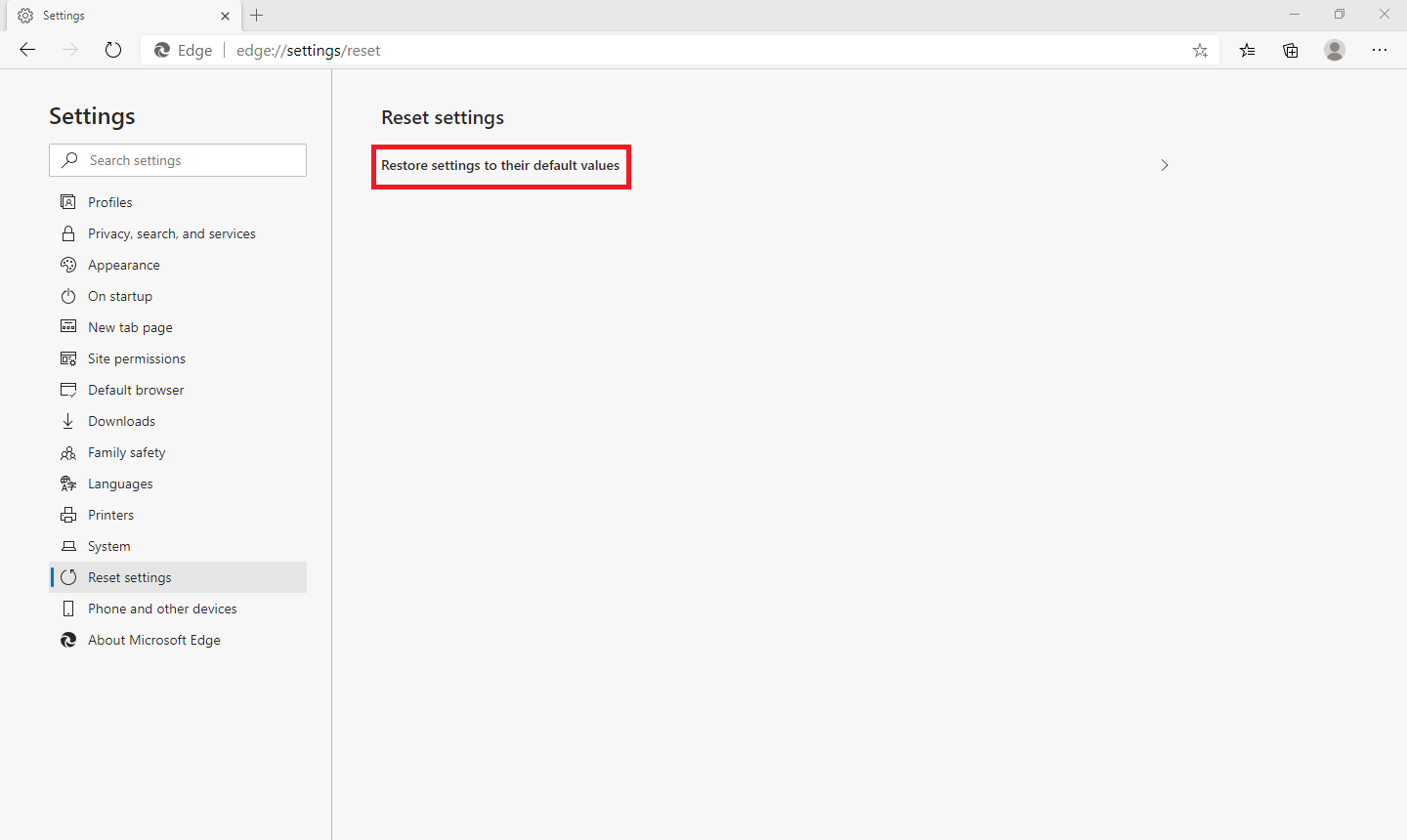
 Step 3. From the left sidebar, click the Reset Settings tab.
 Step 4. From the right-side pane, click “Restore settings to their default values.”
 Step 5. A pop-up will appear with the heading Reset Settings.
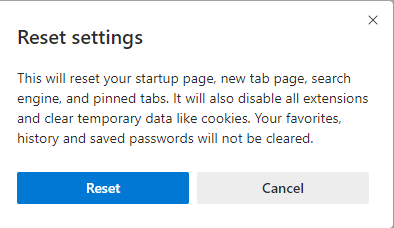 Step 6. Click the Reset button to reset the Edge browser to its default settings.
This will reset your startup page, new tab page, search engine, and pinned tabs. It will also disable all extensions and clear temporary data like cookies. Your favorites, history, and saved passwords will not be cleared after resetting Edge.
How to clear your history and cache from the Edge browser?
Edge’s reset option restores the default startup page, new tab page, search engine, and pinned tabs. However, the Reset option does not remove favorites, history, and saved passwords. To remove the history and cache from the Edge browser, do the following:-
Step 1. Open the Microsoft Edge browser on your Mac OS X or Windows PC.
Step 2. Click the three dots in the top-right corner and select Settings.
Step 3. Click the Privacy, search, and services tab.
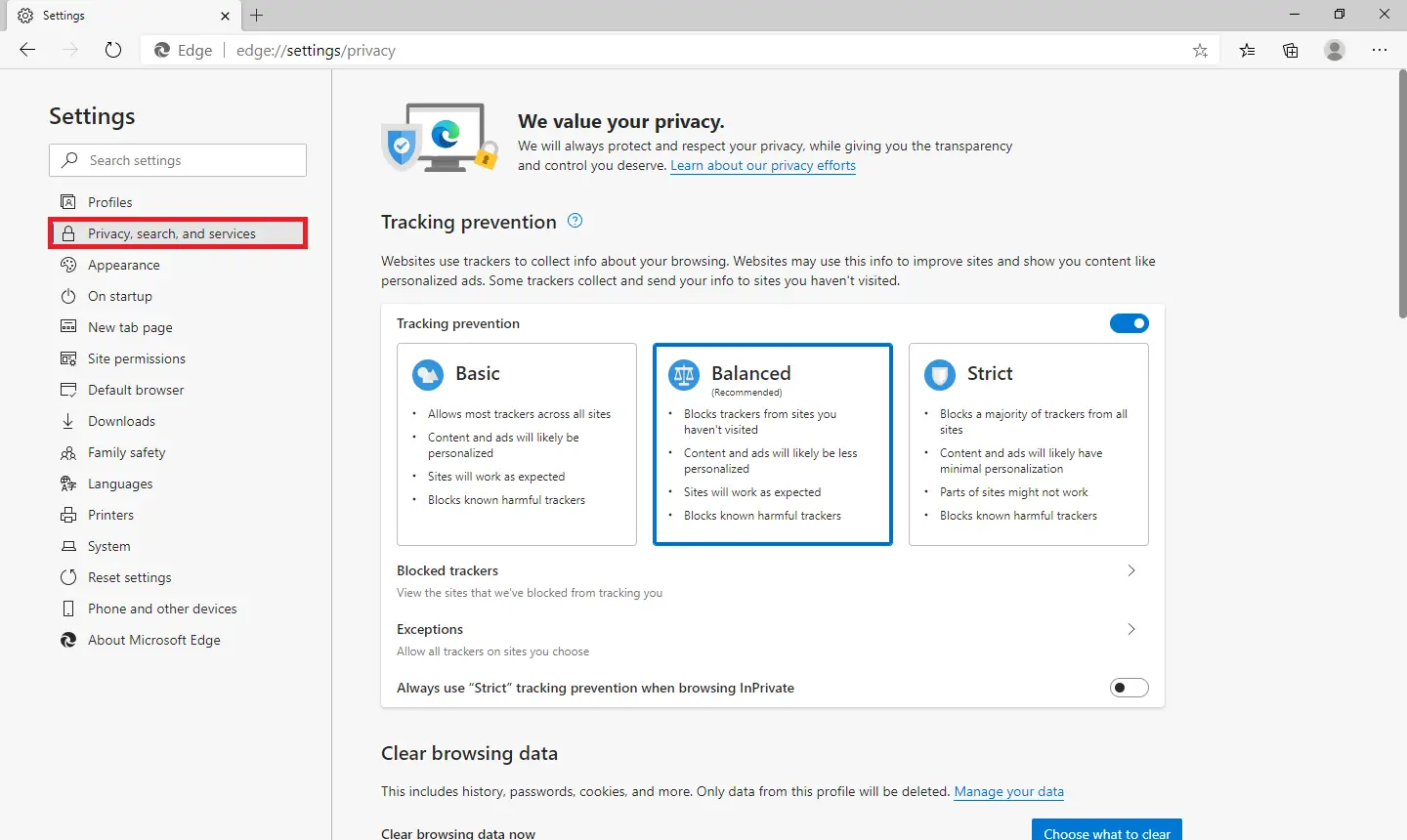 Step 4. Click the Clear browsing data button.
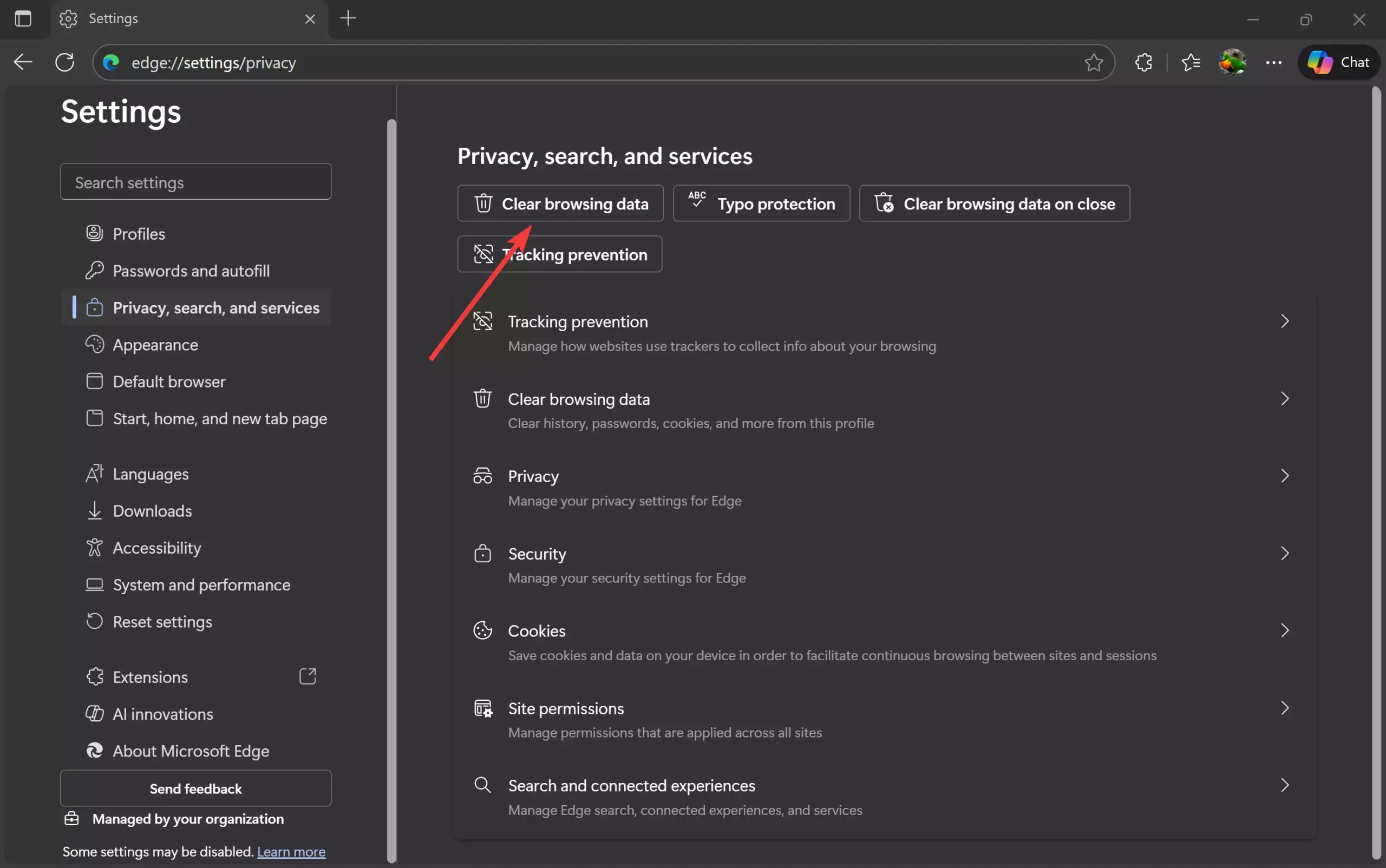 Step 5. A pop-up filled with checkboxes will appear. The default boxes checked are “Browsing history,” “Download history,” “Cookies and other site data,” and “Cached images and files.” You can also clear your “Passwords,” “Autofill form data (includes forms and cards),” “Site permissions,” “Media foundation data,” and “All data from the previous version of Microsoft Edge.” To fully reset your browser, check all these boxes.
Optionally, you can also choose between the last hour, last 24 hrs, last 7 days, last 4 weeks, or all time.
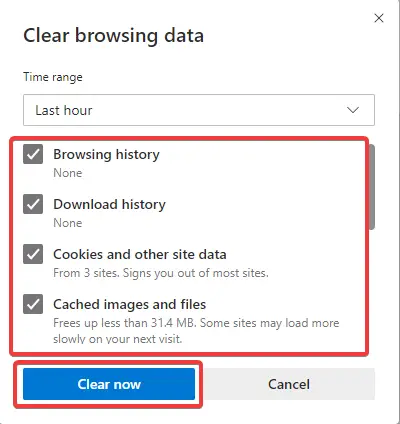 Step 8. Once you have selected all the checkboxes, click on the Clear now button.
FAQs
Does resetting Microsoft Edge delete my bookmarks?
No. Resetting Edge does not remove your favorites, saved passwords, or browsing history. It only restores default settings and disables extensions.
Will resetting Edge remove extensions?
Yes. All installed extensions will be disabled during the reset process, but they remain installed and can be re-enabled manually.
Is clearing cache the same as resetting Edge?
No. Clearing cache only removes temporary files, cookies, and browsing data. Resetting Edge restores browser settings to default, but does not clear saved passwords or favorites.
How often should I clear my Edge browsing data?
It depends on usage, but doing it once every few weeks helps improve performance and fix loading issues.
Does resetting Edge affect my Microsoft account sync?
Your sync settings remain intact, but after resetting, you may need to sign in again or re-enable sync if it gets paused.
Conclusion
In conclusion, Microsoft Edge offers a range of features that can help customize and improve your browsing experience. Users can install and uninstall themes, disable or change the background image, and use the Backspace key to go back to the previous page. Additionally, Edge allows users to reset their browser settings, restoring the default startup page, search engine, and pinned tabs. This is a great option if you want to revert any accidental changes you have made to your browser settings. Users can also clear their browsing history and cache through the Edge browser’s settings. These features make Edge a powerful and versatile browser option for Windows 10 users.