

The Windows 10 Taskbar is designed to be visually appealing and has a reasonable size that most users find satisfactory. However, not everyone is content with the default size, including me. If you belong to a group of users who prefer to customize the Taskbar size for convenience, this post will guide you on how to adjust it. You can easily make the Taskbar smaller or larger to fit your needs.
 One should note that resizing the taskbar to a smaller or bigger will only reduce the height of the taskbar, not the default width of the taskbar.
Increasing the size of the Windows 10 Taskbar
To increase the default Windows 10 Taskbar size, you need to unlock the Taskbar if it is already locked.
To unlock the Taskbar, right-click on the free space of the taskbar and uncheck the option “Lock the taskbar.”
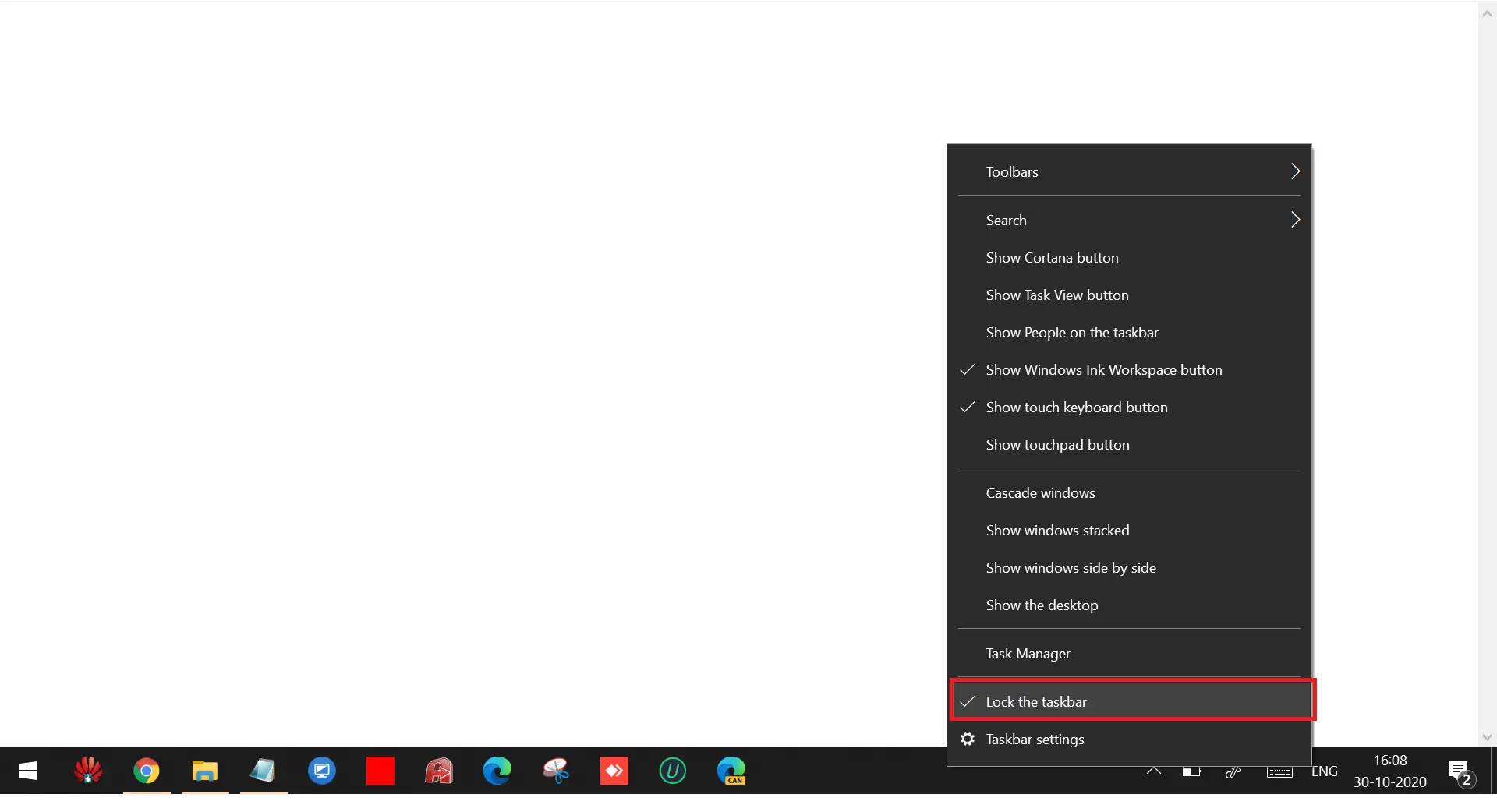 Once the taskbar is unlocked, place the mouse cursor on the upper edge of the taskbar. When you see the two-way arrow icon on the taskbar, click, hold, and drag the mouse cursor to change the taskbar height. Leave the mouse cursor when you see the desired taskbar height.

Note: If you are unable to see the two-way arrow icon when you place the mouse cursor over the upper edge of the taskbar, it means you have not unlocked the taskbar yet, as mentioned above.
Note II: You can increase the maximum height of the Windows 10 Taskbar up to 50% of the actual screen only.
Reducing the size of the Windows 10 Taskbar to its default
Once you have increased the height of the Windows 10 Taskbar and want to revert it, you can perform the same steps mentioned above. Unlock the Windows Taskbar and place the mouse cursor on the upper edge of the taskbar. When you see a two-way arrow icon on the taskbar, click, hold, and drag the mouse cursor until it shows the actual height.
How to Make Windows 10 Taskbar Smaller?
Follow these steps to make the Windows 10 Taskbar smaller:-
Step 1. To make the Windows 10 Taskbar smaller than the default, click the Start button/menu and type Taskbar Settings.
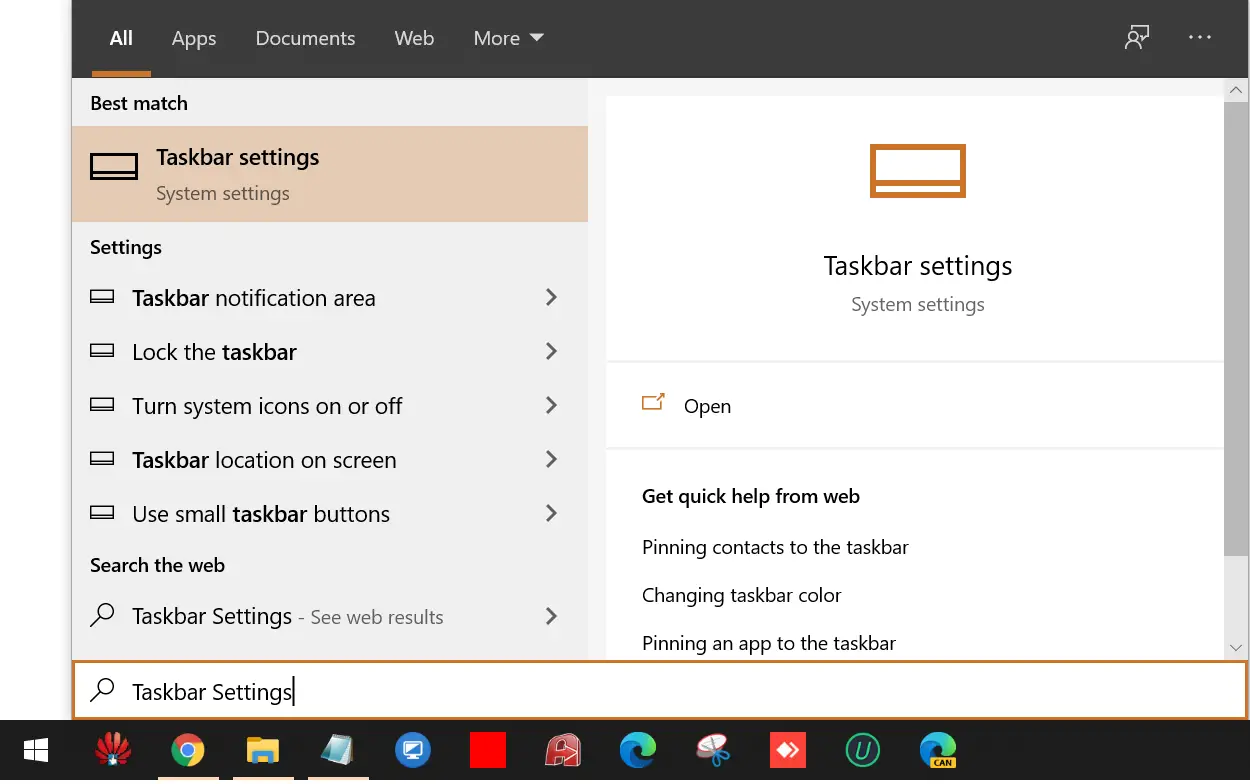
Step 2. From the available search results, click on Taskbar Settings (System Settings) to open it.
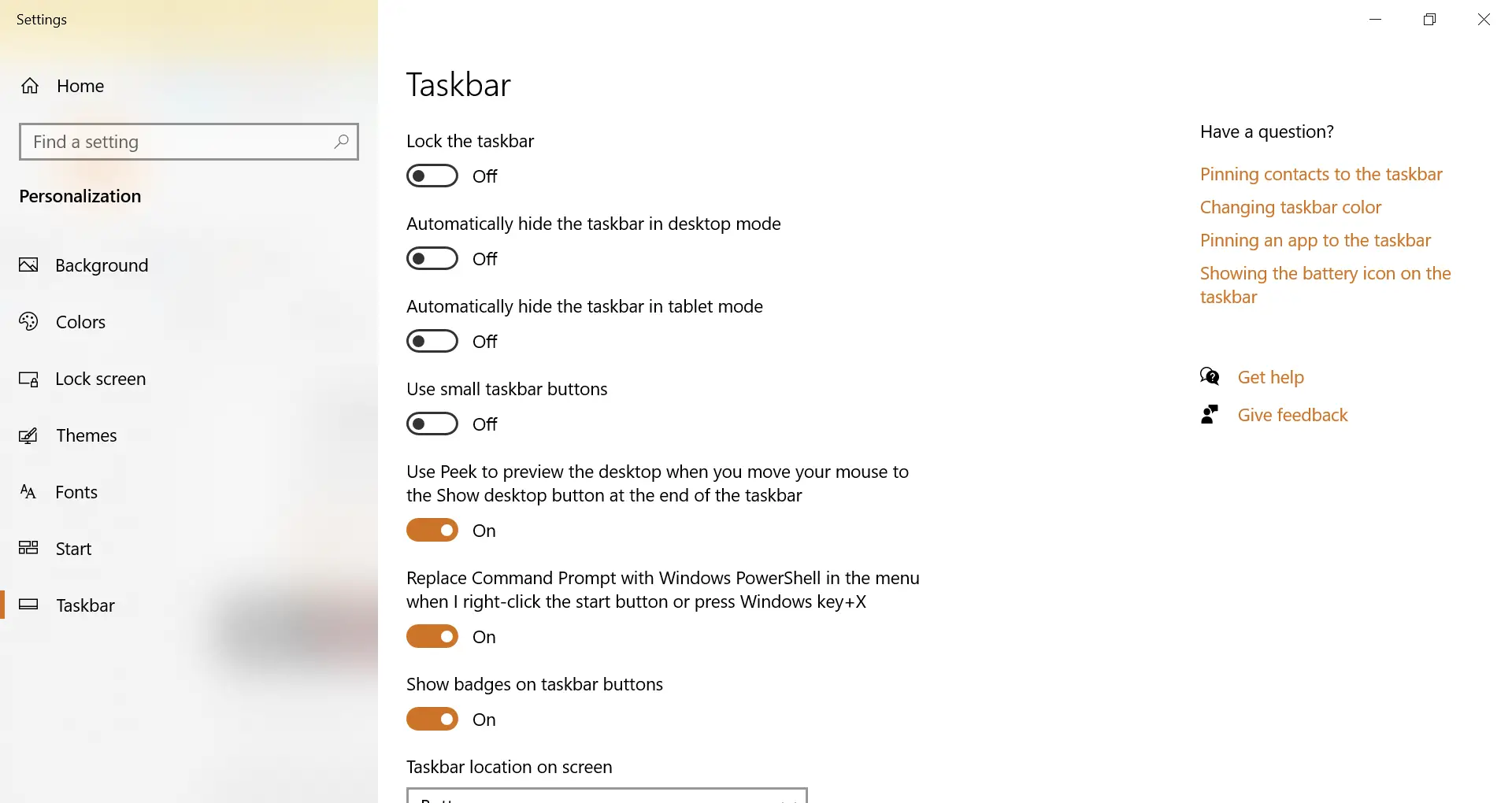
Step 3. Under the Taskbar section on the right-side pane, turn the slider On next to the “Use small taskbar buttons” option.
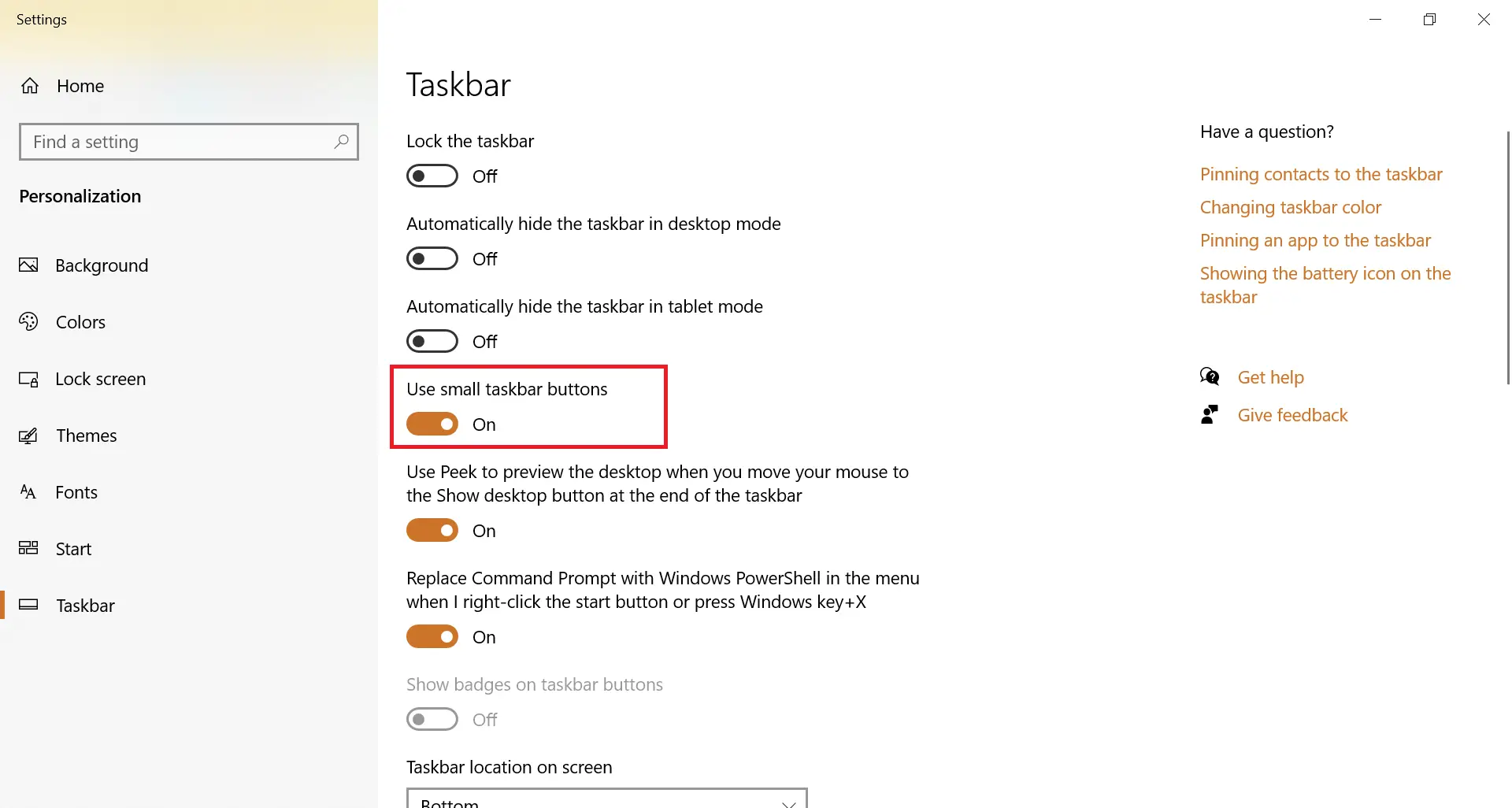
Now icon size and the height of the Windows 10 Taskbar are reduced automatically.
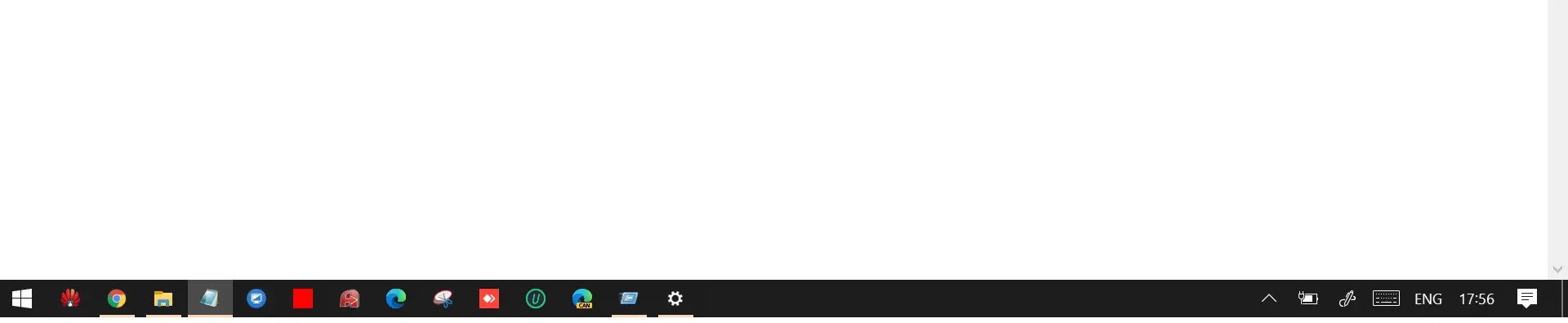
Additional Tips: If you want to change the location of the taskbar, then first unlock the taskbar, click and hold the taskbar with the mouse, and drag the taskbar to the top of the screen or the right side of the screen, or the left side of the screen. Once you have dragged the taskbar to your desired location, right-click on the taskbar and select “Lock the taskbar.”
FAQs
Why can’t I resize the Windows 10 Taskbar?
This usually happens when the Taskbar is locked. Right-click the Taskbar and uncheck Lock the taskbar, then try dragging the edge again.
Does resizing the Taskbar change the icon size?
No. Icon size changes only when you enable Use small taskbar buttons in Taskbar Settings.
How do I restore the Taskbar to its default height?
Unlock the Taskbar, hover your mouse on the top edge, and drag downward until it reaches the original height.
Can I resize the Taskbar on the left or right side of the screen?
Yes. When the Taskbar is placed vertically, resizing adjusts its width instead of height.
Why is the two-way arrow not appearing when I hover on the Taskbar edge?
The Taskbar is still locked, or the edge is obstructed by another UI element. Unlock it and try again in a clean area.
Will resizing affect my pinned apps?
No. Resizing the Taskbar does not disturb pinned apps, shortcuts, or their order.
How do I make the Taskbar smaller without dragging?
Enable Use small taskbar buttons from Taskbar Settings to shrink icons and reduce Taskbar height instantly.
Conclusion
Customizing the Windows 10 Taskbar is simple and helps you achieve the look and workspace layout you prefer. Whether you want a taller Taskbar, a compact one with smaller icons, or need to restore the original size, all adjustments can be done through built-in options. Just unlock the Taskbar, drag to resize, or use the small icons setting for a cleaner and more space-efficient desktop.