

Chrome, Firefox, Opera, and Microsoft Edge are the major web browsers widely used on Windows 11 and 10 operating systems. You might be working on one of these web browsers and accidentally close a tab, only to realize it was a mistake. It may also happen that you want to revisit web pages you accessed last week. No worries, you’re covered. You can bring back your closed tabs in any major web browser.
In this gearupwindows article, we will guide you on reopening the last closed tab and accessing the browsing history.
How to Reopen Closed Tabs in Google Chrome?
To reopen the most recently closed tab in Google Chrome, right-click on the empty header space and select Reopen closed tab from the pop-up menu. You can also use the keyboard shortcut Ctrl + Shift + T to reopen the last closed tab. Repeatedly selecting Reopen closed tab or pressing Ctrl + Shift + T will open previously closed tabs in the order they were closed.
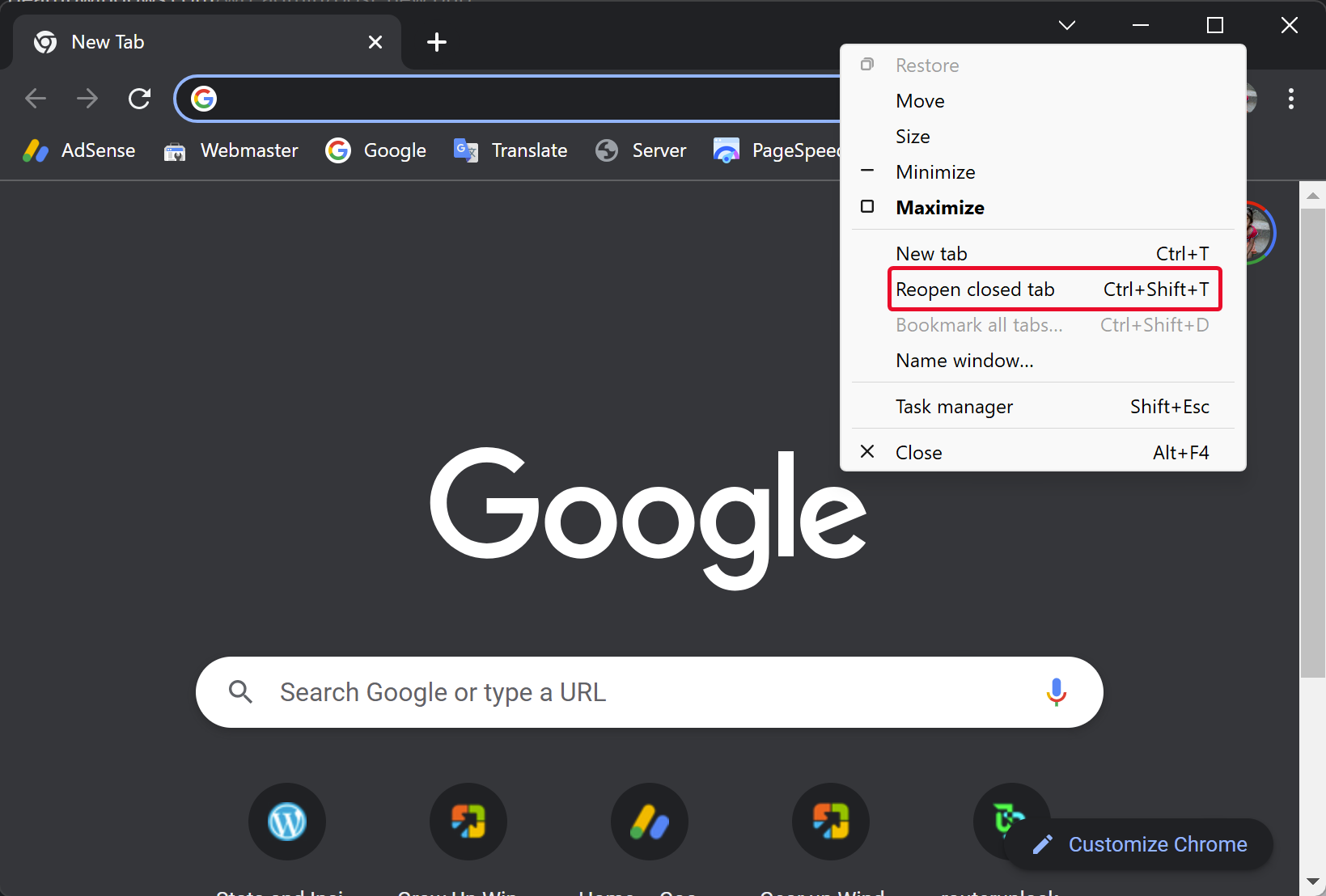
If you have visited several web pages in Chrome, you may need to select the “Reopen closed tab” option multiple times. To quickly locate the web pages you visited last week, you can go through your browsing history.
To access browsing history in Chrome, click the three horizontal bars (Customize and control Google Chrome) in the upper-right corner and select History > History from the drop-down menu. Alternatively, use the Ctrl + H keyboard shortcut.

When you’re done, your browsing history will appear in a new tab, grouped into time periods. Just click a link to open a webpage from today, yesterday, or a specific date. The webpage will load in the same tab.

How to Reopen Closed Tabs in Mozilla Firefox?
To reopen the most recently closed tab in Mozilla Firefox, right-click on the empty header space and select Reopen Closed Tab from the pop-up menu. You can also use the keyboard shortcut Ctrl + Shift + T. Repeatedly selecting Reopen Closed Tab or pressing Ctrl + Shift + T will reopen closed tabs in reverse order.
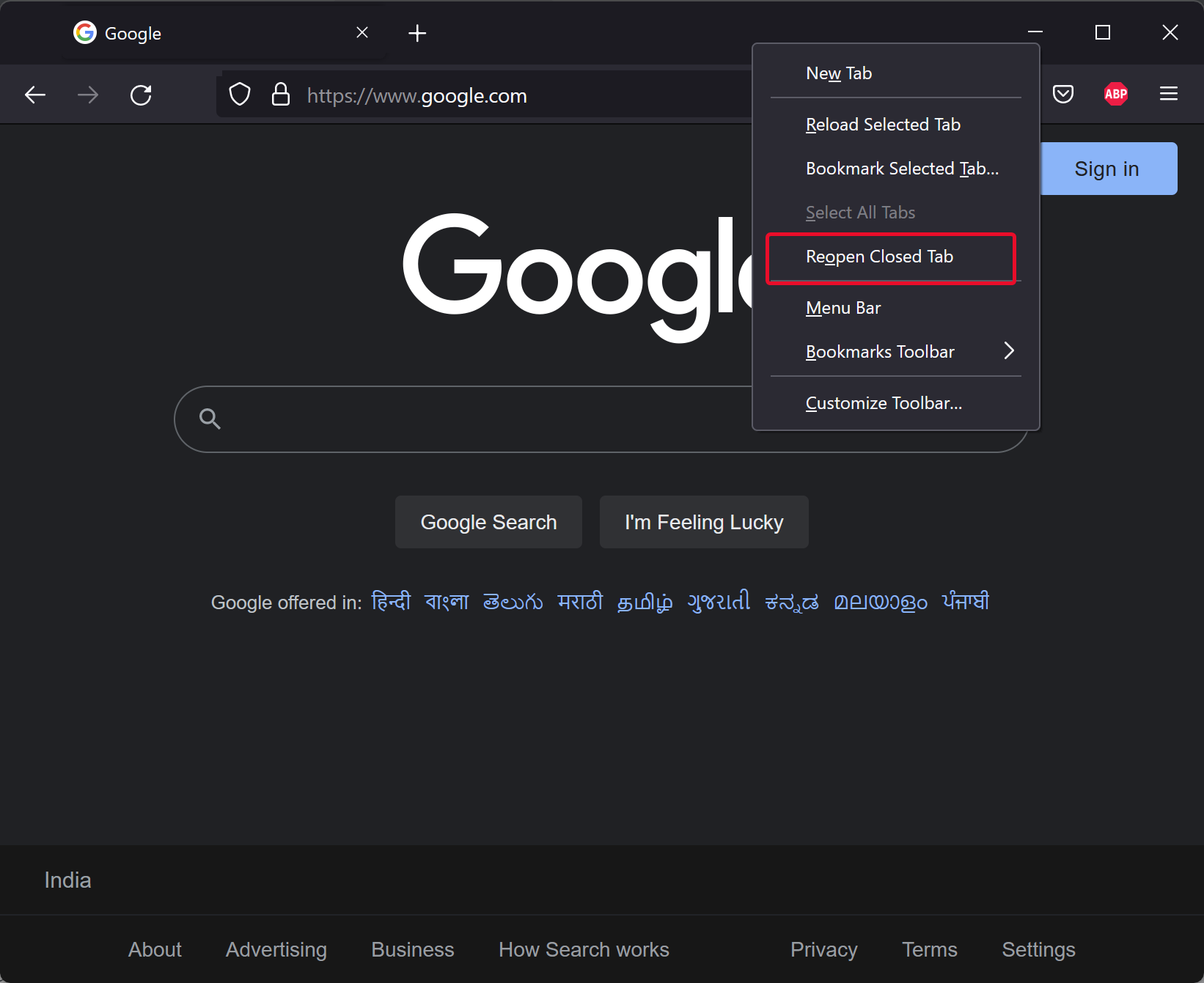
If you visited several web pages on Firefox, you may need to use the “Reopen Closed Tab” option multiple times. To find web pages visited last week, use the browsing history.
To access browsing history in Firefox, click the three horizontal bars (Open application menu) in the upper-right corner and select History from the drop-down menu.

When you’re done, the History menu will appear. Click any webpage you want to reopen. Recently closed tabs appear under “Recently closed tabs.” You can also click “Restore previous session” to restore all tabs from your last session in the current window.

You can also use the Ctrl + H keyboard shortcut to open Firefox’s browsing history. This is helpful if you forget the name or URL of a page you visited last week. Your browsing history will open in the left sidebar, organized by time periods.
In the History sidebar, click Last Seven Days to view all pages visited last week. Select any webpage to view it in the current tab. Similarly, you can access pages from earlier months and beyond six months. The History sidebar remains open until you close it using the X button in the upper-right corner.

How to Reopen Last Closed Tabs in Opera?
To reopen the most recently closed tab in Opera, right-click on the free header space and select Reopen last closed tab from the pop-up menu. You can also use the shortcut Ctrl + Shift + T. Repeated actions will open tabs in the order they were closed.

Alternatively, click the History button on the left sidebar in Opera to open the History menu and view recently closed tabs. Then, click any webpage to reopen it in a new tab.
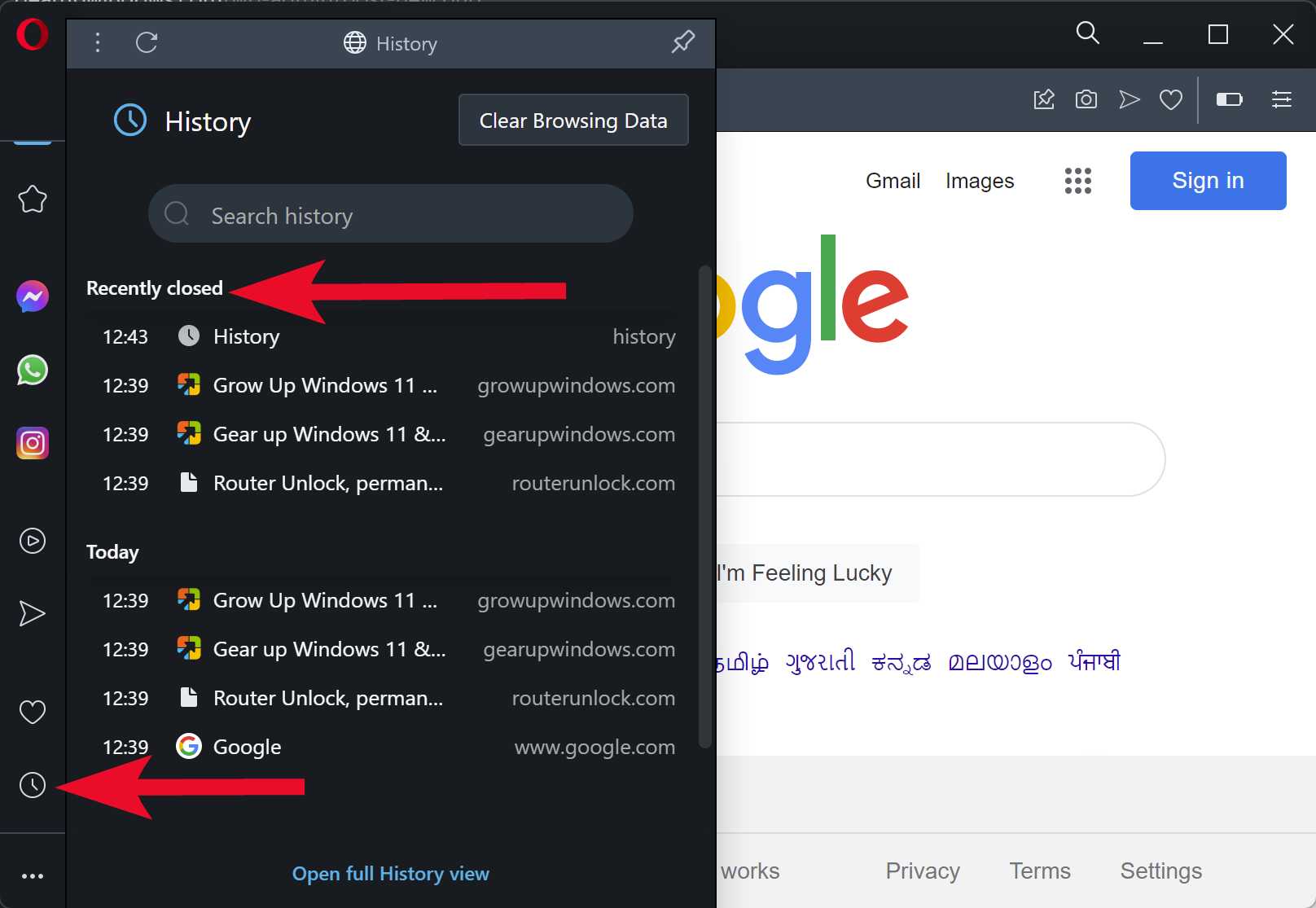
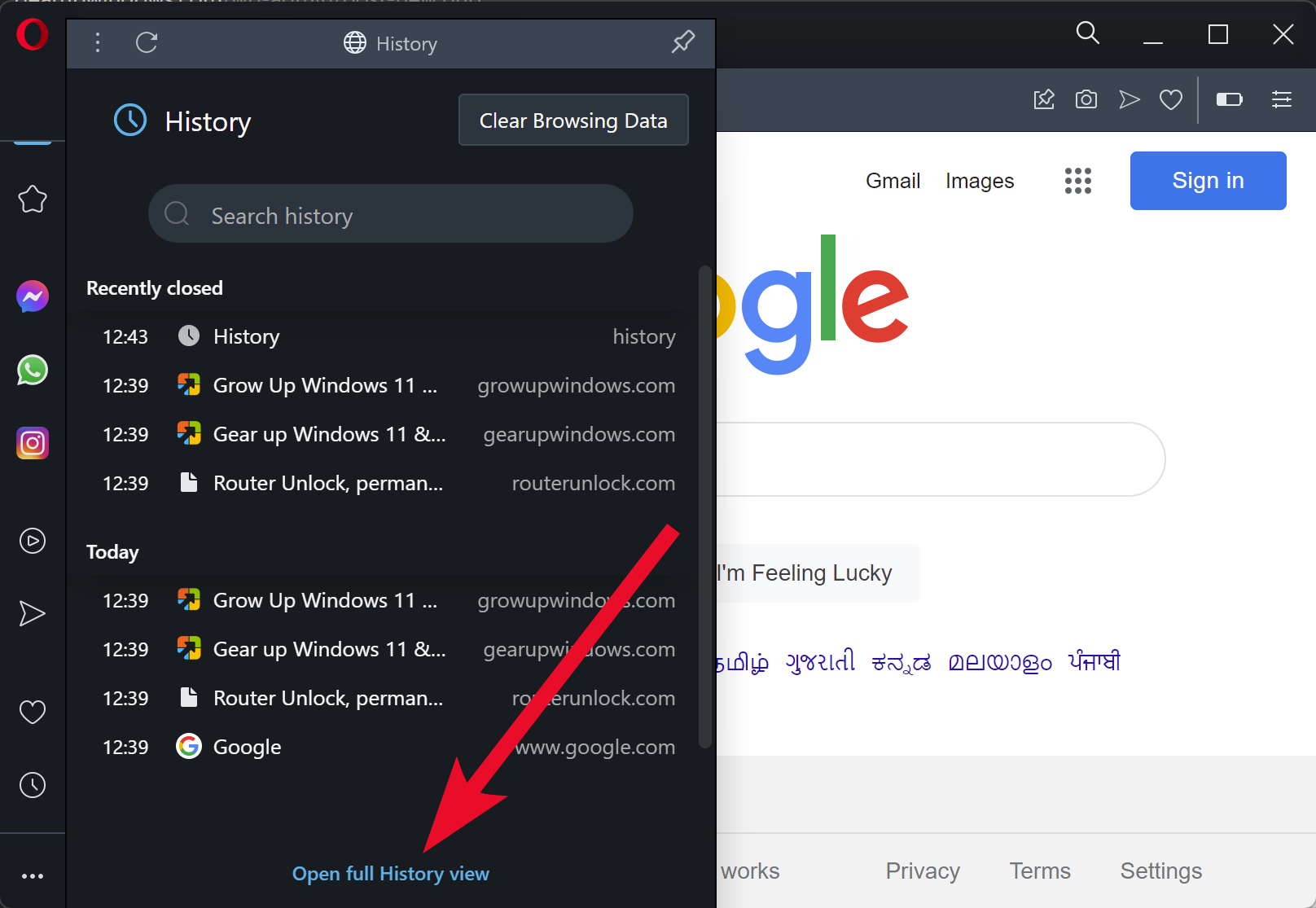
To view a webpage from today, yesterday, or earlier, click the Open full history view link in the History menu.
You can also access browsing history in Opera by clicking the Menu button (Customize and control Opera) in the upper-left corner and selecting History > History from the drop-down.

How to Reopen Closed Tabs in Microsoft Edge?
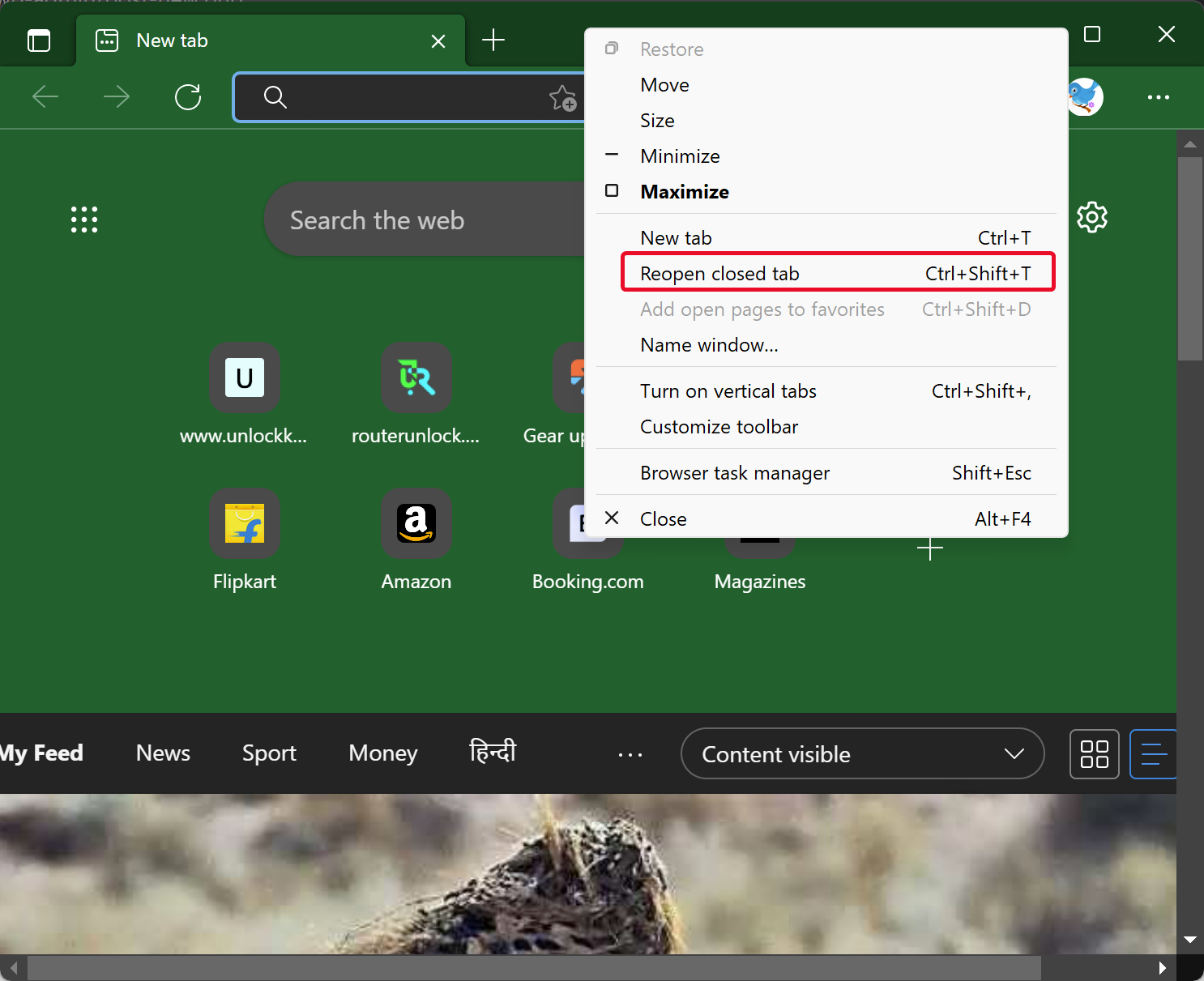
To reopen the most recently closed tab in Microsoft Edge, right-click on the empty header space and choose Reopen closed tab from the menu. You can also press Ctrl + Shift + T to restore it. Repeating this action will reopen earlier closed tabs in the correct order.
To view pages visited last week or earlier, click the three horizontal dots (Settings and more) in the upper-right corner. Then select History to access a chronological list of your browsing data. Alternatively, use the Ctrl + H shortcut to open the History menu.

In the sidebar, browsing history will be categorized by time. Click any webpage from the list to reopen it in the current tab.

Quick Note: Internet Explorer has been completely deprecated since June 15, 2022, on Windows 10, so it is not included in this guide.
Conclusion
In conclusion, Chrome, Firefox, Opera, and Microsoft Edge are the most commonly used web browsers on Windows 11 and 10. If you accidentally close a tab or want to revisit a previously opened webpage, don’t worry. Each browser offers simple methods to reopen closed tabs and access your browsing history. You can use handy keyboard shortcuts or navigate through browser menus. With these tips, you’ll browse more efficiently and stay productive online.