

When you are working on a Windows PC, you visit different websites and provide login credentials to prove your authenticated identity. Google Chrome browser prompts you to save the password. Once you save the password in the Google Chrome browser, you don’t have to remember it when you reaccess the same web page. Chrome browser auto-fills the username/email address and password for you, and it will automatically complete the sign-in field.
If you want to view your saved password for any reason, for instance, you want to use sign-in credentials on other browsers on your PC, and you don’t remember your username/email address and password. In such cases, you can view the saved passwords and usernames/email addresses in Google Chrome. There is no need to use a third-party tool to view stored passwords in the Google Chrome browser.
There are a few ways to back up and restore saved passwords in the Google Chrome browser. If you only want to view the saved password and don’t want to create a password file, this post will help you. This post will guide you through the steps that will allow you to view your saved passwords in Google Chrome.
How to view and manage saved passwords on Google Chrome?
To view and manage the saved passwords on the Google Chrome browser, perform the following steps:-
Step 1. Open the Chrome browser.
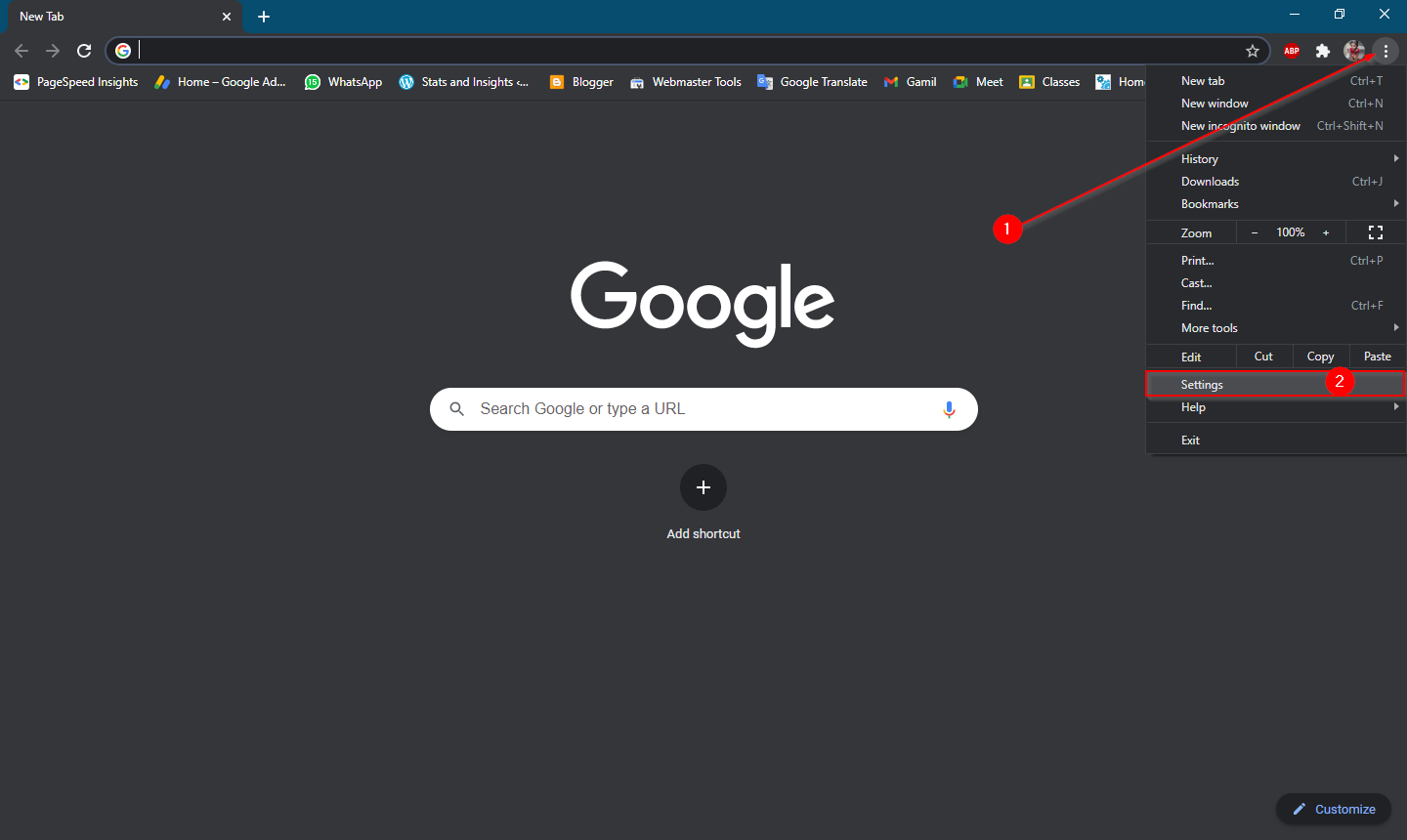
Step 2. Click on the Menu button (three dots) next to the user icon and select Settings from the drop-down menu that appears.
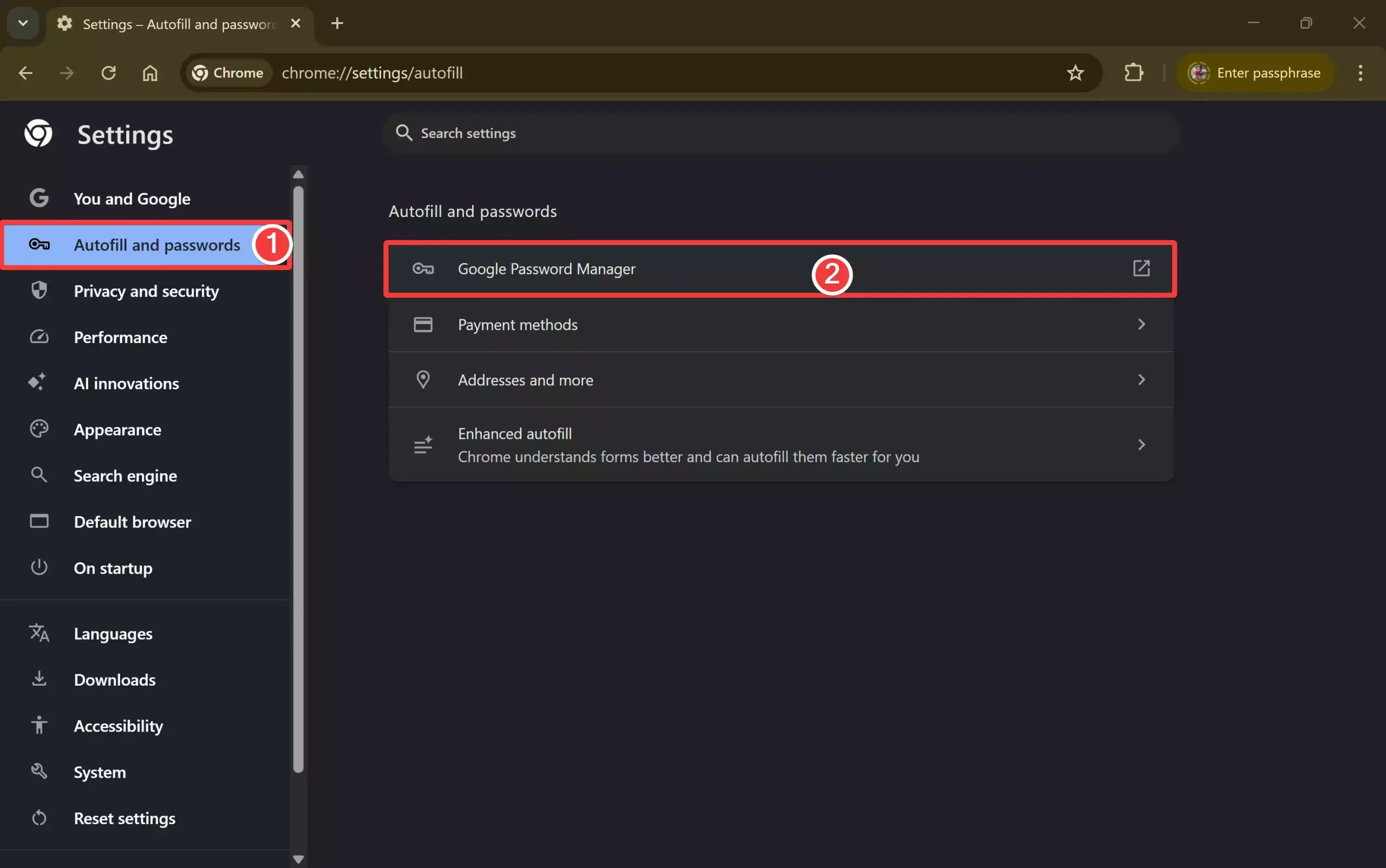
 Step 3. Select Autofill and passwords in the left side menu, and then click on Google Password Manager on the right sidebar.
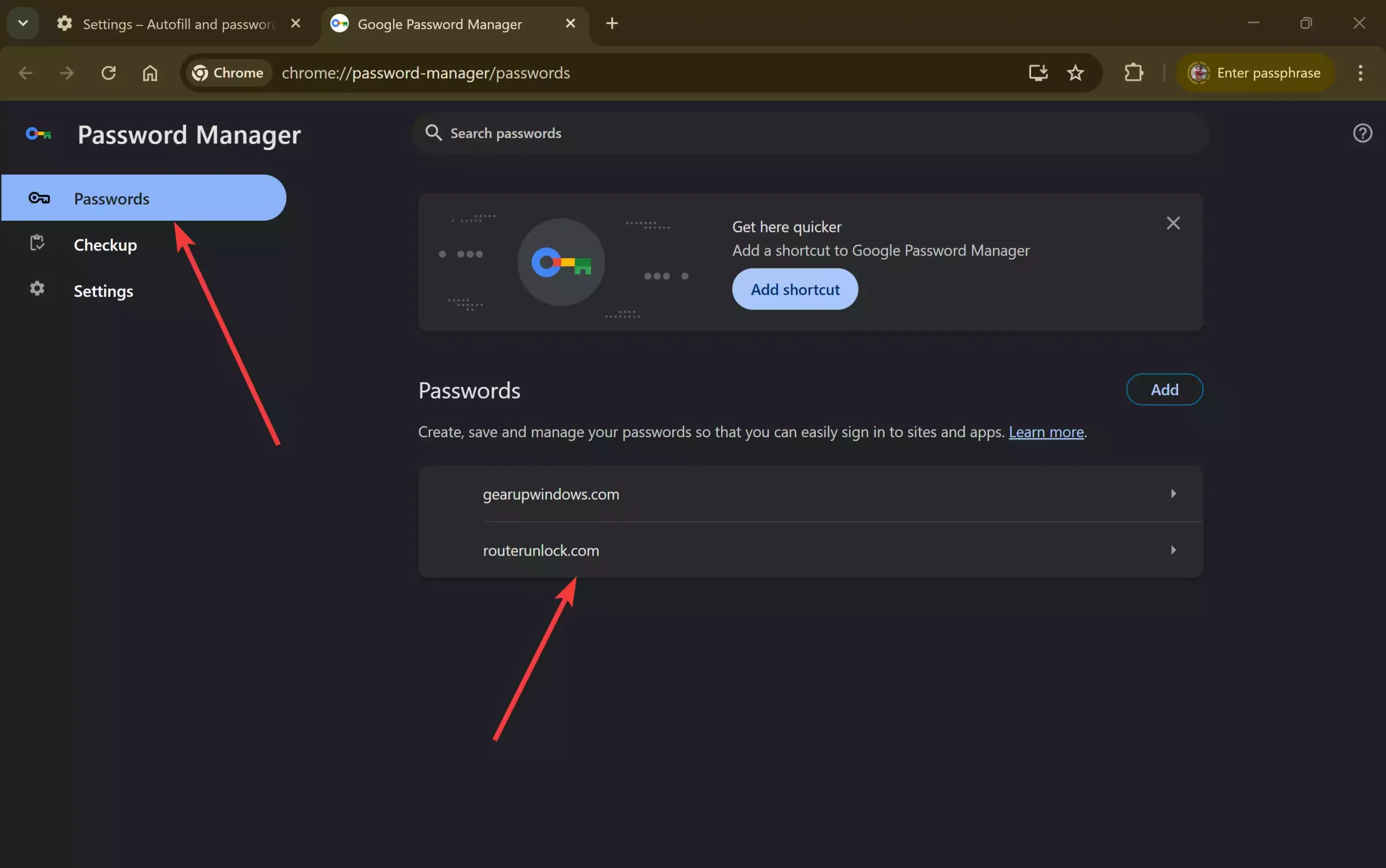
Step 4. Select Passwords in the left sidebar and click the website address in the right sidebar.
Step 5. When prompted, authenticate with Windows login or fingerprint.
Step 6. Click the eye icon after the password, and finally, you can view your saved password.
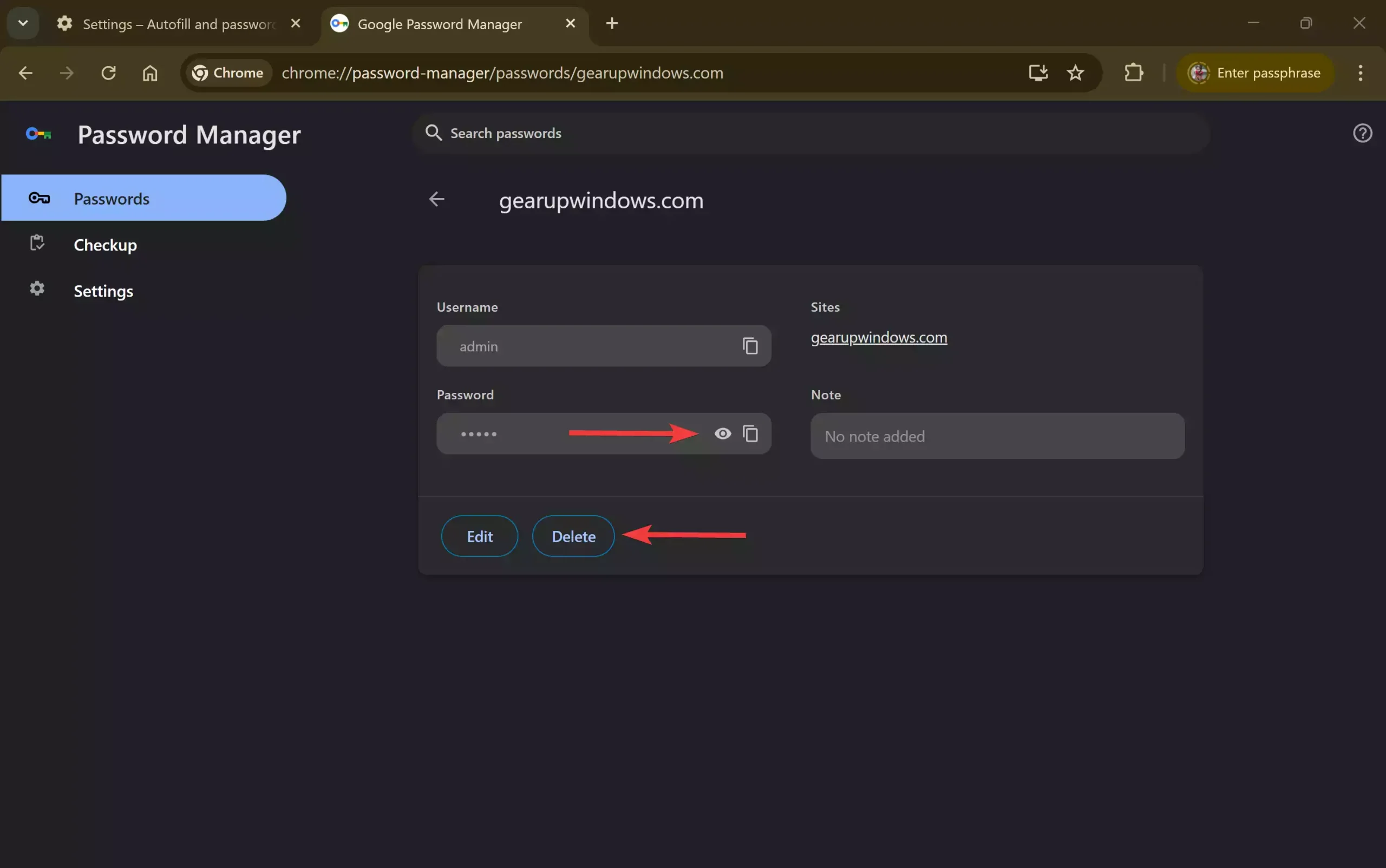
Note: For privacy purposes, your passwords always remain in a hidden state, so to view them, you have to click the icon. Once you click the Eye icon, it will prompt for your current Windows login credentials. Once you apply the Windows login password, the password will be decrypted.
If you want to remove any stored passwords from your Google Chrome browser, click on the Delete button in step 6 above.
FAQs
Where does Google Chrome store my saved passwords?
Chrome stores your saved usernames and passwords in its built-in Password Manager, accessible through the browser settings. Your passwords remain encrypted and require system authentication before viewing.
Can I view saved passwords in Chrome without third-party software?
Yes. Chrome provides a built-in option to view your stored passwords. You only need to authenticate using your Windows login or fingerprint to reveal the password.
Why does Chrome ask for my Windows password before showing saved passwords?
This is a security measure. Chrome decrypts the saved password only after confirming that the authorized user is requesting access.
How do I delete a saved password in Google Chrome?
Open the Password Manager, select the website entry, and click the Delete button. This permanently removes the stored login from Chrome.
Can I back up or export all my saved passwords?
Yes. Chrome includes an export feature that allows you to save all passwords in a CSV file. You can also follow the method described in your linked guide to back up and restore Chrome passwords.
Why is my saved password not appearing in Chrome?
Your password may not appear if sync is disabled, if you manually deleted the entry, or if Chrome’s autofill feature is turned off. Enabling sync and autofill usually resolves the issue.
Conclusion
Google Chrome makes it simple to save, view, and manage your login credentials without installing any third-party tools. Whether you need to check a forgotten password, view your saved usernames, or remove old and unused credentials, Chrome’s built-in Password Manager provides a secure and convenient solution. Since passwords remain encrypted, Chrome requires your Windows login authentication before displaying them, ensuring your data stays protected.
By following the steps outlined in this guide, you can easily access, manage, or delete your saved passwords whenever needed. Keeping your saved passwords organized not only improves your browsing experience but also enhances your overall security while using Google Chrome.