

Ever wanted your favorite clip, short animation, or relaxing ambient video to play whenever your PC is idle? Windows doesn’t natively allow videos as screensavers, but with a small free app, you can easily make any video loop as your personal screensaver. This guide shows how to do it safely and efficiently on both Windows 11 and Windows 10.
Why use a video screensaver?
While traditional screensavers display slideshows or animations, a video screensaver plays a real video file—turning your idle PC into a moving art display. You can use a serene landscape, your company logo loop, or a personal memory clip. It’s purely cosmetic but gives your system a modern, lively feel.
If you prefer a simpler static option instead, check out our guide on how to set photos as a screensaver in Windows 11 or 10.
What you’ll need
- A video file (MP4 recommended – H.264 video + AAC audio works best)
- A free app that adds video playback as a standard Windows screensaver
- Basic access to Screen Saver Settings in Windows
Download a safe video-screensaver app
The easiest and most trusted option is Video Screensaver, a free, open-source tool hosted on SourceForge. It supports MP4, AVI, MOV, and more, and integrates directly into Windows Screen Saver Settings. You can download Video Screensaver from SourceForge.
Alternatively, you can also use Easy Video Screensaver from Screensavers Planet, which offers extra playback options.
How to use Video Screensaver
Step 1. Download and unzip the Video Screensaver file from SourceForge (link provided in the above Download section). You’ll find a .scr file — this is the actual screensaver.
Step 2. Right-click the .scr file → click Install. It automatically registers in your Windows Screen Saver Settings.
Step 3. Open the settings manually if needed:
Control Panel → Appearance and Personalization → Change screen saver (or Settings → Personalization → Lock screen → Screen saver).
If you’re new to Windows screensavers, see our post on how to enable or disable screen saver in Windows 10.
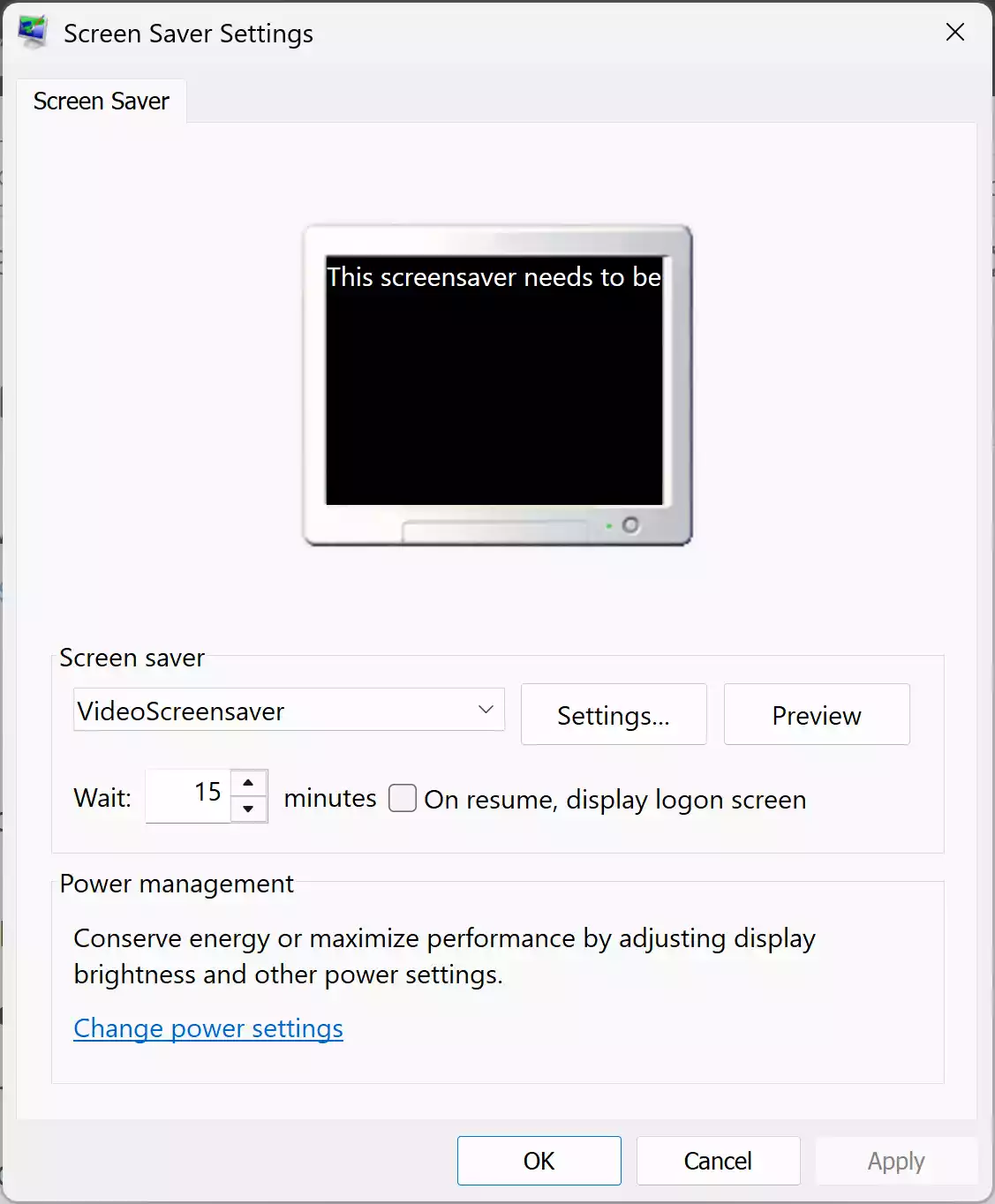
Step 4. From the dropdown, select Video Screensaver and click Settings….
Step 5. Browse and select your video file.
Step 6. In the main Screen Saver window, set the Wait time (minutes of inactivity before the screensaver starts). Check “On resume, display logon screen” if you want a password prompt after the screensaver.
Step 7. Click Apply → OK. Use Preview to test your new video screensaver.
How to use Easy Video Screensaver
If you prefer a simple graphical installer over the manual .scr method, try Easy Video Screensaver — a lightweight utility that turns any MP4, AVI, MOV, or WMV file into a looping screensaver with just a few clicks. It’s safe, offline, and works perfectly on both Windows 11 and 10.
Step 1. Download the installer (link provided in the above Download section) and double-click easyvideoscreensaversetup.msi. Follow the on-screen wizard — it automatically adds itself to the Windows Screen Saver Settings after installation.
Step 2. Press Win + R, type control desk.cpl,,@screensaver and hit Enter, or go to Settings → Personalization → Lock screen → Screen saver.
Step 3. From the Screen saver dropdown, choose Easy Video Screensaver, then click Settings… to open its configuration window.
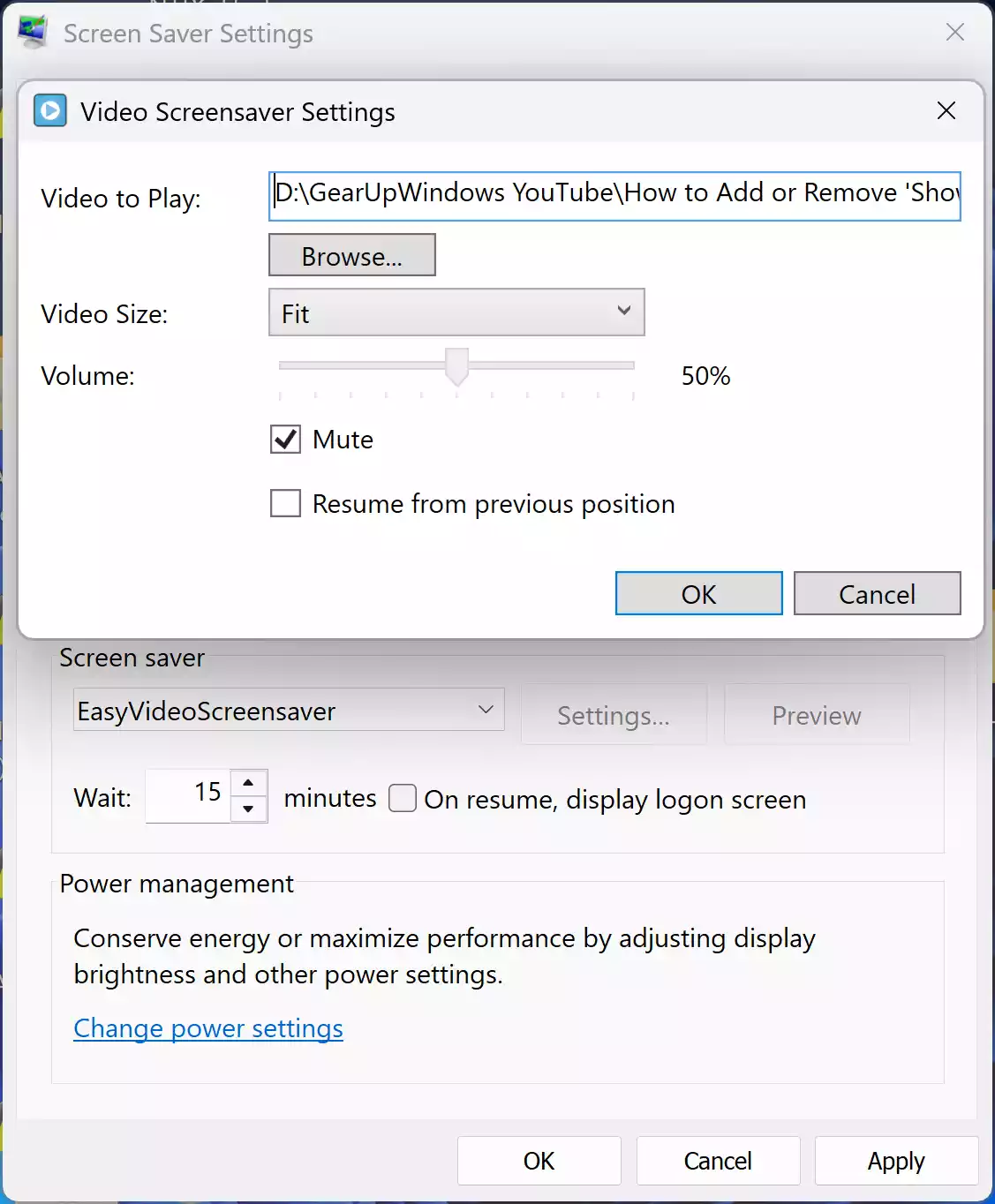
Step 4. Click Browse and pick the video file you want.
Step 5. Adjust playback options
- ✔ Mute or keep audio on
- ✔ Set video size to fill, fit, or center.
Step 6. Return to the main Screen Saver Settings panel, enter your idle time in the Wait box, and tick “On resume, display logon screen” if you want Windows to ask for your password when you return.
Step 7. Click Apply → OK. Use Preview to see your video screensaver instantly. If it looks stretched, revisit Settings → Maintain aspect ratio.
Extra tips
- Use MP4 (H.264 + AAC) for maximum compatibility and smooth looping.
- Keep videos short (under 2 minutes) to minimize CPU/GPU load.
- If you change the video later, simply reopen Settings → Browse → Select new file.
Easy Video Screensaver stores its configuration in your user AppData folder, so no registry editing or admin privileges are required. It works perfectly alongside standard slideshow or clock screensavers like Digital Clock 7.
Performance and playback tips
- Prefer short clips (30 – 120 seconds) for smoother loops.
- Keep resolution ≤ 1080p to reduce CPU/GPU load.
- Convert heavy files using HandBrake or a built-in converter.
- Place videos on your main drive so the path remains valid when idle.
- Disable other animation utilities to avoid conflicts.
Troubleshooting common problems
Video screensaver not showing up?
Run the installer as Administrator and reboot. The .scr file must exist in C:\Windows\System32. If missing, copy it there manually.
Playback lags or stutters?
Convert the file to MP4 (H.264 + AAC) and lower its resolution to 1080p or 720p. Avoid 4K loops on older hardware.
Audio still plays?
Either mute the option within settings or remove the audio track before using the video.
Using multiple monitors?
Some apps support video on one screen only; others can span all monitors. Test before final setup.
Advanced customization & alternatives
If you prefer animated wallpapers instead of screensavers, see our guide on how to set video wallpaper on Windows 11 or 10 using Push Video Wallpaper. It runs the video continuously as background instead of activating only on idle.
Want a live digital clock screensaver instead of a video? Try Digital Clock 7 for Windows 11 and 10 — simple, lightweight, and fully offline.
Power and safety notes
Remember that a video screensaver keeps your display active and may consume slightly more power than a black screen or sleep mode. If you’re on a laptop and want battery efficiency, set the screensaver to activate after a longer period or skip it entirely. For energy savings and cleanup, see our Quick System Cleaner Checklist.
Deployment & lockdown tip
On shared or public PCs, you might want to lock the screensaver so others cannot change it. We have a simple registry guide here: 2 Ways to Stop Users from Changing Screen Saver in Windows 10/8/7.
Conclusion
Setting a video as your screensaver on Windows 11 or 10 is easier than ever with the free Video Screensaver app. It works like a native screensaver — no registry hacks, no complex scripts — and lets you turn any clip into a looping animation for your PC. Whether you use a nature loop, a family video, or a company logo, this simple tweak adds a touch of life to your desktop without compromising performance or privacy.