

By default, Microsoft Office Word Document only prints text and images without including the background color. If you need to print an MS Office Word Document with its background color, you’ll need to adjust the settings. Fortunately, this can be done easily with just a few clicks of the mouse.
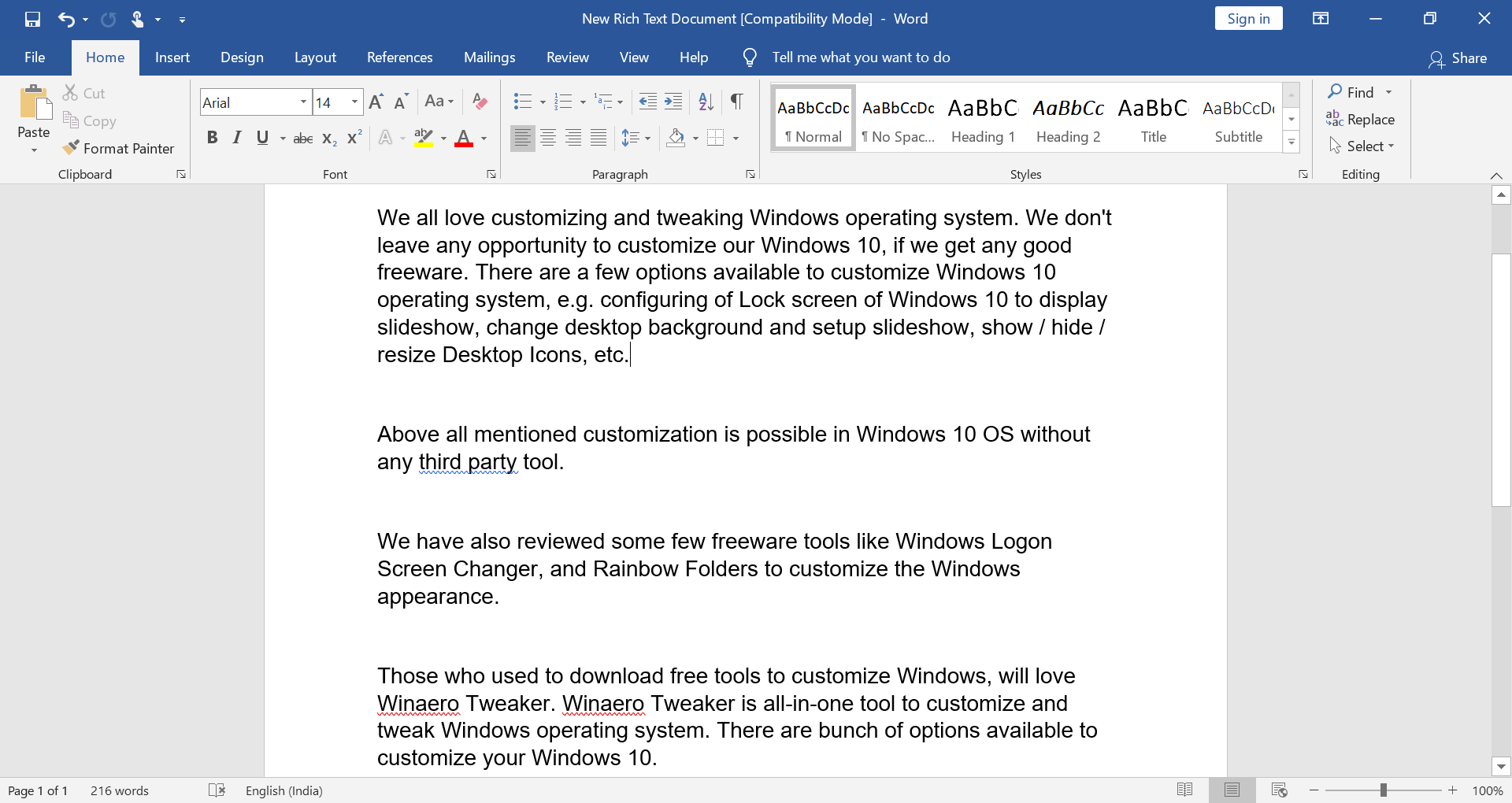
How to Set Background Color in MS Office Word Document?
If you have not already set the desired color as the background of the MS Office Word Document, do the following:-
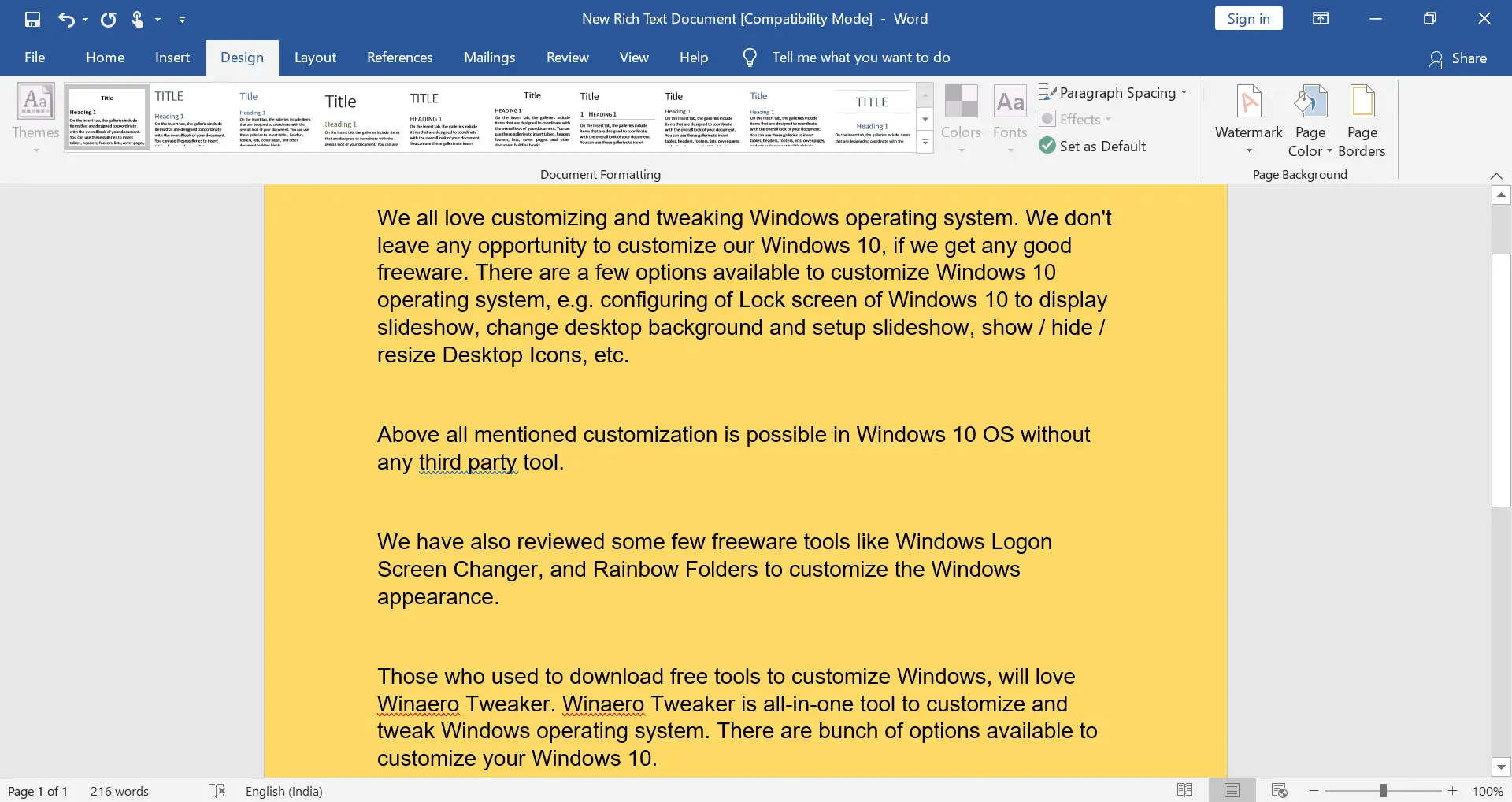
Step 1. Open the MS Word document and click the Design menu.
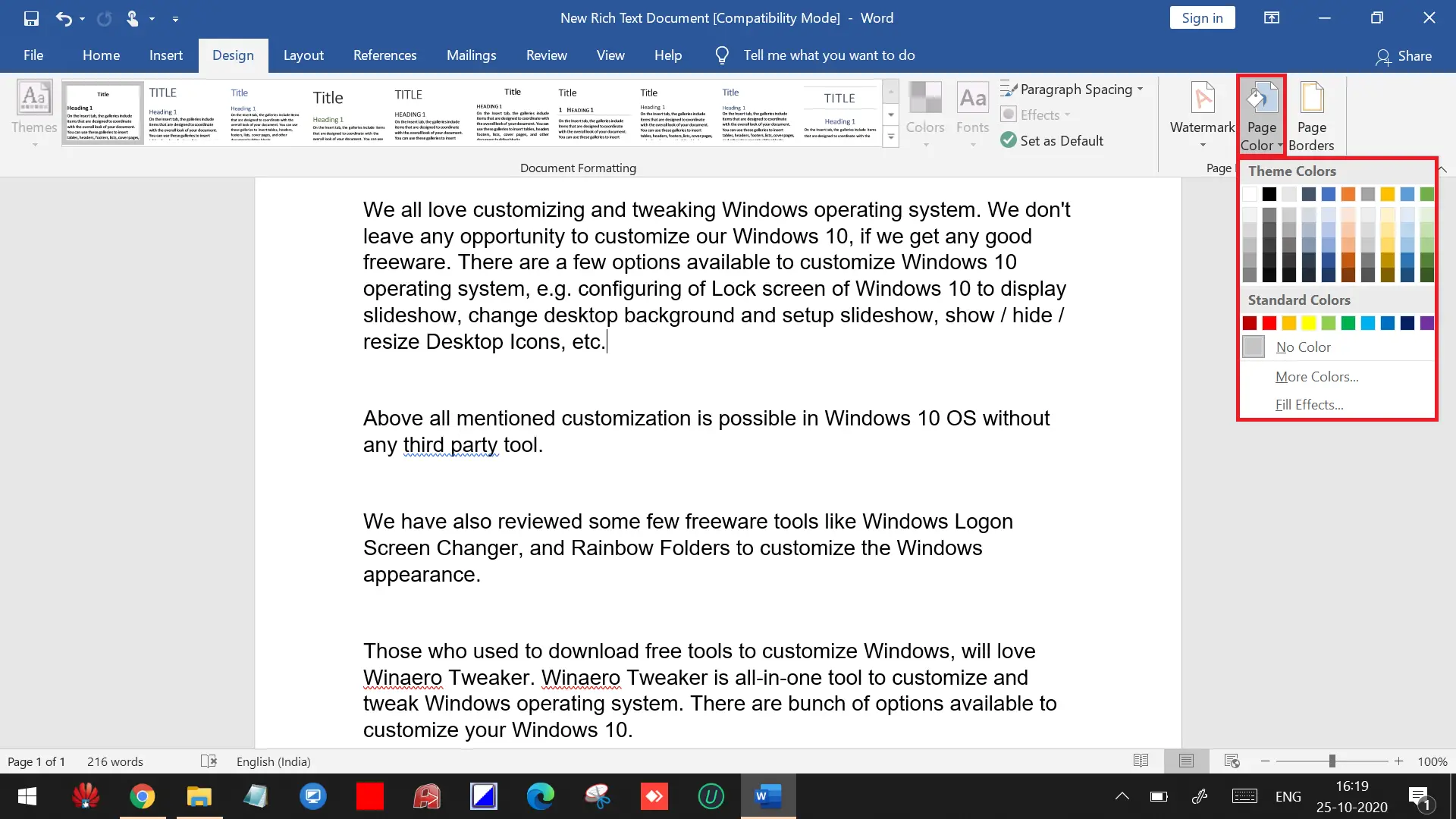
 Step 2. Under the Design menu, click the Page Color option and select your desired color as a background.
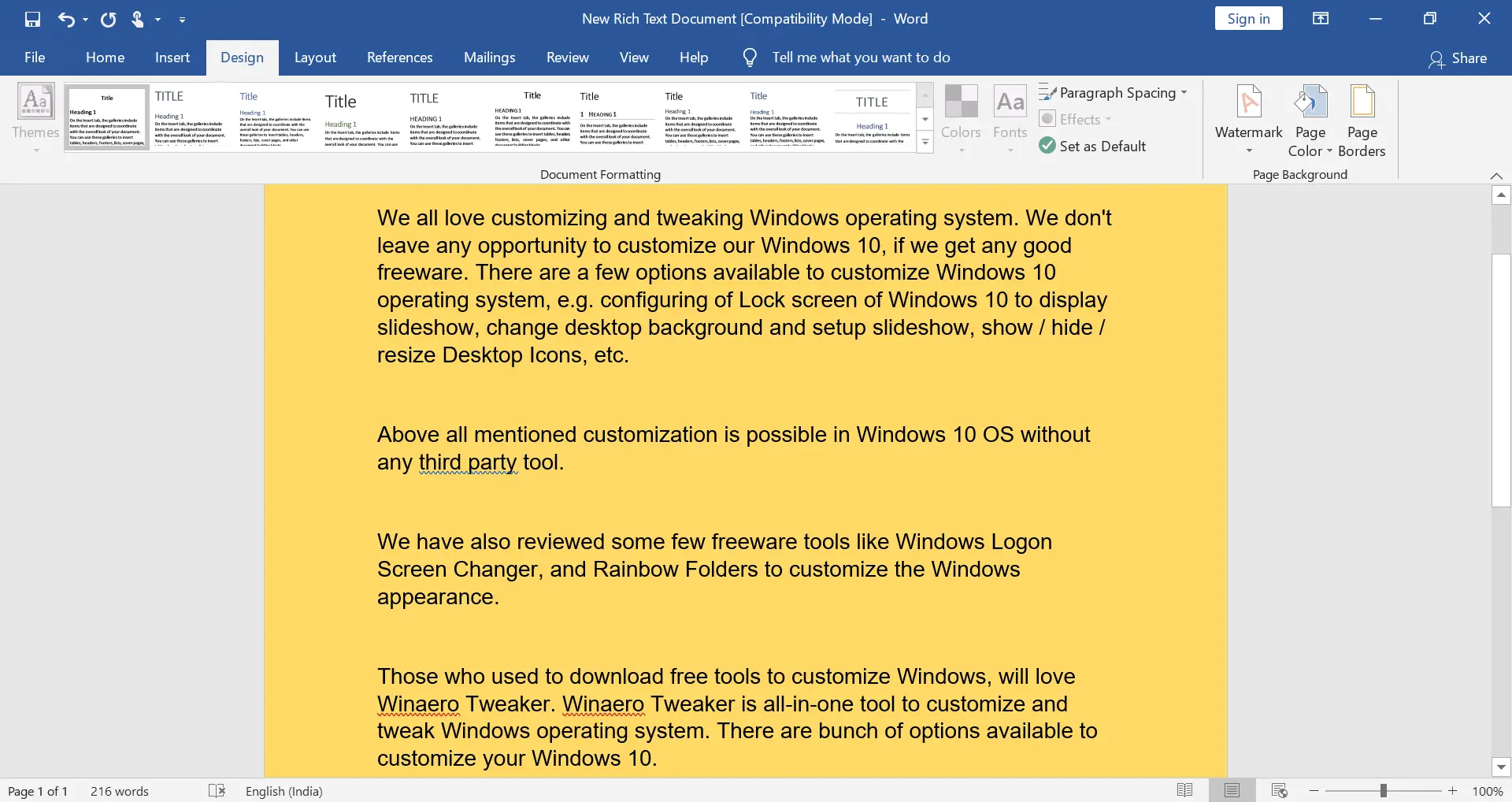
 Step 3. Now, you will have an MS Word document with a colored background.
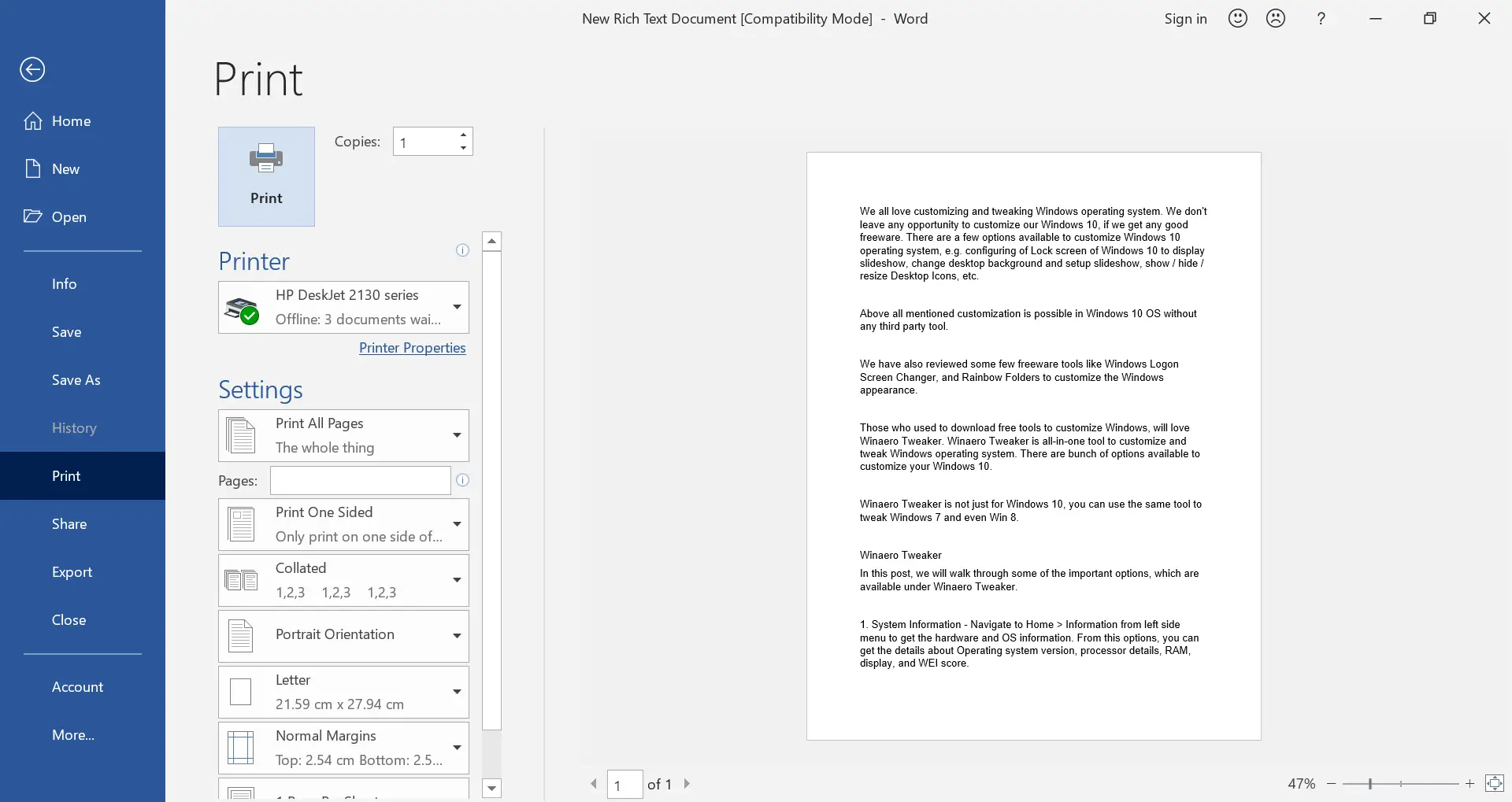
 As said above, by default, MS Word does not allow printing with a colored background. If you try to print this document by navigating to File > Print or just by pressing the Ctrl + P keys, you will see a print preview with a white background and text on it.
 To print with a colored background, you need to make some changes to your MS Word.
How to print an MS Word document with Background Color?
Follow these steps to print an MS Word document with Background Color:-
Step 1. Open your MS Word document with a colored background.
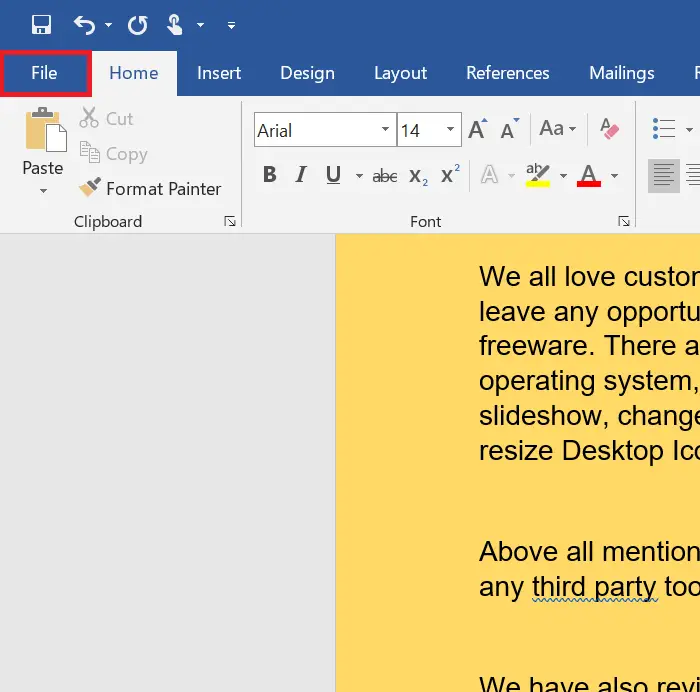
 Step 2. Click on the File menu.
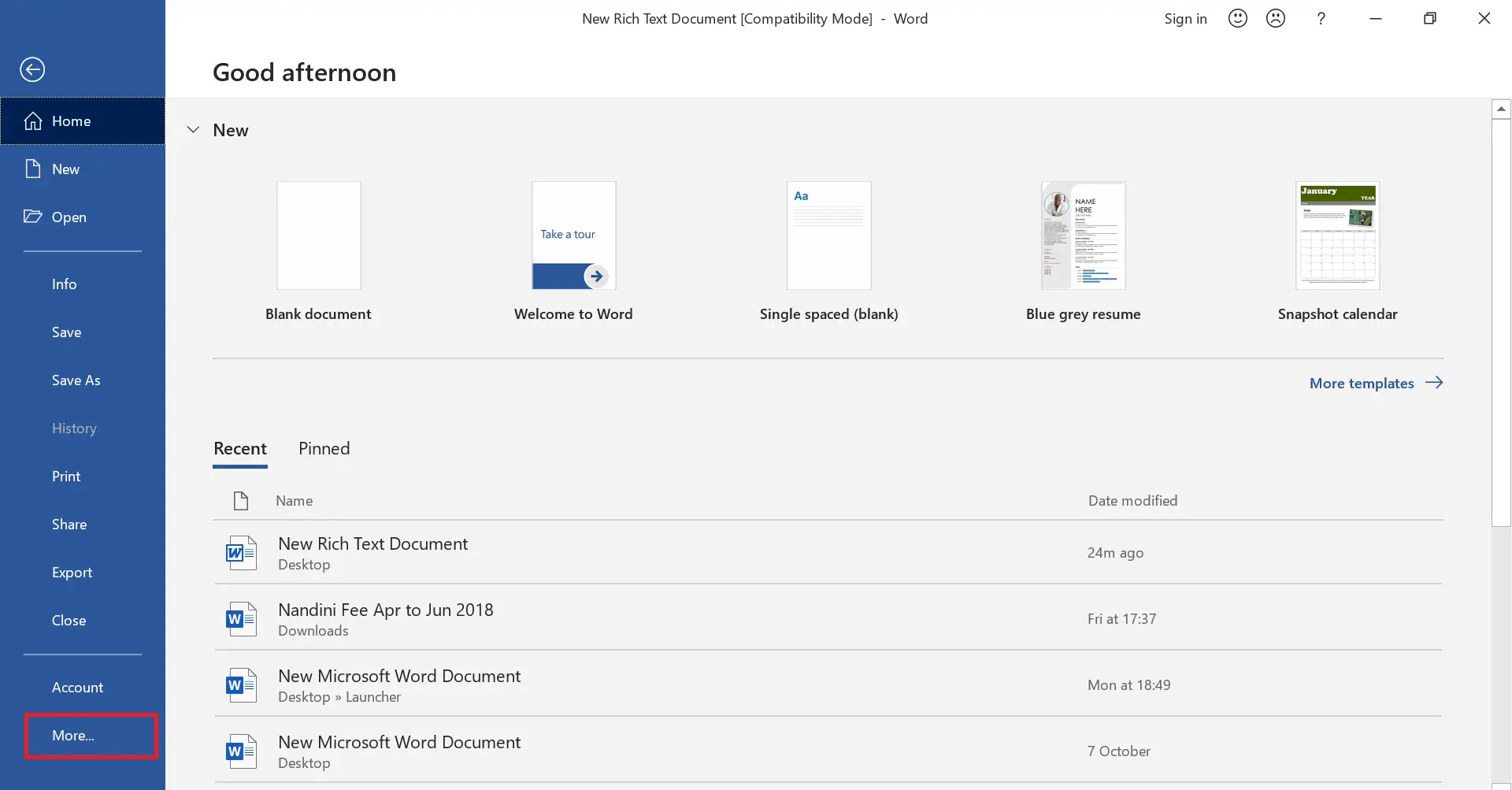
 Step 3. Select More from the available options.
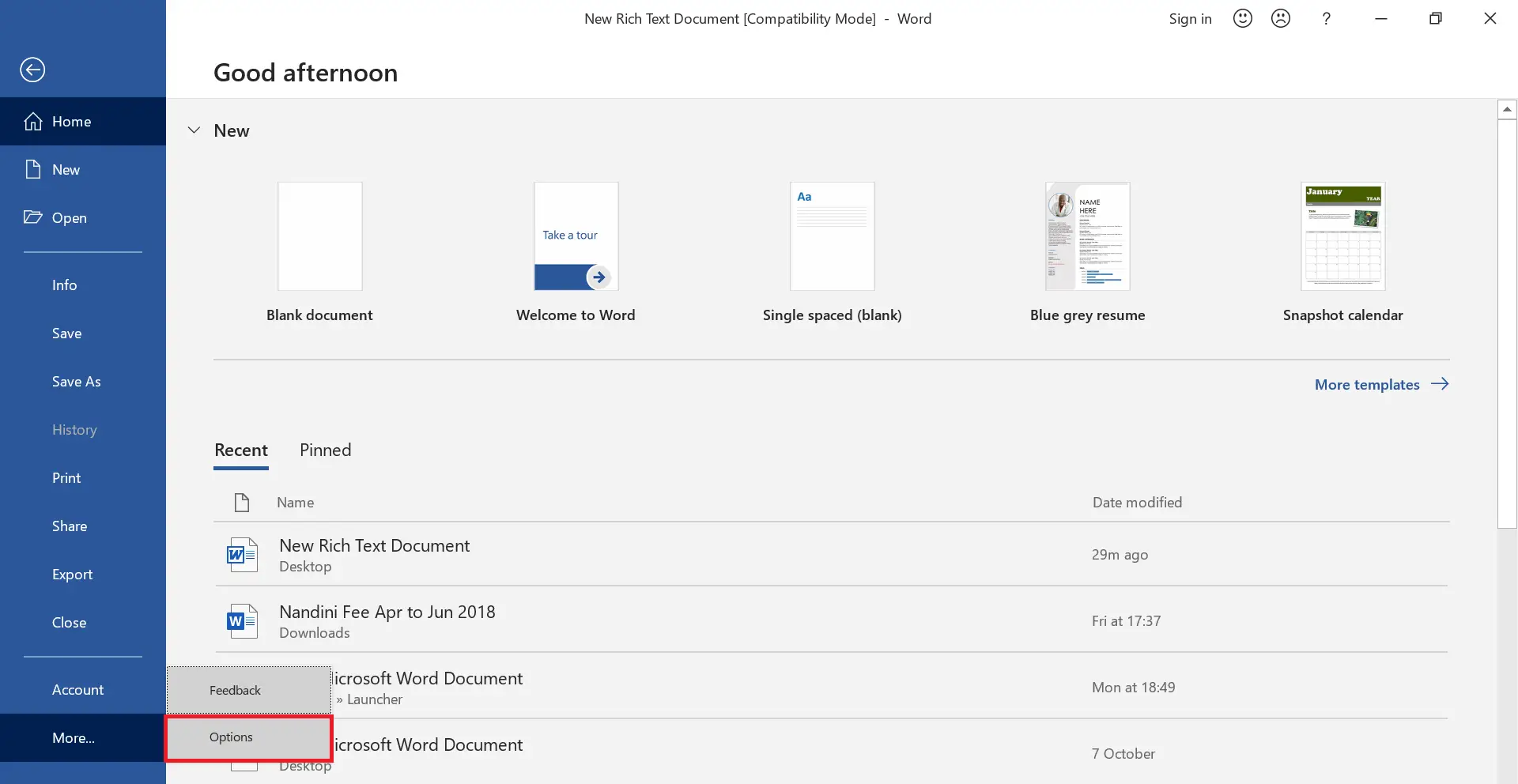
 Step 4. Click Options.
 Step 5. It will open the Word Options window.
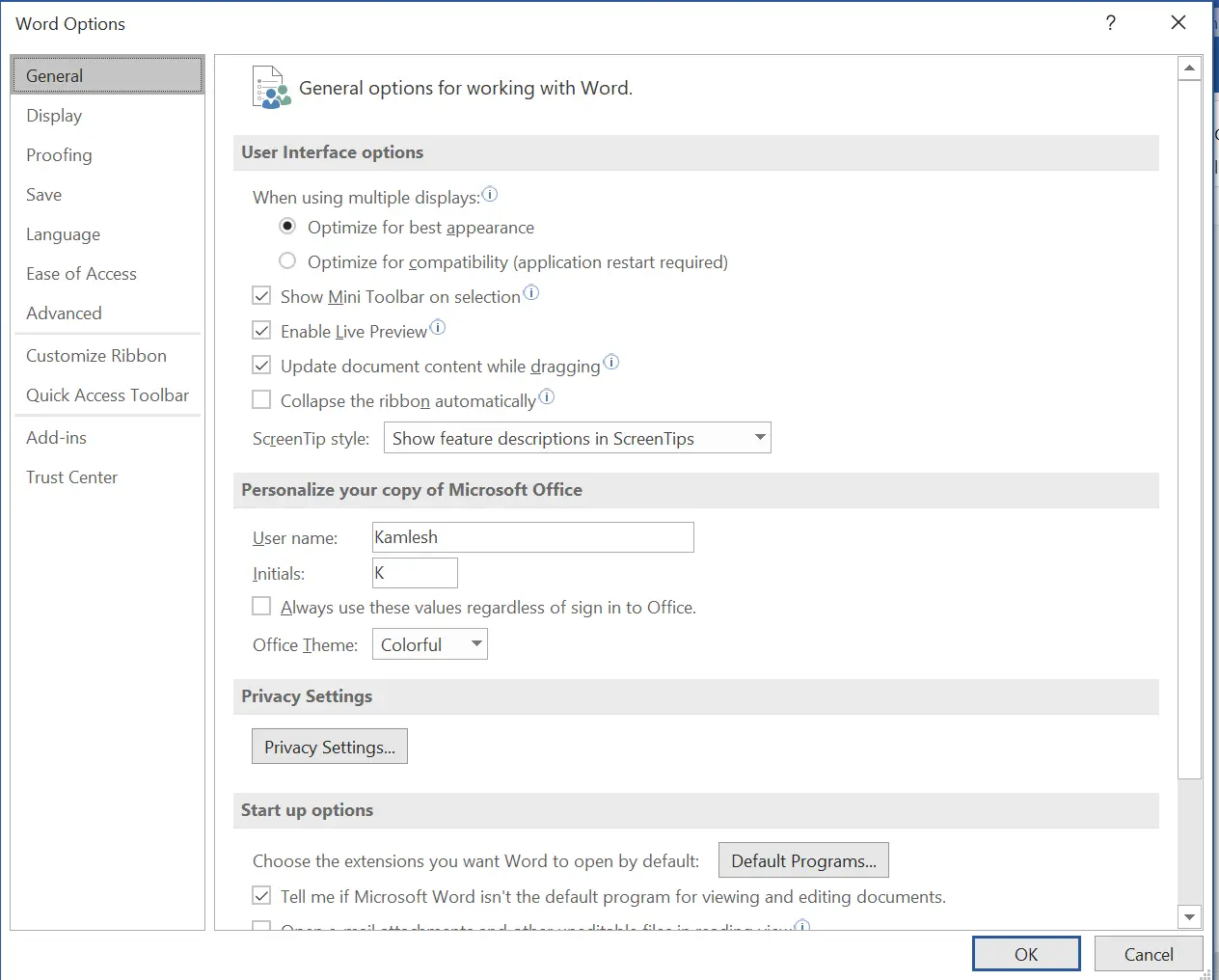 Step 6. Under the Word Options window, click on Display.
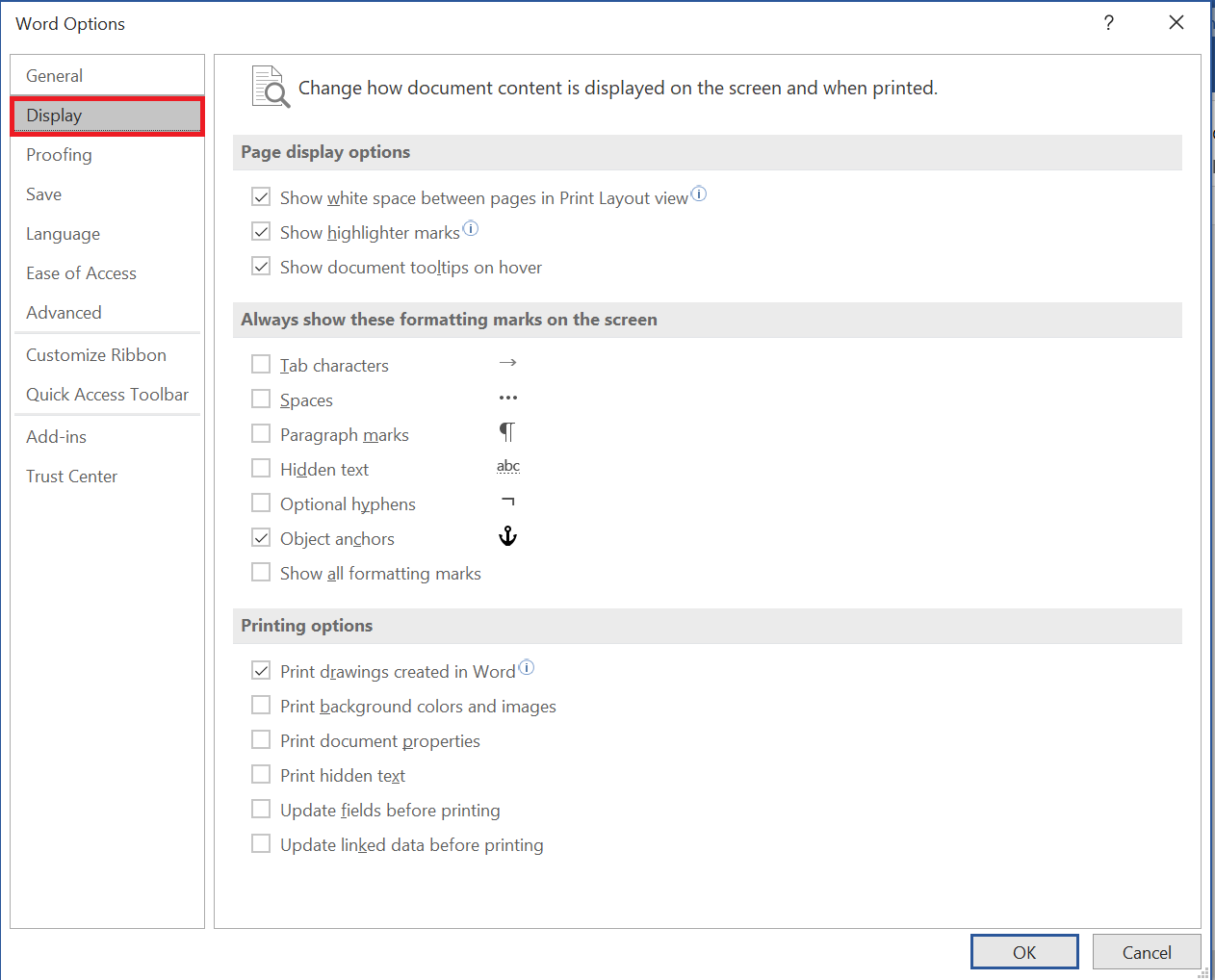 Step 7. Check the “Print backgrounds and images” option.
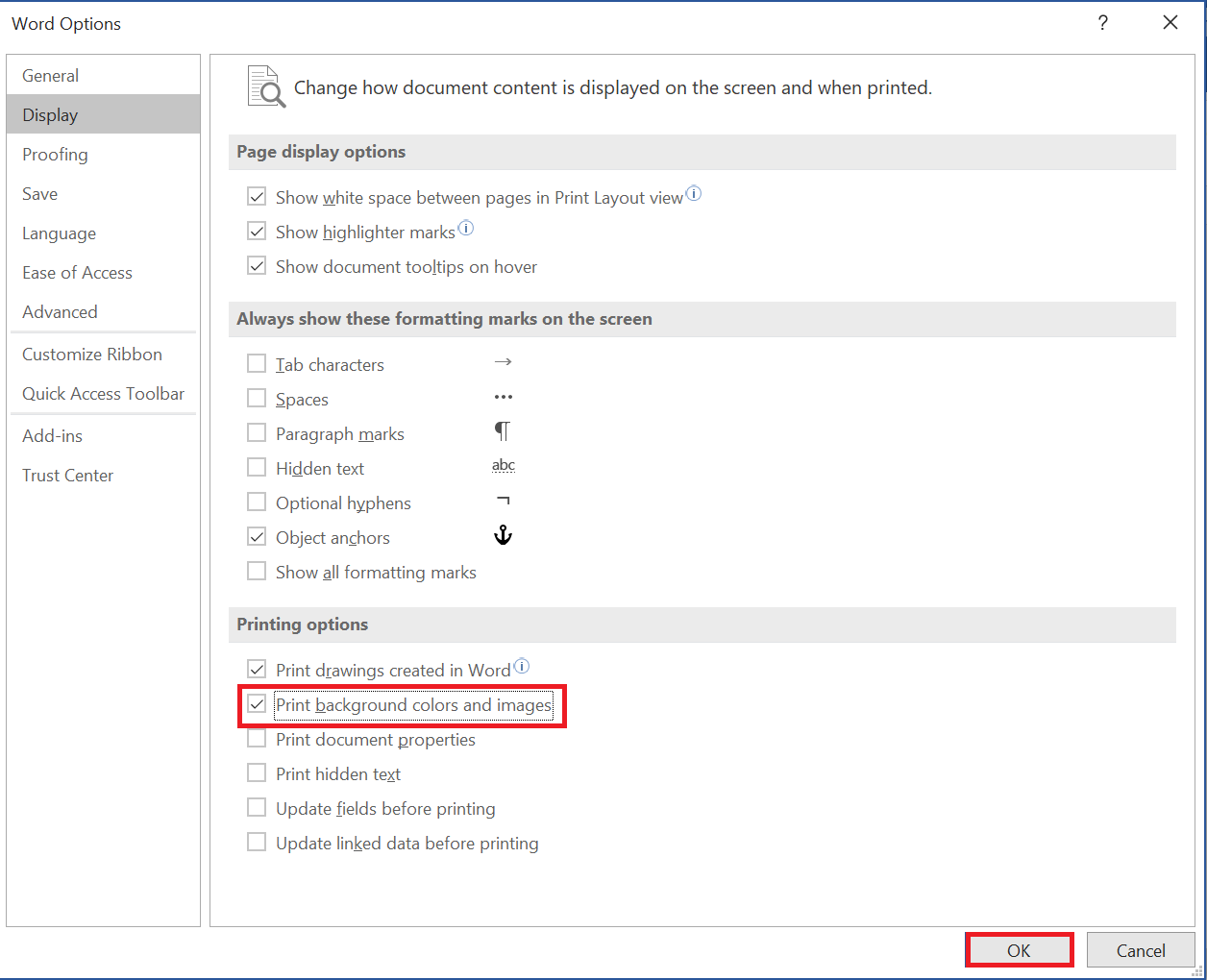 Step 8. Finally, click the OK button to apply the changes.
Step 9. Now, click the File menu and then click Print or press the Ctrl + P keys on the keyboard to quickly open the print preview.
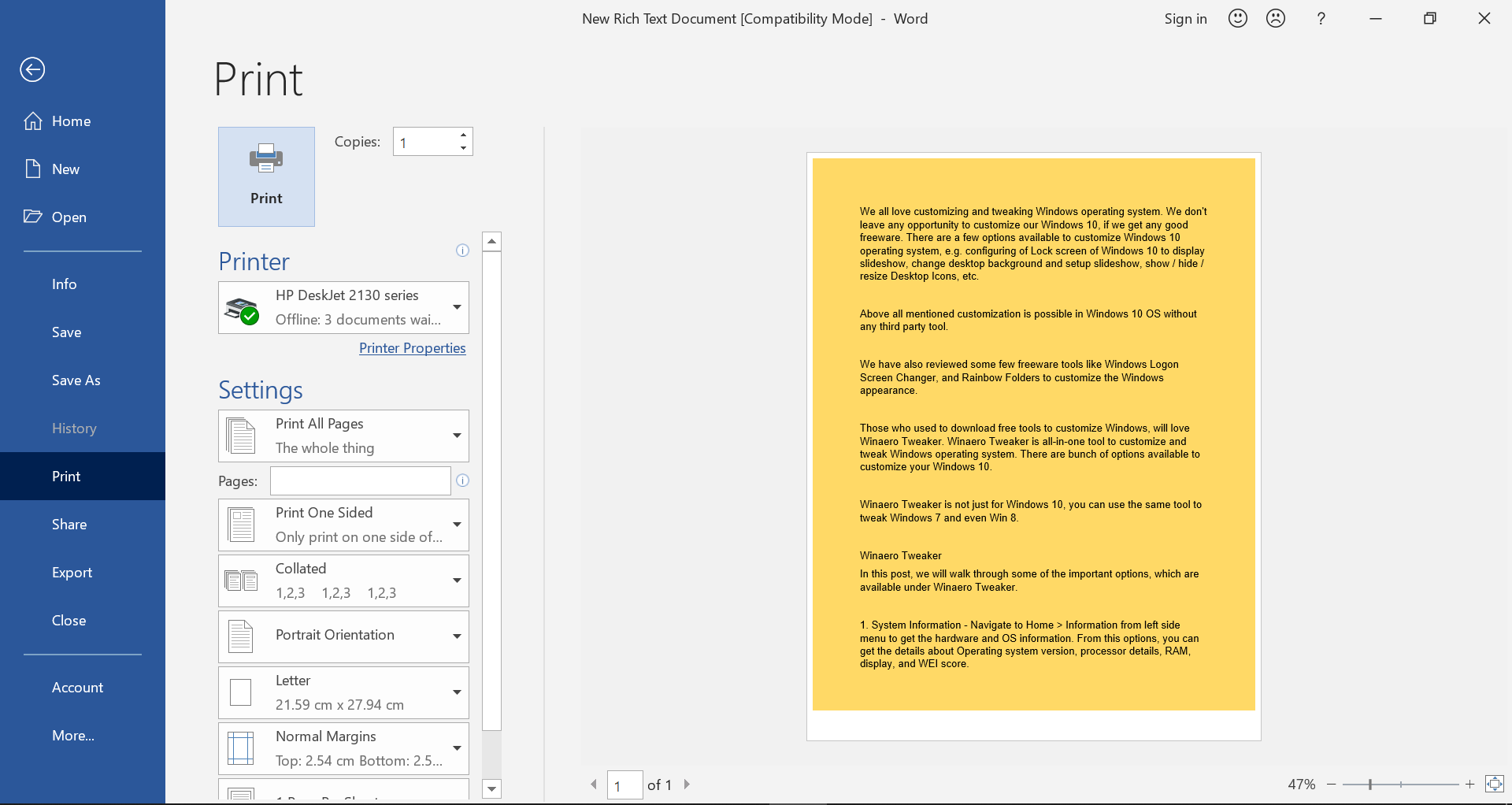 Once the above steps are done, you should see a colored background preview. You can now print your document with a colored background.
FAQs
Why doesn’t Microsoft Word print background colors by default?
Word disables background printing to save ink and speed up printing. Since backgrounds often use heavy color fill, the feature remains off unless you manually enable it.
How do I turn on background printing in Microsoft Word?
Go to File > More > Options > Display and enable the “Print backgrounds and images” checkbox. After this, Word will include background colors and images in printouts.
Will printing background colors use more ink?
Yes, background colors require significantly more ink than standard text documents. If you plan to print many pages, consider using lighter shades or draft mode to reduce ink usage.
Can I print background images the same way as background colors?
Yes. Enabling “Print backgrounds and images” allows both background colors and background images to appear in printed output.
Why is the print preview still showing a white background after enabling the setting?
If print preview still looks white, close Word completely and reopen your document. Sometimes Word needs a refresh to apply new display settings.
Can I apply different background colors to individual pages?
Word applies Page Color globally to the entire document. To create different page backgrounds, insert shapes behind text or use section backgrounds with custom workarounds.
Does this work in older versions like Word 2010 or Word 2013?
Yes. The option exists in all modern and older Word versions, though the interface layout may vary slightly.
Why is my printer not printing the background even after enabling the setting?
Some printers override software settings. Check your printer preferences and ensure no ink-saving or grayscale mode is forcing plain output.
Is it safe to print documents with full-page backgrounds?
Yes, but heavy color printing may cause smudging on low-quality paper. Use thicker or coated paper for best results.
Conclusion
In conclusion, printing an MS Office Word Document with a colored background can make it more visually appealing and professional. While by default, Word only prints text and images without the background color, setting the background color and printing with it is a simple process. By following the steps outlined above, you can easily set the background color of your MS Word document and print it with the same colored background. This can come in handy for a variety of reasons, such as creating eye-catching posters, flyers, or presentations.