

Are you struggling to find a particular file or folder on your Windows 10 computer? Maybe it’s because the file or folder has been hidden from view. There could be several reasons why you may want to access hidden files or folders, such as checking for viruses, viewing the contents of a folder that appears to be larger than its size, or simply locating files that have been hidden by someone else.
Regardless of the reason, learning how to unhide files and folders on Windows 10 is an essential skill. In this article, we will walk you through the steps to show hidden files and folders on Windows 10. We will also show you how to hide specific folders on your Windows 10 PC, should you wish to do so.
How to show hidden files or folders on a Windows 10 computer?
Follow these steps to show hidden files or folders on a Windows 10 computer:-
Step 1. To see the hidden files or folders on your Windows 10 computer, open File Explorer by pressing the Windows + E keys simultaneously (Alternatively, you can open “This PC” from the desktop shortcut or Start menu.).
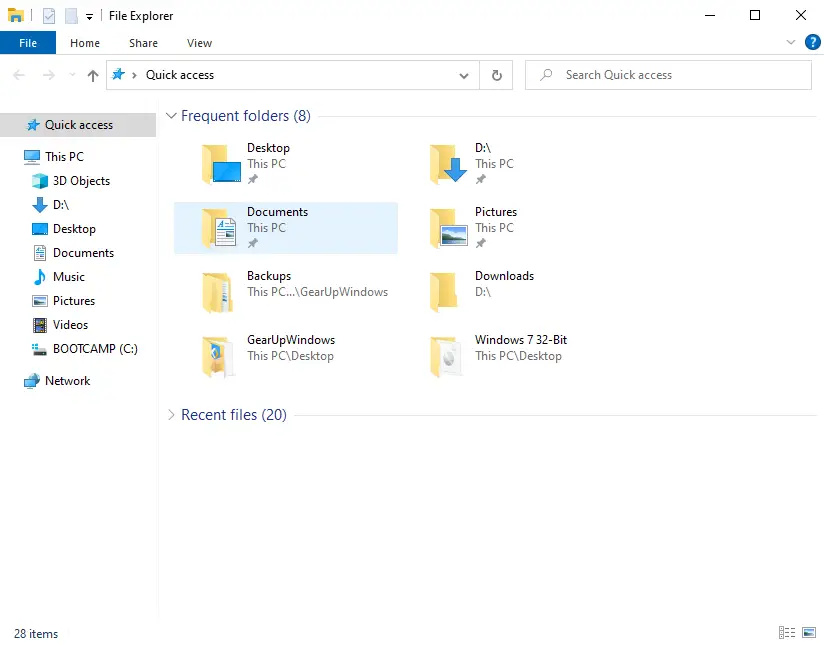
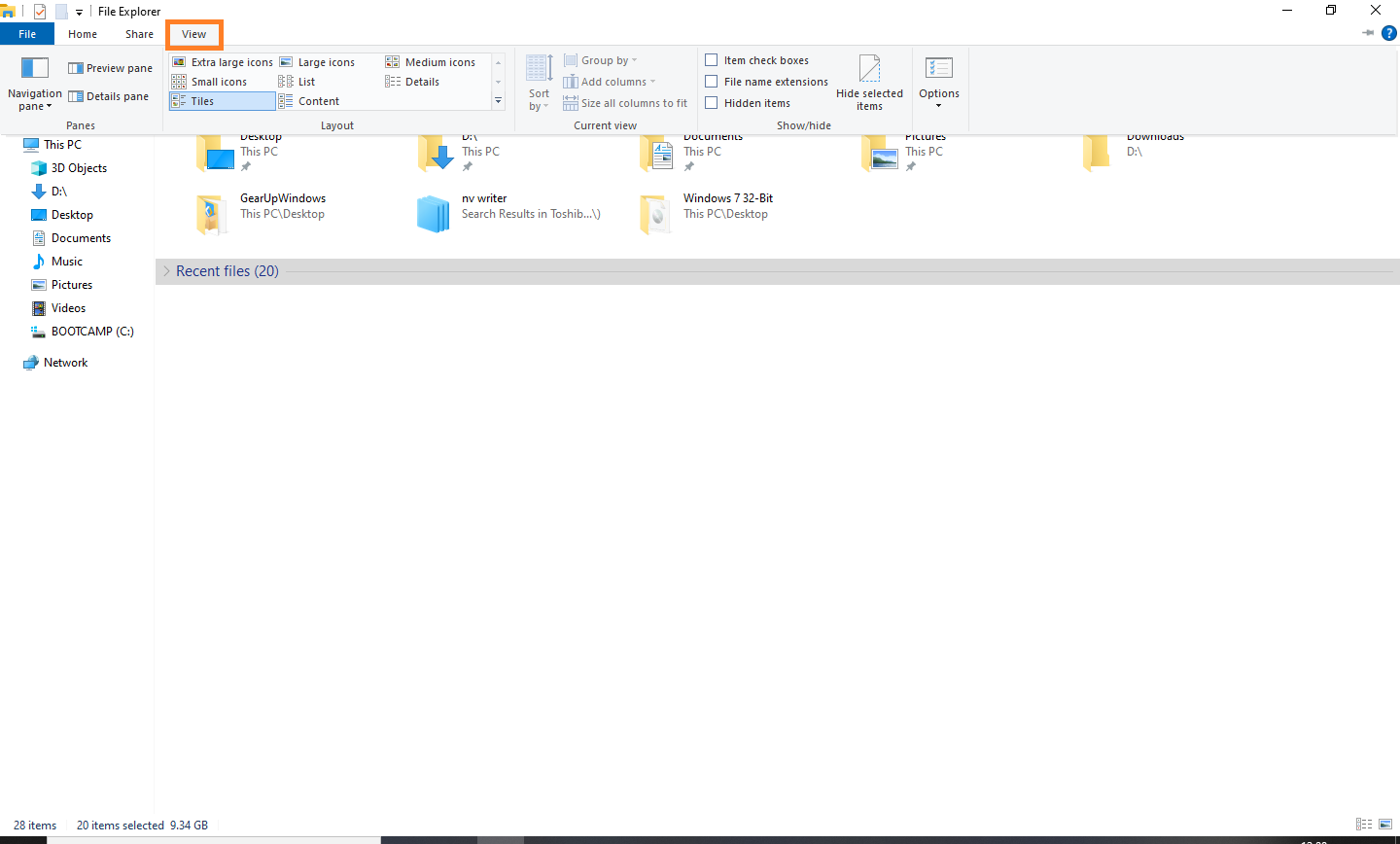
Step 2. From the “File Explorer” menu, click on the View tab.
 Step 3. Check Hidden items under the View tab to show hidden files and folders.
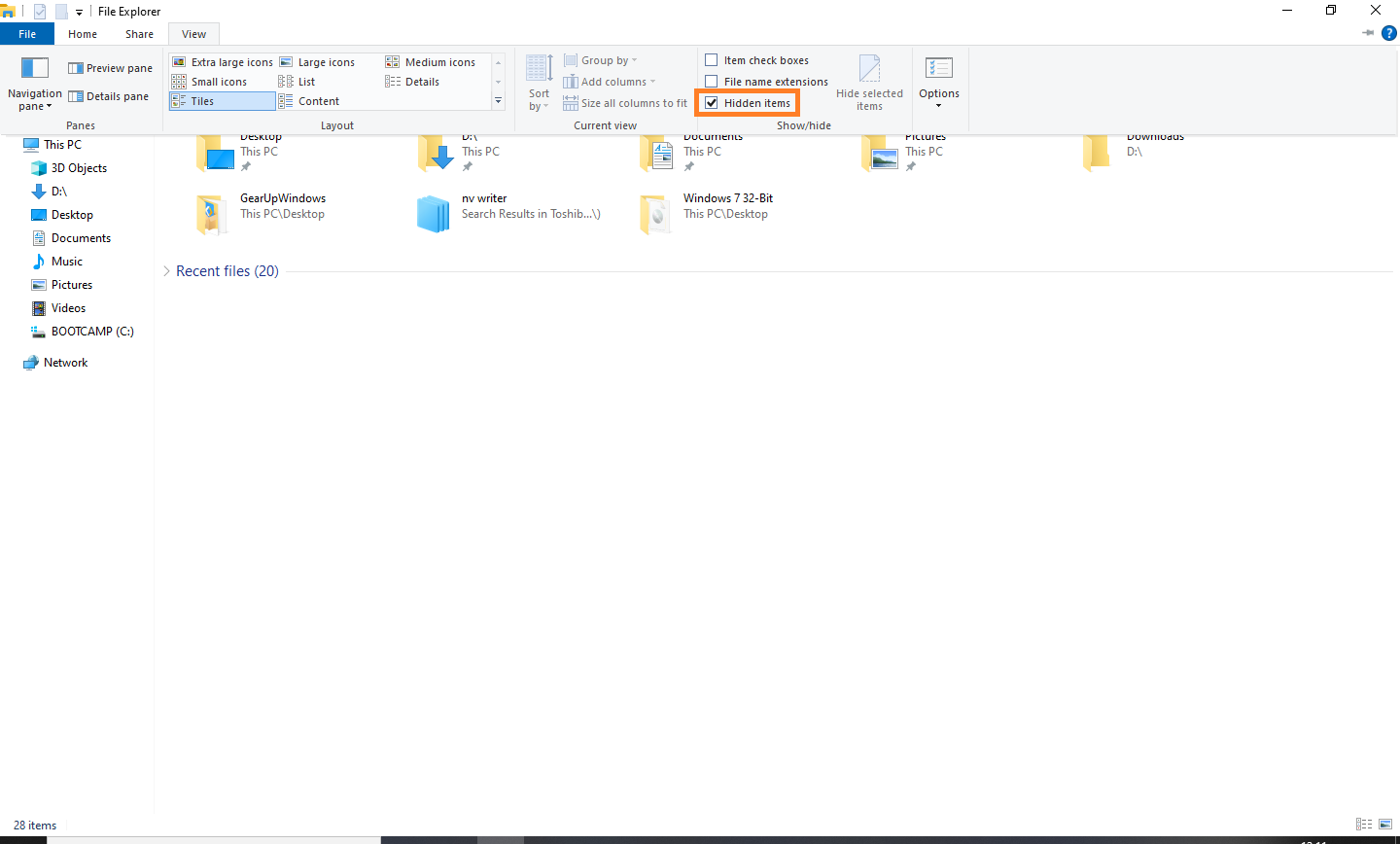 Now all the hidden files and folders will be visible. The files or folders that are slightly transparent were hidden.
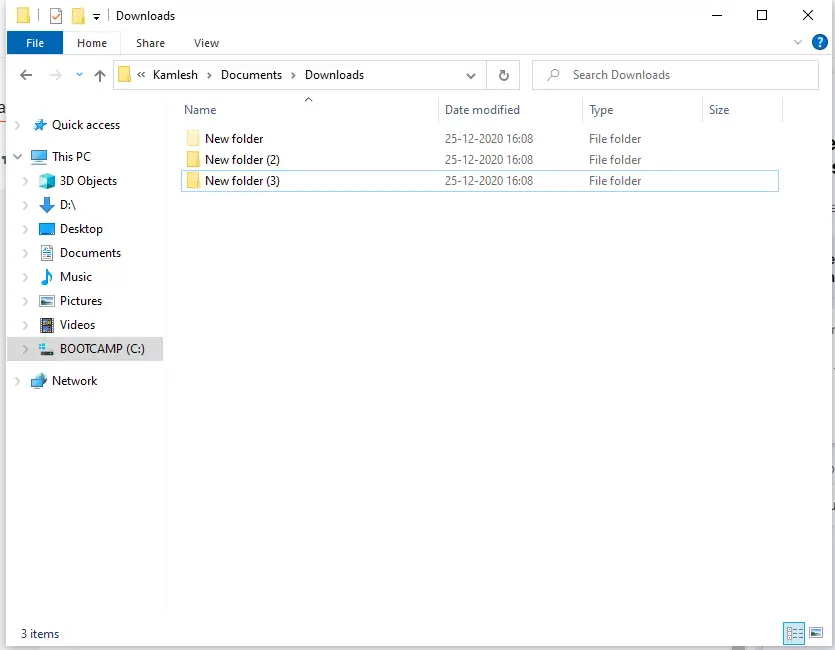 The first folder was hidden in the above image as it is slightly transparent, while the other two are normal.
How to hide a file or folder on a Windows 10 computer?
Follow these steps to hide a file or folder on Windows 10:-
Step 1. Select a file or folder that you want to hide from others.
Step 2. Right-click on the selected file or folder, and select Properties.
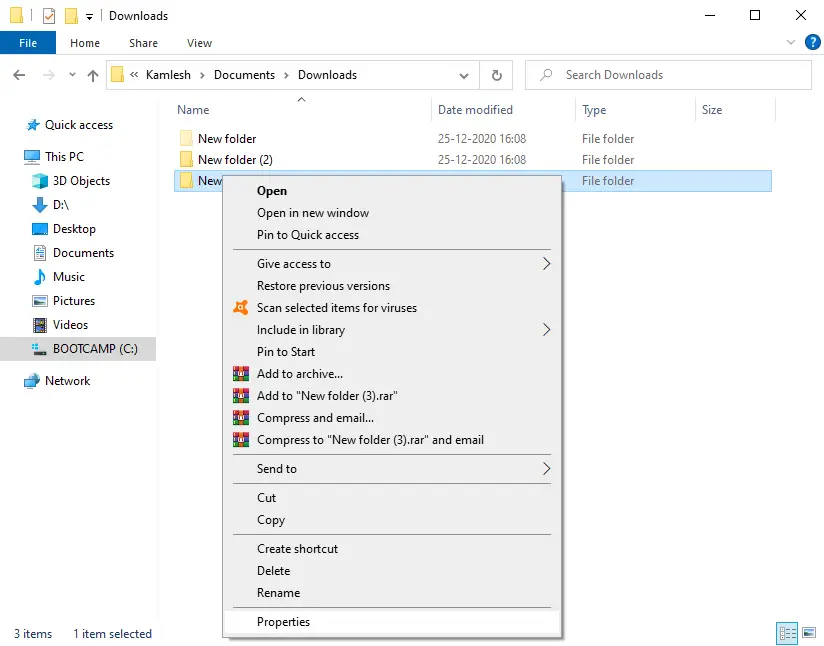 Step 3. On the General Tab, check the Hidden checkbox.
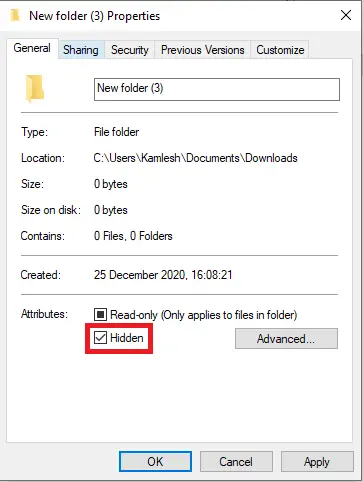 Step 4. Click on Apply and then the OK button.
Now the selected file or folder will be hidden.
You can uncheck the “Hidden” option at any time to make it visible. For your information, some system files are hidden by default.
FAQs
Why are some files and folders hidden in Windows 10?
Windows hides certain system files to prevent accidental modification or deletion. Users may also hide personal or sensitive files manually.
How do I know if a file or folder is hidden?
Hidden items appear slightly transparent when the “Hidden items” option is enabled in File Explorer’s View tab.
Can I hide multiple files or folders at once?
Yes. Select all items you want to hide, right-click, open Properties, and check the Hidden option.
Why can’t I see some system files even after enabling Hidden items?
Certain protected system files require an additional setting: “Hide protected operating system files (Recommended)” must be unchecked in Folder Options.
Is hiding a file secure?
No. Hidden files are only visually hidden. They are not password-protected or encrypted. For better security, use encryption tools such as BitLocker or third-party utilities.
Can hidden files affect system performance?
No. Hidden files work the same as visible files. They do not impact performance unless they consume significant disk space.
Conclusion
In conclusion, knowing how to show or hide files and folders on Windows 10 can be very useful in many situations. Whether you want to access hidden files to ensure that your computer is free of viruses or you want to hide sensitive files from other users, these steps can help you achieve your goal. By following the simple steps outlined in this article, you can easily show or hide files and folders on your Windows 10 computer.