

Microsoft To Do is a powerful productivity app that can help users manage their tasks and stay on top of their schedule. Microsoft acquired the app in 2015 and has since added new features and functionality to make it even more useful for users.
One of the key benefits of the Microsoft To Do app is its ease of use. The app is designed to be simple and intuitive, making it easy for users to create and manage tasks from any device. With features like due dates, reminders, and smart suggestions, users can stay organized and on track with their work. For example, you can complement your task planning by using Sticky Notes Online to jot down quick reminders or ideas alongside your To Do lists.
Another useful feature of the app is the ‘My Day’ option, which allows users to plan their entire day in a personalized way. This feature helps users prioritize their tasks and focus on the most important items on their to-do list. You can also improve daily task organization with GUW Smartboard – Notes & Ideas Organizer, an excellent online tool for visual planning and note-taking.
“Microsoft To Do” for Windows 11/10
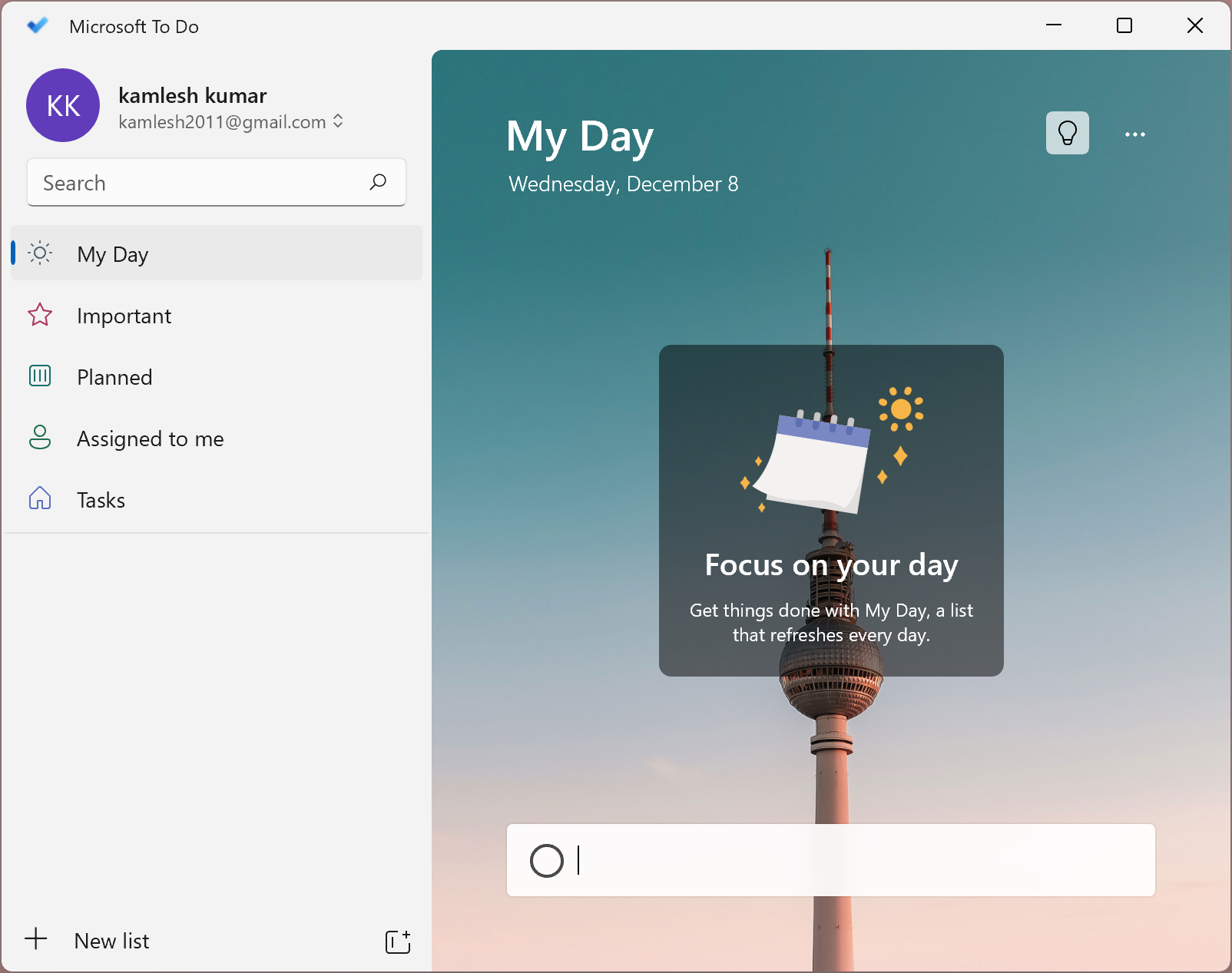
While Microsoft To Do is primarily designed for individual productivity, it does offer some useful features for collaboration and sharing tasks with others. One of these features is the ability to share tasks in real-time with family and friends, which can be useful for coordinating tasks and staying on top of important deadlines. To further streamline teamwork and sharing information, try Clipboard History Manager, which lets you copy and recall multiple clipboard entries instantly.
Additionally, the app allows for group tasks to be accomplished with others. Users can break down tasks into steps, assign them to specific team members, and track progress in real-time. This can be especially useful for projects that involve multiple people and require close coordination.
Another benefit of Microsoft To Do is its customizable design. Users can use vibrant colors, personalized backgrounds, and other design features to make their to-do list more visually appealing and engaging. This can help users stay motivated and focused on their tasks, leading to greater productivity and efficiency.
Key Features
To Do app for Windows 11 amazes users with its unique features. These features include:-
- Task scheduler and prioritization.
- Security features.
- Collaboration features – enhanced further using GUW Whiteboard Lite for brainstorming and real-time idea sharing.
- Storage of documents.
- Budgeting features.
- File sharing and many more.
The Microsoft To-Do app is easy to learn, and it’s easy to manage a project using it. To manage your project, follow these five steps:-
- Add tasks every day.
- Set up the lists of New-to-do.
- First, tackle the most important task.
- Collaboration with other team members.
- Take the app integrations advantage.
How can you manage your Days better through the Microsoft To Do App?
It is easy to use Microsoft To-Do on Windows 11, iOS, Android, and macOS, as well as the desktop version. Through this app, you can easily manage your day through several steps that we will discuss here.
Step 1. Add Tasks and Plan to Your Days: When you log into the To-Do, all your tasks from the planner are displayed on the platform. However, To-Do app comes with five default lists that help you stay organized. Assign to you, My Day, Planned, Important, and Tasks are the five default settings. This list has many overlaps, and we will start with Tasks.
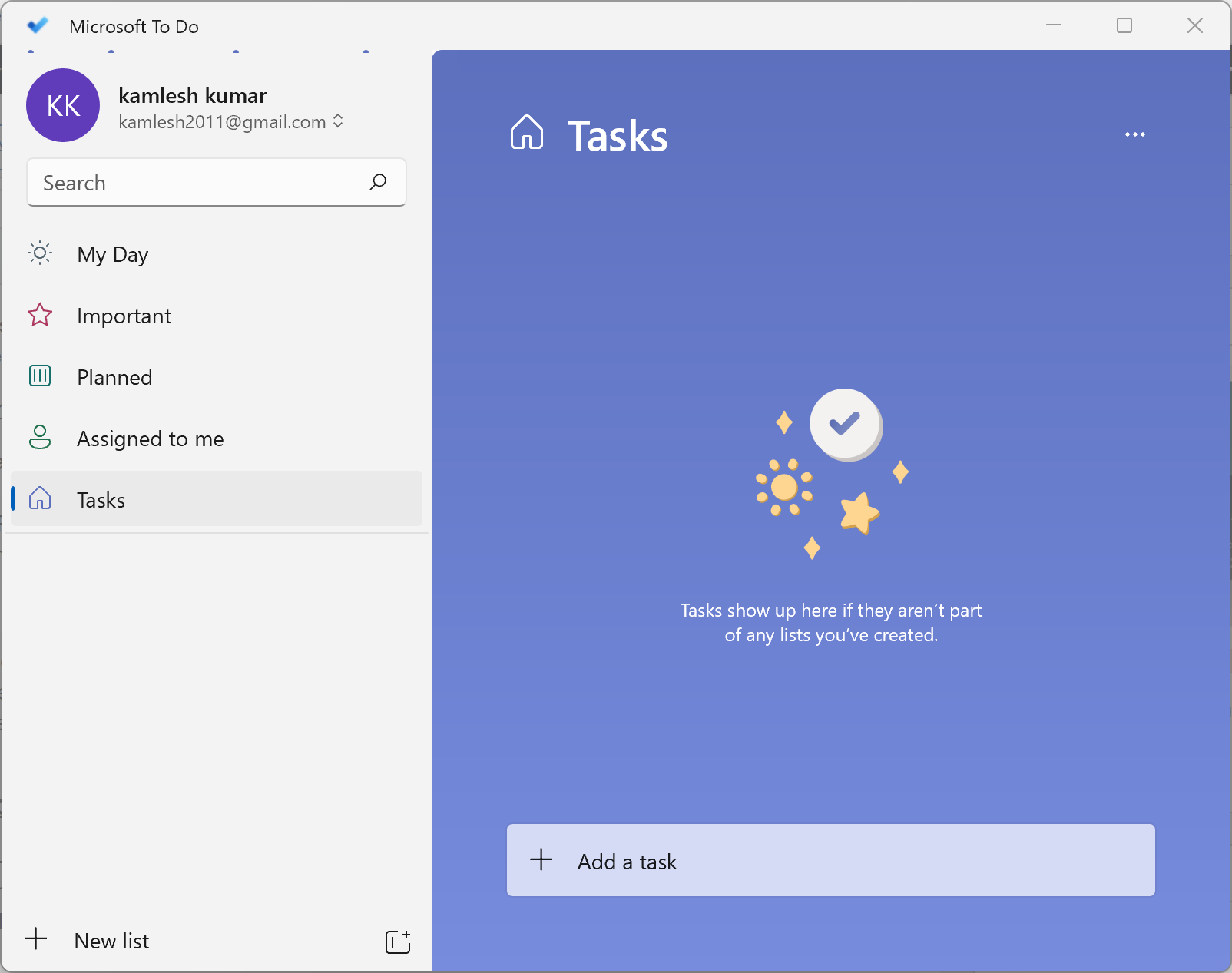
Microsoft To Do is designed to help users manage both short-term and long-term tasks in a single, easy-to-use interface. To add a new task, users can simply click on the “Add a Task” button and enter the task name. From there, they can add details to the task, such as notes, due dates, and reminders.
One useful feature of Microsoft To Do is the ability to break down tasks into smaller steps. This can be especially helpful for larger or more complex tasks, as it allows users to focus on one step at a time and track their progress along the way.
Users can also attach files and other resources to their tasks, making it easy to access important information when working on a task. Additionally, the app allows users to prioritize their tasks and organize them into categories or lists, which can be especially helpful for users with a large number of tasks to manage.
Step 2. Set Up New Groups and To-do Lists: With the Microsoft To-Do app, you can create as many lists as you want. To-Do, for example, can help you manage your tasks and workload. Creating the list is also a good idea here if you are just using it for personal tasks. Using only one platform, it will help you remember all aspects of your calendar.
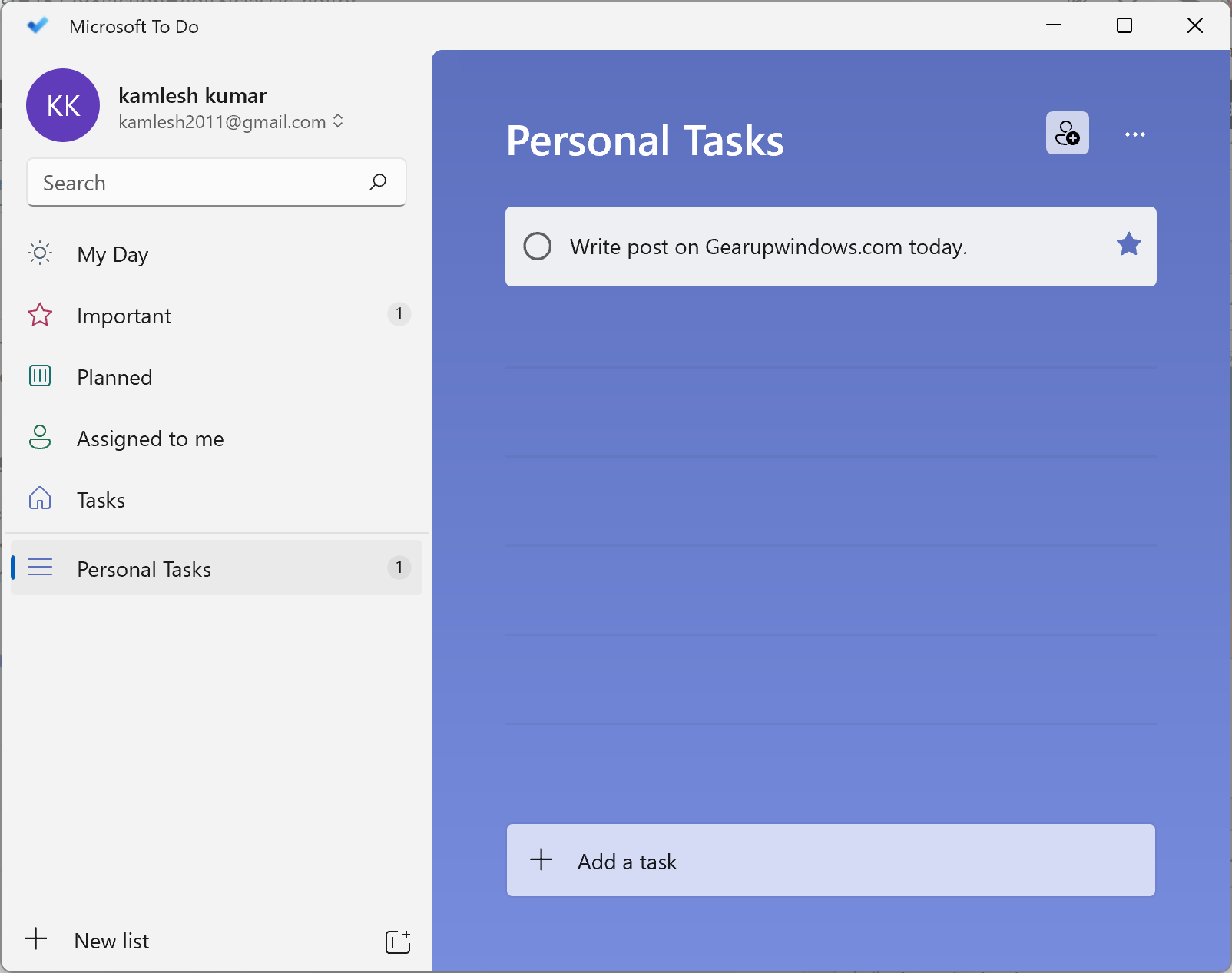
You can easily create a list by clicking on the new list option and entering the list’s name, for example, personal tasks. You can, however, create new lists as this option is also available, and you can also create groups. Multitasking is an outstanding feature for managing multiple projects at the same time.
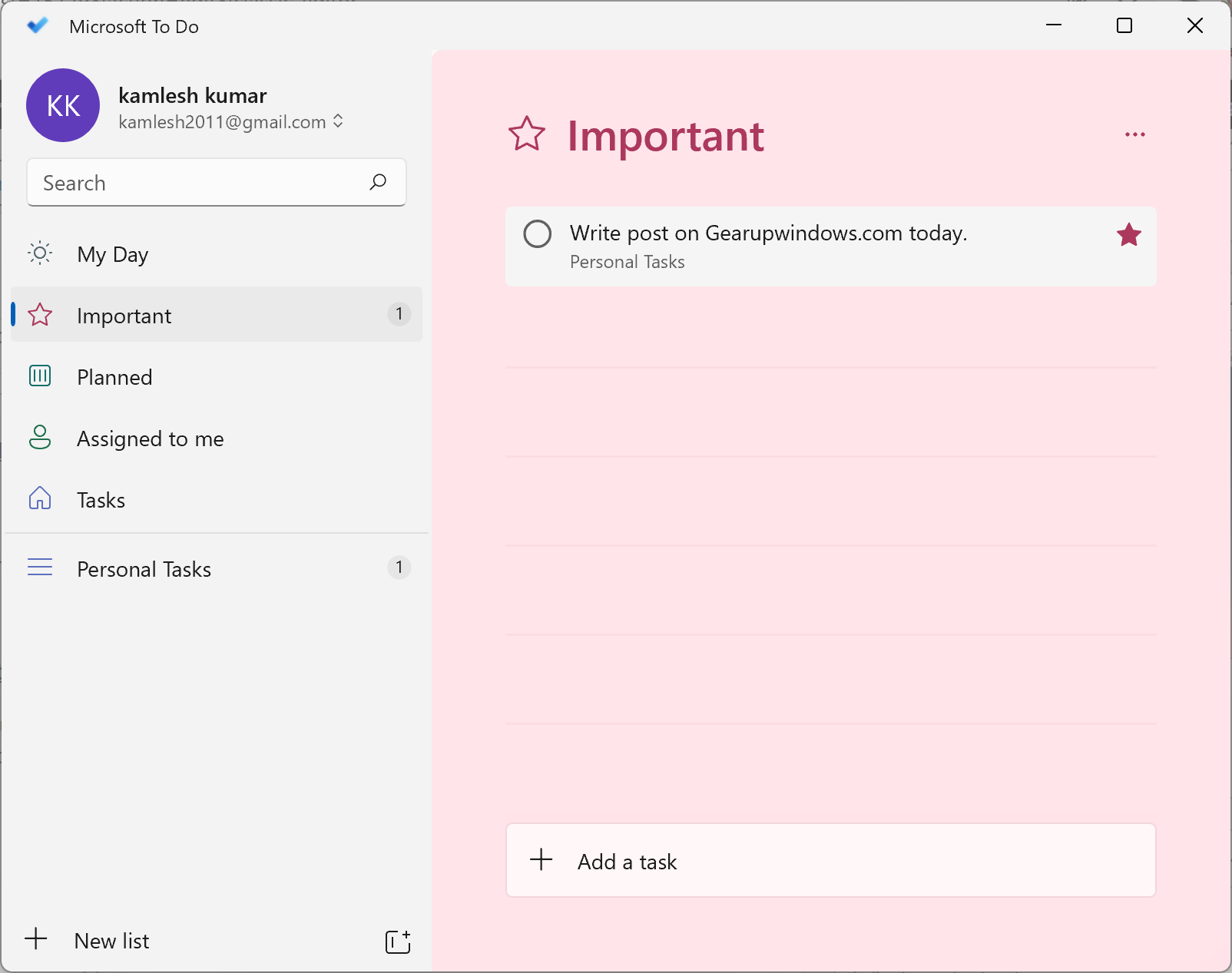
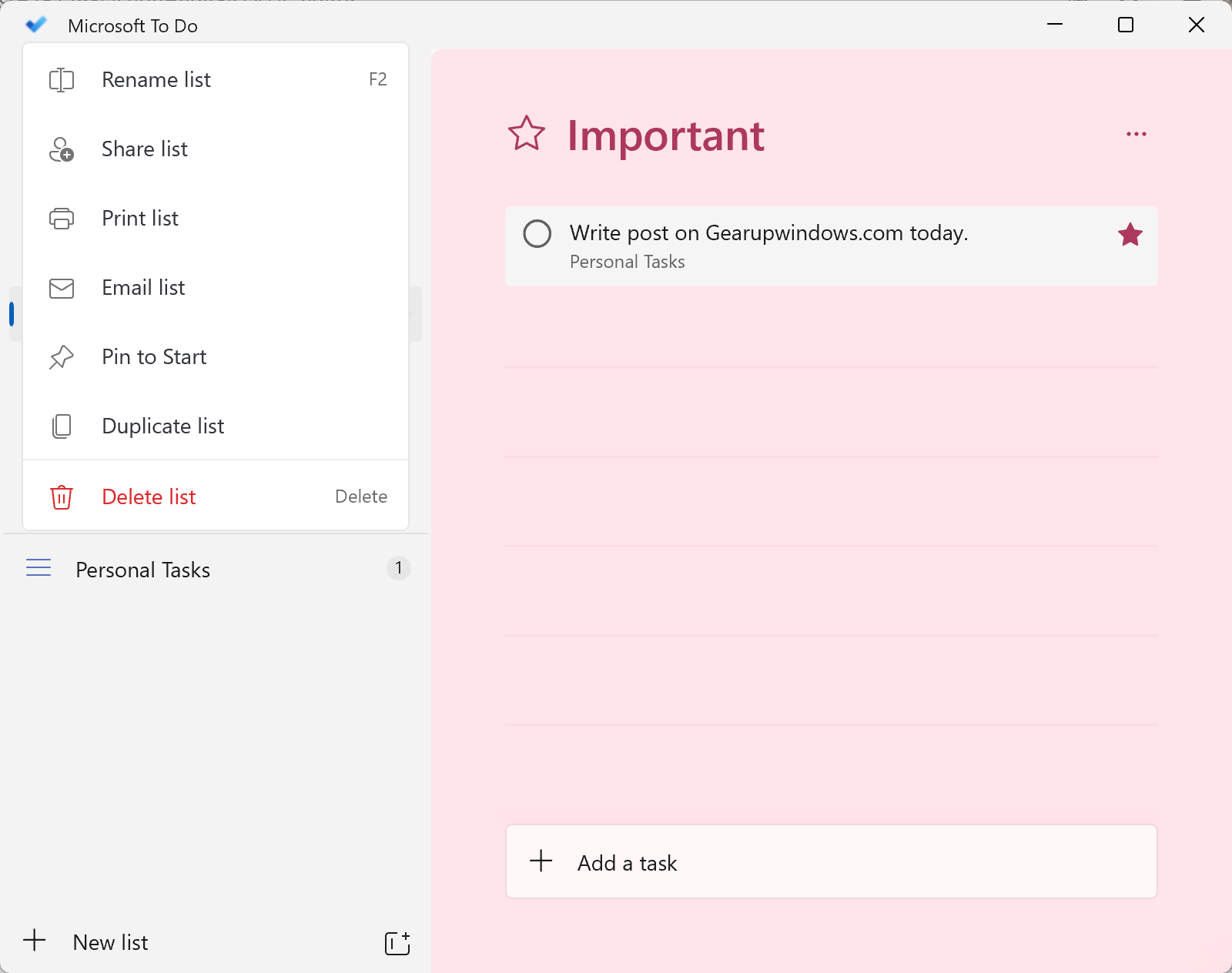
Step 3. At first, Tackle Your Most Important Tasks: At this point, you know everything you need to do using the Microsoft To-Do App. In addition, this app offers a variety of attractive features, so it is not to be missed. You can use this app to mark critical tasks as important, and it will show you the corresponding important list. A crucial task can be added directly to the “Important” list.
Step 4. Team Members Collaboration: Some of Microsoft’s previous important features were retained when it carried over the “Wunderlist.” Sync tasks and sharing lists with other users is one such feature, and fortunately, Microsoft keeps this feature updated. To add other users to your list, select the share list and click the right on its name.
Step 5. Take App Integrations Advantage: Microsoft To-Do App integrates seamlessly with several other Microsoft tools. Cortana, Outlook, Planner, and Flow can all be integrated with the To-Do app. In Outlook, for instance, you can see the tasks review through your Microsoft To-Do account. You can also enhance workflow efficiency by learning how to enable and use Clipboard History on Windows 10 for faster copying and pasting across apps.
Download “Microsoft To Do”
The “Microsoft To Do” application is compatible with Windows, macOS, and Android. If you wish, you can download it from Microsoft’s official website.
Overall, Microsoft To Do is a powerful and flexible app that can be customized to meet the needs of individual users and teams. Whether you’re looking to manage your own tasks more effectively or collaborate with others on group projects, this app has something to offer. If you’re aiming to improve your overall system performance while staying productive, consider trying the Quick System Cleaner Checklist Tool to keep your PC optimized and clutter-free.
Conclusion
Microsoft To Do stands out as one of the most efficient productivity tools available today. It combines simplicity with powerful features like synchronization, collaboration, and personalized planning. Whether you’re managing work projects, daily routines, or academic schedules, this app helps you stay organized, productive, and focused on what truly matters.