

In this gearupwindows guide, we’ll show you how to use PDF24 Creator, a free all-in-one PDF utility for Windows 11/10 that offers over 30 tools in one easy interface.
PDF24 Creator is a powerful and user-friendly offline PDF suite that allows you to perform almost every common PDF task without relying on the internet. Whether you want to compress, convert, merge, split, or secure a PDF file, PDF24 has everything you need in one lightweight installer.
Main Features of PDF24 Creator
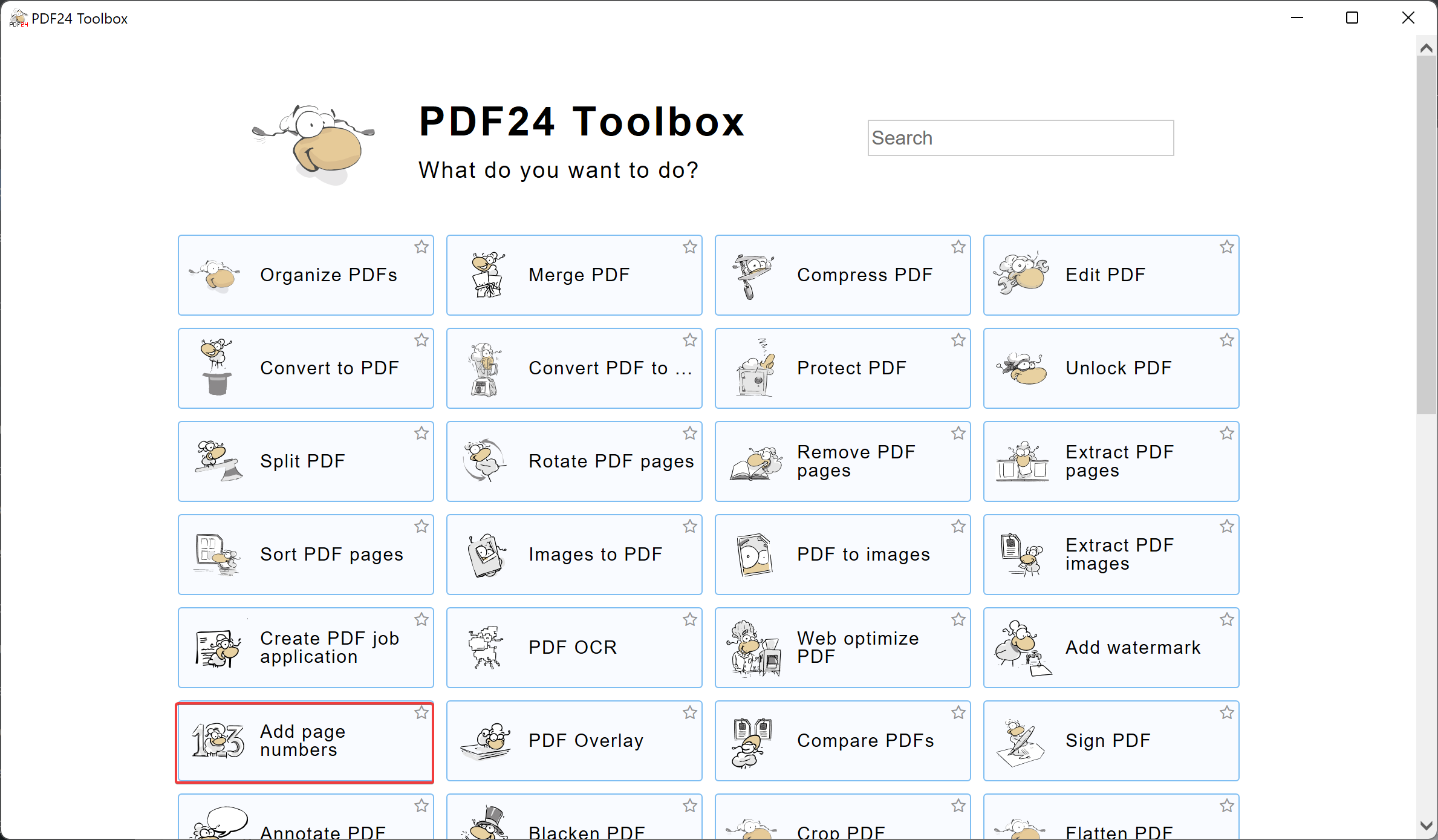
PDF24 Creator includes a wide range of tools that cover nearly all everyday PDF-related tasks. Some of its key features include:
- Create PDF: Convert any printable document into a PDF file.
- Edit PDF: Rearrange, delete, or rotate pages within your PDF documents.
- Merge PDF: Combine multiple PDF files into one.
- Split PDF: Extract specific pages or split files into multiple smaller PDFs.
- Compress PDF: Reduce the file size of PDFs without losing quality.
- Convert PDF: Convert PDF to Word, Excel, PowerPoint, image formats, and vice versa.
- Protect PDF: Add password protection or restrict editing and printing permissions.
- Unlock PDF: Remove passwords from secured PDF files (if permitted).
- Sign PDF: Add digital or handwritten signatures to your PDF files.
- Watermark PDF: Insert custom watermarks on pages to protect content.
- Extract PDF pages: Pull out specific pages and save them as a new file.
- Compare PDF: Highlight differences between two PDF files side by side.
All tools are accessible through a clean and intuitive dashboard. Best of all, you don’t need to upload files online, making PDF24 Creator completely privacy-safe.
Batch Processing Support
Another excellent feature of PDF24 Creator is its batch processing capability. This allows you to add multiple PDF files simultaneously and apply the selected operation to all of them in one go. This is especially useful when working with large numbers of documents.
How to Add Page Numbers Using PDF24 Creator?
If you want to add page numbers to your PDFs, PDF24 Creator makes it simple:
Launch PDF24 Creator and select the Add page numbers option. Use the Choose files button to upload one or more PDF documents.
After uploading, you’ll see several page numbering options:
-
- Font type and size
- Page number color
- Position (top-left, bottom-center, etc.)
- Angle of the page number text
You can also customize the number format. By default, PDF24 uses {NUM} / {COUNT}, where {NUM} is the current page and {COUNT} is the total number of pages. You can remove {COUNT} or add prefixes and suffixes as needed.
Spacing options let you fine-tune the horizontal and vertical distance of the page numbers from the page edge.
Once done, click Add page numbers to start the process. After processing, click Save to store the file on your PC.
Why Choose PDF24 Creator?
Unlike many other PDF tools that are either limited or require an internet connection, PDF24 Creator runs entirely offline. This makes it a better alternative to online converters, especially for privacy-conscious users. It’s free, fast, and regularly updated by its developers.
If you’re looking for an alternative to tools like Adobe Acrobat, PDF24 Creator is a strong contender. It’s lightweight, doesn’t consume much system resources, and offers all essential PDF features in a single dashboard.
Download PDF24 Creator
You can download PDF24 Creator here and start using it right away. It works perfectly on both Windows 11 and Windows 10.
If you’re also interested in removing PDF passwords, you may want to check out how to remove a PDF password in Windows 11.
Frequently Asked Questions About PDF24 Creator
Is PDF24 Creator really free?
Yes—PDF24 Creator is free for personal and commercial use. There are no watermarks, and all tools work offline on Windows 11/10.
Does PDF24 Creator work without the internet?
Yes. All processing happens locally on your PC, which is better for privacy and keeps sensitive documents on your device.
Can I add page numbers with PDF24 Creator?
Yes. Open the Add page numbers tool, choose your files, set the position, font, and format (for example, {NUM} or {NUM} / {COUNT}), then save the result.
How do I password-protect a PDF?
Use Protect PDF in PDF24 to set an open password or restrict printing/editing. If you prefer a step-by-step Windows guide, see how to password-protect a PDF.
Can PDF24 remove a password from a PDF?
Only if you already know the current password. After unlocking with the valid password, you can save a copy without encryption for easier sharing.
Does PDF24 support batch processing?
Yes. You can add multiple PDFs and run a single action—like compress, merge, or convert—on all of them at once.
What file types can I convert?
PDF24 converts between PDF, images (JPG/PNG/TIFF), and office formats such as DOCX, PPTX, and XLSX using its converter and virtual printer.
Is there a file size limit?
No fixed limit. Since processing is local, size is mainly constrained by your PC’s RAM and disk space.
Where are my processed files saved?
PDF24 asks for a save location after each operation. You can set a default output folder in settings for faster workflows.
Any good free alternatives to try?
For lightweight merge/split tasks, try PDFTK Builder. For creating PDFs from the Print menu, tools like CutePDF Writer also work well.
Conclusion
If you want a reliable, all-in-one PDF toolkit for Windows 11/10, PDF24 Creator delivers the essentials—compress, merge, split, convert, add page numbers, and protect—in one lightweight, offline package. Because everything runs locally, your documents stay private, and the batch processing options save time when you’re handling multiple files. For most everyday needs, it’s a fast, free alternative to heavier paid suites, making it easy to complete PDF tasks without uploading anything to the web.