

Keeping personal files safe is crucial, and when things go wrong, a reliable recovery tool makes all the difference. Disk Drill is a popular data recovery program for Windows and Mac that lets you recover data for free up to 500 MB on Windows—perfect for testing the tool without paying.
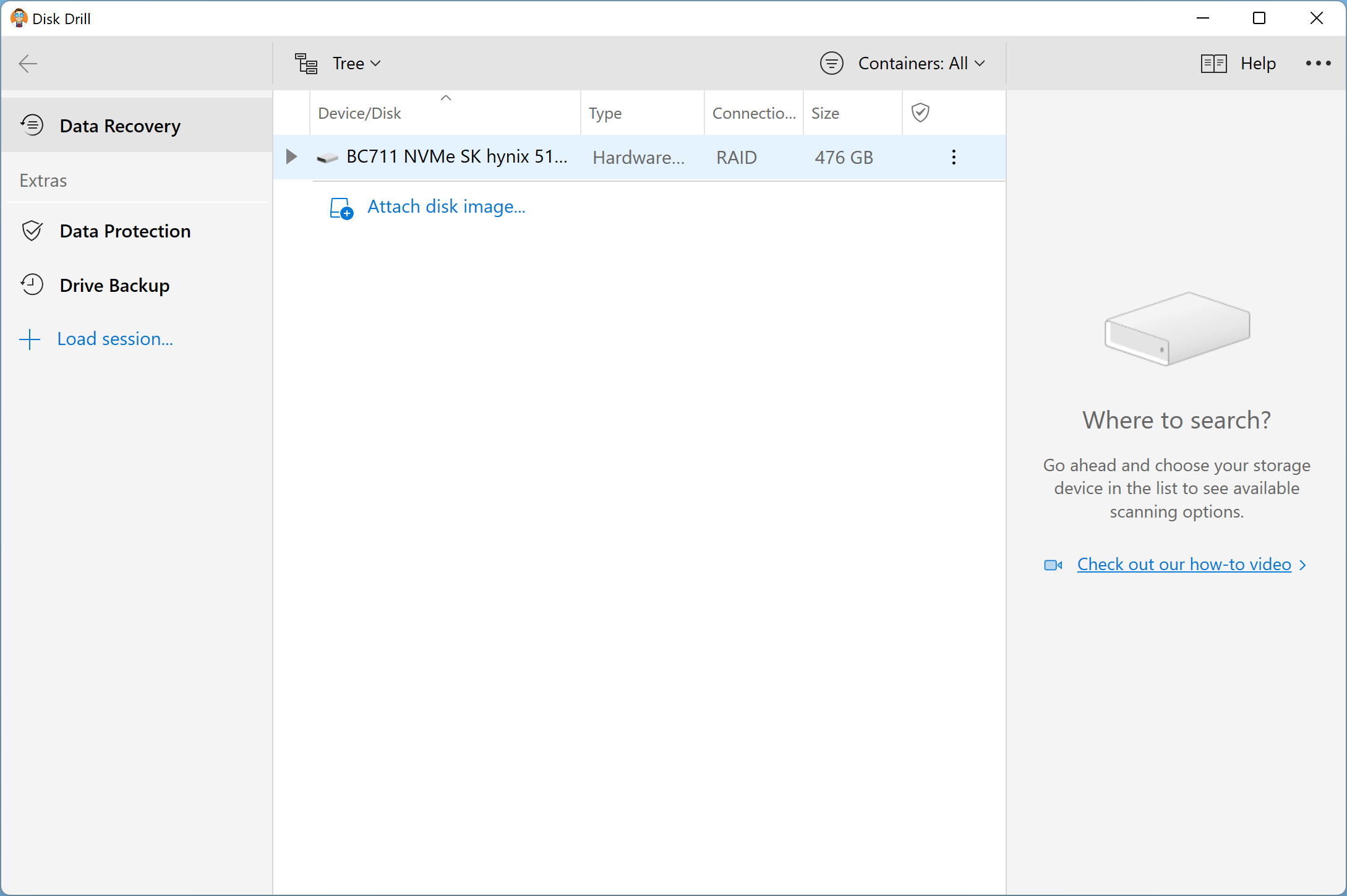
What is Disk Drill?
Disk Drill is a feature-packed recovery utility that can scan and restore lost or deleted files from hard drives, SSDs, USB flash drives, SD/memory cards, and other storage devices. It works across common Windows file systems such as FAT, exFAT, and NTFS, and supports HFS+ and EXT variants for cross-platform scenarios. Beyond recovery, its Recovery Vault component adds an extra layer of proactive protection by tracking deleted files after it’s enabled.
Why Would a Beginner Use Disk Drill?
Disk Drill stands out for its clean, beginner-friendly interface. You can target a specific partition or scan an entire drive—even if it’s malfunctioning or reformatted. Whether you’re facing accidental deletion, partition loss, corrupted memory cards, or an emptied Recycle Bin, Disk Drill focuses on quick, clear actions that help you get files back with minimal fuss.
Main Features of Disk Drill
- Simple, easy-to-use interface suitable for beginners.
- Supports Windows 11, 10, 8.1, 8, 7, Vista, and XP.
- Supports 400+ file formats (documents, photos, videos, audio, archives, and more).
- Automatic categorization into images, documents, videos, audio, etc.
- Preview lost files before recovery.
- Thumbnail/cover previews for media files prior to recovery.
- Create and mount a virtual disk image to recover safely.
- Extended RAW file support and modern camera formats.
- Improved exFAT recovery handling.
- Free recovery up to 500 MB (Windows) helps you try before you buy.
- Recovery Vault for free data-protection tracking.
- Free byte-level backups of your storage media.
How to Use Disk Drill
Follow these beginner-friendly steps to try recovering your files. On Windows, you can restore up to 500 MB for free.
Step 1. Stop using the affected drive immediately to avoid overwriting deleted data.
Step 2. Install Disk Drill on a different drive (not the one you’re recovering from).
Step 3. Launch the app, select the problematic disk or partition, and choose the recommended scan.
Step 4. Let the scan complete, then use filters (file type, size, date) to narrow results.
Step 5. Preview important files to confirm they’re intact.
Step 6. Recover to a safe destination on another disk.
Safe Use Tips for Beginners
- Don’t install or save recovered files to the same drive you’re rescuing from—use another disk.
- Act quickly. The more you use a drive after deletion, the higher the chance that data gets overwritten.
- On SSDs, TRIM can reduce recoverability. Try scanning sooner rather than later.
- Use the Recovery Vault feature going forward to make future restores easier.
- After recovery, consider checking drive health with a diagnostic tool if failures persist.
When Disk Drill Can Help You
- Accidentally deleted files or emptied the Recycle Bin.
- Formatted or corrupted partitions.
- Unreadable SD cards, USB sticks, or external drives.
- Failed bootups where files on the disk still matter.
Download Disk Drill
You can download Disk Drill from its official website. On Windows, recovery of up to 500 MB is free, making it easy to test before upgrading.
Pros and Considerations
Pros
- Beginner-friendly interface with powerful scanning modes.
- Free recovery allowance on Windows to test the results first.
- Wide file-type and file-system support.
Considerations
- Free recovery limit (Windows) may not cover large jobs.
- Success depends on how much new data has overwritten the deleted space.
Frequently Asked Questions About Disk Drill
Is Disk Drill really free?
On Windows, you can recover up to 500 MB for free. Larger recoveries require an upgrade.
Can Disk Drill recover data from formatted drives?
Yes, it can scan formatted or corrupted drives. Results vary based on how much data has been overwritten.
Will it work with SSDs and memory cards?
Yes—SSDs, USB drives, SD/microSD cards, and external HDDs are supported. Note that SSD TRIM may reduce recovery chances over time.
What is Recovery Vault, and should I enable it?
Recovery Vault tracks deletions after it’s turned on, making future restores easier. It’s recommended for proactive protection.
Are there trusted freeware alternatives?
Yes. Check our roundup of tested free data recovery tools. You might also consider Recuva, MiniTool Power Data Recovery Free, and Wondershare Recoverit.
Conclusion
If you’ve accidentally deleted files or lost important data due to formatting or system issues, Disk Drill data recovery provides a reliable, beginner-friendly path to get files back. With free recovery up to 500 MB on Windows, you can confirm real results before paying. Combined with Recovery Vault for future protection and support for hundreds of file types across many devices, Disk Drill is a strong choice when you need fast, safe recovery.