

RegScanner is a free program made by NirSoft that helps you search inside the Windows Registry. You can download RegScanner to quickly locate any setting or value without the frustration of using Windows’ built-in tool, called RegEdit. If you’ve never heard of the registry before, think of it as a huge notebook where Windows stores all its settings for the system and programs. The problem is, this “notebook” is so big that searching through it with RegEdit can be slow and clumsy. RegScanner makes the process much faster and easier, giving you accurate results and letting you jump straight to them.
Why Would a Beginner Use RegScanner?
Even if you’re not a tech expert, there are times when you might need to look in the registry. Maybe you want to remove traces of a program you uninstalled, check if a setting exists, or see if a virus left behind some leftovers. RegScanner makes these tasks simple by giving you clear search results and letting you jump straight to them without having to click through endless folders.
Main Features of RegScanner
- Search by keyword, type of value (like text or numbers), or a specific part of the registry.
- See results as they appear while the search is still running.
- Jump straight to a result in Windows’ built-in registry editor with a double-click.
- Save results in different formats like .REG, .CSV, or .TXT so you can keep a record.
- Completely portable—no installation needed, just run the file.
How to Use RegScanner?
First, download RegScanner from the official NirSoft page. Make sure you choose the correct version for your computer (32-bit or 64-bit). Once downloaded, unzip the file to a folder on your computer. Inside that folder, you’ll see a file called RegScanner.exe. Double-click it to open—no installation is needed.
When RegScanner opens, you’ll see a simple window. At the top, there’s a box called Find String. This is where you type the word or phrase you want to search for. Below that, you can choose which part of the registry to search in (called “base keys”) and what type of data to look for (text, numbers, or binary data). If you’re not sure, you can leave these set to their defaults, and RegScanner will search everything.
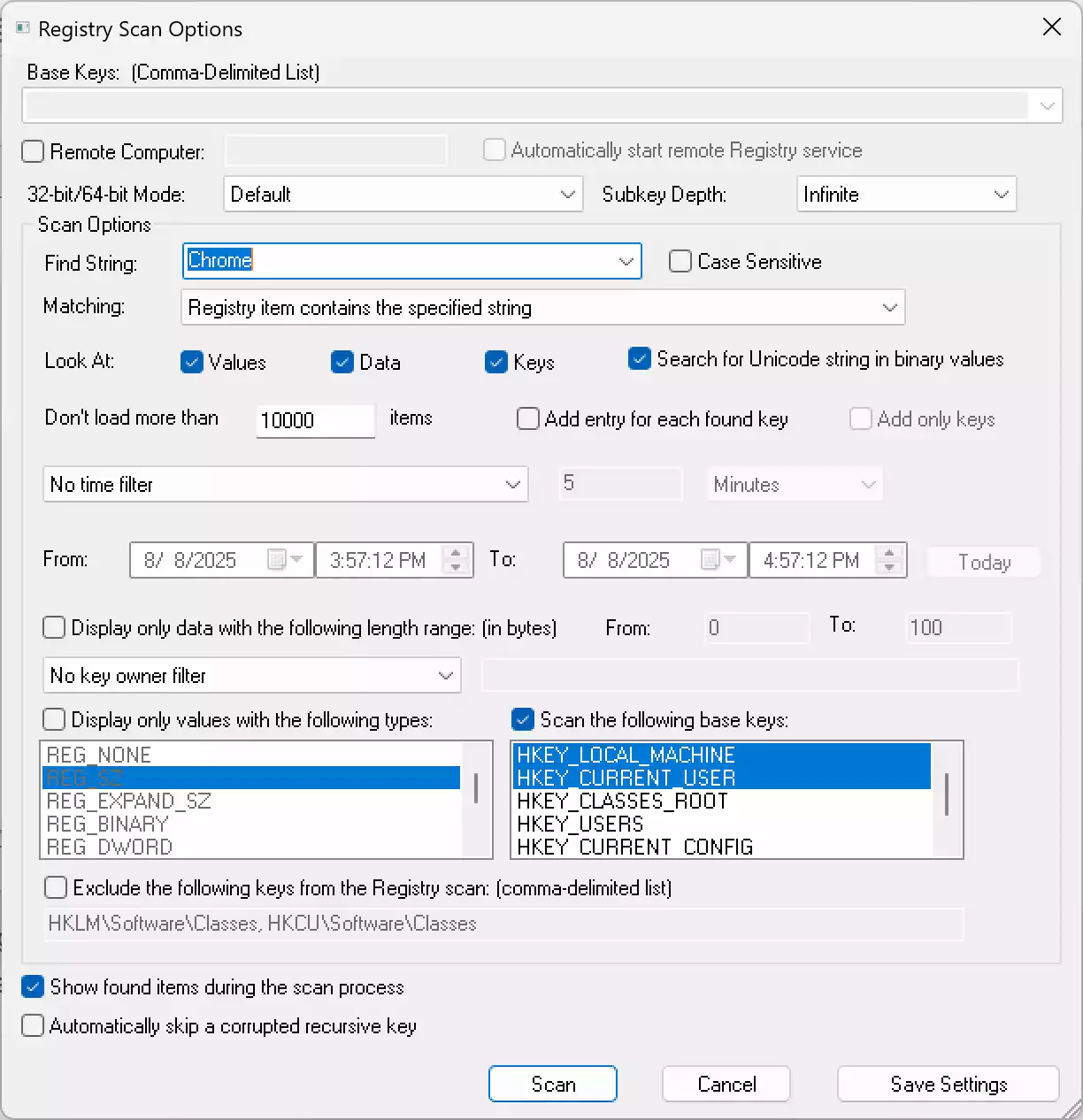
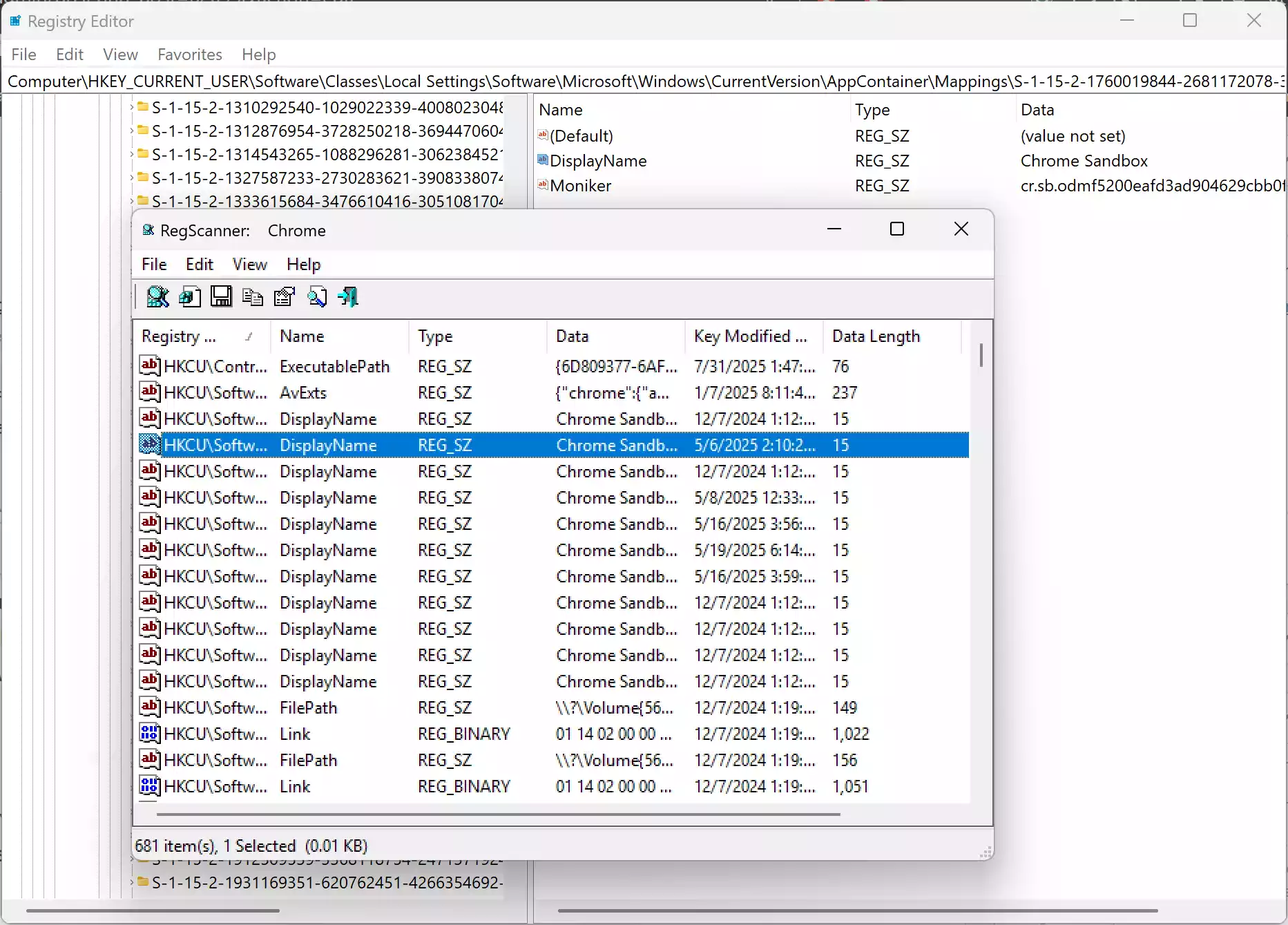
Let’s say you want to find all entries related to “Chrome.” Just type Chrome into the Find String box, make sure Keys, Values, and Data are selected, and click Scan. The results will start appearing almost instantly. You can click on any result to see more details, and if you double-click it, it will open in Windows’ built-in registry editor so you can view or edit it.
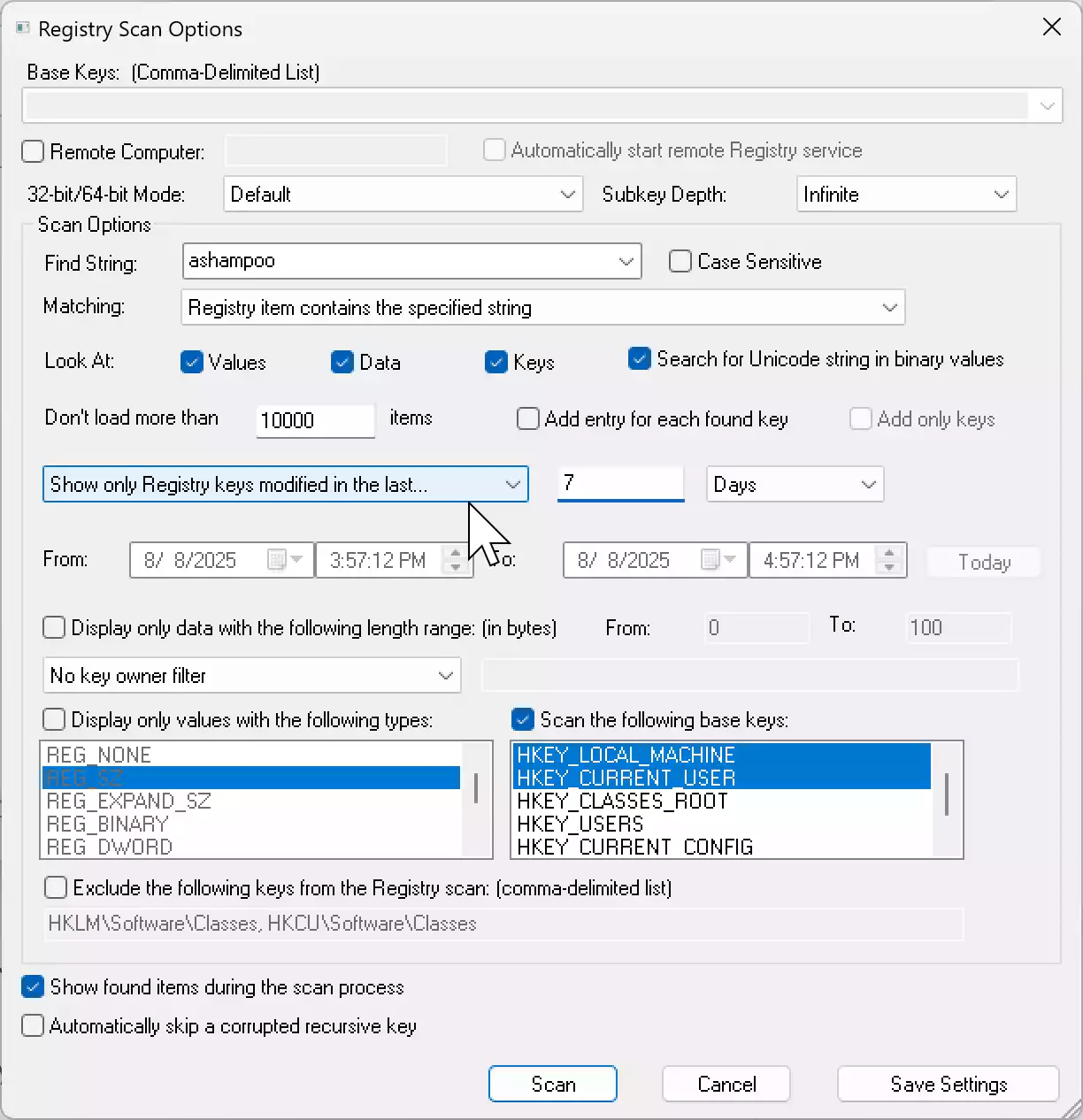
If you only want to see recent changes, for example, entries modified in the last 7 days, select the option that says “Show only Registry keys modified in the last…” and type in the number of days. This is helpful when you’ve just installed or removed software and want to see what it changed.
Once you find what you need, you can save the results. Just select the entries you want, click on the File menu, and choose “Save Selected Items.” You can save them as a .reg file (which can be opened again in the registry) or as a text file if you just want a list.
Safe Use Tips for Beginners
- Only delete or change something if you are 100% sure what it does—wrong changes can cause problems in Windows.
- Before making any edits, create a System Restore Point so you can undo changes if needed.
- If in doubt, use RegScanner just for searching and learning, not deleting.
When RegScanner Can Help You
- Finding leftover entries after uninstalling a program.
- Tracking down hidden settings for programs.
- Checking for traces of malware that antivirus software might have missed.
- See what changed in your system after installing the software.
Download RegScanner
You can download the RegScanner freeware utility from NirSoft. The page provides both 32-bit and 64-bit versions—choose the one that matches your system. The download comes in a ZIP file, so you will need to extract it before running the program. Because RegScanner is portable, you can even keep it on a USB drive and use it on different computers without installation.
Always download RegScanner from the official NirSoft website to ensure you get a safe, unmodified version.
Conclusion
RegScanner is one of the simplest and most useful tools for searching the Windows Registry, even if you’re new to this area. It’s quick to download RegScanner, easy to use, and gives you the power to find exactly what you’re looking for without getting lost. Whether you’re cleaning up after a program, looking for hidden settings, or just curious about how your system works, RegScanner makes it easy and safe to explore.
Frequently Asked Questions About RegScanner
Is RegScanner safe to use?
Yes, RegScanner is safe to use as long as you download it from the official NirSoft website. The tool itself doesn’t make changes to your registry unless you manually edit or delete entries. Always create a backup before making changes.
Do I need to install RegScanner?
No, RegScanner is a portable program. You just download it, unzip it, and run the .exe file—no installation is needed.
Can RegScanner damage my computer?
RegScanner only searches and displays registry entries. However, if you delete or change registry values incorrectly, it could cause problems. That’s why beginners should use it mainly for searching and viewing.
Does RegScanner work on all versions of Windows?
Yes, RegScanner works on most versions of Windows, including Windows 7, Windows 8, Windows 10, and Windows 11, both in 32-bit and 64-bit versions.
Can I use RegScanner to clean the registry automatically?
No, RegScanner is a search tool, not an automatic cleaner. It helps you find specific registry entries, but it doesn’t automatically remove them.