

Notepad has been a part of the Windows operating system for a long time. While the Windows OS has improved significantly over the years, Notepad had not seen any major enhancements until Windows 10/11. It still looks and functions similarly to how it did in Windows XP.
This gearupwindows article will show you how to save a Notepad file as a PDF on a Windows 10/11 PC. By default, the Notepad app in Windows 10/11 saves files as text with the .txt extension. In other words, the Notepad application in Windows 10/11 does not provide a direct option to save a document in PDF format; it only allows saving files in text format.
There is nothing wrong with the .txt format, and you can still save your document and share it with others. However, the .txt format is not as widely used or accessible as PDF. If someone receives a text file on a non-Windows platform, they may face difficulty opening it. PDF, on the other hand, is a universally supported format that can be opened on virtually any device, including Android smartphones.
To ensure better compatibility when sharing documents, we recommend converting the text file into a PDF. If you are using Windows 10/11, you don’t need to install any third-party applications to do this. You can convert a Notepad file into a PDF using the built-in functionality of Windows. Let’s see how to convert a text file to PDF format.
How to Save a Notepad File as a PDF in Windows 11/10?
Follow these steps to save a Notepad File as a PDF in Windows 11/10:-
Step 1. Open the text file in the Notepad app that you want to save as a PDF.
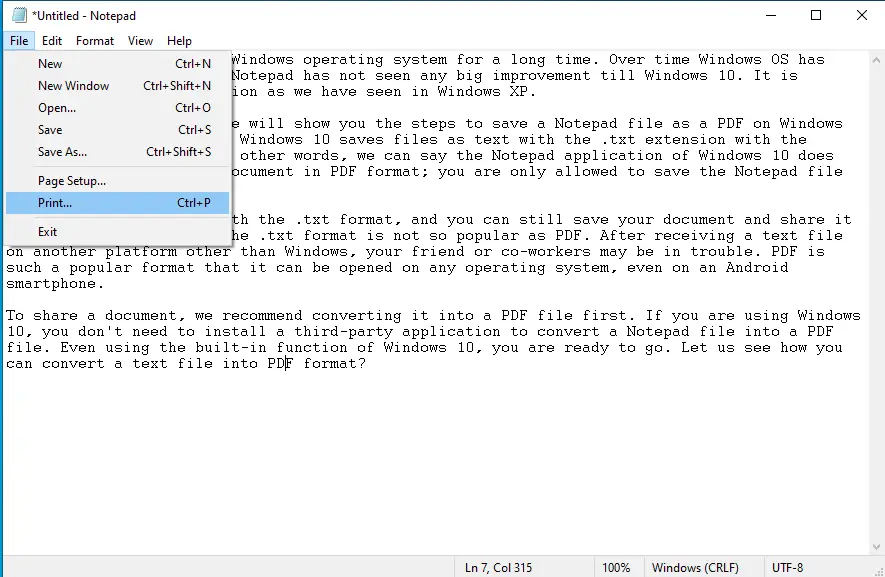
Step 2. After opening the file in Notepad software, click on the File menu and then select the Print option to open the Print dialog box.
Step 3. In the Print dialog that opens after performing the above step, select Microsoft Print to PDF as the printer in the “Select Printer” section.
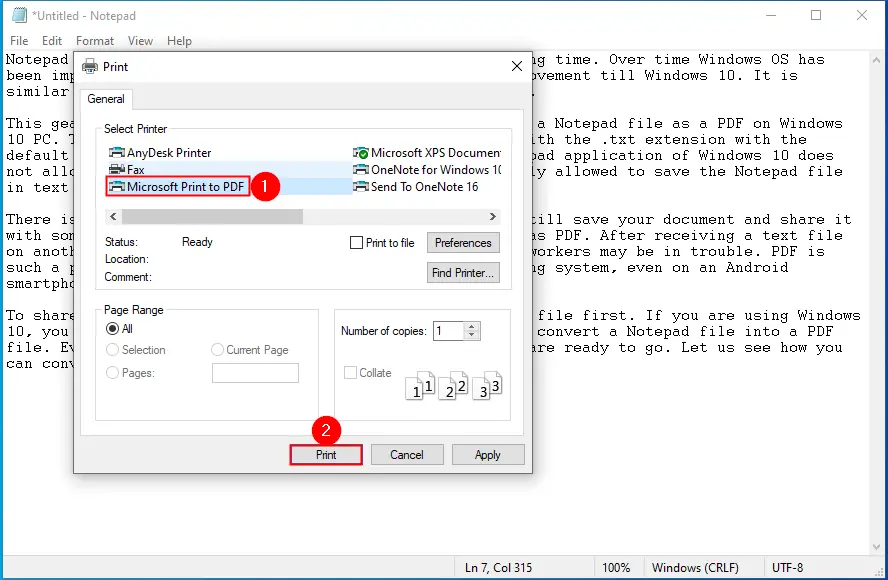
Step 4. Click on the Print button.
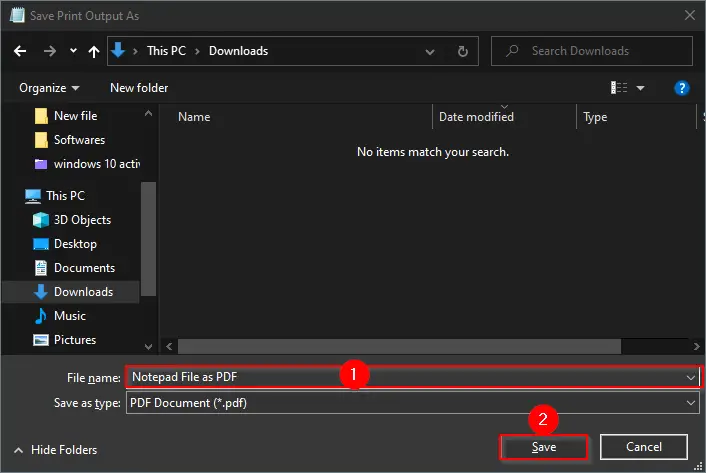
Step 5. The “Save Print Output As” dialog box opens. Type a name for the PDF file in the File name field. Next, click the Save button.
After completing the above steps, you will have a PDF file in your selected location for your Notepad file. You can use a dedicated PDF tool or a web browser to read this PDF file.
Conclusion
In conclusion, Notepad may not have seen any significant improvement in Windows 11/10, but it still remains a useful application for many users. By default, Notepad saves files in text format, but it is possible to convert a Notepad file into a PDF file without installing any third-party software. Converting a text file to a PDF file can make it easier to share and open on any operating system or device. With the built-in Microsoft Print to PDF function, it is a straightforward process to save a Notepad file as a PDF file in Windows 11/10.