

Reading is an essential part of our digital lives, but sometimes it can be difficult to go through long PDF files, especially if you have visual impairments or simply want to multitask. Fortunately, there are free PDF voice readers that can read text aloud, helping you absorb information hands-free. These tools are not only useful for accessibility but also for productivity, since you can listen to study material, eBooks, or work documents while doing something else. If you often work with PDF files, you might also want to explore free PDF editors to manage your documents more efficiently.
Best Free PDF Voice Readers for Windows
Here are the top 5 free PDF voice readers you can use on Windows 11 and 10:
PDF to Text Reader – Extract and Listen to PDF Text Online
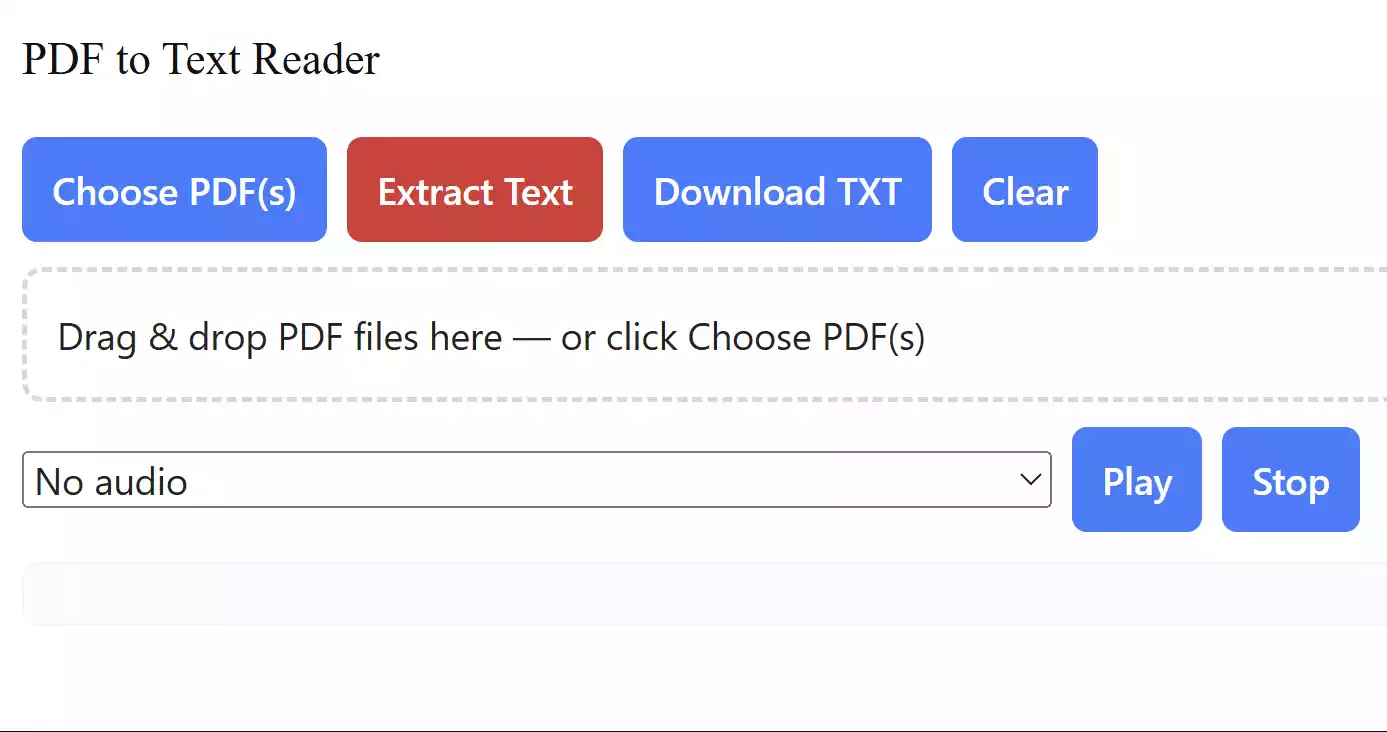
If you don’t want to install extra software, the free PDF to Text Reader is a simple browser-based tool that lets you both extract text from PDFs and listen to it out loud. Everything works directly in your web browser, so there’s no setup required.
All you need to do is upload your PDF, and the tool will instantly display the text in a clean, readable format. You can copy the extracted content for notes, editing, or translation. What makes it even better is the built-in text-to-speech feature, which can read the PDF text aloud — handy for students, researchers, or anyone who prefers listening over reading.
Since it runs completely inside your browser, your documents stay private and secure — no data is uploaded to external servers. It’s perfect for quick tasks and pairs well with other free PDF tools we’ve covered, such as our PDF to Text Converter, if you need an offline option.
Balabolka
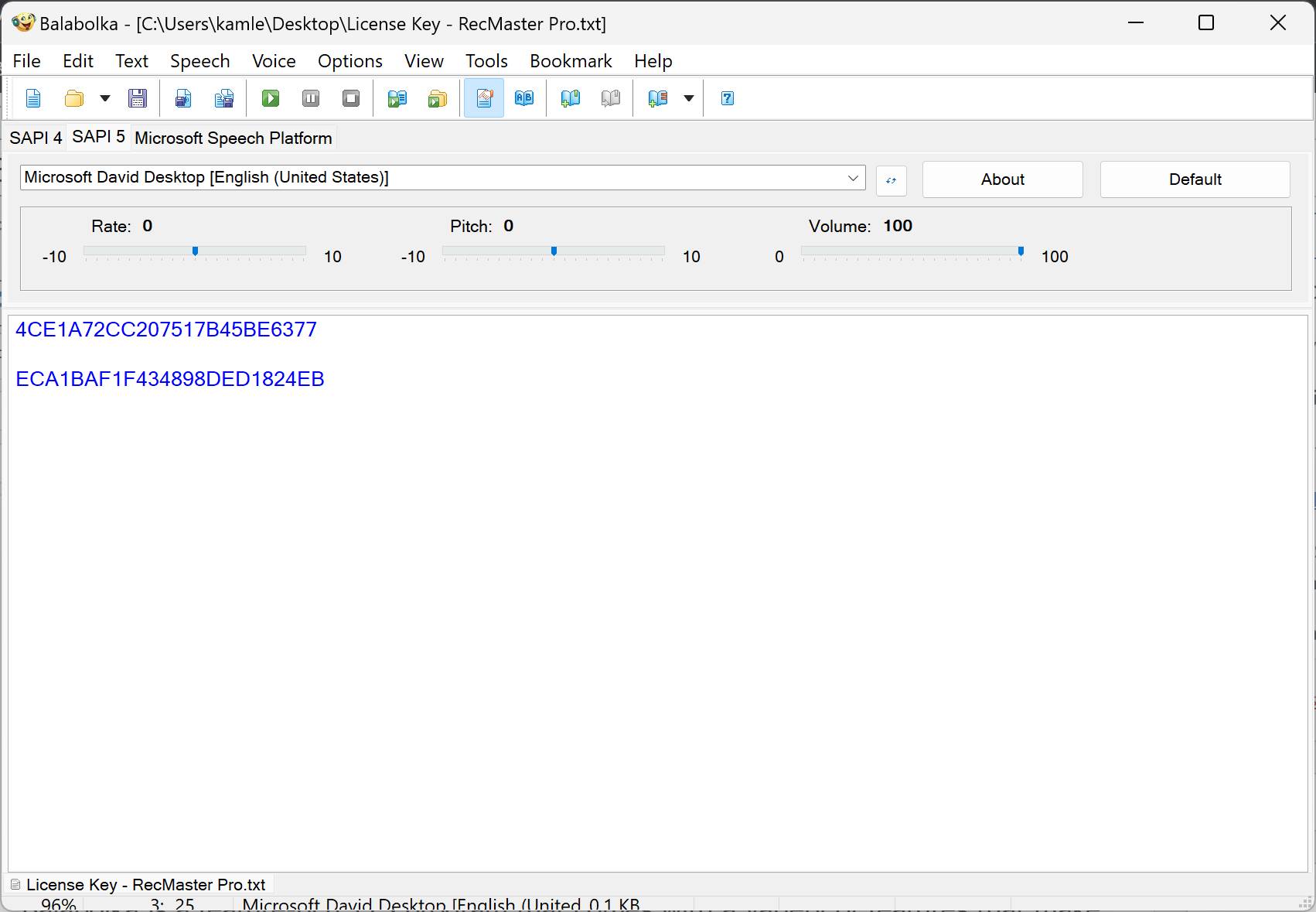
Balabolka is a versatile text-to-speech program that supports a wide range of formats, including PDF, DOC, EPUB, RTF, and HTML. It offers plenty of customization options, such as changing the voice, adjusting reading speed, highlighting the text being read, and even saving the output as an MP3. For anyone who frequently works with documents, pairing Balabolka with a tool like A-PDF Text Extractor can make managing PDF content much easier.
Acapelabox
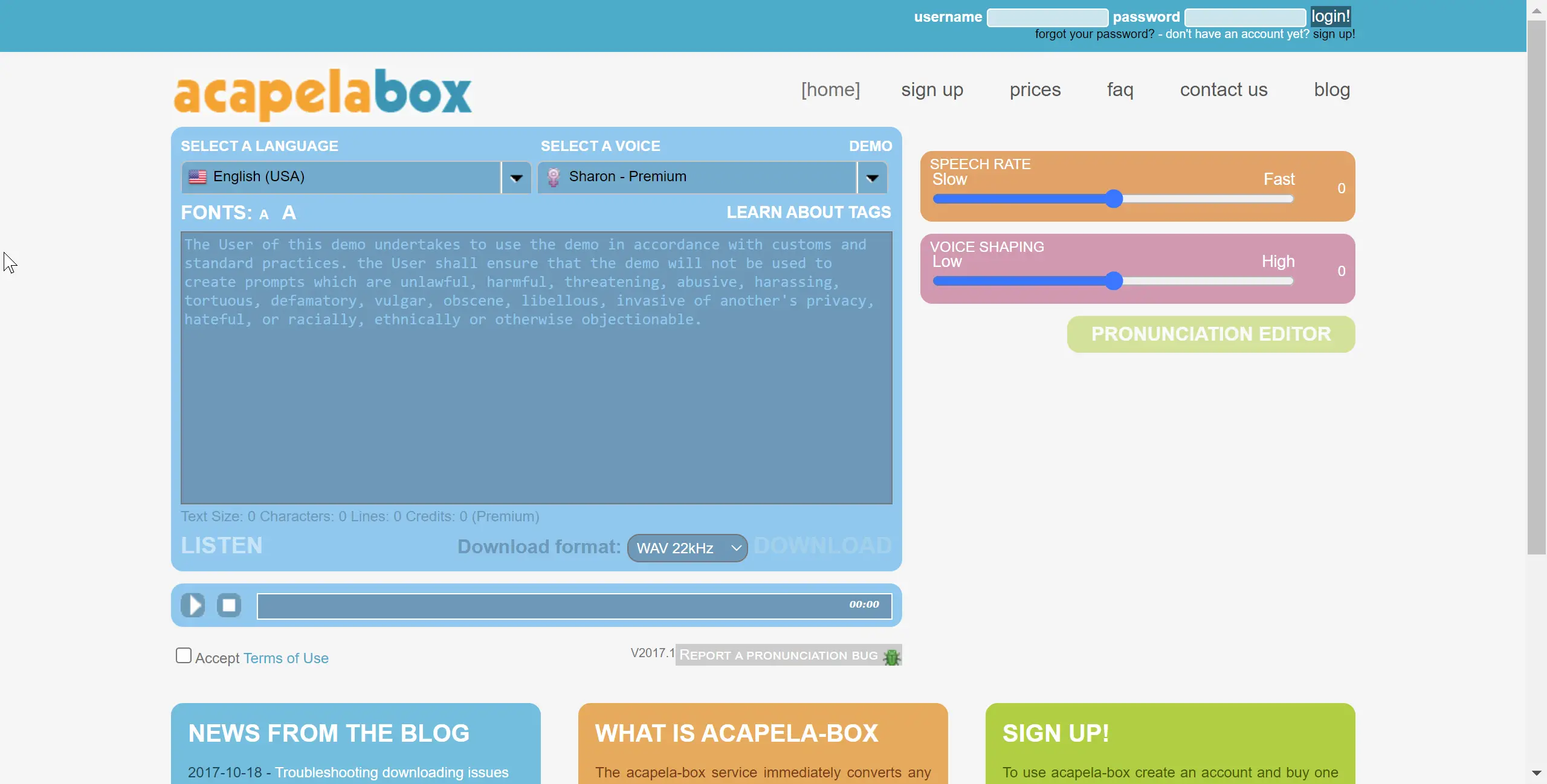
Acapelabox provides high-quality, natural-sounding voices that make listening to PDFs more pleasant. It also allows you to adjust voice speed, pitch, and volume, giving you flexibility depending on the situation. This makes it a good option for those who listen to long reports or eBooks.
Read Aloud
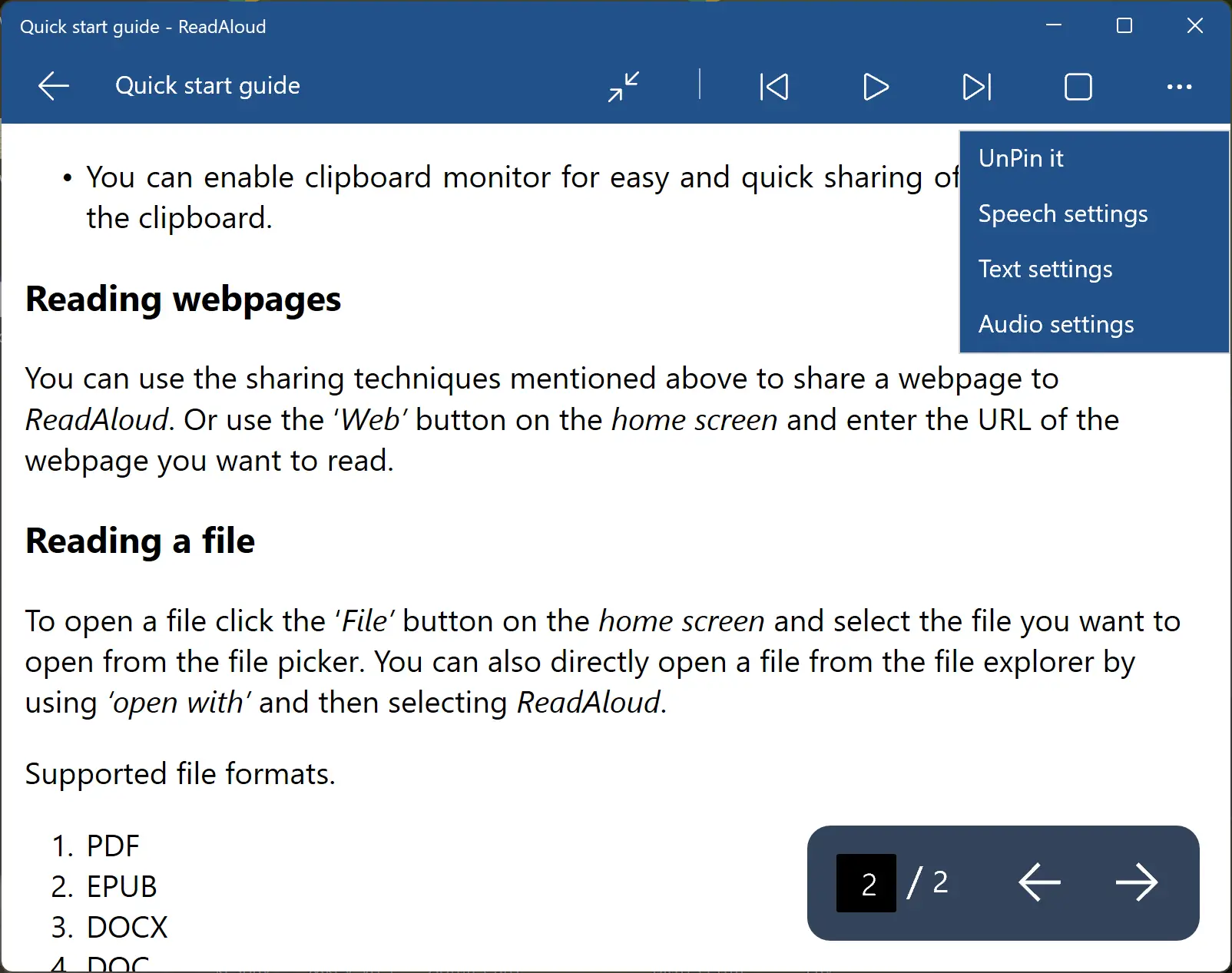
Read Aloud, developed by Microsoft, supports reading not just PDFs but also webpages, Word files, and EPUBs. The program is simple to use and comes with options for customizing speed, pitch, volume, and even color schemes for better readability. If you need to create or edit PDFs before using Read Aloud, you can try PDF24 Creator, another free tool for handling documents.
Adobe Acrobat Reader
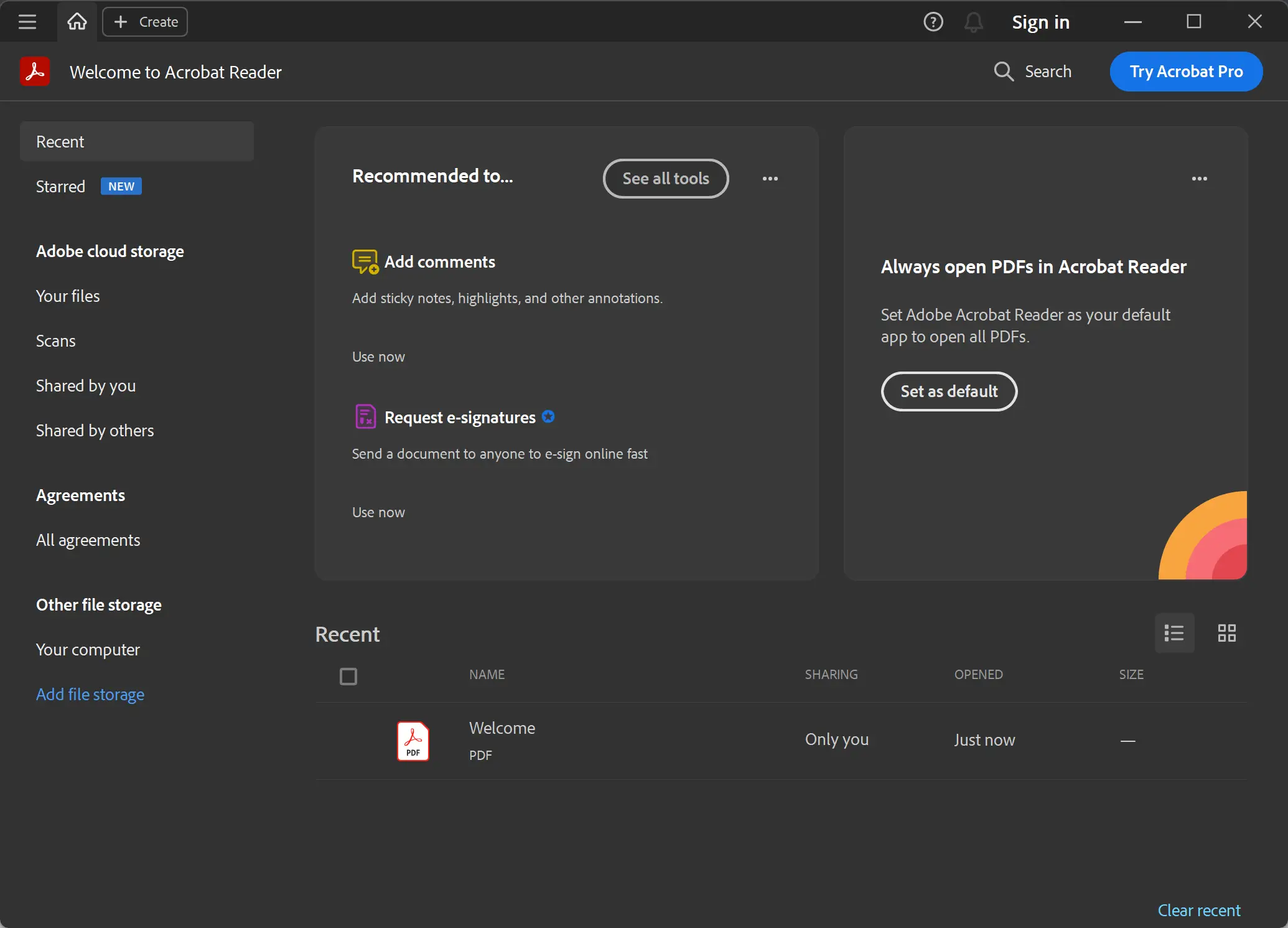
Adobe Acrobat Reader remains one of the most popular PDF readers, and it includes a built-in Read Aloud feature. You can choose to have specific sections or the entire document read aloud. Combined with its annotation and editing capabilities, it works well for students and professionals who want an all-in-one solution.
Power Talk
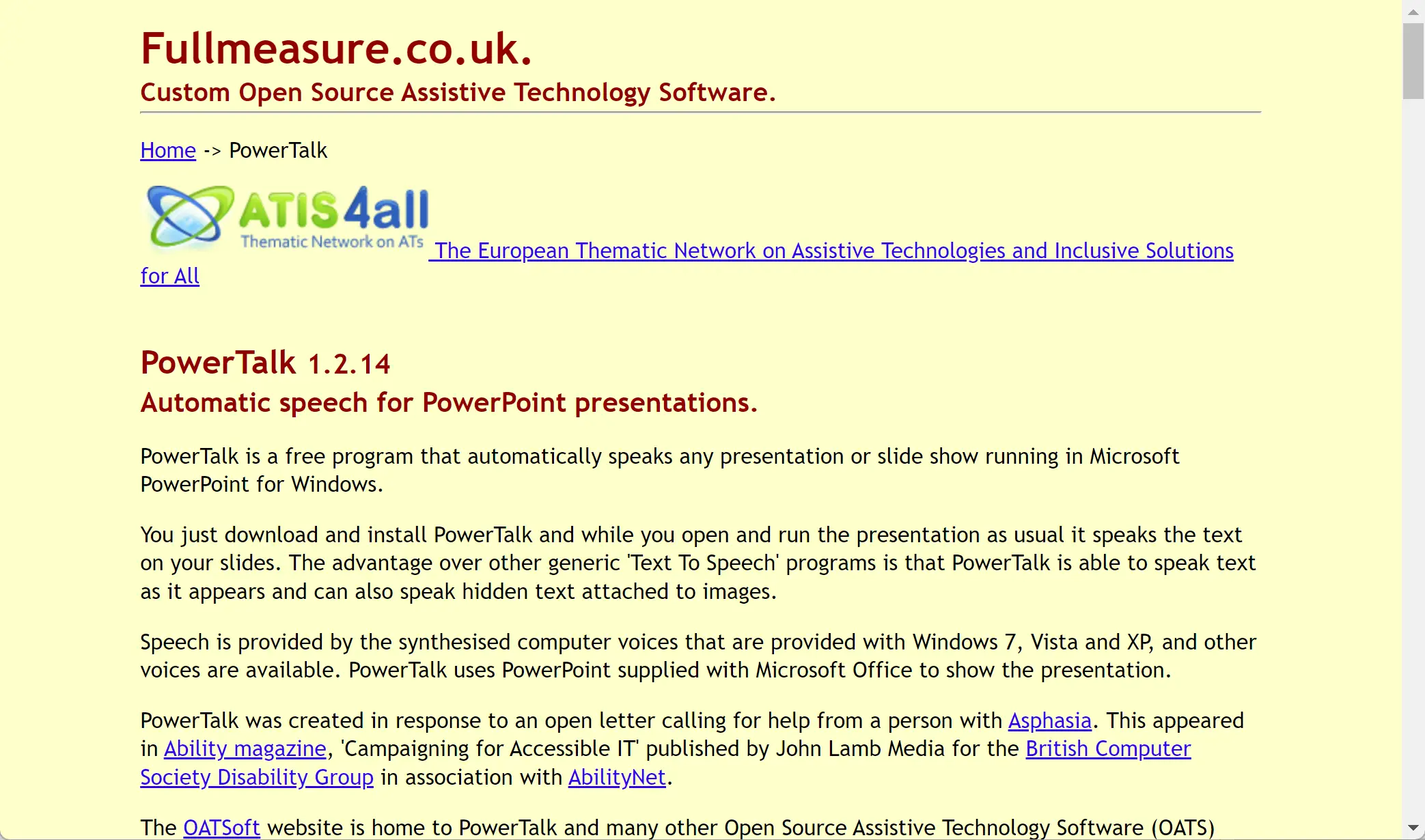
Power Talk is a user-friendly text-to-speech program that can read PDF content aloud while highlighting text in real time. It also allows you to save spoken text as an MP3 file, making it useful for offline listening. If you work with large document collections, using it alongside PDF Merger can help combine multiple files for continuous reading.
Frequently Asked Questions About PDF Voice Readers
Can these tools read scanned PDF documents?
No, most of these programs can only read text-based PDFs. For scanned PDFs, you’ll need an OCR tool like FreeOCR to extract readable text first.
Are the voices customizable?
Yes, tools like Balabolka and Acapelabox allow you to change voice type, adjust speed, pitch, and volume for a more personalized listening experience.
Can I save the spoken text as audio files?
Yes, programs such as Balabolka and Power Talk let you export the narration into MP3 or WAV formats, which is helpful for offline use or mobile listening.
Conclusion
These free PDF voice readers for Windows 11 and 10 make reading long documents much more convenient. Whether you choose Balabolka for its advanced features, Read Aloud for simplicity, or Adobe Acrobat Reader for its all-in-one approach, each tool brings a unique advantage. And if you frequently work with PDFs, combining them with free tools like PDF24 Creator or PDF Merger can give you even more flexibility. Whether you want to multitask, study, or improve accessibility, these voice readers will make your PDF experience smoother and more engaging.