

If your Windows PC feels infected but your regular antivirus says everything’s fine, Trend Micro HouseCall is a great “second opinion.” It’s a free, one-time malware scanner that uses cloud-based detection to find malware and potentially unwanted programs (PUPs) that your main antivirus might miss. This guide explains what it is, when to use it, and how to run it safely on Windows 11/10.

What Is Trend Micro HouseCall?
HouseCall is a lightweight, on-demand scanner from Trend Micro. You download a small launcher, run a scan, review results, and remove threats — no permanent installation or services added. Because it’s portable and quick, it’s ideal when you want a clean, independent check of your system.
Key Features
- One-time scan – No sign-up or installation; perfect for quick checks.
- Cloud-assisted detection – Always-current definitions without heavy updates.
- Multiple scan types – Quick, Full, and Custom (specific folders/drives).
- Remediation – Quarantine or remove detected threats after review.
- Safe alongside your AV – Works with Microsoft Defender or third-party antivirus.
Download Trend Micro HouseCall
Get the latest version from the official Trend Micro page. It works on both Windows 11 and Windows 10.
How to Use HouseCall (Step-by-Step)
Follow these steps on Windows 11 or Windows 10:
Step 1. Download HouseCall from the official page and save the launcher (e.g., HousecallLauncher.exe).
Step 2. Right-click the launcher and select Run as administrator, then approve the UAC prompt.
Step 3. Accept the license agreement and wait for the components to load.
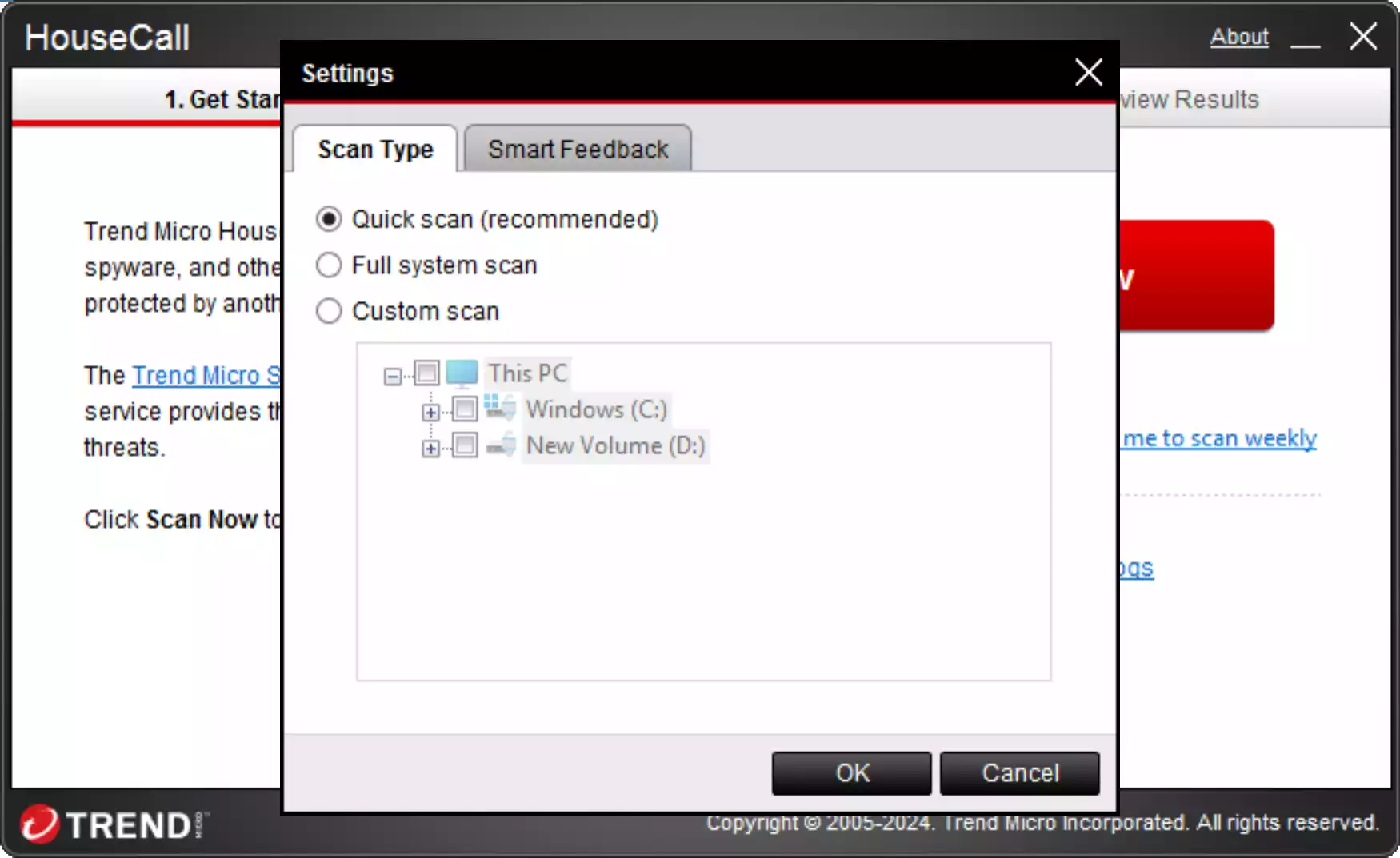
Step 4. From Settings, choose your scan type:
- Quick Scan – Scans common malware locations; fastest.
- Full Scan – Scans the entire system; most thorough but slower.
- Custom Scan – Targets specific folders/drives (useful for USB or Downloads folder).
Step 5. Click Scan Now and let HouseCall analyze your system. You can continue using your PC while it runs.
Step 6. Review the results, unchecking anything you know is safe.
Step 7. Choose Fix or Clean to quarantine or remove threats. Restart if prompted.
Step 8. If symptoms persist, try ESET Online Scanner or Microsoft Safety Scanner for a second opinion.
If Malware Blocks Your Tools
- Boot into Safe Mode with Networking and run HouseCall again.
- Scan outside Windows with Microsoft Defender Offline to remove deeply hidden threats.
Best Practices After Cleaning
- Update Windows and apps, uninstall unknown programs, and reset browsers.
- Change passwords for important accounts once the PC is clean.
- Keep one real-time antivirus active and run a second-opinion scan monthly or after risky downloads.
Frequently Asked Questions
Is HouseCall an antivirus replacement?
No. It’s an on-demand scanner for cleanup and second opinions. Keep your real-time antivirus enabled.
Does it work on Windows 11?
Yes. HouseCall supports Windows 11 and Windows 10.
Do I need to install anything?
No. You run a portable executable and delete it afterward.
Which scan should I choose?
Start with Quick Scan. If issues remain, run a Full Scan or a targeted Custom Scan.
HouseCall found threats — should I delete them all?
Review each detection first. Quarantine is safer than deletion if unsure; you can remove quarantined items later.
Conclusion
Trend Micro HouseCall is a quick, free way to double-check a suspicious Windows PC. Use it alongside your main antivirus, and if problems continue, follow up with a second-opinion scanner like ESET Online Scanner or Microsoft Safety Scanner, and consider an offline Defender scan for stubborn threats.