

When it comes to protecting sensitive data on your Windows PC, encryption is one of the most effective defenses available. VeraCrypt is a free, open-source disk encryption software that lets you securely encrypt entire drives, partitions, or even create virtual encrypted disks. Whether you want to safeguard your personal files, confidential business data, or simply protect a USB drive, VeraCrypt provides professional-grade security for everyone — from beginners to advanced users.
What is VeraCrypt?
VeraCrypt is an open-source encryption software derived from TrueCrypt, one of the most popular security tools of the past decade. It improves upon TrueCrypt’s foundation by fixing security vulnerabilities and adding modern encryption standards. VeraCrypt works by creating a virtual encrypted volume that behaves like a regular disk — you can store, move, and edit files inside it as if it were a normal drive.
Unlike traditional password protection tools, VeraCrypt offers full disk encryption with multiple layers of protection, ensuring no unauthorized access even if your computer is stolen or hacked. You can encrypt your system drive, external drives, or create hidden volumes for maximum privacy.
Why Choose VeraCrypt?
Unlike simple password-protection methods or basic folder lockers, VeraCrypt encrypts your entire drive or partition with industry-grade algorithms such as AES, Serpent, and Twofish. It’s a favorite among privacy enthusiasts, journalists, and IT professionals because it’s transparent, regularly audited, and free to use.
If you’re curious about other encryption options, check out the best free encryption tools for Windows 11 and 10 — a roundup that includes VeraCrypt among other excellent freeware solutions.
Key Features of VeraCrypt
- Free and Open Source – No licensing fees or subscriptions, and the source code is publicly available for auditing.
- Powerful Encryption Algorithms – Choose from AES, Serpent, Twofish, or even combine them in cascades for additional protection.
- System Drive Encryption – Protects your entire Windows operating system with pre-boot authentication.
- Portable Mode – Use VeraCrypt without installation to encrypt USB drives or portable media.
- Hidden Volumes – Create concealed partitions that provide plausible deniability if coerced to reveal passwords.
- Cross-Platform Support – Works on Windows, macOS, and Linux systems.
When VeraCrypt Can Help You
VeraCrypt is ideal if you:
- Store sensitive business or personal files on your computer.
- Use external drives or USBs that may get misplaced or stolen.
- Share your computer with others, and want to keep certain data private.
- Work remotely or travel frequently, and want to protect against unauthorized access.
- Handle confidential financial or research documents.
How to Use VeraCrypt on Windows
Setting up VeraCrypt may seem intimidating at first, but it’s straightforward once you follow the steps carefully. Below is a step-by-step walkthrough to create and mount your first encrypted volume.
Step 1. Download VeraCrypt from its official website or a trusted source. Once downloaded, run the installer and select whether you want a standard installation or Extract to use in portable mode.
Step 2. After installation, open VeraCrypt. The main interface displays available drive letters that you can assign to your encrypted volume.
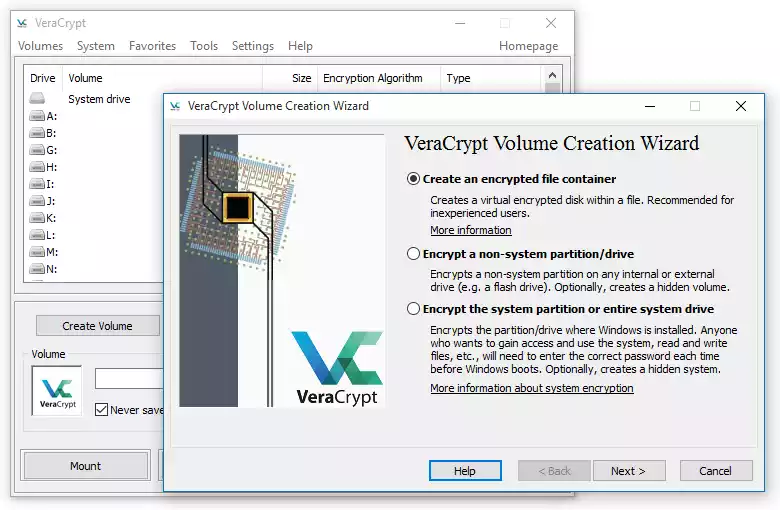
Step 3. Click on Create Volume. The Volume Creation Wizard will open, offering three options:
- Create an encrypted file container – Creates a virtual encrypted disk in a file.
- Encrypt a non-system partition/drive – Encrypts entire external or secondary drives.
- Encrypt the system partition or entire system drive – Encrypts your operating system partition.
For beginners, it’s best to start with the first option.
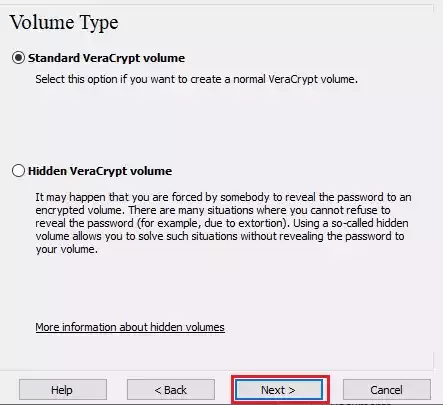
Step 4. You’ll be prompted to choose between a Standard VeraCrypt Volume and a Hidden VeraCrypt Volume. A hidden volume adds another layer of security by concealing the existence of encrypted data. Select Standard for your first try.
Step 5. Click Next.
Step 6. Click Select File and choose a location to save your encrypted volume (e.g., C:\MyFiles\SecureData.vc). This file will act as your encrypted container.
Step 7. VeraCrypt supports several algorithms like AES, Serpent, and Twofish. AES is a great balance between speed and security, so we’ll choose that for this guide.

Step 8. Click Next.
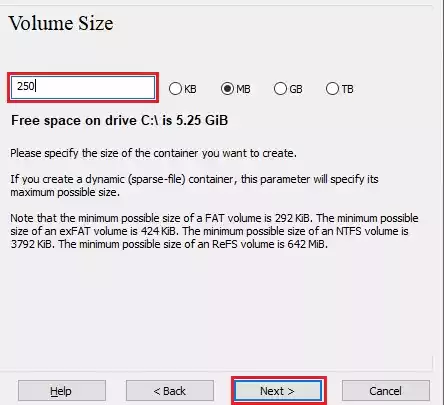
Step 9. Enter the desired size of your encrypted container (e.g., 250 MB). Ensure you have enough space on your disk for the volume file.
Step 10. Click Next.
Step 11. Choose a complex password that combines letters, numbers, and symbols. Avoid short or simple passwords. For password inspiration, you can use our Secure Password Generator.

Step 12. Click Next.
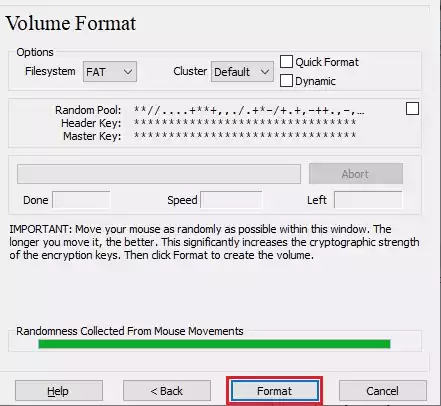
Step 13. Select the filesystem type (FAT or NTFS) and click Format. VeraCrypt will generate random data within the container to ensure strong encryption.
Step 14. Once volume is created, go back to the main VeraCrypt window, click Select File, and choose your encrypted container. Select an available drive letter (for example, M:) and click Mount.
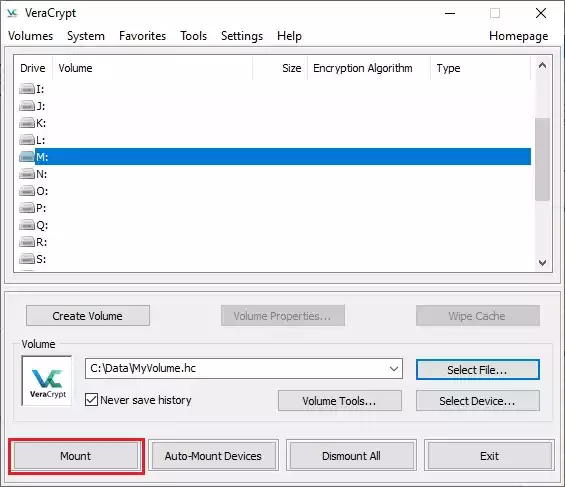
Step 15. Enter your password, select the PRF algorithm that was used during the creation of the volume (SHA-512 is the default PRF used by VeraCrypt). If you don’t remember which PRF was used, just leave it set to “autodetection,” but the mounting process will take more time. Click OK after entering the password.
Now, the drive will appear in File Explorer like any other disk.

Step 16. Once you’re finished accessing your files, return to VeraCrypt and click Dismount to close the encrypted volume safely.

How to Encrypt a USB Drive with VeraCrypt
VeraCrypt can also encrypt portable storage devices. Here’s how:
Step 1. Plug in your USB drive and open VeraCrypt.
Step 2. Click Create Volume → Encrypt a non-system partition/drive.
Step 3. Select your USB drive from the list and proceed through the wizard using your chosen encryption options.
Step 4. Once done, mount the drive normally in VeraCrypt to access your files securely.
Alternatively, if you need to, you can also use the built-in BitLocker to password-protect USB thumb drives in Windows 11.
Mounting Encrypted Volumes and ISO Files
VeraCrypt mounts encrypted containers as virtual drives, letting you access your protected data just like any other local disk. However, it doesn’t handle standard ISO files directly. If you also work with disc images, you can use dedicated tools alongside VeraCrypt for complete flexibility.
For example, explore these guides:
These tools complement VeraCrypt perfectly — VeraCrypt secures your sensitive files, while virtual drive utilities manage ISO and disc images for convenient access.
System Requirements
- Operating System: Windows 11, 10, 8, or 7 (32-bit or 64-bit)
Pros of Using VeraCrypt
- Completely free and open-source
- Supports multiple encryption algorithms
- Cross-platform compatibility
- Hidden volume for extra privacy
- No cloud dependency — local encryption only
Considerations
- If you forget your password, recovery is impossible — encryption is absolute.
- Encrypting large drives may take significant time.
- Performance can slow slightly on older hardware during heavy read/write operations.
Download VeraCrypt
You can download VeraCrypt from its official website.
FAQs
Q1. Is VeraCrypt better than BitLocker?
Yes, in terms of flexibility and open-source transparency. However, BitLocker is integrated into Windows and is easier for beginners. You can read how to enable BitLocker Drive Encryption on Windows or even use BitLocker without TPM.
Q2. Can VeraCrypt encrypt my system drive?
Yes. VeraCrypt supports full disk encryption with pre-boot authentication, ensuring no one can access your system without the password.
Q3. Is VeraCrypt safe for USB drives?
Absolutely. You can encrypt entire USB drives or create portable volumes to use on multiple computers securely.
Q4. Can I recover my data if I forget my VeraCrypt password?
No. VeraCrypt uses strong encryption without backdoors, so recovery without the password is impossible. Always keep a secure record of your credentials.
Q5. Does VeraCrypt slow down my PC?
Not significantly. Modern CPUs with AES hardware acceleration handle encryption efficiently with minimal performance loss.
Conclusion
VeraCrypt remains one of the best free tools to secure your files through robust encryption. It’s ideal for professionals handling sensitive information and equally practical for everyday users who value privacy. Once configured, it’s seamless and reliable — you mount your encrypted drive when needed and unmount it when done.
If you want to enhance your PC security further, check out Process Lasso to optimize background CPU usage and Best Free USB Security Tools for Windows for comprehensive data protection.
VeraCrypt stands as a timeless tool in a digital world where privacy is priceless — encrypt smartly and stay safe.