

Video Screensaver is a free and open-source utility that lets you turn any video file into a Windows screensaver. Whether you want a soothing landscape loop, a cinematic clip, or your favorite movie intro, this lightweight program makes it possible in just a few clicks. It’s hosted on SourceForge and works flawlessly on Windows 11, Windows 10, and older versions.
What Is Video Screensaver?
Video Screensaver (also known as VideoScreenSaver) installs a custom .SCR file on your PC that plays any video when your computer goes idle. It supports popular formats like MP4, AVI, and WMV using your system’s built-in codecs. You simply configure it once, and your chosen video will automatically play whenever the screensaver activates.
This tool is completely free of ads, lightweight, and requires no background processes — making it an ideal choice for users who want a clean, minimal solution.
Key Features
- Supports MP4, AVI, WMV, MOV, and other common formats
- Plays across multiple monitors
- Loops video automatically until user input is detected
- Simple configuration via the Windows Screen Saver settings
- No ads, telemetry, or unnecessary background activity
How to Install and Use Video Screensaver
Step 1. Download Video Screensaver from its official SourceForge page.
Step 2. Extract the ZIP file to a folder of your choice.
Step 3. Right-click the VideoScreensaver.scr file and choose Install.
Step 4. Once installed, it will automatically open the Screen Saver Settings dialog in Windows.
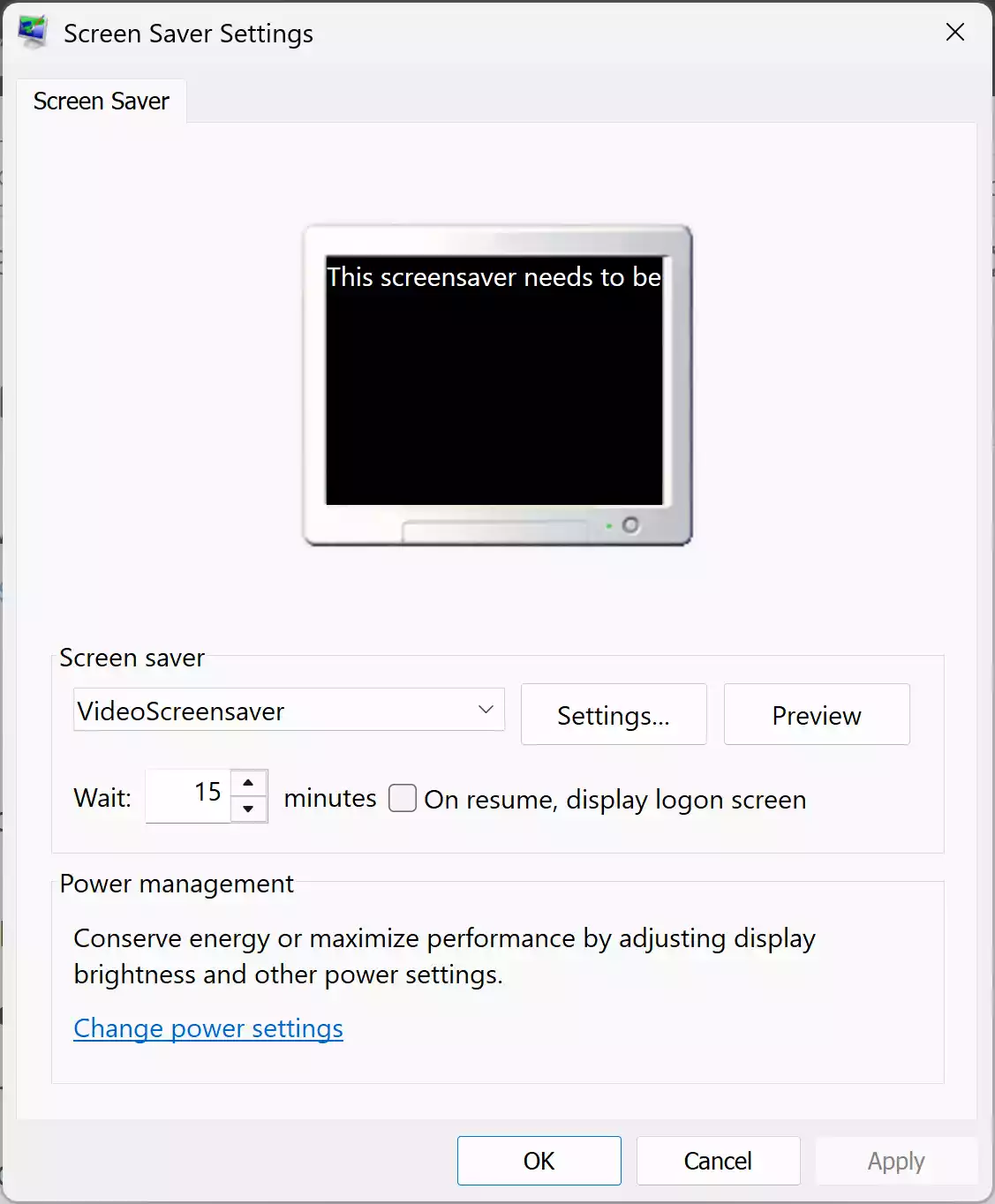
Step 5. Select VideoScreensaver from the drop-down list and click on Settings to browse for your video file.
Step 6. In the main Screen Saver Settings window, set the Wait time (minutes of inactivity before the screensaver starts). Check “On resume, display logon screen” if you want a password prompt after the screensaver.
Step 7. Click Apply and then OK to activate it.
If you’re unsure how to access the screen saver configuration, check this quick guide: How to open Screen Saver settings in Windows.
Alternative: Any Video Screensaver
While Video Screensaver handles a single video file, some users prefer more flexibility — such as muting sound. For that, try the Any Video Screensaver, which allows you to mute videos and play them as a screensaver.
Video Wallpaper vs. Video Screensaver
There’s a difference between video wallpapers and screensavers. A video wallpaper plays on your desktop while you’re actively using your PC, whereas a screensaver activates only when the computer is idle. If you’d rather have a moving video background all the time, follow this tutorial: How to set video wallpaper on Windows 11 or 10.
Create Your Own Video for the Screensaver
You can make your own short video clips from photos and music using this free tool: Private Free Slideshow Maker. Export the slideshow as an MP4, and then use it with Video Screensaver for a personalized touch.
Tips & Troubleshooting
- If your video doesn’t play, ensure the required codec is installed on your system.
- Keep the selected video file in the same folder to avoid path errors.
- Prefer short, loopable clips for smoother playback.
Final Thoughts
Video Screensaver is an elegant, no-nonsense way to breathe life into your idle screen. It’s free, open-source, and requires minimal setup — a perfect pick for users who love visual customization without heavy background software. Whether you choose a peaceful nature loop or a personal video project, this tool lets you make your Windows screensaver truly your own.