

What Does It Mean to Defrag Your Hard Drive? Defragmentation is the process of reducing the number of fragmented files on your hard drive. Over time, as you add and delete data—like programs, documents, music, or videos—the hard drive’s free space becomes scattered. This scattering causes files to be stored in different physical locations rather than in a continuous block. When related files are spread out across the disk, it’s called fragmentation.
As a result, when you install new programs or open existing files, the system takes longer to locate and read the scattered data, slowing down your computer. Defragmentation solves this by reorganizing the data, gathering all related pieces of a file, and placing them close together on the hard drive. It also tries to consolidate free space into one large block, making future file storage more efficient.
After defragmentation, your computer runs faster and more smoothly because files are stored in an organized, easy-to-access manner.
Note: Defragmentation is only necessary for mechanical hard drives (HDDs), which rely on spinning disks and moving heads to read/write data. Solid-state drives (SSDs), which have no moving parts, do not need defragmentation. They can access data instantly from any memory chip.
A Simple Analogy: Imagine a child playing in a room and scattering toys everywhere. Later, the mother gathers and arranges all the toys neatly so the child can find them easily. Similarly, defragmentation organizes your data so the operating system can quickly access it when needed. This process is known as defragmentation in computer terms.
How to Defrag Internal or External Hard Disks on Windows 11, 10, 8, or 7?
To defrag a hard disk on your Windows PC without any third-party tool, perform the following steps:-
Step 1. Press the Windows + R keys to open the Run dialog box.
Step 2. In the Run box, type the following command and hit Enter on the keyboard:-
dfrgui
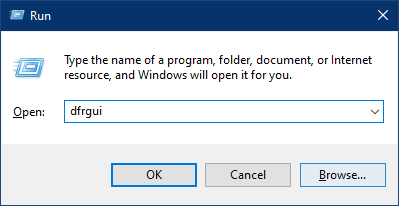
Step 3. Once you perform the above action on Windows 11/10, it will open the “Optimize Drives” window.
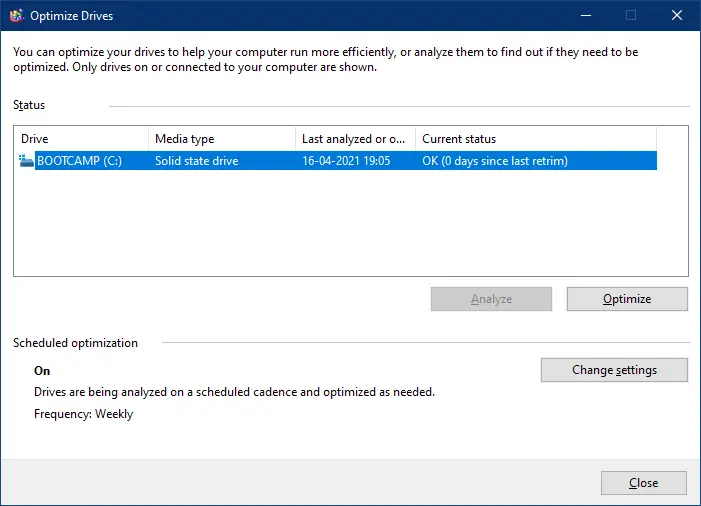
Step 4. Select the partition, and click on Analyze. It will analyze the hard disk for fragmentation. Once completed, click on the Optimize button to defragment it.
If you are using an SSD (Solid State Drive), you do not need to perform the defragmentation on your Windows PC. Even if the current status is OK, defragmentation is not recommended.
If your PC uses an HDD, it is recommended to defrag it at least once a week.
Those preferring to use a freeware tool to defrag the HDD can download any of the following programs:-
Conclusion
In conclusion, defragmentation is an important process to keep your mechanical hard drive organized and running efficiently. When data is fragmented, it slows down the computer’s performance as the computer has to work harder to access the data. Defragmentation gathers all the related files scattered on the hard drive and puts them together in one physical location. It also puts all the free space together in one big chunk. After the defragmentation process is complete, the computer runs faster and more efficiently. It is important to note that solid-state drives do not require defragmentation as they have no moving parts. To defrag a hard drive on Windows, you can use the built-in “Optimize Drives” tool or third-party tools like Puran Defrag, iObit Smart Defrag, DiskTuna, or UltraDefrag. It is recommended to defrag a mechanical hard drive at least once a week for optimal performance.