

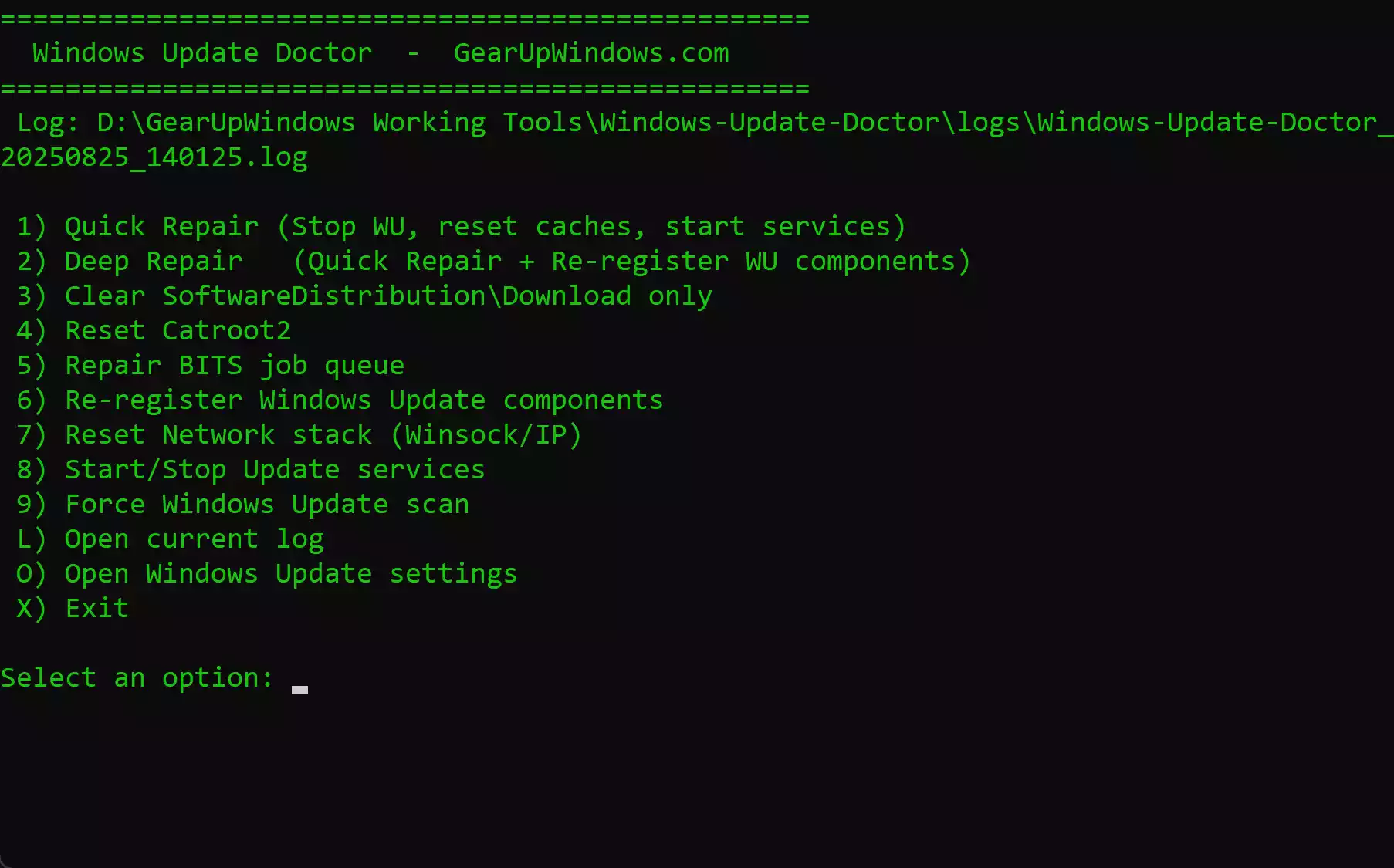
Windows Update Doctor is a tiny, portable batch utility that repairs common Windows Update problems on Windows 11 and Windows 10. It safely resets SoftwareDistribution and catroot2 caches, repairs the BITS queue, re-registers update components, triggers a fresh scan, and writes a timestamped log so you can see exactly what changed. No installation, no telemetry—just run it as Administrator and choose what you want to fix.
What is Windows Update Doctor?
Windows Update Doctor is a script-based troubleshooter built for everyday users and technicians. It bundles the most reliable repair actions for update failures into a simple, menu-driven tool. Each action is reversible-safe (we rename caches instead of deleting them), and the tool logs all steps in a logs folder next to the script.
Why Would a Beginner Use Windows Update Doctor?
Because the usual fixes are scattered across multiple commands and screens. This tool puts the essentials in one place and labels them clearly. If updates won’t download, stay pending forever, or error out after a reboot, Windows Update Doctor can apply the standard remedies in the correct order without you memorizing commands.
Main Features of Windows Update Doctor
- Quick Repair – Stops services, renames
C:\Windows\SoftwareDistributionand%SystemRoot%\System32\catroot2with a timestamp, then restarts services. - Deep Repair – Everything in Quick Repair plus re-registers core Windows Update DLLs and repairs the BITS job queue.
- Clear SoftwareDistribution\Download – Only empties the
Downloadsubfolder when you just need to purge partial packages. - Reset catroot2 – Renames catroot2 safely; Windows rebuilds it automatically.
- Repair BITS queue – Resets BITS permissions and corrupt job data.
- Re-register Windows Update components – Registers only if files exist (no scary errors).
- Reset Network (Winsock/IP) – Flushes DNS and resets networking stacks for update-related connection hiccups.
- Force Windows Update scan – Tries
UsoClient StartScan(Win10/11) with a legacy fallback. - Open Update Settings / Open Log – Jump straight to Windows Update or view the latest log in Notepad.
How to Use Windows Update Doctor
Before you begin, right-click the script and choose Run as administrator. The tool self-elevates if needed and shows you a simple menu.
Step 1. Start with Quick Repair if updates are stuck or fail to download. This resets the two main update caches and restarts services.
Step 2. If problems remain, try Deep Repair. It re-registers update components and refreshes the BITS queue in addition to the Quick Repair steps.
Step 3. If you only want to purge partial packages, use Clear SoftwareDistribution\Download. This is the lightest-touch cleanup.
Step 4. Use Reset catroot2 if signature files or servicing catalogs are likely corrupted.
Step 5. Still seeing errors tied to networking? Run Reset Network (Winsock/IP), then reboot.
Step 6. Choose Force Windows Update scan to ask Windows to detect/download updates again. Open Windows Update settings from the menu to verify it’s working.
Tip: After any deep repair or network reset, a reboot is recommended.
Safe Use Tips for Beginners
- Run as admin. The tool needs elevated rights to stop services and rename system folders.
- Prefer renaming over deleting. Windows Update Doctor always renames cache folders with a timestamp so you can revert if necessary.
- Reboot when prompted. Some resets (especially network stack) don’t fully apply until after a restart.
- Check the log. If something still fails, open the latest log from the menu; it often points to the next step.
When Windows Update Doctor Can Help You
- Updates remain at “pending download/installation” for a long time.
- Download completes, but installation fails repeatedly after a reboot.
- Error messages suggest a corrupted download cache or a broken BITS queue.
- Windows Update reports connection issues even though the internet works.
For deeper issues like a specific faulty patch or driver, you might temporarily uninstall a recent update and then retry. If the download cache alone is stuck, you can also delete pending updates safely. If you want to manage update behavior proactively, see how to pause or delay updates on Windows.
Pros and Considerations
- Pros: Portable, no install; readable logs; safe rename strategy; beginner-friendly menu; works on Windows 11/10.
- Considerations: Requires Administrator rights; some fixes take time on older PCs; very rare cases may require manual steps or DISM/SFC beyond cache repairs.
Download Windows Update Doctor
This tool is offered as a portable ZIP. After you upload the ZIP to your media library or downloads server, place the link here. We include the file name and hash for integrity verification.
- File: Windows-Update-Doctor.zip
- SHA256: 93cf1bf3d2fcc80577ca9dfffddd70c0917f28cdf403bf347c8132d3d56b921f
If you need to manually clear or move caches, you can also follow this guide on renaming the SoftwareDistribution folder before re-running the tool.
Frequently Asked Questions About Windows Update Doctor
Do I need to install anything?
No. It’s fully portable. Extract the ZIP and run the script as Administrator.
Is it safe to use?
Yes. The tool uses standard Microsoft-documented commands. It renames caches instead of deleting them outright and keeps a detailed log for transparency.
Will it work on Windows 7/8.1?
No. It’s designed and tested for Windows 11/10. Older systems use different update components.
Do I have to reboot?
After Deep Repair or Reset Network, a reboot is strongly recommended so all changes take effect.
What if updates still fail after running the tool?
Open the log and note any specific error codes. You may need to uninstall a specific problematic patch, then try again. Here’s how to uninstall updates in Windows 11.
Conclusion
Windows Update Doctor gives you a quick, reliable way to repair common update issues on Windows 11/10. Whether updates are stuck, failing to install, or refusing to download, this portable tool collects the proven fixes—cache resets, BITS repair, component re-registration, and scan triggers—into a simple menu you can run anytime. Keep it on your USB toolkit and save yourself hours of guesswork.