

If you need to copy text from images, scanned documents, or screenshots, these best free OCR tools for Windows 11/10 will help you get clean, editable text without paying a rupee. This beginner-friendly guide focuses on 100% free options you can trust, including built-in Windows features and reliable freeware—no giveaways or time-limited licenses.
What Is OCR and Why You Need It
OCR (Optical Character Recognition) converts the text you see in an image or scan into selectable, editable characters. It’s perfect for digitizing receipts, copying quotes from screenshots, extracting text from scanned PDFs, and making documents searchable.
The Best Free OCR Tools for Windows 11/10
1) PDF OCR — Offline, In-Browser (No Uploads, No Watermark)
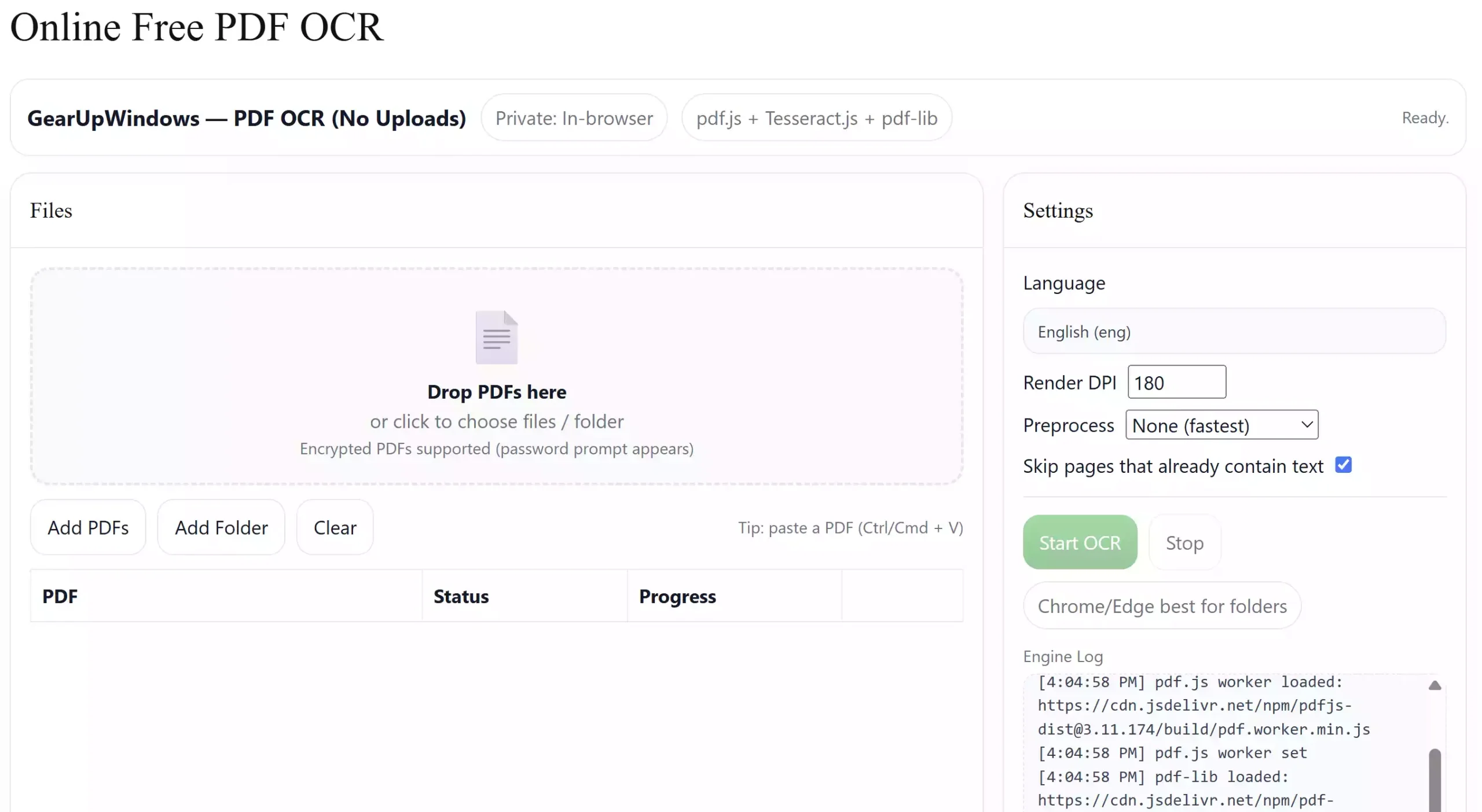
If you want a private, free OCR that runs right on your PC, our PDF OCR works entirely in your browser—no uploads, no watermark, and compatible with Windows 11/10 in modern Chromium/Firefox browsers. Drop a scanned or image-based PDF, choose OCR, and copy the clean text or save it to a file. It’s ideal for receipts, forms, book scans, and multi-page PDFs where you need fast, accurate extraction without leaving your desktop. Open PDF OCR
- Pros: 100% local processing, privacy-friendly, free to use, no watermark.
- Considerations: Results depend on scan clarity; very large PDFs may take longer on older PCs.
2) Image to Text OCR — JPG/PNG/WEBP (No Uploads)
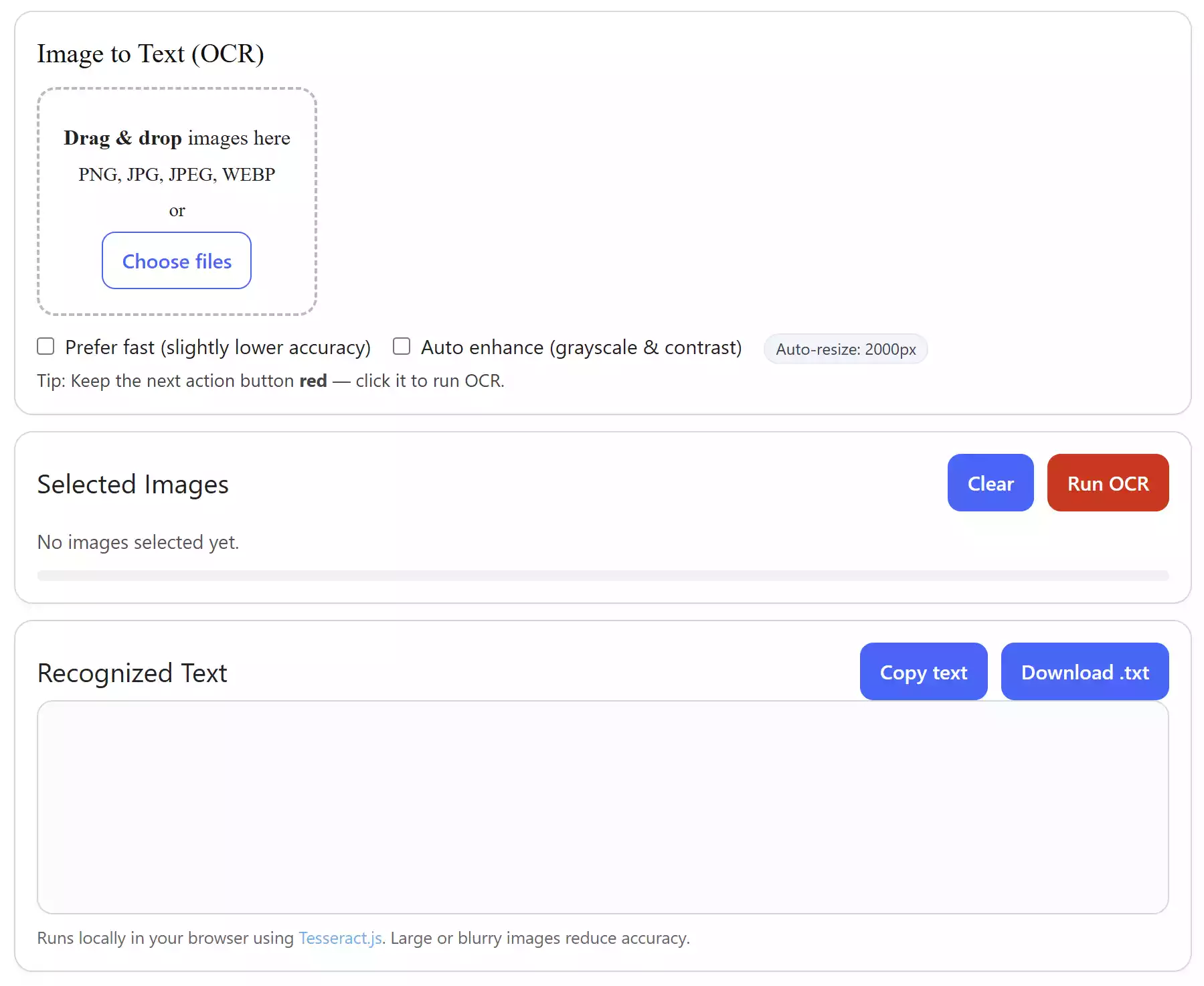
Need text from screenshots, photos, or scanned notes? This free OCR converts JPG/PNG/WEBP images to editable text directly in your browser—again, no uploads and no watermark. Drag & drop images, let the tool recognize the characters, then copy the output or download a tidy .txt file. It’s perfect for screenshots, receipts, labels, whiteboard photos, and study material on Windows 11/10. Open Image to Text OCR
- Pros: Private, simple, fast results, no watermark.
- Considerations: Low-contrast or curved images may need light cleanup after OCR.
3) Snipping Tool (Text Actions) — Windows 11’s Built-in OCR
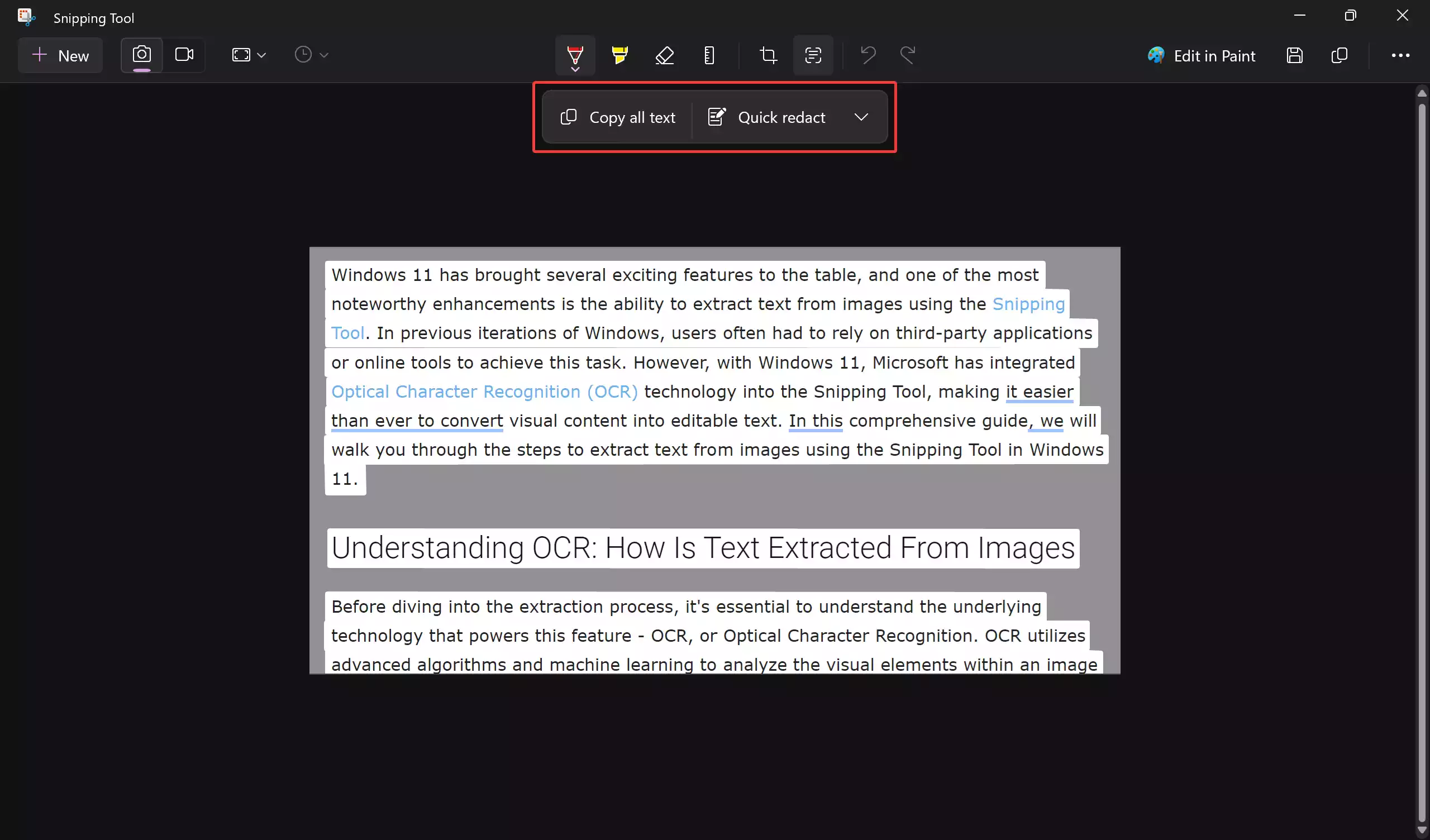
Windows 11’s Snipping Tool includes Text Actions that instantly extract text from your screenshots. It’s fast, private, and built into the OS. Learn the full flow in our guide to extract text from images with the Snipping Tool.
- Pros: Native, no installs, quick copy.
- Considerations: Works best on clear screenshots; complex layouts may need manual cleanup.
4) Microsoft OneNote — Copy Text from Pictures
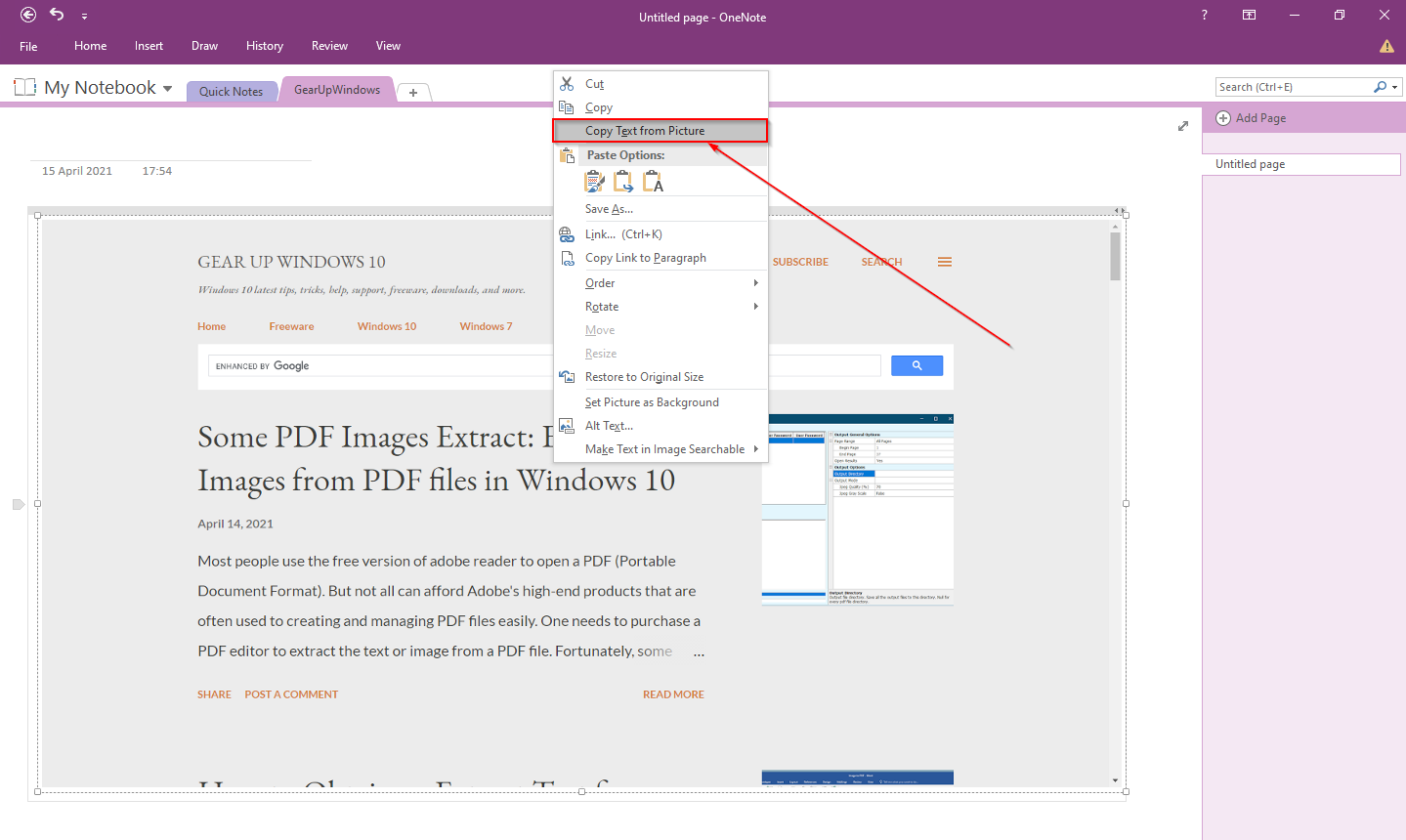
OneNote has dependable OCR right-click actions (“Copy Text from Picture”). It’s great for notes with pasted images and scanned pages. See how in our OneNote OCR tutorial.
- Pros: Free to use, integrates with notebooks, good accuracy on documents.
- Considerations: Works best after pasting images into a note; formatting is plain text.
5) Google Drive OCR — Free, Accurate, and Cross-Platform
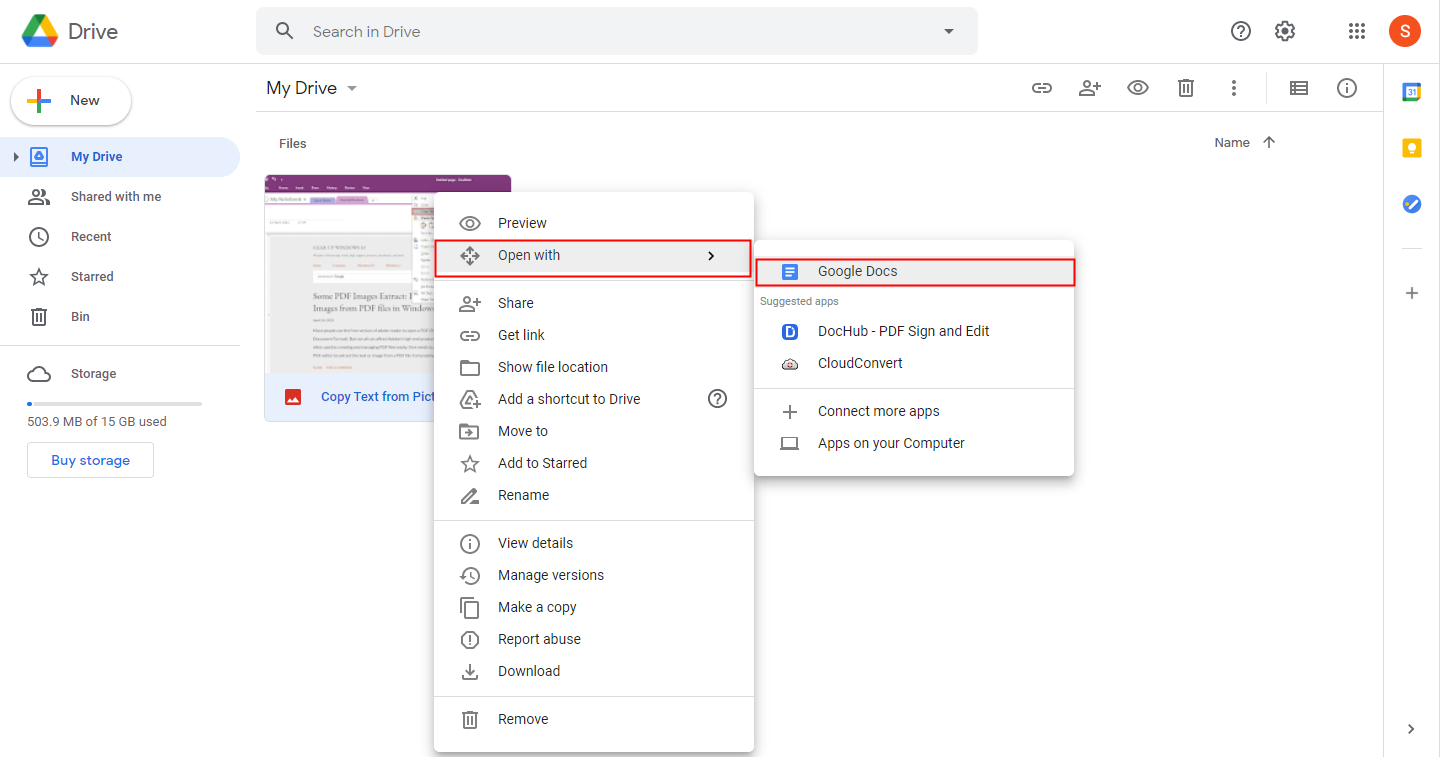
Upload an image or scanned PDF to Google Drive and open it with Google Docs to convert it into editable text. Step-by-step is here: extract text using Google Drive.
- Pros: Excellent accuracy on clean scans; turns results into a full Google Doc.
- Considerations: Requires internet and uploading files; avoid for sensitive data.
6) FreeOCR — Classic Desktop OCR with TWAIN Scanner Support
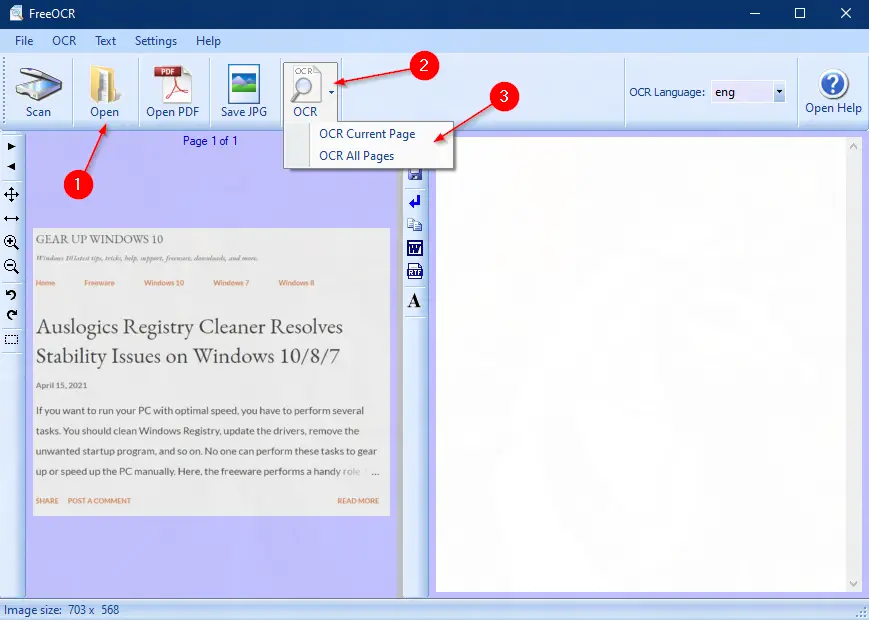
FreeOCR is a lightweight Windows program that reads images, TIFFs, and scanned PDFs—plus it connects to TWAIN scanners to OCR directly from hardware. Details and usage: FreeOCR guide.
- Pros: Works offline, supports scanners, and simple export to TXT/Word.
- Considerations: Interface is basic; accuracy depends on source quality and language packs.
7) Photo Scan (Microsoft Store App) — One-Click OCR
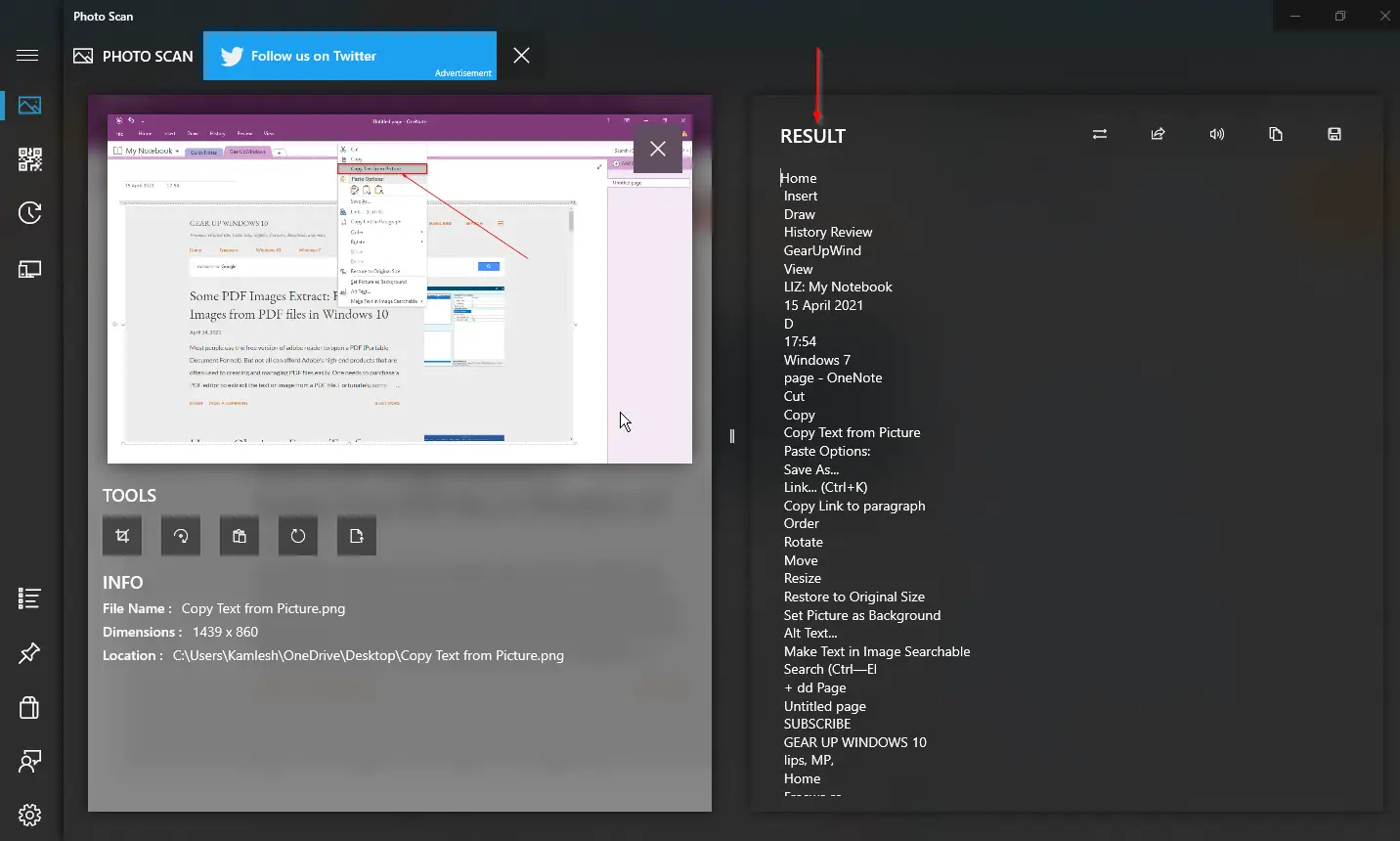
Photo Scan is a free UWP app that extracts text from images via file, clipboard, or camera. It’s a no-frills, quick-result tool. Learn more: Photo Scan: Free OCR for Windows.
- Pros: Very easy, supports camera input, instant extraction.
- Considerations: Minimal editing features; best for straightforward text grabs.
8) Microsoft Word Method — Handy for Image-to-Text (No Add-ons)
You can convert an image to PDF and open it in Microsoft Word to pull out the text. This is useful when you already have Office installed. Follow the steps in our Word image-to-text guide.
- Pros: Familiar editor, quick edits, good for mixed documents.
- Considerations: Layout may change; not ideal for very complex formatting.
9) PDF Text Extraction (With Free OCR Options)
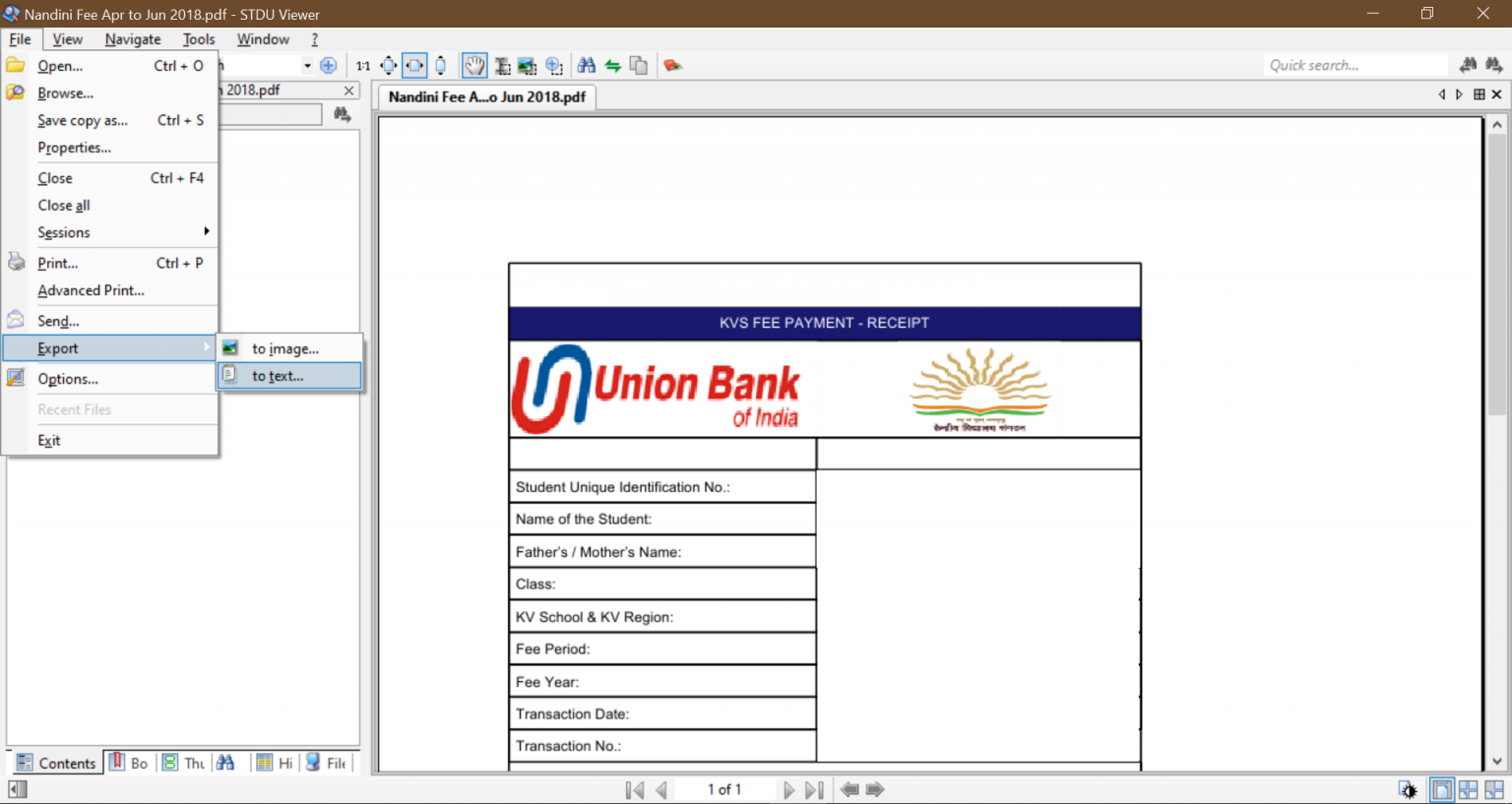
Working with PDFs? Our roundup explains free ways to extract text from PDF files (including OCR for scanned PDFs): how to extract text from PDFs.
- Pros: Covers online and offline tools; batch-friendly options available.
- Considerations: Scanned PDFs need OCR; accuracy depends on scan quality.
Also Worth Knowing: PowerToys Text Extractor
PowerToys Text Extractor (part of Microsoft PowerToys) grabs text from any on-screen region via a hotkey. It’s great when Snipping Tool isn’t available or you’re on Windows 10. If you already use PowerToys, look for the Text Extractor module in settings.
How to Choose the Right Free OCR Tool
Step 1. If you’re on Windows 11 and just need quick copy-paste from a screenshot, start with Snipping Tool (Text Actions).
Step 2. For notes and study workflows, use OneNote so images and text live in the same notebook.
Step 3. If you’re comfortable uploading files and need high accuracy, try Google Drive OCR.
Step 4. Prefer offline tools or work with scanners? Pick FreeOCR.
Step 5. Want the simplest click-and-go app? Use Photo Scan.
Step 6. Already have Office and need quick edits after OCR? Use the Word method.
Safe Use Tips for Better OCR Results
- Protect privacy: avoid uploading sensitive documents to online services; use offline tools instead.
- Improve image quality: straighten scans, increase contrast, and avoid shadows for better accuracy.
- Pick the right language: set OCR language correctly when possible to reduce mistakes.
- Proofread: OCR isn’t perfect—scan for misread characters (1/0/O, l/I, punctuation).
Frequently Asked Questions
Is there a truly free OCR in Windows 11?
Yes. Snipping Tool (Text Actions) is built into Windows 11 and can extract text from screenshots without extra software. For more, see our Snipping Tool OCR guide.
Which free OCR is best for scanned PDFs?
For offline work, FreeOCR is a solid pick, especially with TWAIN scanner support. If you don’t mind online tools, Google Drive OCR is very accurate on clean scans. See FreeOCR and Google Drive OCR.
Can OCR keep my original document layout?
Basic OCR outputs plain text. If layout matters, use a tool that exports to Word so you can adjust formatting. The Word method is convenient for quick cleanup.
Will these tools work offline?
Snipping Tool, OneNote (local notebooks), FreeOCR, Photo Scan, and the Word method can work offline. Google Drive needs an internet connection.
Do I need to pay for language packs?
No, the tools listed here are free. Some offer extra language packs at no cost; check the settings where available.
Conclusion
For most people, the best free OCR tools for Windows 11/10 are already within reach: Snipping Tool (Text Actions) for quick grabs, OneNote for notes, Google Drive for accurate conversions, and FreeOCR/Photo Scan when you prefer offline desktop apps. Combine them with the Microsoft Word method when you need fast edits, and you’ll handle nearly every OCR scenario without paid software.