

If you are an old Windows PC user, you might have noticed that the Windows Taskbar occupies around 5% of the visible screen on your monitor. In other words, the Windows OS takes up about 5% of your PC’s display.
If you use a laptop or small-screen device, you may want to gain more space by hiding the Windows Taskbar when a window is maximized. There’s nothing wrong with that—everyone wants more space. By hiding the Taskbar, you get a clearer view of your open documents. It’s especially helpful on small monitors or laptops when the Taskbar is not in use. If a better option exists, why compromise?
Your reasons might differ from mine, but the main point is this: by hiding the Windows Taskbar when an app is maximized, you gain extra screen space and better visibility. This auto-hide feature works not only with applications but also when File Explorer is opened in maximized mode.
Auto-hide Taskbar vs. Maximized Mode
It’s important to note that full-screen auto-hide mode is different from maximized window mode. Don’t confuse the two.
Maximized window mode displays an app using the largest available screen area, but it doesn’t hide the Taskbar. Applications can’t increase your screen size, but you can get a larger view by hiding the default Taskbar.
Do All Apps Support Full-Screen Mode?
Note: Not all apps support full-screen mode. However, most major web browsers do, including:
- Microsoft Edge
- Google Chrome
- Internet Explorer
- Opera
- Mozilla Firefox
How to Auto-Hide Taskbar in Windows 10
Windows 10 includes a built-in option to auto-hide the Taskbar. When you move the mouse cursor away from the Taskbar, it disappears. When you place the cursor back on the Taskbar area, it reappears.
To enable auto-hide for the Taskbar:
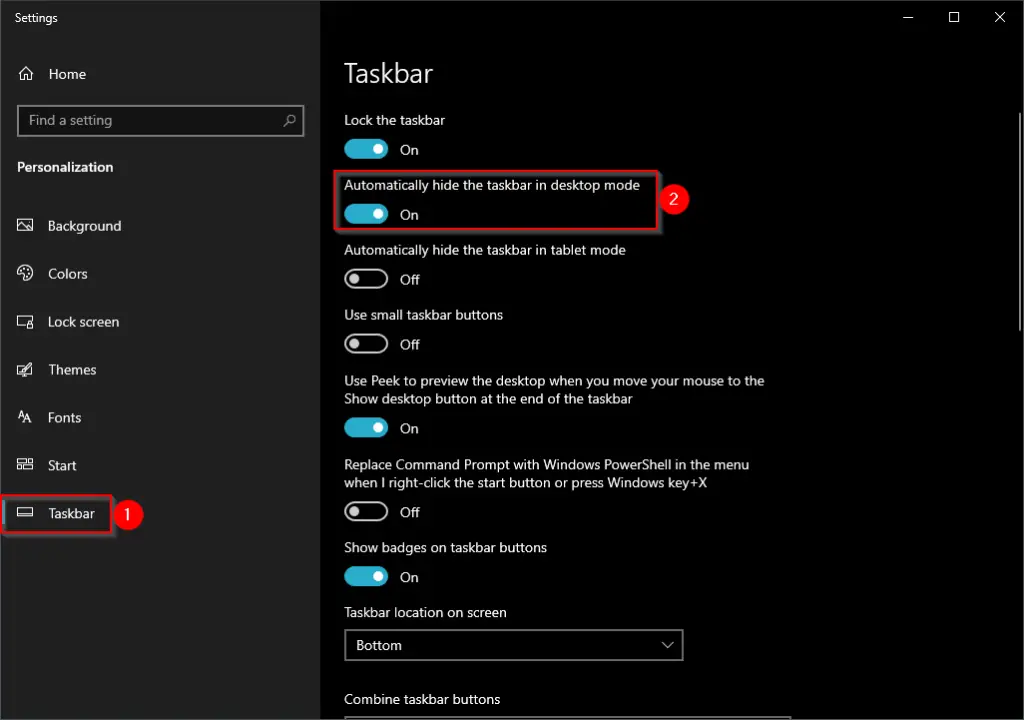
Step 1. Right-click on the desktop and select Personalize.
Step 2. Select Taskbar from the left pane.
Step 3. Turn on the toggle next to “Automatically hide the taskbar in desktop mode.”
Want to Hide Taskbar Only When a Window is Maximized?
The built-in Windows option hides the Taskbar at all times. But what if you only want to hide it when a window is maximized? For that, you’ll need a third-party utility.
This post introduces a free tool called SmartTaskbar. It hides the Taskbar automatically when a window (document or application) is maximized.
SmartTaskbar for Windows 10
SmartTaskbar is a lightweight, free utility. It hides the Taskbar automatically when a window is maximized. When you restore the window, the Taskbar becomes visible again. If you move your mouse to the Taskbar area, it also reappears.
The app is available from the Microsoft Store. Download and run the UWP app to get started.
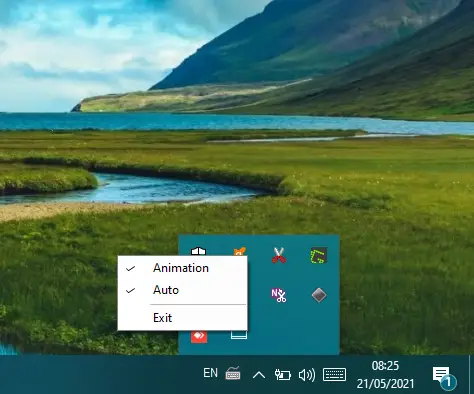
Once installed, SmartTaskbar sits in the System Tray and monitors your open windows. You can access its settings by right-clicking the icon in the Tray.
That’s all!