

Need to apply passwords to PDF files without paying for expensive suites? This beginner-friendly guide rounds up trusted, free tools that let you encrypt PDFs and control permissions (printing, copying, editing) on Windows 11/10. You’ll also find quick steps, safety tips, and links to detailed guides on GearUpWindows.
How PDF Passwords Work (User vs. Owner)
PDFs support two kinds of protection. A user (open) password is required to open the file at all. An owner (permissions) password restricts actions like printing or copying, even when the file opens. Most free tools below can set either or both. If you ever need to remove a password from a PDF you own, see our guide on how to remove PDF passwords in Windows 11.
GearUpWindows Free PDF Encryptor (Browser, No Install)
Why it’s great for beginners: A simple, browser-based way to password-protect PDFs on Windows 11/10—no setup or account needed. Perfect for quick protection before sharing a file.
Main highlights
- Set a user (open) password so the PDF can’t be opened without authorization.
- Straightforward interface with drag-and-drop and instant download.
- Works in modern browsers (Edge/Chrome) on Windows 11/10.
How to use
Step 1. Open our tool: Free PDF Encryptor.
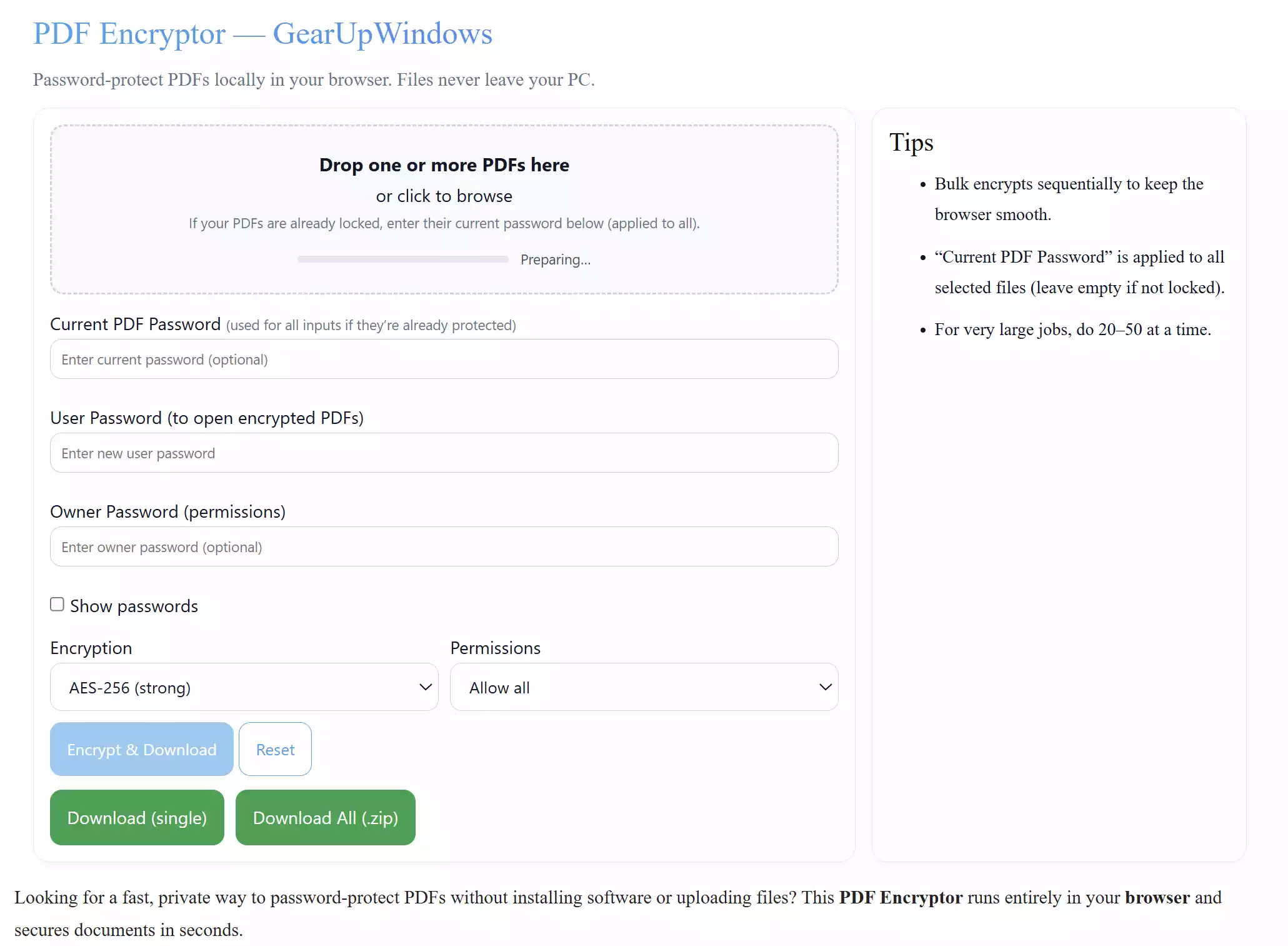
Step 2. Add your PDF and enter a strong password (you can generate one here: Secure Password Generator).
Step 3. Review options, then click to Encrypt & Download and download the protected file.
Tip: Use a unique passphrase (12+ characters, mixed types) and keep a safe copy of the original unencrypted file.
PDF24 Creator (Free, All-in-One)
Why it’s great for beginners: A full offline suite with a simple dashboard. It can lock PDFs with passwords, set permissions, and batch-process multiple files—ideal if you routinely secure invoices, reports, or contracts. Read our overview of PDF24 Creator for more features.
Main highlights
- Encrypt PDFs with open and permissions passwords.
- Batch operations for multiple PDFs.
- Dozens of extras (merge/split, compress, sign, watermark).
How to use
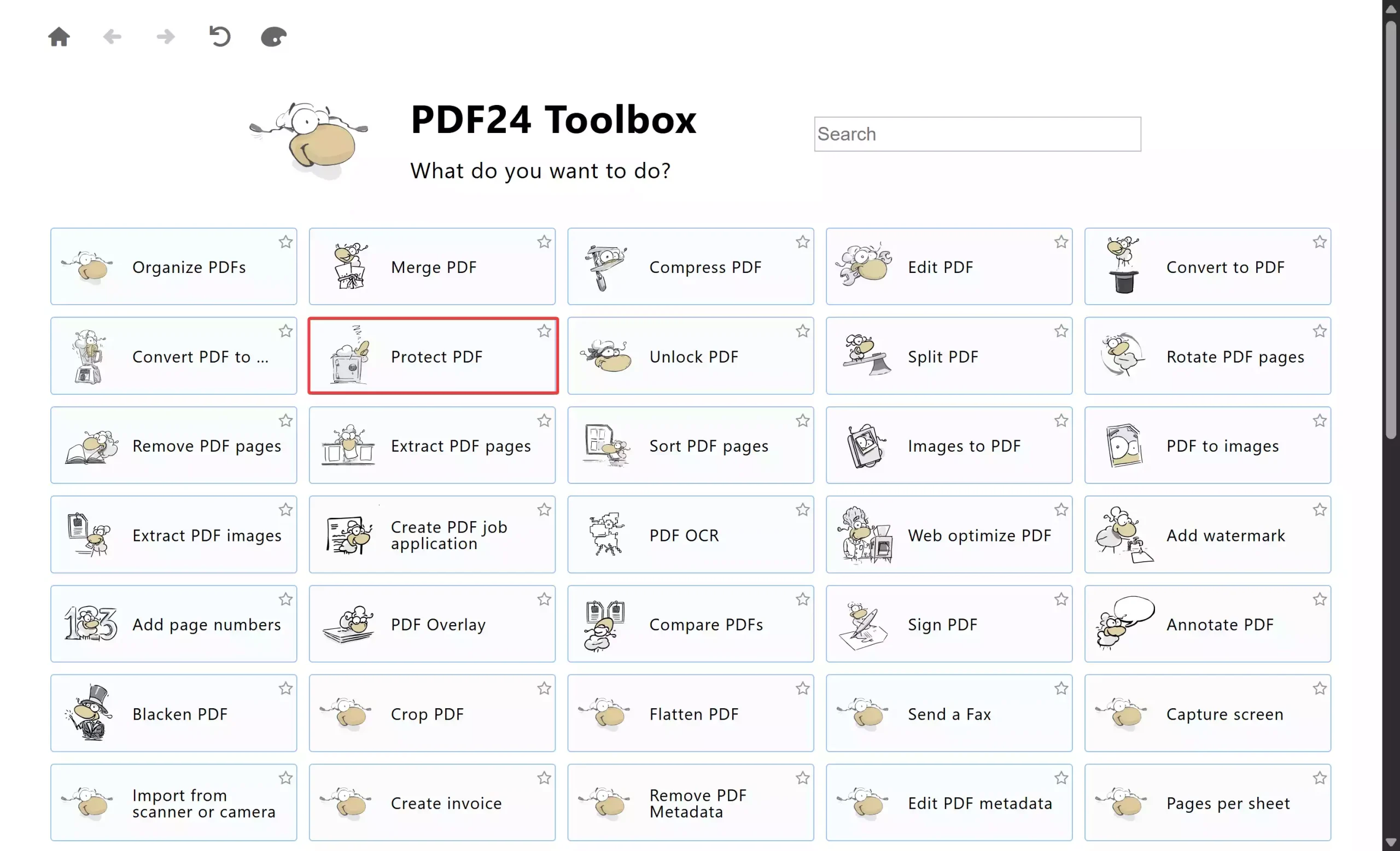
Step 1. Launch PDF24 Creator and choose the Protect PDF tool from the dashboard.
Step 2. Add your PDF(s) and enter a user password (to open) and/or an owner password (to control printing/copying/editing).
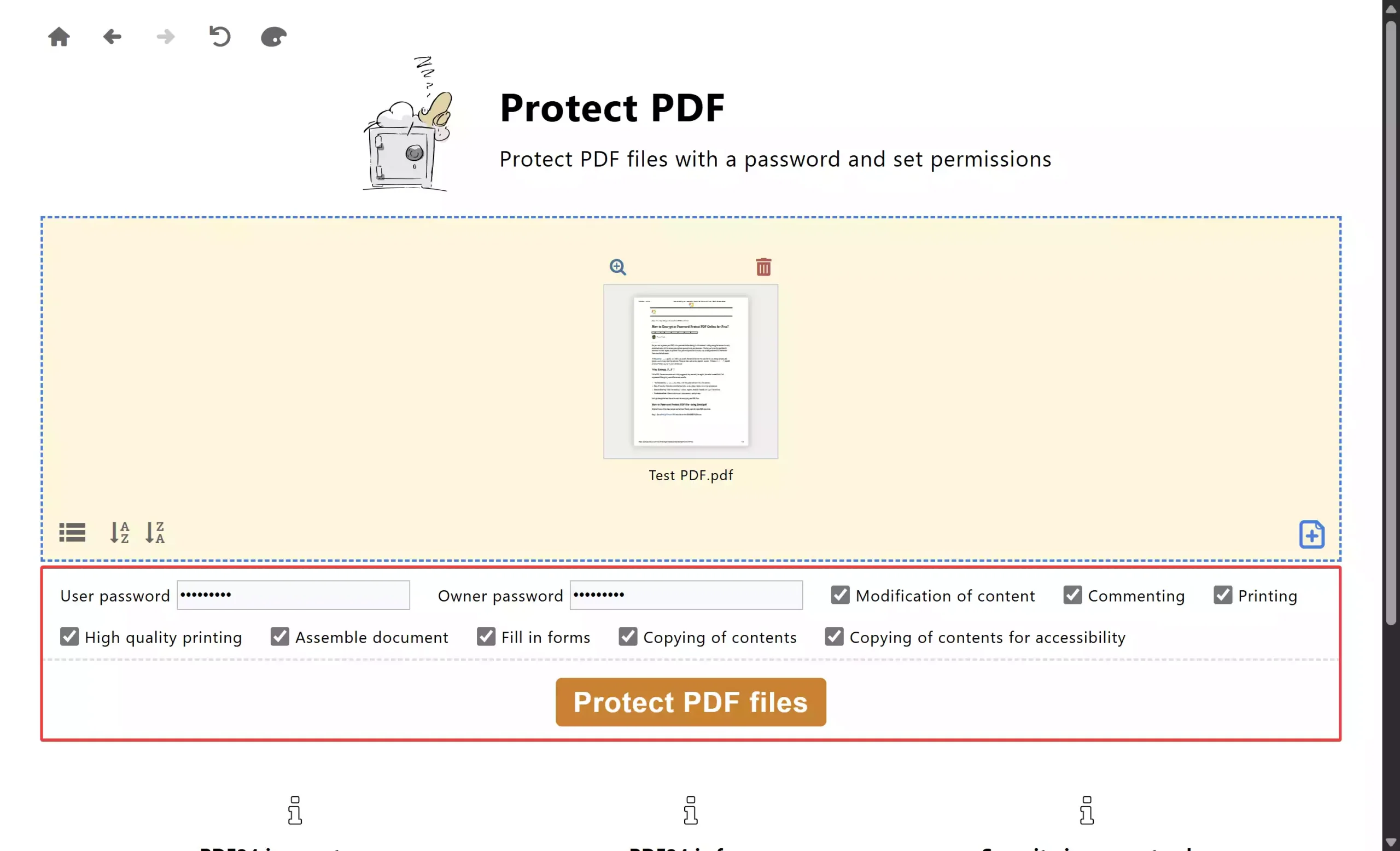
Step 3. Pick any permission restrictions you want to enforce.
Step 4. Click Protect PDF Files to process, then save the protected file to your PC.
Safe use tips
- Use a unique, strong password (12+ chars, mix of types).
- Save a copy of the original unencrypted PDF in a safe folder before securing.
PDFTK Builder (Lightweight GUI for PDFTK)
Why it’s great for beginners: Tiny, portable-friendly utility with a clear “Document Protection” panel for adding owner/user passwords and permissions. We also covered it here: PDFTK Builder on GearUpWindows.
Main highlights
- Set open and permissions passwords.
- Toggle printing/copying/modification rights.
- Also merges/splits, rotates, stamps, and adds page numbers.
How to use
Step 1. Open PDFTK Builder and switch to the Document Protection section.

Step 2. Choose your source PDF.
Step 3. Enter a user (open) password if you want to require a password to view; add an owner password to restrict actions and set permissions (disable printing, copying, etc.).
Step 4. Click Save As to output the protected PDF.
Considerations
- Some readers might ignore weak permission flags; use a user password when confidentiality truly matters.
Quick tip: if you ever need AES-256 password protection (stronger than PDFTK Builder’s RC4), use PDF24 Creator or PDFCreator.
PDFCreator (by PDFforge)
Why it’s great for beginners: Installs a virtual printer and lets you add encryption when “printing” to PDF. Good balance of simplicity and control. For general usage tips, see our coverage of PDFCreator on GearUpWindows.
Main highlights
- Password-protect PDFs and adjust encryption/permissions.
- Digitally sign documents and customize output profiles.
How to use
Step 1. Open PDFCreator and select your document.
Step 2. In the PDFCreator dialog, choose the Secured PDF option under Profile.
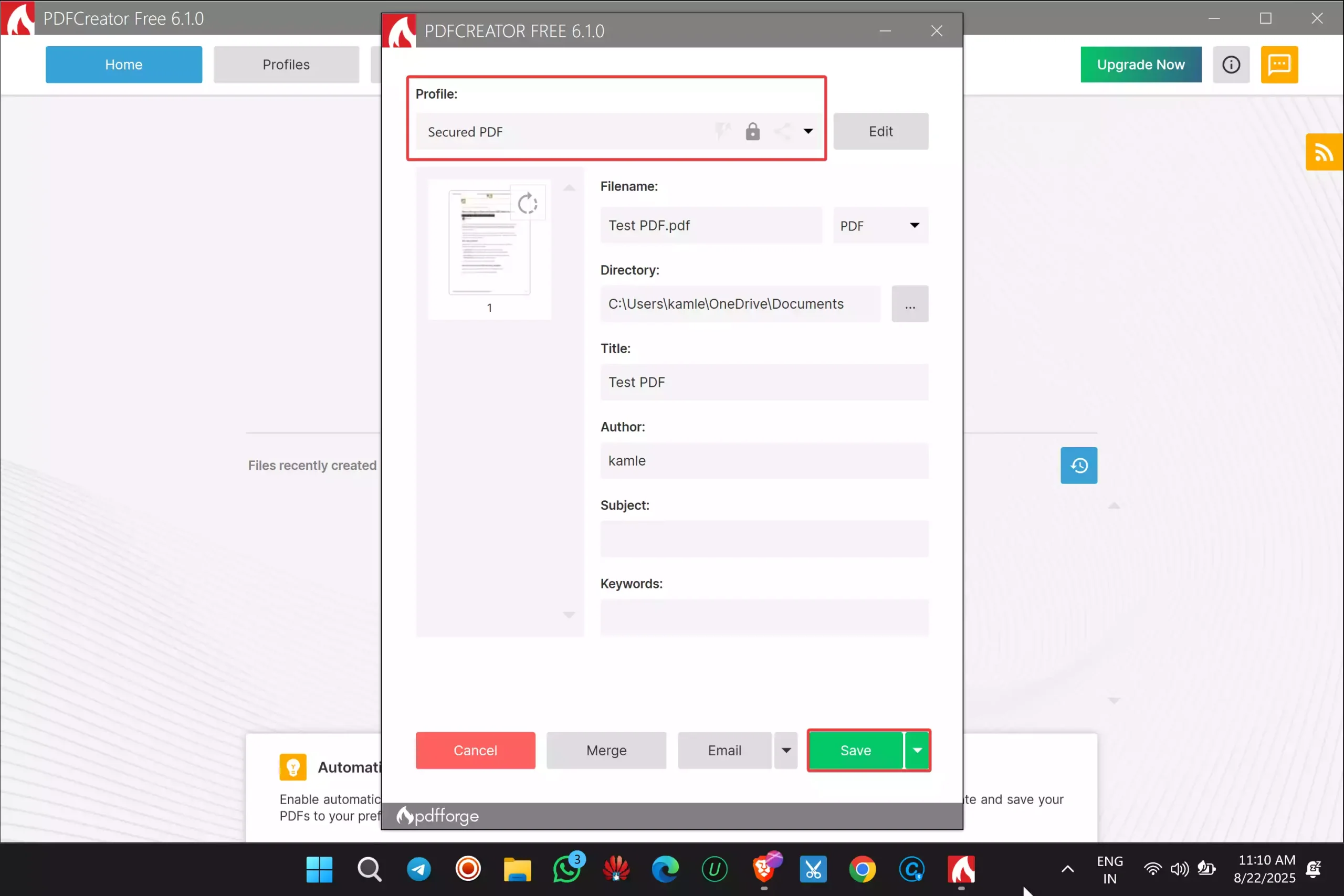
Step 3. Click on the Save button at the bottom.
Step 4. Set a user password (to open) and/or owner password (to restrict actions), then confirm.
Step 5. Click Continue to save your secured PDF.
Tip: For stronger protection, always set a user (open) password; some viewers may ignore owner-only restrictions like copy/print limits.
PDFEncrypt (Free, Open-Source)
Why it’s great for beginners: Lightweight, offline utility focused purely on password-protecting PDFs on Windows 11/10. No accounts or uploads, and you can use an installer or a portable build.
Main highlights
- Encrypt any PDF locally so it can’t be opened without the password.
- Built-in password generator and simple destination control.
How to use
Step 1. Download and run PDFEncrypt (installer or portable).
Step 2. Click to select the PDF you want to protect.
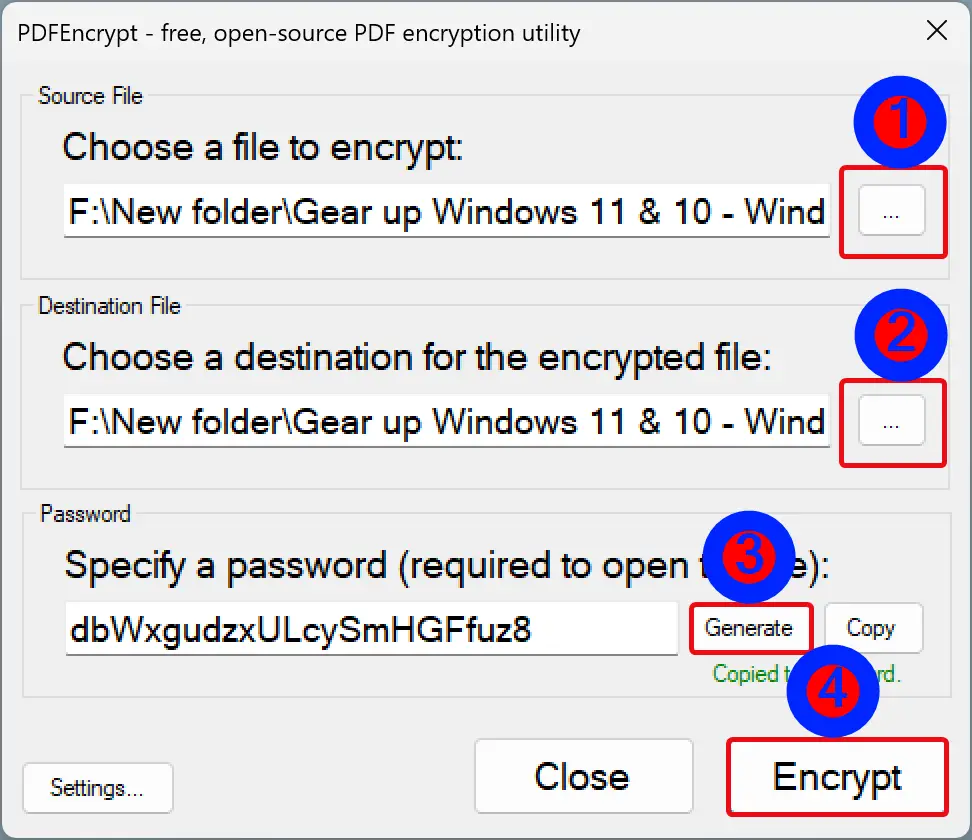
Step 3. Choose where the encrypted file should be saved (by default, it’s placed next to the original with “encrypted” added).
Step 4. Click Generate to create a strong password (or type your own). The generated password is also copied to your clipboard.
Step 5. Click Encrypt to finish and create your secured PDF.
Tip: For best protection, use a unique, strong user (open) password and store it safely.
LibreOffice (Free & Open-Source)
Why it’s great for beginners: If you already use LibreOffice to write or edit documents, you can export as PDF with passwords—no extra tools needed.
Main highlights
- Set open and permissions passwords during Export as PDF.
- Handy for securing PDFs generated from Writer, Calc, or Impress.
How to use
Step 1. Open your file in LibreOffice and go to File > Export As > Export as PDF.
Step 2. Open the Security tab and click Set Passwords.
Step 3. Enter a user password to open and/or a permissions password to restrict actions.
Step 4. Export and save the PDF.
Prefer the Browser? Use a Trusted Online Tool
If you only need a quick one-off, you can secure PDFs in your browser without installing anything. We’ve listed tested options and caveats in our guide: Encrypt or Password Protect PDF Online for Free. Avoid uploading confidential or regulated documents—prefer the offline tools above for privacy.
Extra Tools You Might Like
- Need a simple viewer alongside these tools? Try Right PDF Reader and pair it with PDF24 or PDFTK for locking.
- Working beyond passwords (editing, merging, forms)? Check our roundup of the best free PDF editors for Windows.
- Need to reorganize pages before locking? Use our browser tool: PDF Splitter & Organizer.
Safe Use Tips for Beginners
- Choose strong passwords: at least 12 characters, mix upper/lowercase, numbers, and symbols.
- Keep a master list in a password manager so you don’t lose access.
- Share securely: send the PDF and its password via different channels (e.g., email + SMS).
- Test before sending: open your protected PDF in a separate viewer to confirm it behaves as expected.
- Use “open” passwords for sensitive data: permission-only locks can be bypassed by some tools; an open password provides stronger control.
When These Tools Help
- Invoices & statements you email to clients.
- Reports/assignments you don’t want copied or edited.
- Legal or HR documents shared with access control.
Frequently Asked Questions
Do I need both a user and an owner password?
Use a user (open) password when the file must not open without authorization. Add an owner password if you want to restrict printing, copying, or editing.
Which free tool is the simplest?
PDF24 Creator offers the easiest, most complete offline experience. For a tiny download, PDFTK Builder is very quick for basic protection. If you prefer the browser, our Free PDF Encryptor is handy for one-offs.
Can I remove a password later?
Yes—as long as you know the password. Use our in-browser tool PDF Password Remover and follow safe practices to keep your data secure.
Is printing to “Microsoft Print to PDF” enough?
No. It creates PDFs but doesn’t offer encryption. Use a free PDF locker like PDF24 Creator or PDFCreator to apply passwords.
Conclusion
With free PDF software to apply passwords—like our Free PDF Encryptor, plus PDF24 Creator, PDFTK Builder, PDFCreator, PDFEncrypt, and LibreOffice—you can secure documents in minutes. Start with PDF24 for an all-in-one toolbox, use our browser tool for quick jobs, or pick the lighter utilities when you just need reliable PDF encryption on Windows 11/10.