

Many media formats are available over the internet; sometimes, it is challenging to play a video if your device or software does not support that. So, in such conditions, you need a good video converter to convert your video into your device’s format.
If you need to convert video occasionally or regularly, you might want to download and use one of the free software programs from this gearupwindows article. Here, you will find some freeware applications built for Windows that work fine with Win 11/10.
Free Video Converters Software for Windows 11 and 10
Any Video Converter
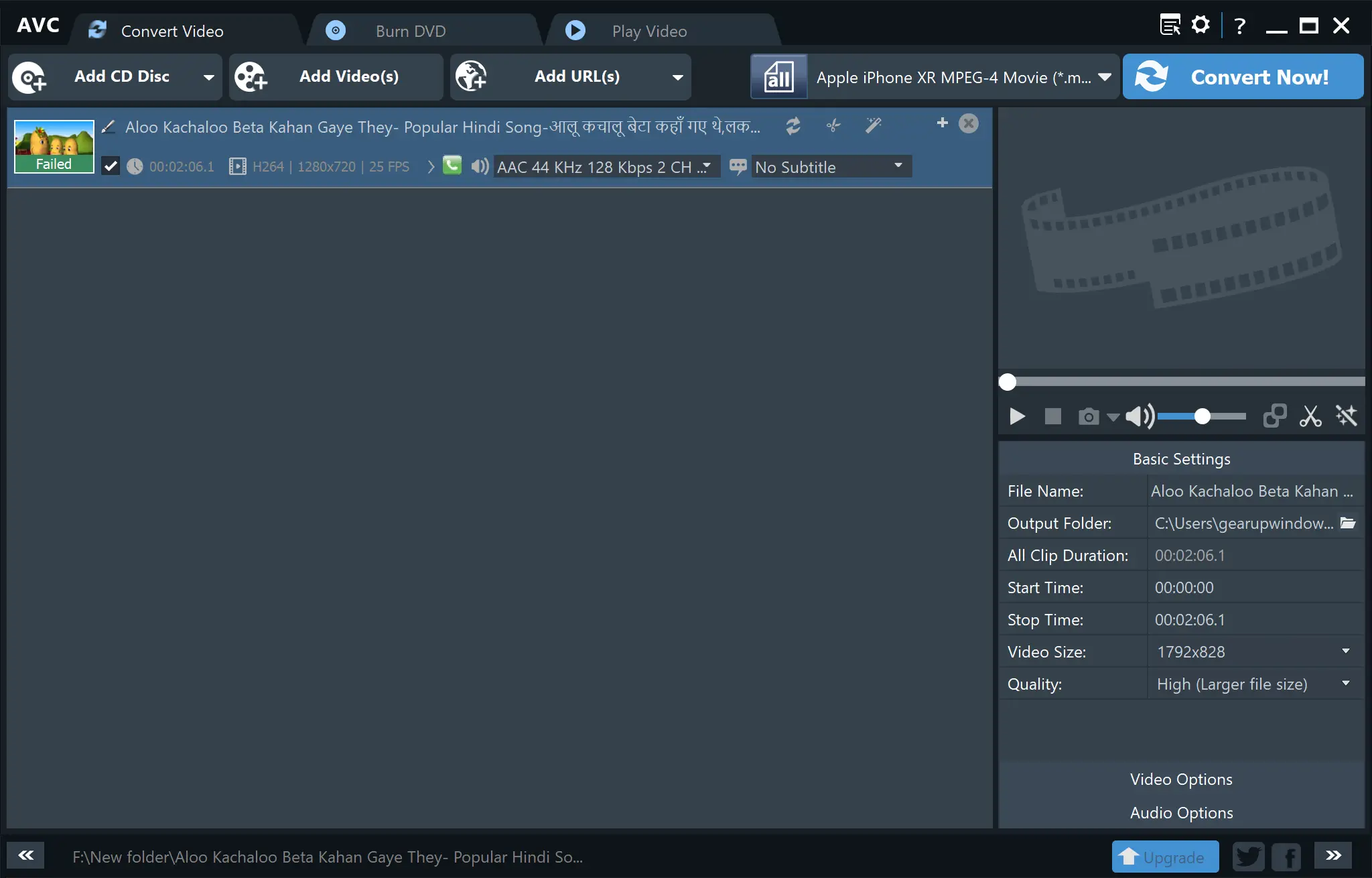
Any Video Converter is one of the best free video converter software programs for Windows 11 and 10. Besides Windows 11/10, it also supports macOS. It comes with an easy-to-use Graphical User Interface so that a novice can also download and start using it. This application has an excellent conversion speed, and the output file quality is impressive.
The Any Video Converter can convert almost any media to any format, including DivX, XviD, MOV, RM, RMVB, MPEG, VOB, DVD, WMV, and AVI to MPEG-4. Apart from that, it can also convert media for many portable devices, including PSP, MP3 players, mobile phones, and other devices.
QWinFF
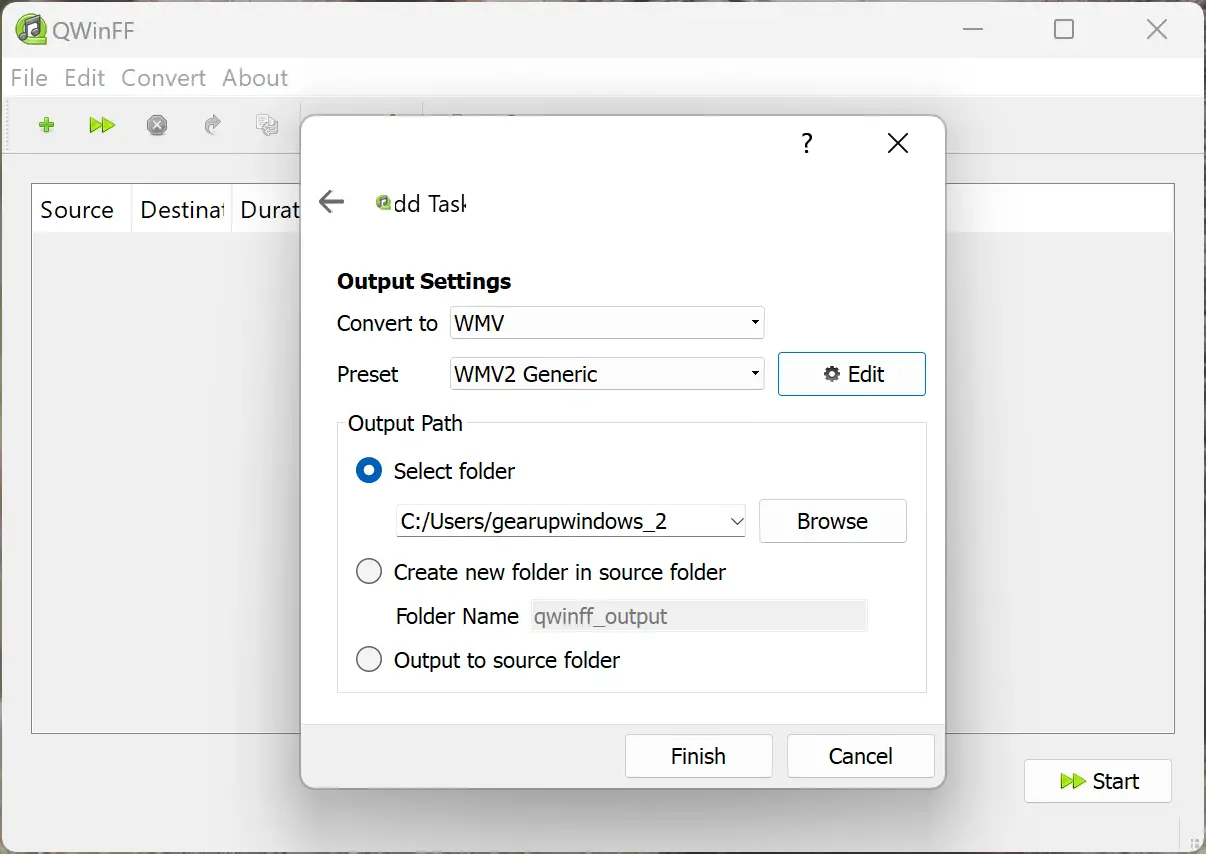
QWinFF is a free as well as open-source video converter for Windows 11 and 10. Besides Windows 11/10, it also supports other operating systems, including Ubuntu, FreeBSD, and Fedora. The software is based on FFmpeg, which is a command-line media converter.
The QWinFF allows you to batch-convert videos from one format to another. It supports numerous video formats, including MP4, AVI, DIVX, MPEG, MOV, OGV, ASF, WMV, etc. Apart from that, it also helps you convert several types of audio formats.
The beauty of this software is that it lets you set up the Number of Threads. This feature allows you to select the number of threads the software will use during the conversion process. So, you can increase the conversion speed by setting a higher number of threads.
Before starting the conversion process, you can set up many output video parameters to customize your resulting videos. These output parameters include sample rate, bitrate, disabled audio, etc. The app also includes some basic video editing options, using which you can crop and resize the output video, trim the video, and change the video speed.
HandBrake
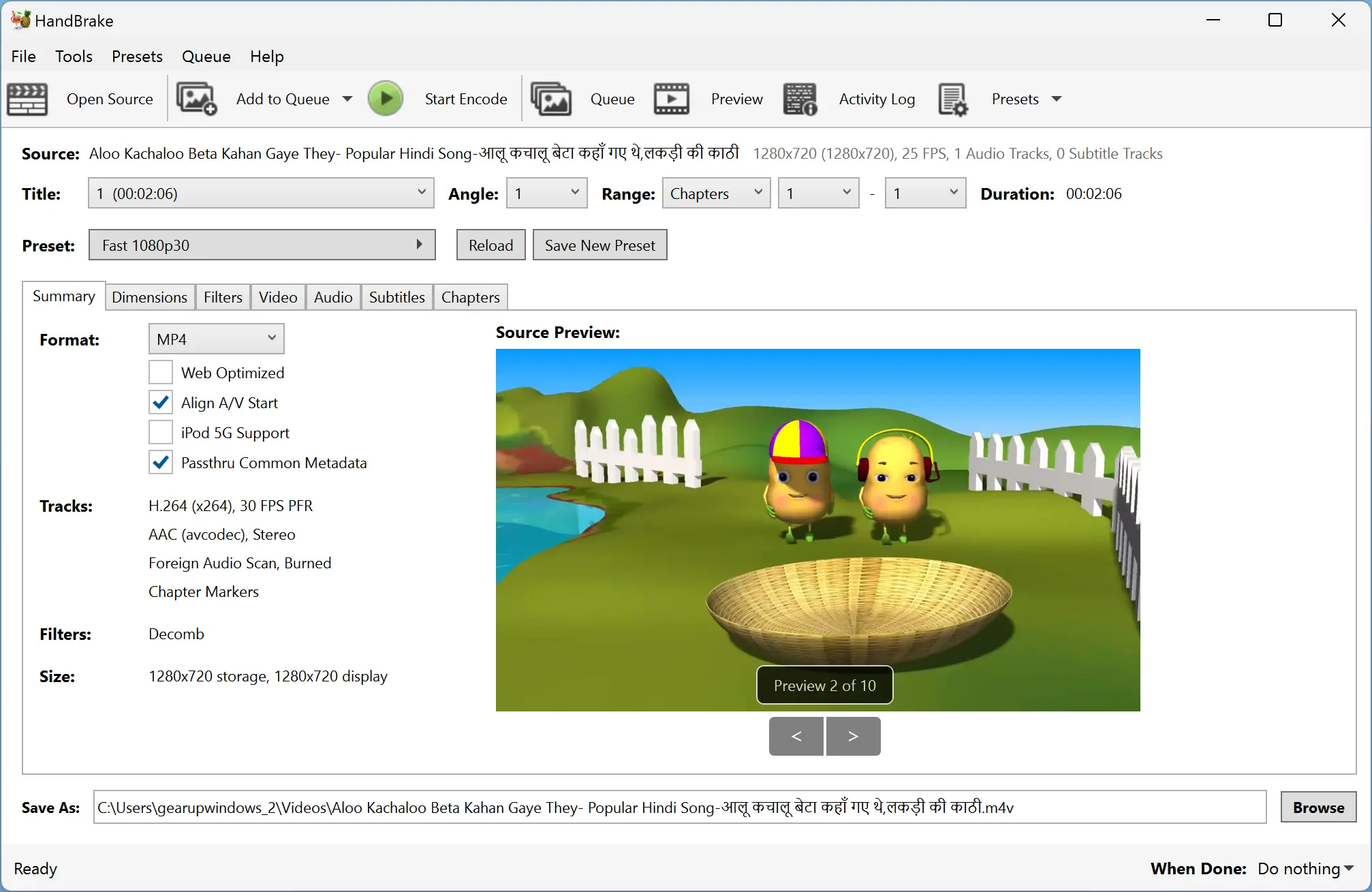
HandBrake is another free and open-source application on the list that allows you to convert videos easily. The beauty of this software is that it can handle a lot of videos at the same time. It supports a variety of video formats to open and convert. These formats include MPEG, AVI, WMV, MP4, MKV, etc. This also allows you to convert videos compatible with specific video profiles like web, Android, Apple, Roku, Xbox, PlayStation, and more. HandBrake also supports various video encoders to transcode videos, such as H.264, MPEG-4, MPEG-2, Theora, H.265, VP8, VP9, etc.
Adapter
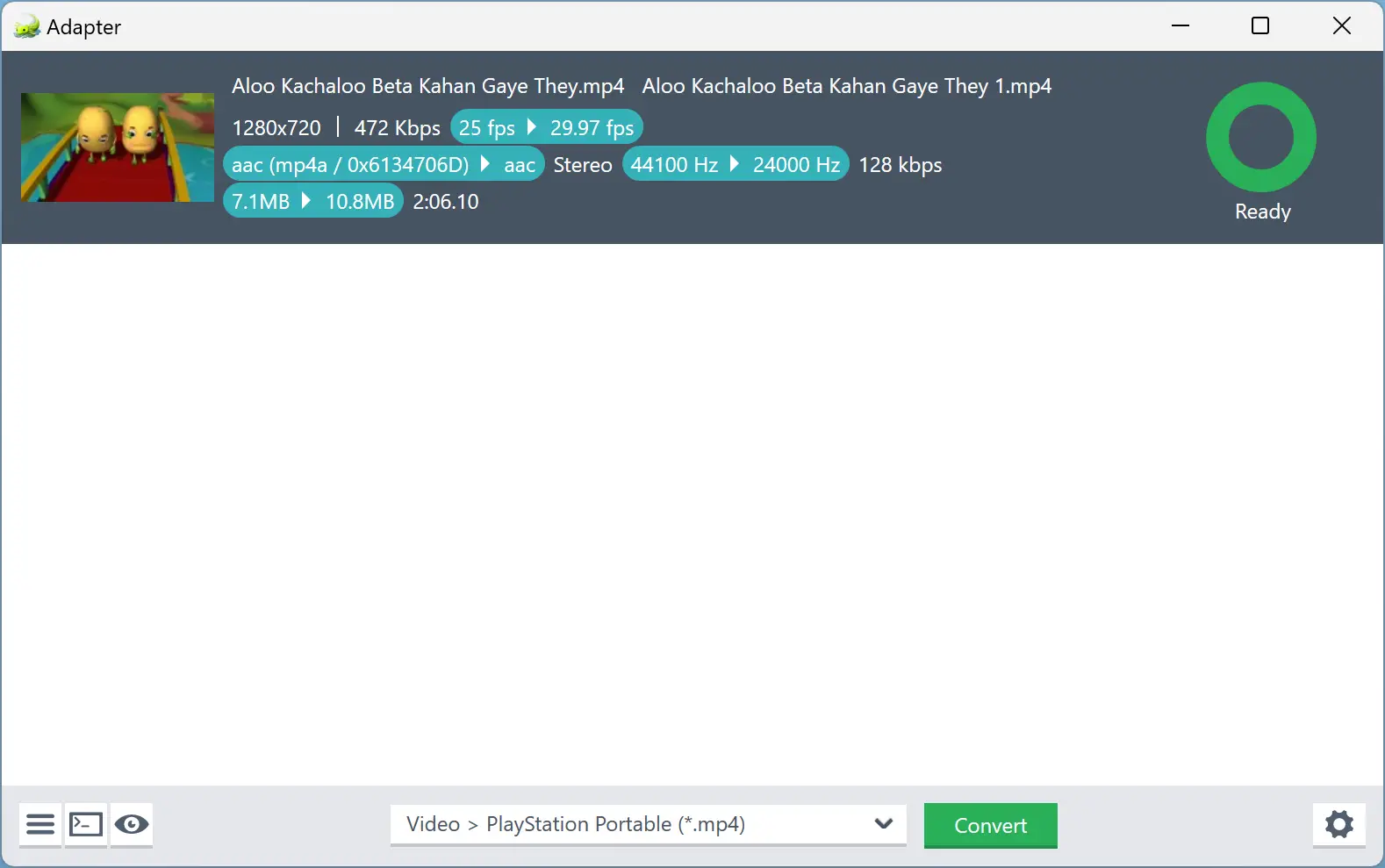
The Adapter is a free application that lets you convert images, audio, and video. Using this software, you can choose a format according to your device, i.e., iPhone, Xbox, etc. It even supports all the standard image formats such as JPEG, PNG, BMP, TIFF, GIF, etc.
During the installation of the Adapter, it also downloads the VLC player so that you can preview any video, audio, or image conversions and compare the output to the original. Besides that, this application estimates the file size of your conversion output, so you know what you’ll get before you begin the conversion.
The Adapter makes batch conversion a breeze. It even supports dragging and dropping a group of images, audio, or videos. The beauty of the program is that, while using image batch conversion, you can set multiple images to the same height, convert TIFFs to JPGs, add watermarks, and more. You can easily compress groups of WAV files to MP3 or transcode your movie collection to work on your iPhone, Android, or other devices.
Apart from the feature mentioned above, the Adapter lets you easily trim the duration of any audio or video files and export them to the format of your choosing. You can use this feature to make high-quality animated GIFs or convert songs to custom ringtones for an iPhone, Android, or other devices.
It comes with a clean and modern GUI. You can convert your videos to the desired file format without any watermark.
Miro Video Converter
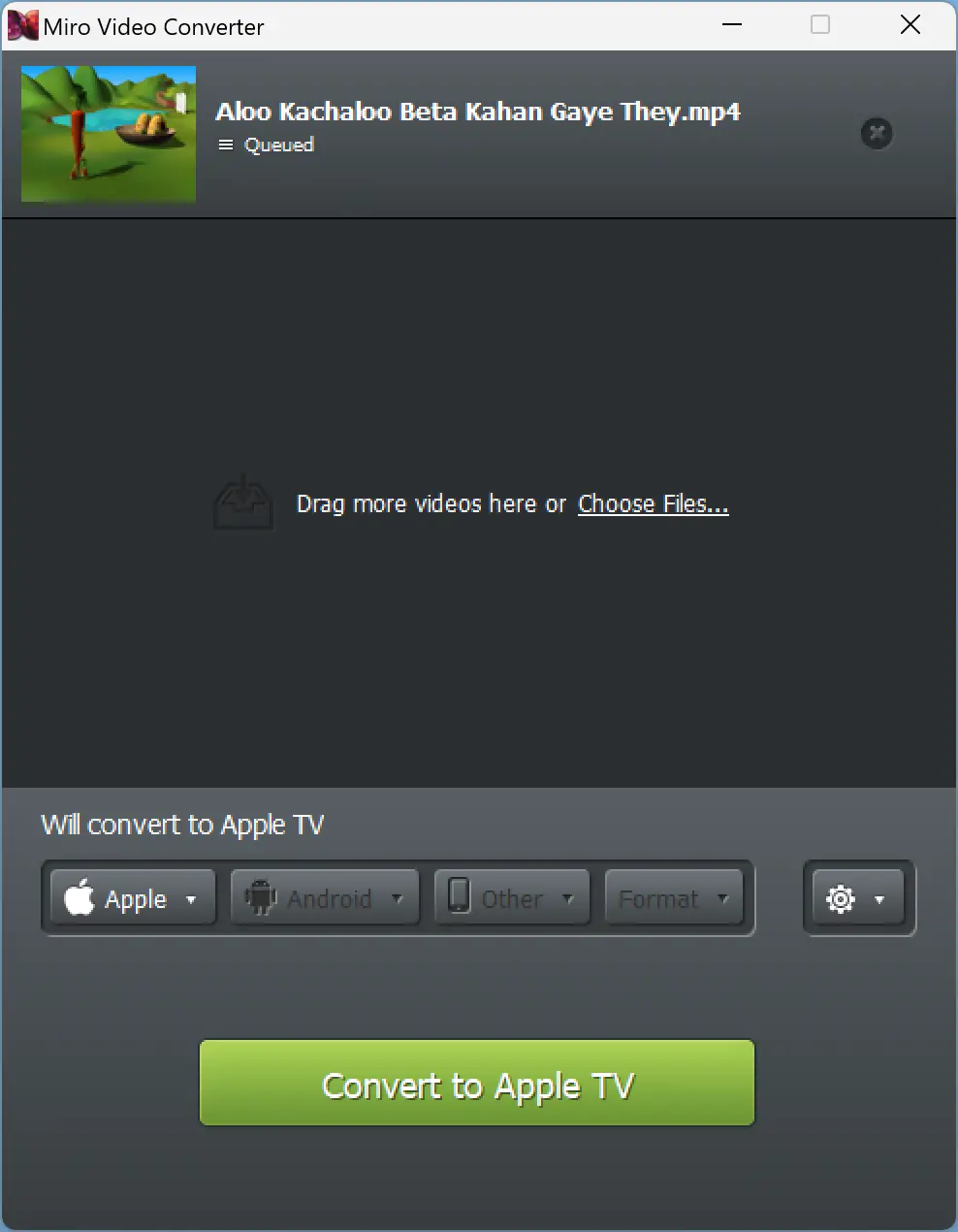
Miro Video Converter is another open-source and free software that allows you to quickly convert your video and audio files from one format to another. It comes with a clean GUI and understable options. That means that you can still use this software without any issues if you are not a geek and don’t understand the formats supported by your device or any PMP. It shows a list of devices, and you can choose your device from the list.
Here is the list of devices supported by Miro Video Converter:-
Android Phones
- Samsung Galaxy Y
- Samsung Galaxy Mini
- Samsung Galaxy Ace
- Samsung Admire
- Samsung Droid Charge
- Samsung Galaxy S / SII / S Plus
- Samsung Galaxy SIII
- Samsung Galaxy Nexus
- Samsung Galaxy Tab
- Samsung Galaxy Tab 10.1
- Samsung Galaxy Note
- Samsung Galaxy Note II
- Samsung Infuse 4G
- Samsung Epic Touch 4G
- HTC Wildfire
- HTC Desire
- HTC Droid Incredible
- HTC Thunderbolt
- HTC Evo 4G
- HTC Sensation
- HTC Rezound
- HTC One X
- Motorola Droid X
- Motorola Droid X2
- Motorola RAZR
- Motorola XOOM
- Sanyo Zio
Apple Devices
- iPod (Classic / Nano)
- iPod Touch
- iPod Touch 4+
- iPhone 4+
- iPhone 5
- iPad
- iPad 3
- Apple Universal
- Apple TV
Other
- PSP
- Kindle Fire
Miro Video Converter supports drag-and-drop videos, making the conversion process effortless. You just need to drag your videos to the application interface, select device or format, and click the Convert button. Your selected video will be converted in the shortest possible time, and the converted file will be left in the same folder from which you have chosen your original file.
The application supports all major formats, such as AVI, MP4, FLV, Ogg Theora, WebM, and many other formats.
WinFF
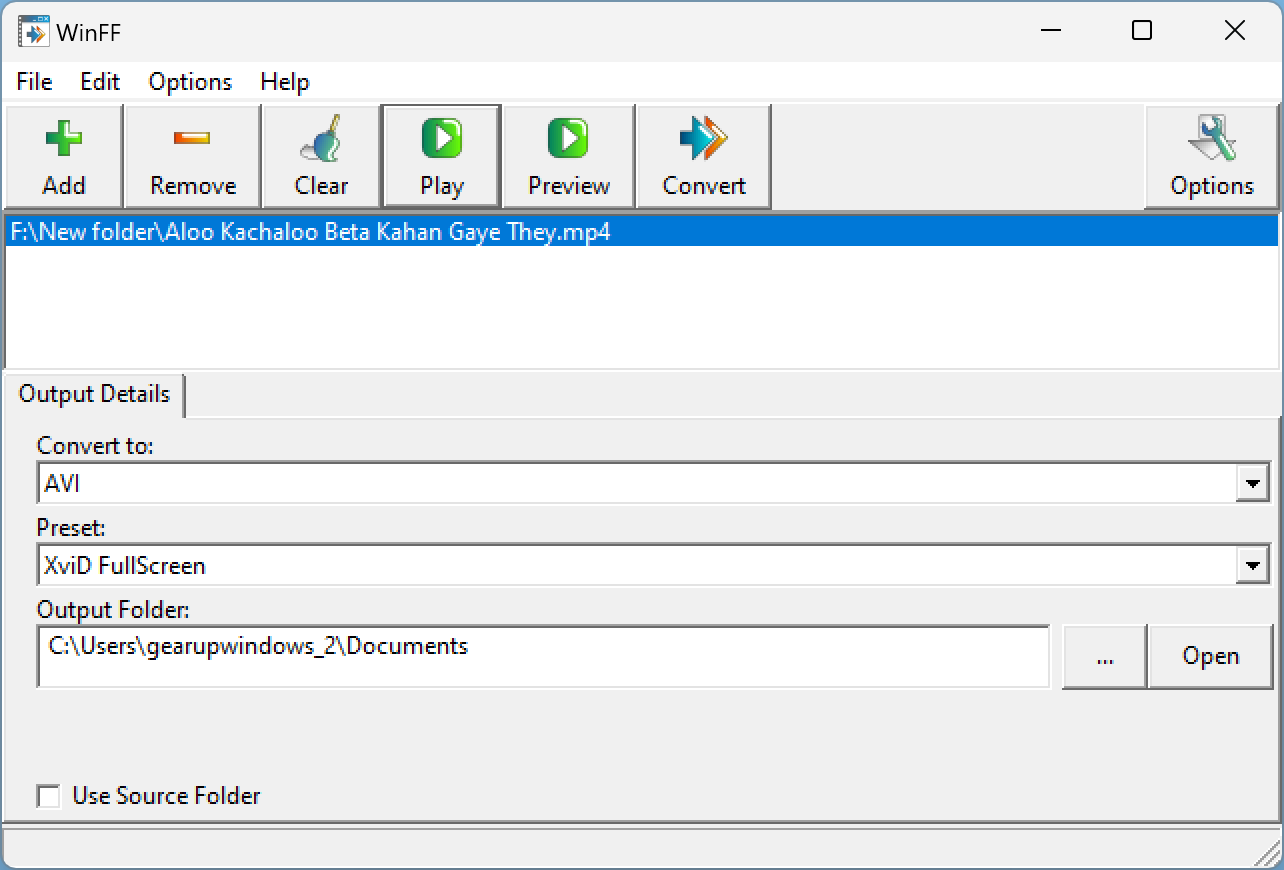
WinFF is another free and open-source video converter software for Windows 11 and 10 operating systems. It also allows you to batch-convert videos. You can quickly convert video formats such as AVI, DV, MP4, MPEG, MOV, and WEBM. It also lets you customize video bitrate, frame rate, resolution, and aspect ratio before conversion.
Apart from the above-mentioned features, it allows you to preview videos before converting them to another file format.
Duo Video Converter
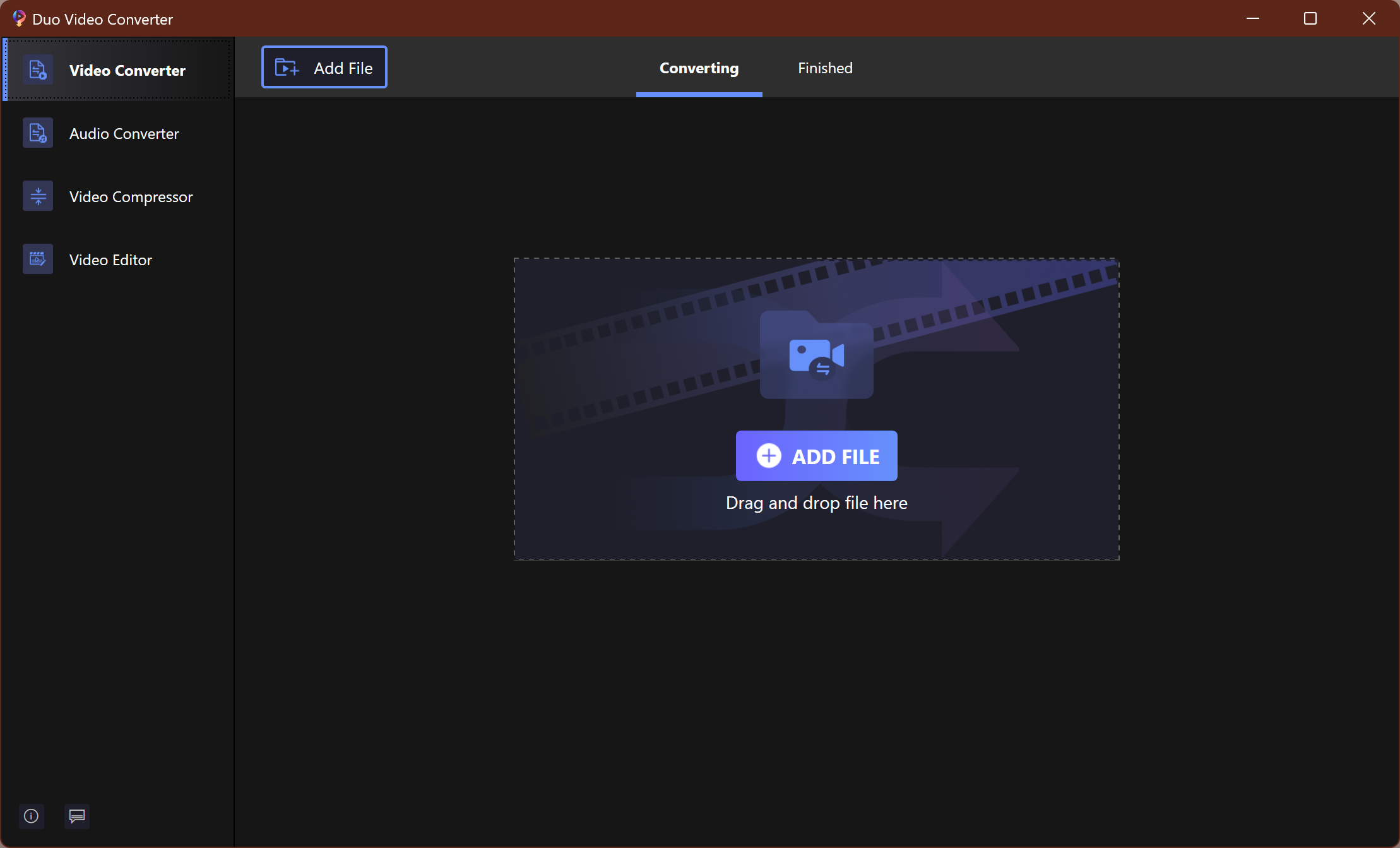
Duo Video Converter is another excellent video converter for Windows operating systems that comes with a simple user interface. It is an extremely fast and free video converter. This free video converter software allows you to convert any video/audio file format, including MP4, MOV, M4V, MKV, AVI, WMV, FLV, MPEG, MTS, WEBM, M2TS, TS, TRP, WTV, MP3, FLAC, 3G2, WMA, AAC, FLC, M4A, WAV, to any popular video/audio format. It also supports different resolutions: 4K, HD1080p, HD720p, and 480p. Apart from converting audio and video, it also easily compresses videos to smaller sizes. The best part of this application is that it does not add any watermark to the converted video. So, you can use it for personal as well as professional use.
Converting videos using the Duo video converter is relatively easy. In order to use the application, download and install this app from the Microsoft Store on your Windows 11 or Windows 10 machine. Then, run it on your computer and click the Video Converter in the top-left corner. Next, click the Add File button and select a video you want to convert. The application also supports drag and drop to upload files.
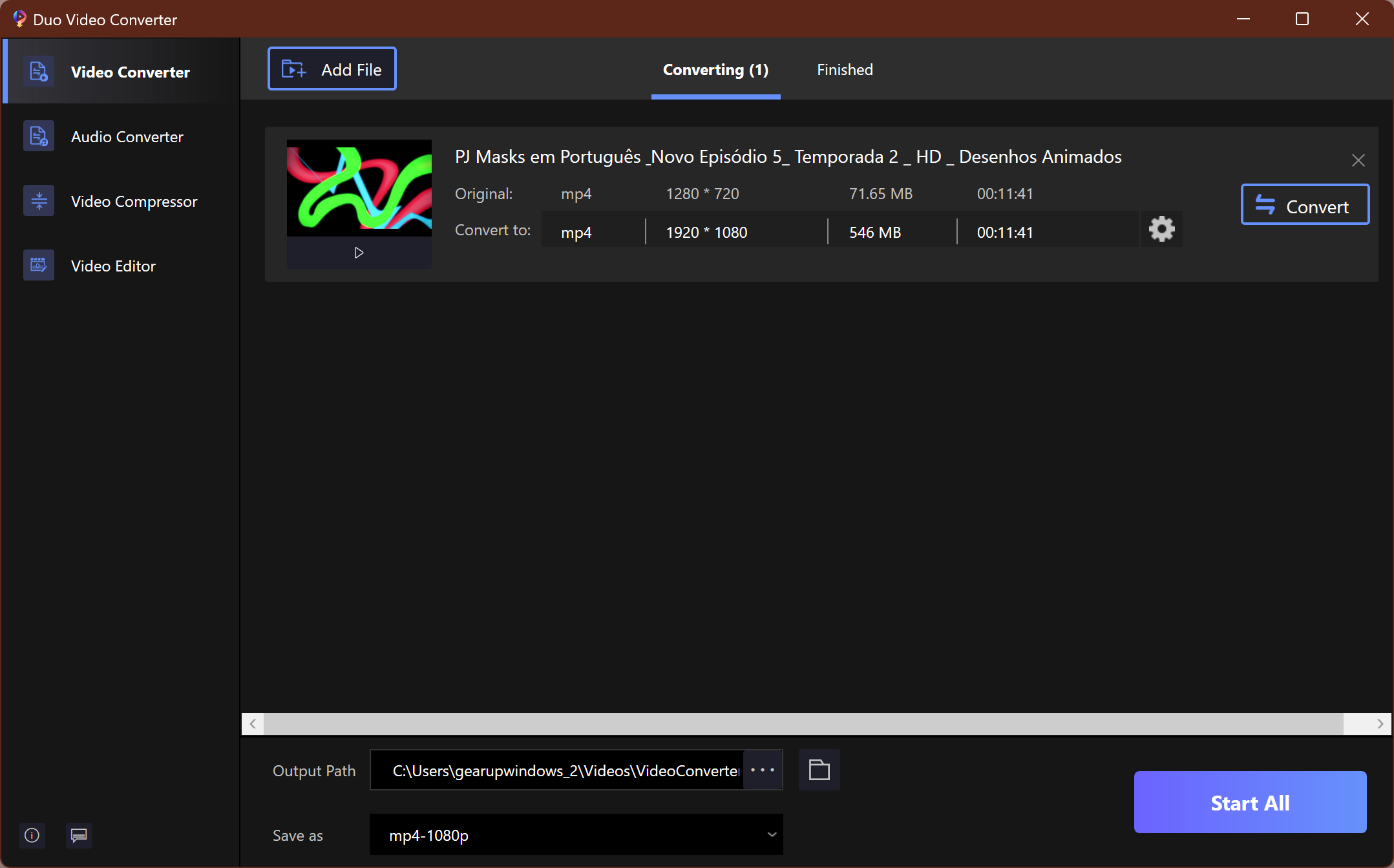
Once the file is uploaded to the application interface, choose a path to save the converted video on the computer. And select the format of the video that will be saved. Finally, click the Start All or Convert button to convert the video. When the video conversion is completed, click on the Open button to watch your video.
Frequently Asked Questions About Free Video Converters for Windows 11/10
What does a video converter actually do?
A video converter changes a file’s codec (how it’s compressed) and/or its container (how audio, video, and subtitles are packaged). This lets you play the video on devices and apps that only support specific formats.
Which format works best for most devices?
For maximum compatibility, convert to MP4 (H.264) with AAC audio. It plays smoothly on Windows, Android, iPhone, smart TVs, and the web. If you need smaller sizes and newer hardware support, use H.265 (HEVC), but note that very old devices may not support it.
What’s the difference between a container and a codec?
The container (e.g., MP4, MKV, AVI) is the “box.” The codec (e.g., H.264, H.265) is how the video inside is compressed. You can have the same codec inside different containers; changing one doesn’t always require changing the other.
How do I reduce file size without losing much quality?
Lower the bitrate or switch to a more efficient codec like H.265. Keep the original frame rate and reduce resolution only if you can accept a softer image (for example, 4K → 1080p). Tools like HandBrake’s CRF (Constant Quality) mode balance size and quality well; values around CRF 20–23 for H.264 are a good starting point.
Can I convert without any quality loss?
Re-encoding to a different codec always introduces some loss. “Lossless” is only possible if you copy streams (no re-encode) and just change the container, which only works when the original codec is already compatible with your target device.
Why does my converted video look choppy or blurry?
Common causes are too-low bitrate, heavy downscaling, or changing the frame rate. Use a higher bitrate, keep the original frame rate, and avoid over-shrinking the resolution. Also ensure hardware acceleration isn’t forcing overly aggressive settings.
Do these converters support GPU acceleration?
Many free tools (e.g., HandBrake, Any Video Converter) can use Intel Quick Sync, NVIDIA NVENC, or AMD VCE/AMF. GPU encoding is faster but can be slightly lower quality at the same bitrate. If quality is top priority, try CPU (x264/x265); if speed matters, enable GPU encoding.
How do I convert videos for WhatsApp, Instagram, or YouTube?
Use MP4 (H.264 + AAC). For WhatsApp, keep resolution modest (e.g., 720p) to meet size limits. For Instagram, match the platform’s aspect ratio (16:9, 1:1, or 9:16). For YouTube, use 1080p or higher and a reasonable bitrate; YouTube will re-encode, so focus on a clean source file.
Can I batch-convert multiple files at once?
Yes. Most tools here support batch conversion. Queue your files, select one preset, and process them together—ideal when standardizing a whole folder to MP4.
How do I extract just the audio (e.g., MP3) from a video?
Choose an audio-only preset like MP3, M4A (AAC), or FLAC. This converts or copies the audio track and discards the video, producing a much smaller file.
How can I keep or add subtitles?
You can embed soft subtitles (e.g., SRT) so they can be toggled on/off, or burn in subtitles so they’re always visible. Soft subs are flexible; burn-in is best when you need universal compatibility.
My audio is out of sync after conversion—how do I fix it?
Keep the original frame rate, avoid variable frame rate issues, and try enabling audio/video sync options in your converter. If the source is damaged, remuxing (copying streams into a new container) sometimes resolves sync drift.
Can these tools handle 4K and HDR?
Yes, but expect longer processing times and large outputs. For 4K, use H.265 or high-bitrate H.264. Preserving HDR requires compatible encoders and players; if unsure, convert to SDR with tone mapping for the widest compatibility.
Can I trim or cut clips while converting?
Most converters let you trim start/end points and do basic edits. Trimming usually re-encodes the cut portion; for truly lossless cuts, you need tools that support stream copying on keyframes, which is more advanced.
Is it legal to convert any video I have?
Converting your own recordings is fine. For commercial movies, streaming downloads, or DRM-protected content, check local laws and the content’s license. Always respect copyright and terms of service.
What settings should beginners start with?
Try an MP4 (H.264 + AAC) preset at 1080p, match the source frame rate, and use a medium quality/bitrate or CRF ~21. If the file is still too big, step up the CRF slightly or switch to H.265 for better compression.
Any tips to avoid bundled adware or unwanted extras?
Download only from official sources, click “Custom” during setup, and uncheck optional offers. Keep Windows Security enabled and scan downloads before installing.
Conclusion
In conclusion, with many media formats available over the internet, it can be challenging to play a video if your device or software does not support it. In such cases, video conversion software comes in handy. There are several free video converter software programs available for Windows, including Any Video Converter, QWinFF, HandBrake, Adapter, and Miro Video Converter. These applications offer different features, such as converting almost any media format to any other format, batch conversion, setting output parameters, video editing options, and many more. Choosing the right software that meets your needs will ensure that you can play any video on your device without any hassle.