

FileMarker.NET Free is a free and feature-rich utility that lets you color‑code or image‑code your files, making them easy to locate and organize. This tool is especially useful for prioritizing important documents, categorizing files by type, and streamlining daily workflow on Windows 11/10 systems.
In this gearupwindows guide, we’ll explore FileMarker.NET Free’s features and show you how to use it to manage your files efficiently.
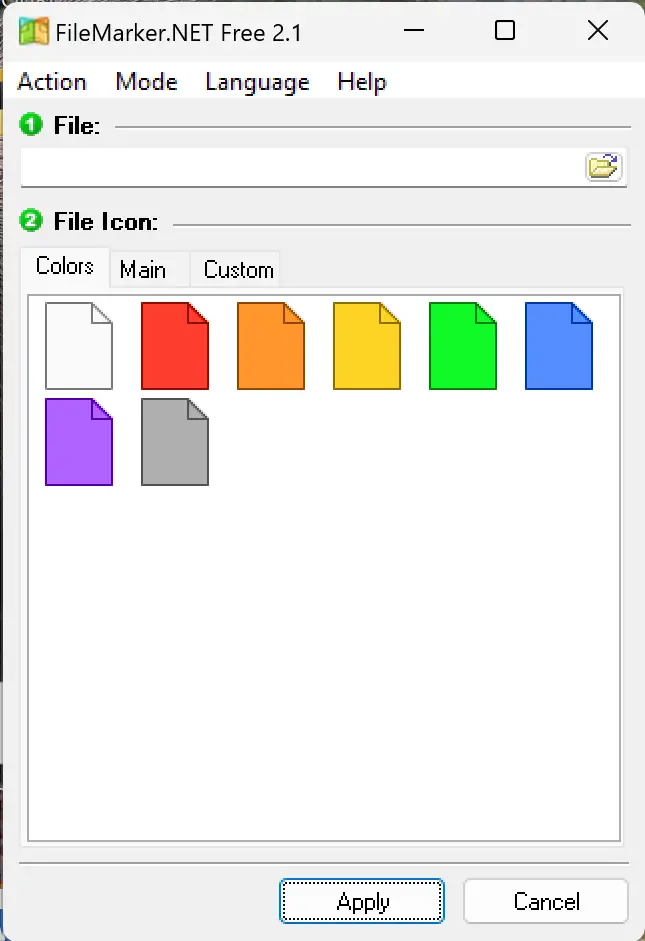
What is FileMarker.NET Free?
FileMarker.NET Free is a freeware add‑on for Windows that allows you to assign color‑coded or image‑coded icons to individual files. With this tool, you can quickly identify critical files, separate your work from others’, and maintain a more organized system. It supports one‑click file icon changes, intuitive navigation, and 32‑bit icons for better clarity.
The software lets you mark files by:
- Priority – Highlight urgent or important files instantly.
- Work progress – Indicate whether a task is complete, pending, or in progress.
- Information type – Categorize files for quick recognition.
Additionally, FileMarker.NET Free comes with seven built‑in color presets, helping you organize files visually without hassle.
How to Use FileMarker.NET Free?
Using FileMarker.NET Free is straightforward and doesn’t require opening a separate program every time. After installation:
Step 1. Right‑click any file in Windows Explorer.
Step 2. Select the “Mark File” option from the context menu.
Step 3. Choose to color‑mark the file, add a label, or combine both.
The main program window also displays all marked files, allowing you to review, edit, or reset markings anytime. Its seamless integration into the Windows context menu ensures quick access without disrupting your workflow.
Key Features of FileMarker.NET Free
- Mark files by priority: Instantly flag high‑priority documents for quick access.
- Track work completion: Label files based on task status—complete, pending, or in progress.
- Classify by type: Separate files by their content or purpose for better organization.
- Color‑coding support: Use seven preloaded colors for clear visual distinction.
- Custom labeling: Add text labels for further identification.
- Combine colors and labels: Use both methods for even more precise sorting.
- Batch marking: Mark multiple files simultaneously to save time.
Download FileMarker.NET Free
You can download FileMarker.NET Free from its official webpage. The installation is lightweight, quick, and compatible with Windows 11, 10, 8, and 7.
Other Free Tools to Customize Folders and Files
If you are looking to organize both your folders and files more effectively, there are several other free utilities we have reviewed on gearupwindows. These tools let you color‑code, mark, and personalize your folders, helping you quickly identify important items:
- CustomFolders – A portable program to add custom colors, icons, and emblems to your folders.
- Folder Painter – Change multiple folder colors quickly through the right‑click context menu.
- Folder Marker – Assign priorities and categories to folders using color‑coded icons.
- Rainbow Folders – Apply gradient colors and rebuild the icon cache to refresh folder appearance.
- StyleFolder – Customize folder backgrounds, fonts, and icon sizes for a unique look.
Combining FileMarker.NET Free with these tools allows you to color‑code both your folders and files, resulting in a well‑organized, visually distinct, and easy‑to‑navigate Windows system.
Conclusion
FileMarker.NET Free is a powerful yet easy‑to‑use application that helps you color‑code or image‑code your files for faster identification and better productivity. Whether you need to highlight urgent files, separate personal and professional data, or simply create a more organized workspace, this free tool can make your daily file management far more efficient.
If you’re also looking to customize folders, check out our detailed guide on free folder icon color changer software for Windows 11/10. Combining both tools lets you visually organize files and folders, making your system easier to navigate and far more productive.