

With the advancement of technology, virtualization has become an essential part of many users’ computing experience. VMware Workstation Player offers a simple way to run multiple operating systems simultaneously on a single PC. However, you may notice performance issues, especially on Windows 11 or 10, due to the power throttling feature in the host operating system.
In this gearupwindows guide, we’ll show you how to disable power throttling for VMware Workstation Player to improve virtual machine performance on Windows 11.
Understanding Power Throttling
Power throttling is a feature introduced in Windows 10 and continued in Windows 11. It automatically reduces CPU usage for background tasks to extend battery life—particularly on laptops.
While helpful for conserving energy, power throttling can negatively affect performance in apps like VMware Workstation Player, which need consistent access to CPU resources for smooth virtualization.
Watch this quick video guide:
Disabling Power Throttling for VMware Workstation Player
You can use the built-in powercfg command-line tool to turn off power throttling for the VMware virtualization process. Here’s how:
Step 1. Open Command Prompt as Administrator.
Step 2. Run the following command to disable power throttling for VMware Workstation Player:
powercfg /powerthrottling disable /path "C:\Program Files (x86)\VMware\VMware Player\x64\vmware-vmx.exe"
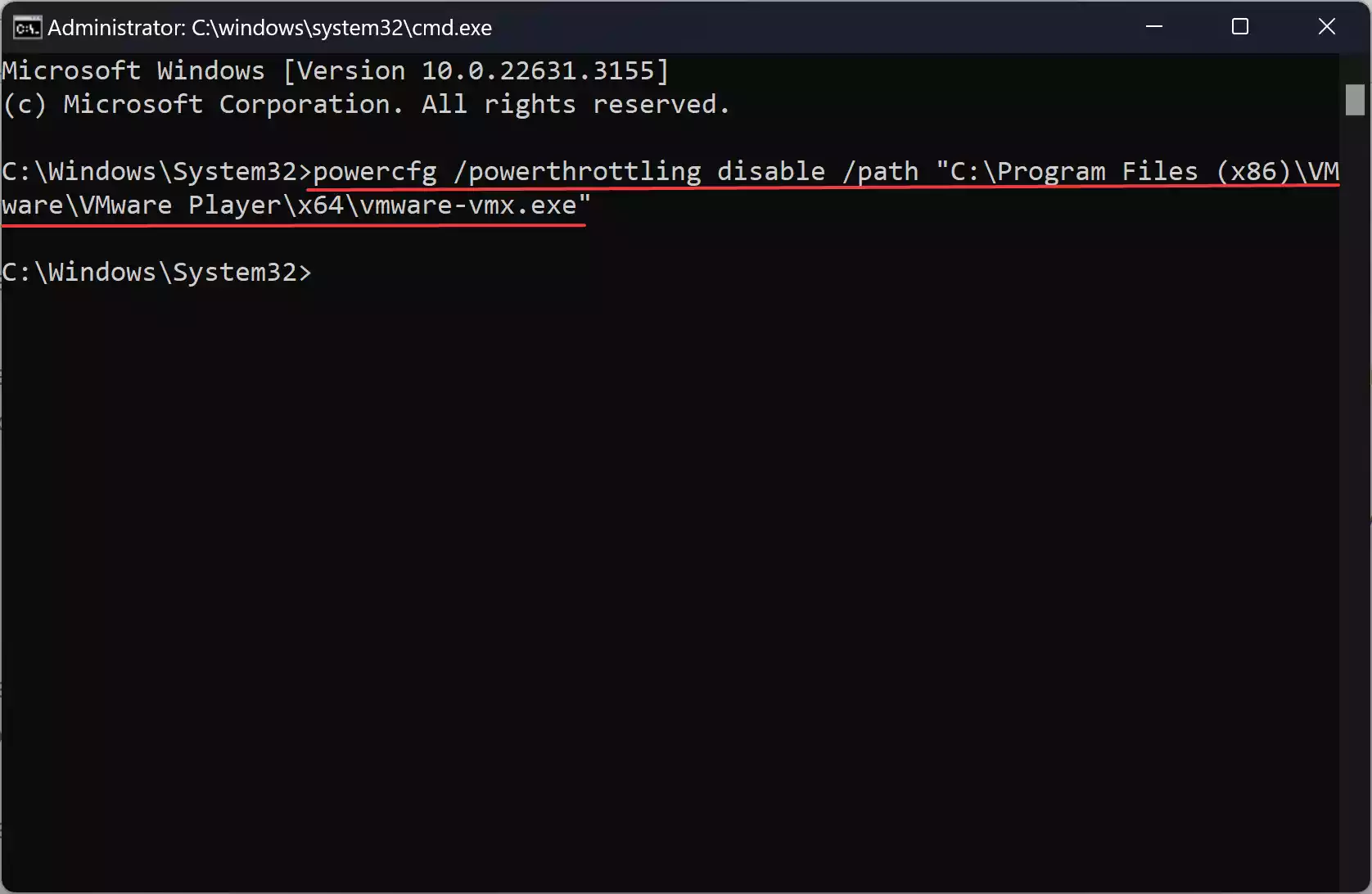
Step 3. Press Enter to execute. You should see a confirmation message.
Step 4. Restart VMware Workstation Player to apply the changes.
Performance Benefits
Disabling power throttling allows the VMware process to use CPU resources more effectively. You may experience:
- Smoother virtual machine operation
- Faster boot times and app loading inside VMs
- Reduced lag and latency
Keep in mind that disabling this feature could increase power usage, especially on laptops. If battery life is a concern, you might want to re-enable throttling when not using virtual machines.
Conclusion
Power throttling can unintentionally slow down apps like VMware Workstation Player, particularly on Windows 11/10. By disabling it, you can unlock better virtual machine performance and smoother multitasking. Just be mindful of the trade-off between performance and battery consumption.
For more tips, check out how to change power mode in Windows 11 for even better results.