

Driver Backup & Restore is a tiny, portable batch utility for Windows 11/10 that backs up all third-party drivers and restores them later — fully offline. It uses only built-in Windows tools (PnPUtil and DISM), creates a dated backup folder, and even lets you create a ZIP from your backup for easy storage or sharing.
What is Driver Backup & Restore?
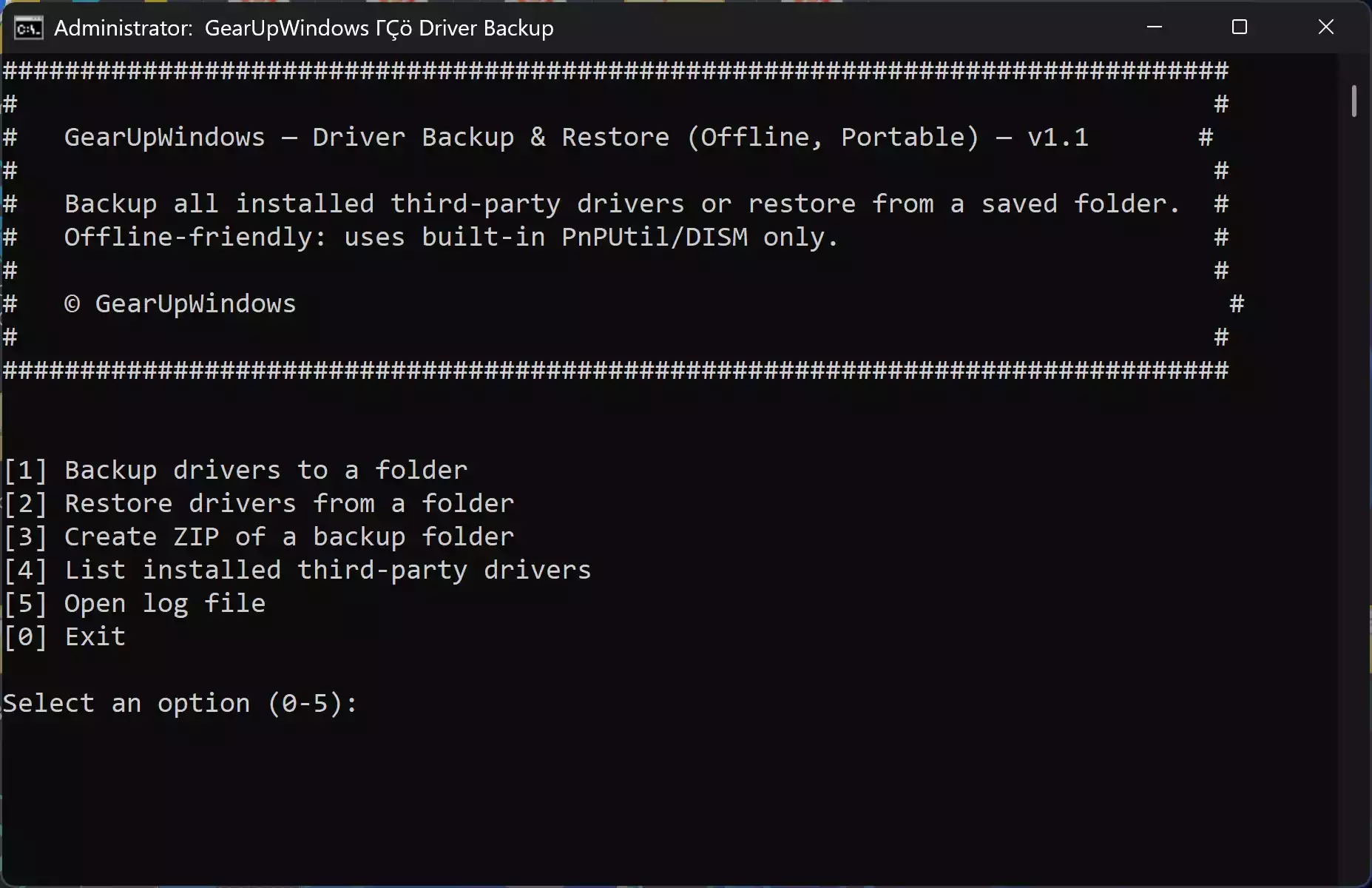
It’s a single .cmd file (portable) that shows a simple menu: Backup, Restore, ZIP a backup, List drivers, and Open log. The filename stays generic for maximum compatibility, while the GearUpWindows brand appears inside the tool at runtime as a friendly banner. Because it only calls PnPUtil and DISM, it works without any downloads, installers, or internet access.
Why Would a Beginner Use Driver Backup & Restore?
If you’re planning a clean install, moving to a new PC, or just want a safety net before hardware changes, this tool gives you a quick, no-nonsense driver backup. It’s ideal when OEM driver packages are scattered or unavailable, and you want a clean export you can point Windows to during restore.
Main Features of Driver Backup & Restore
- Portable & offline: one batch file, no setup, no internet.
- Two trusted engines: exports with PnPUtil, falls back to DISM automatically.
- Restore by folder: installs all
.inffound recursively — great after a clean install. - ZIP maker: create a
.zipof any backup folder for archiving or sharing. - Verbose logs: every run writes a timestamped log in
logs\. - Admin auto-elevation: prompts for Administrator if needed.
How to Use Driver Backup & Restore
Before you start, right-click the tool and choose Run as administrator.
Step 1. Choose Backup drivers. Accept the suggested dated folder (e.g., Backups\Drivers_YYYYMMDD_HHMMSS) or type your own path. The tool tries PnPUtil first and automatically switches to DISM if needed.
Step 2. (Optional) Choose ZIP as a backup to create Drivers_YYYYMMDD_HHMMSS.zip next to that folder.
Step 3. When you’re ready to restore on the same or a fresh Windows install, run the tool again as admin and choose Restore drivers. Provide the backup folder; the tool installs all compatible .inf it finds.
Step 4. Use List drivers to review what’s installed. Use Open log to check detailed output for any installs that were skipped by Windows.
Safe Use Tips for Beginners
- Back up first, test later: keep your ZIP safe on another drive or cloud.
- Use clean exports: backups are meant for the same or similar hardware; mixed hardware may skip some drivers.
- Reboots: some drivers require a restart to fully activate.
- Windows Update: after restore, you can still let Windows fetch newer WHQL versions if available.
When Driver Backup & Restore Can Help You
- Clean installs & refreshes: take a full driver snapshot before wiping Windows.
- New PC migrations: quickly re-seed common device drivers, then update selectively.
- Offline repairs: no internet required to get essential devices working.
Related Reading on GearUpWindows
If you prefer manual commands, our guide on how to import or export device drivers on Windows 11 explains PnPUtil and DISM syntax for beginners. You can also see two ways to back up and restore drivers in Windows 10 with built-in tools. For a GUI-first approach, check out the freeware roundup like Double Driver or DriverBackup and pick what suits your workflow.
Download Driver Backup & Restore
Download the portable ZIP from the link below. Extract anywhere, right-click the .cmd, and run as admin.
Download Driver Backup & Restore (Offline, Portable)
Frequently Asked Questions About Driver Backup & Restore
Does this tool back up Microsoft inbox drivers?
It focuses on third-party drivers. Windows inbox components are already part of the OS image and typically don’t need exporting.
Will it work if my backup is from different hardware?
Windows will only install drivers that match the current hardware. Non-matching entries are skipped safely and recorded in the log.
Is an internet connection required?
No. The tool is 100% offline and only uses built-in Windows commands (PnPUtil / DISM).
Do I need to disable antivirus or SmartScreen?
No. It’s a plain text .cmd script; however, always run downloaded scripts from trusted sources and verify the ZIP before use.
Can I still update drivers after restoring?
Yes. You can let Windows Update deliver newer signed versions, or use a trusted utility if you prefer a guided experience.
Conclusion
If you want a fast, dependable way to back up and restore drivers on Windows 11/10 without third-party installers, Driver Backup & Restore keeps it simple: export, ZIP, and restore — all offline, all from one portable .cmd file. Keep a copy on your USB toolkit and you’ll always have working drivers ready after a clean install.