

Transferring large files or folders on Windows often feels slower than expected — especially when using File Explorer’s built-in copy system. NiceCopier is a free and open-source tool that replaces the default Windows copy dialog, giving you faster speeds, better control, and smarter file management. If you frequently move large amounts of data, this lightweight utility can save you both time and frustration.
What is NiceCopier?
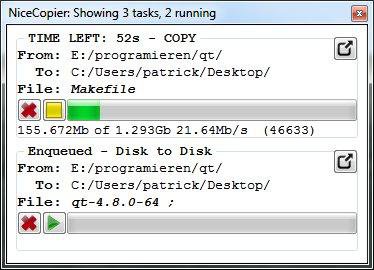
NiceCopier is a Windows utility that automatically takes over file copy and move operations from File Explorer. Instead of using the system’s basic copy dialog, it introduces a more advanced and user-friendly interface. NiceCopier allows you to pause, resume, queue, or reorder file transfers — features that are missing in the default Windows experience. It also logs each operation, so you can track progress and completion without worrying about failed transfers.
Key Features
- Fast Copy Performance – Uses efficient buffering for high-speed data transfer.
- Pause/Resume Support – Temporarily stop copying and continue anytime.
- Queue Management – Handles multiple copy tasks in an organized queue.
- Error Handling – Automatically skips or retries problematic files.
- Auto Resume – Continues unfinished copies when the PC restarts.
- Clean, Minimal Interface – Easy to use even for beginners.
- Free and Open Source – Completely free to download and use.
Why Use NiceCopier Instead of File Explorer?
Windows Explorer’s copy function is fine for small transfers but struggles with large batches or external drives. NiceCopier eliminates those limitations by offering faster, more predictable results. You can queue files from different folders, monitor copy speeds, and avoid freezing or timeouts that sometimes occur in the default system copy.
How to Use NiceCopier on Windows 11/10
After installation, NiceCopier integrates automatically with Windows. Every time you copy or move files, it replaces the default system dialog with its own advanced one. Here’s how you can start using it:
Step 1. Download and install NiceCopier on your Windows PC.
Step 2. Right-click on any file or folder and choose “Copy” or “Cut.”
Step 3. Paste it to a new location as usual — NiceCopier will appear automatically.
Step 4. Use the Pause, Skip, or Cancel buttons for better control.
Step 5. View the progress bar, estimated time, and queued files from the same window.
When NiceCopier Can Help You
- Copying gigabytes of data between SSDs, HDDs, or USB drives.
- Moving folders containing thousands of small files.
- Managing simultaneous copy jobs efficiently with a queue.
- Recovering from interrupted or failed file transfers.
Alternatives You Can Try
If you’re exploring other powerful file copying tools, these free options might also interest you:
- TeraCopy – Supercharge File Transfers with Speed and Reliability
- FastCopy – Accelerating File Transfers with Efficiency and Control
- ExtremeCopy – Enhance Copying Speed and Efficiency
- Ultracopier – Streamline File Transfers with Enhanced Control
- Copy Handler – Your Ultimate File Copy Companion
System Requirements
- OS: Windows 11, 10, 8.1, or 7
Pros
- Completely free and open source.
- Integrates directly with Windows Explorer.
- Supports queue management and pause/resume.
- Lightweight and uses minimal resources.
- Automatically restarts unfinished copies.
Considerations
- Interface looks dated compared to modern tools.
- No built-in checksum verification.
- Limited customization for advanced users.
FAQs
Q1. Is NiceCopier safe to use?
Yes, NiceCopier is open source and safe. It runs locally without collecting data or requiring an internet connection.
Q2. Can I use NiceCopier alongside TeraCopy or FastCopy?
Yes. You can install multiple copy utilities; however, only one can be set as the default file copy handler at a time.
Q3. Does NiceCopier work on Windows 11?
Absolutely. It is fully compatible with Windows 11 and Windows 10, both 32-bit and 64-bit versions.
Q4. Can I pause or cancel a copy without losing progress?
Yes. You can pause, cancel, or resume any transfer safely, and progress will remain intact.
Conclusion
If you’re tired of the slow, limited Windows Explorer copy dialog, NiceCopier is a simple yet powerful replacement. It improves transfer speeds, gives you control over every file move, and is completely free. Whether you transfer large media folders or daily work files, NiceCopier can make your file management smoother, faster, and smarter.