

There is nothing wrong with the built-in mounting feature of Windows 8 and 10, but if you need more features, you may prefer to use freeware tools like WinCDEmu, Virtual CloneDrive, and others.
What is gBurner Virtual Drive?
gBurner Virtual Drive is a free software utility that enables you to create and manage virtual CD/DVD drives on your computer. It allows you to mount various disk image formats such as ISO, BIN, and CUE files, as well as create ISO image files from CDs and DVDs.
With gBurner Virtual Drive, you can access your virtual disks just like physical ones. This is especially useful if your PC doesn’t have a CD/DVD drive or if you frequently need access to multiple disks simultaneously.
gBurner Virtual Drive is available for Windows PCs and is specially designed for creating and managing virtual CD/DVD drives. It supports a wide range of image file formats, including:
- ISO (Standard ISO File)
- GBI / GBP (gBurner Image Files)
- DAA (PowerISO Image Files)
- NRG (Nero Image Files)
- MDF / MDS (Alcohol Image Files)
- BIN / CUE (CDRWin Image Files)
- UIF (MagicISO Image Files)
- ISZ (UltraISO Image Files)
- ASHDISC (Ashampoo Image Files)
- DMG (Apple Mac Image Files)
- GI (RecordNow Image Files)
- BWI / B5I (BlindWrite Image Files)
- IMG (CloneCD Image Files)
- CDI (DiscJugger Image Files)
- PDI (InstantCopy Image Files)
- NCD (NTI CD-Maker Image Files)
- LCD (CDSpace Image Files)
- CIF (Easy CD/DVD Creator Image Files)
- P01 (Gear Image Files)
- PXI (PlexTools Image Files)
- C2D (WinOnCD Image Files)
- FCD (Virtual CD-ROM Image Files)
- VCD (Virtual Drive Image Files)
gBurner Virtual Drive allows you to create up to 16 virtual drives and supports mounting all of the image formats listed above. Once installed, you can mount formats such as LCD, CIF, C2D, NRG, DMG, GI, ISO, BWI, BIN, MDF/MDS, GBI, IMG, PDI, VCD, FCD, and more.
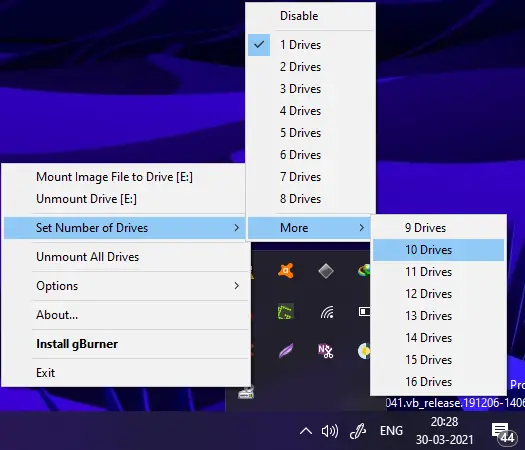
After installation, the software sits in the system tray on the Taskbar. You can access all settings by right-clicking the tray icon. From there, you can set the number of virtual drives, mount image files, unmount single drives, or unmount all drives at once.
If you no longer need virtual drives, you don’t have to uninstall the program. An option is available to disable all virtual drives temporarily.
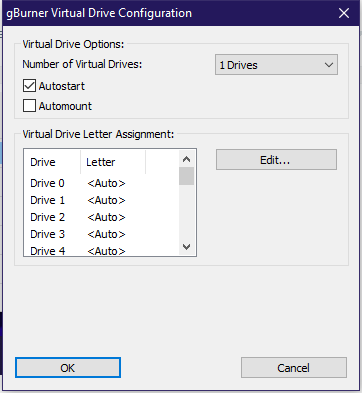
If needed, you can also access the Configuration Panel via the Options section of the software. This panel lets you set the number of drives, assign drive letters, enable or disable automount, and choose whether to autostart the software when Windows boots.
Overall, gBurner Virtual Drive is a reliable tool that supports up to 26 CD/DVD image formats. Its user-friendly interface and limited but essential features make it suitable even for novice users. There are two separate installation files available for 32-bit and 64-bit systems, so make sure to download the correct version for your PC.
This freeware utility is compatible with Windows 10, 8, 7, Vista, and XP.
Download gBurner Virtual Drive
You can download the gBurner Virtual Drive freeware utility from its official webpage.
Conclusion
In conclusion, while Windows 8 and 10 come with a built-in ISO mounting feature, several freeware tools provide enhanced functionality for mounting virtual CD/DVD drives. Among them, WinCDEmu, Virtual CloneDrive, and gBurner Virtual Drive are highly recommended.
gBurner Virtual Drive, in particular, stands out as a free and easy-to-use utility. It supports a wide variety of image formats, allows up to 16 virtual drives, and is accessible directly from the system tray. The built-in Configuration Panel offers further customization, including drive letter assignment and automount options.
Whether you are a beginner or an advanced user, gBurner Virtual Drive offers a straightforward and effective solution for managing virtual disk images. It works well across multiple Windows versions and remains a solid alternative to native mounting tools.