

Do you want to apply parental controls to protect your children from seeing certain websites? You might also want to block some websites, for instance, Facebook, while you work. Chrome browser comes with a built-in feature that is called SafeSearch to block websites. By turning on SafeSearch on Chrome, you can hide all explicit content, like pornography. You can easily block inappropriate content using SafeSearch preferences.
How to Turn on SafeSearch on Chrome?
Follow these steps to enable SafeSearch on Chrome:-
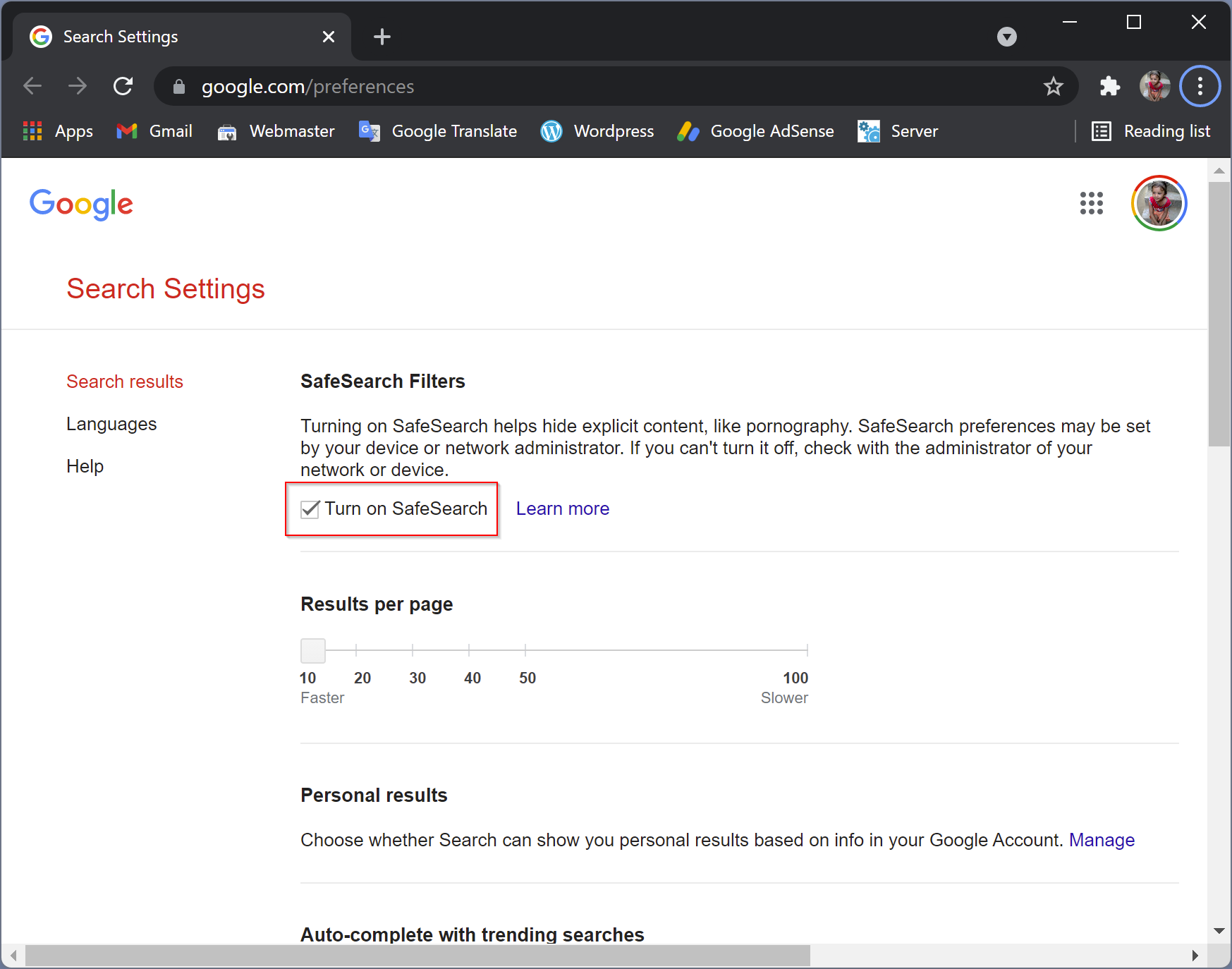
To filter out Google search results that are explicit or inappropriate for your children, navigate to google.com/preferences and then click the Turn on SafeSearch checkbox.
Now, scroll down and click on the Save button.
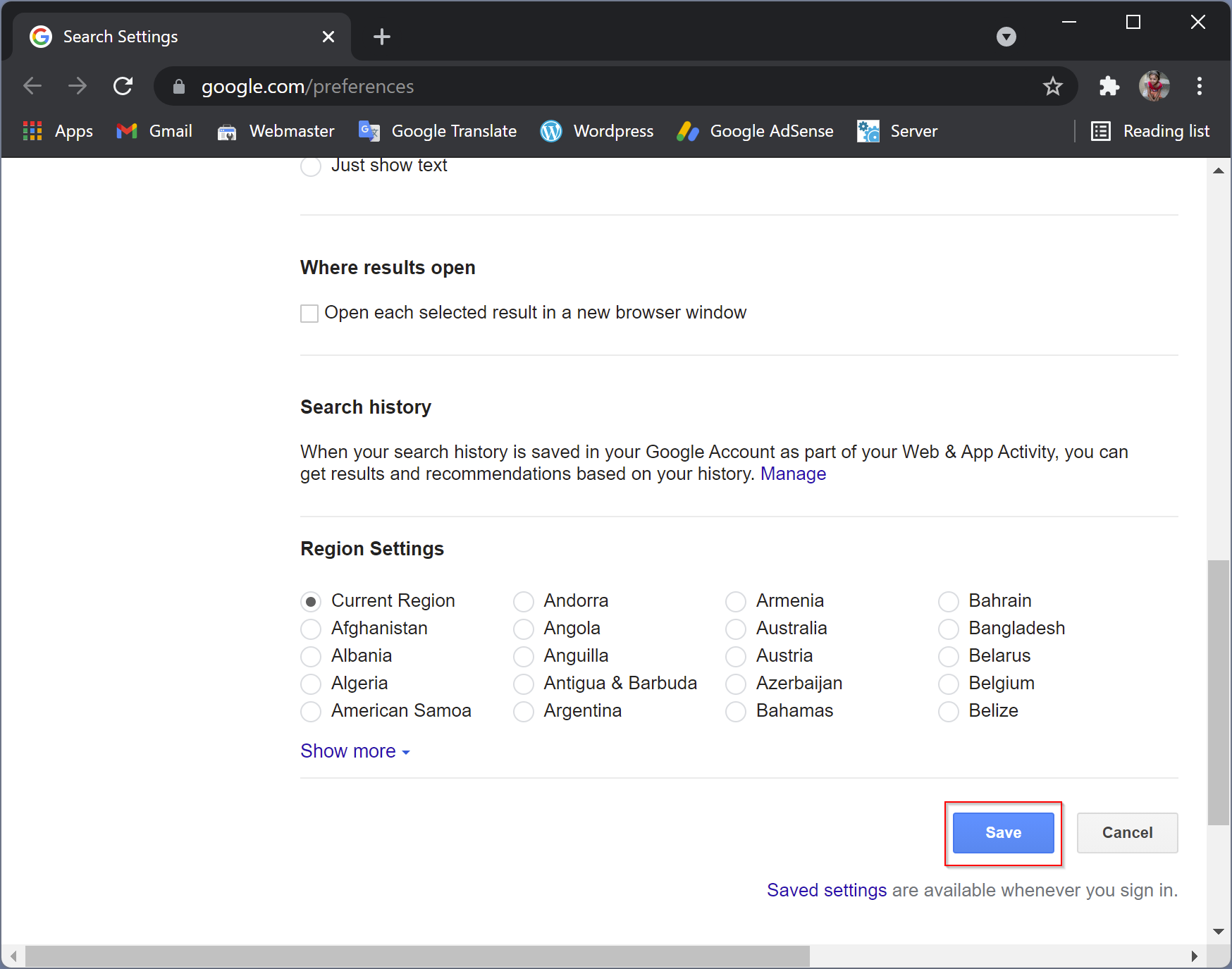
Once you complete the above steps, inappropriate and explicit websites will stop appearing on Google searches for that user.
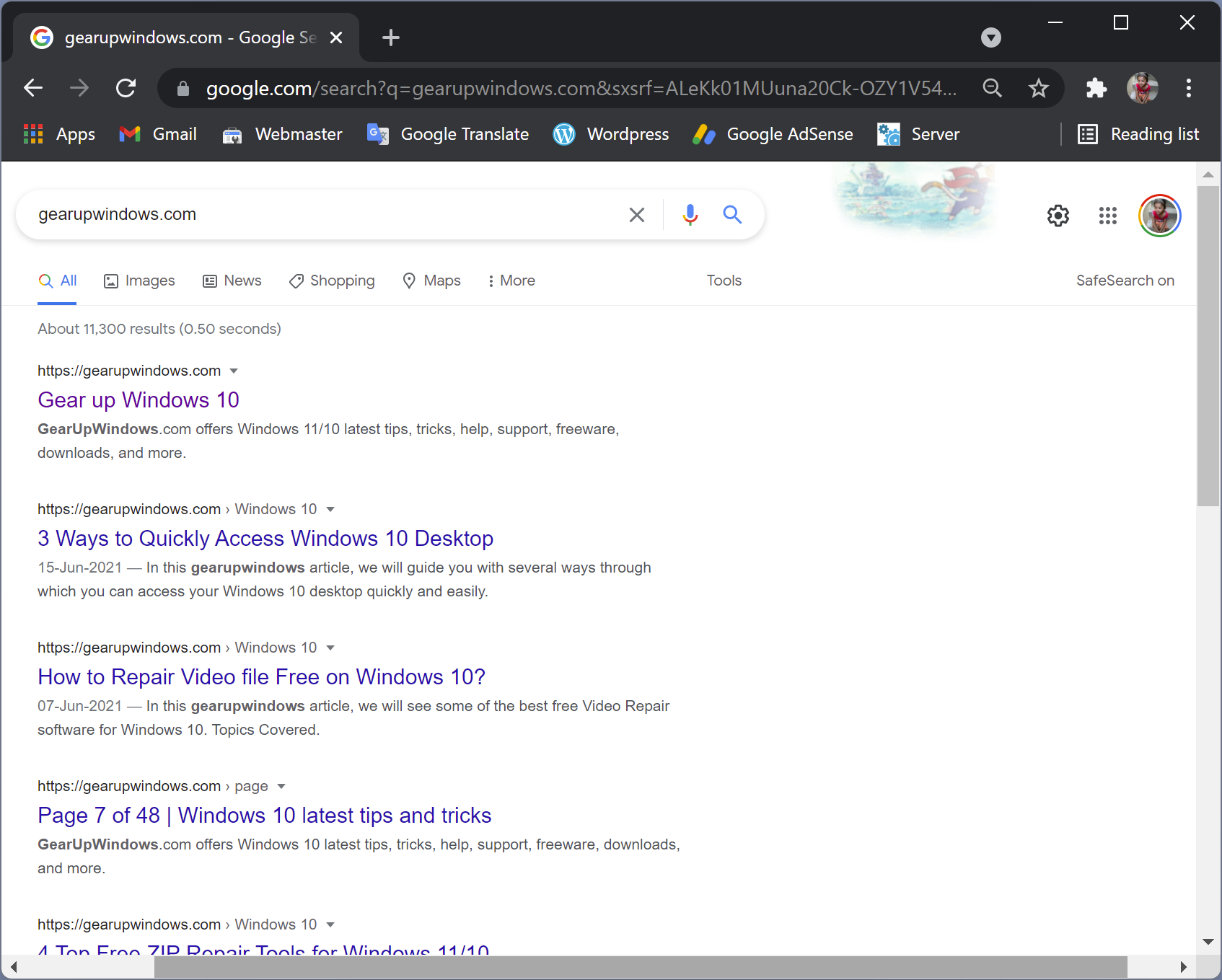
To make sure SafeSearch is turned on and working, search for something in Google. You should see “SafeSearch on” in the browser’s top-right corner, just below the user profile.
But, still, your purpose does not solve the problem. To totally block your children from visiting harmful websites, you need to follow some more steps.
How to Block Specific Websites on Chrome by Editing the Hosts File?
If you need more control over specific websites on Chrome, you need to install a paid extension, BlockSite, from the Chrome Web Store. This BlockSite extension will give you more control over specific websites. You can even add specific keywords to block websites. But, if you want a free option, edit the hosts file of Windows and add websites there. It will block the specific website on all your browsers. To do that, use the following method:-
Step 1. Log in to your Windows PC with administrative privileges.
Step 2. Navigate to the following path in File Explorer:-
C:\Windows\system32\drivers\etc
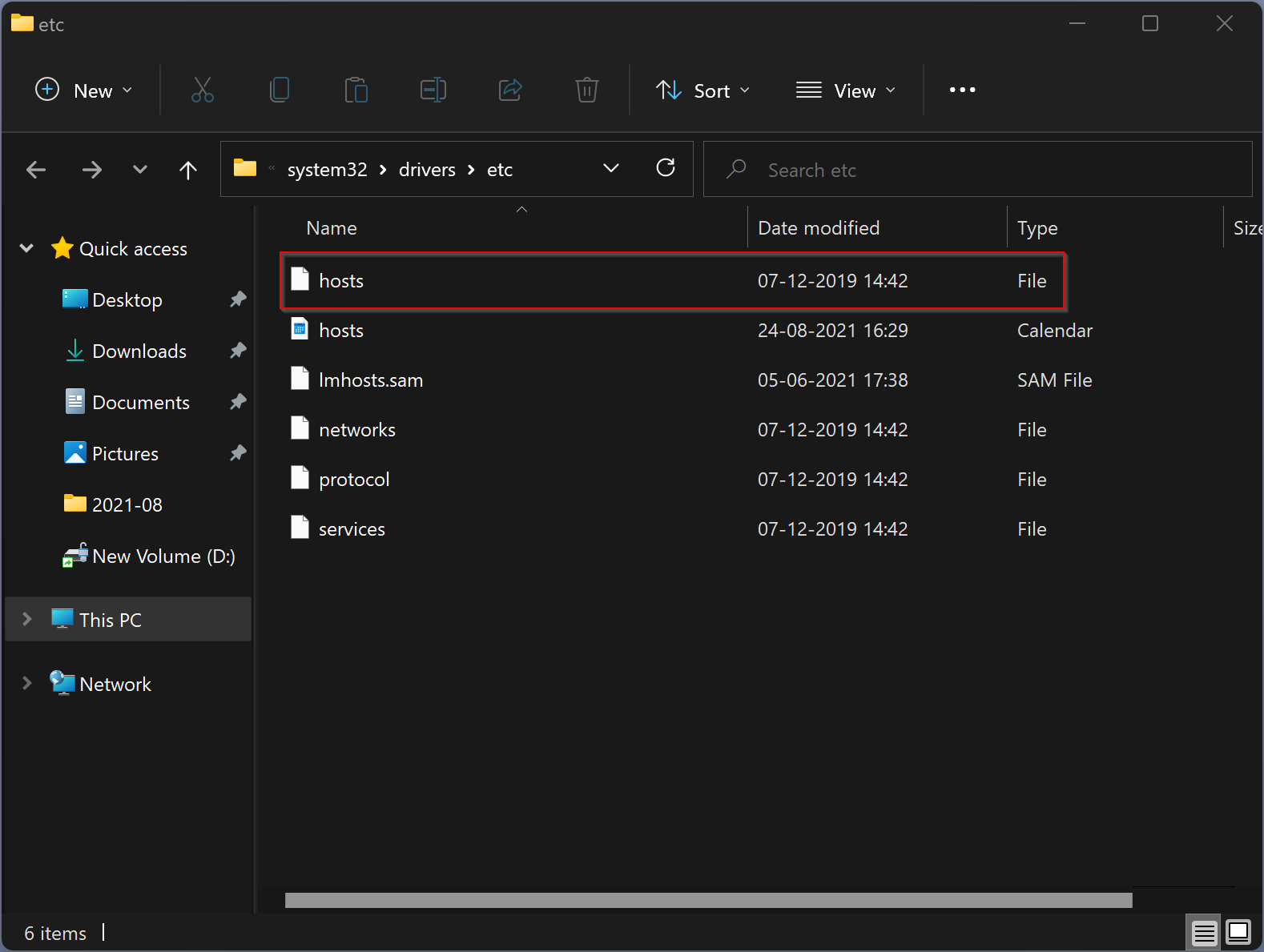
Step 3. Right-click on the hosts file and select the Properties option.
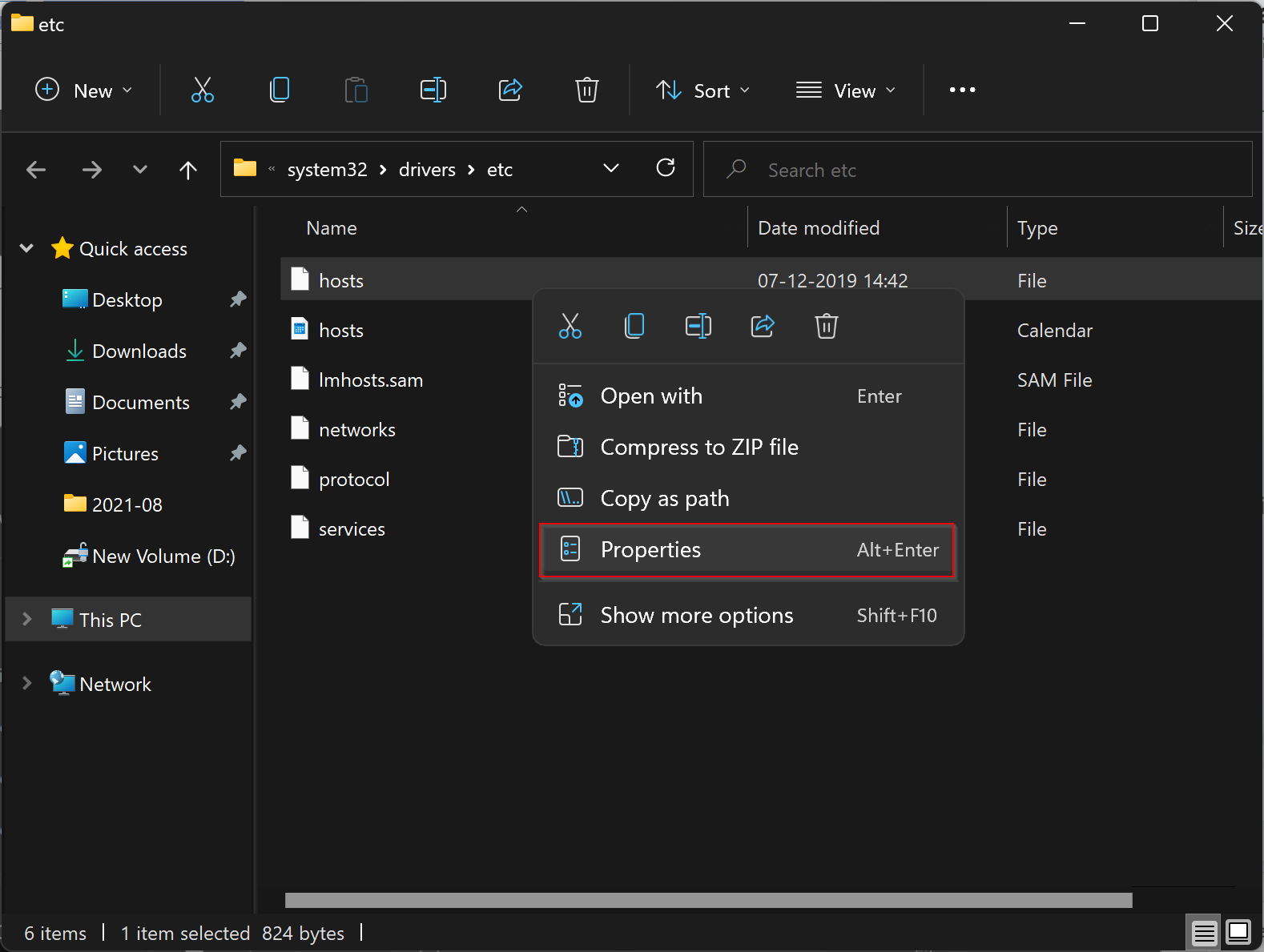
Step 4. In the “Hosts Properties” window, navigate to the Security tab and then select the Users group.
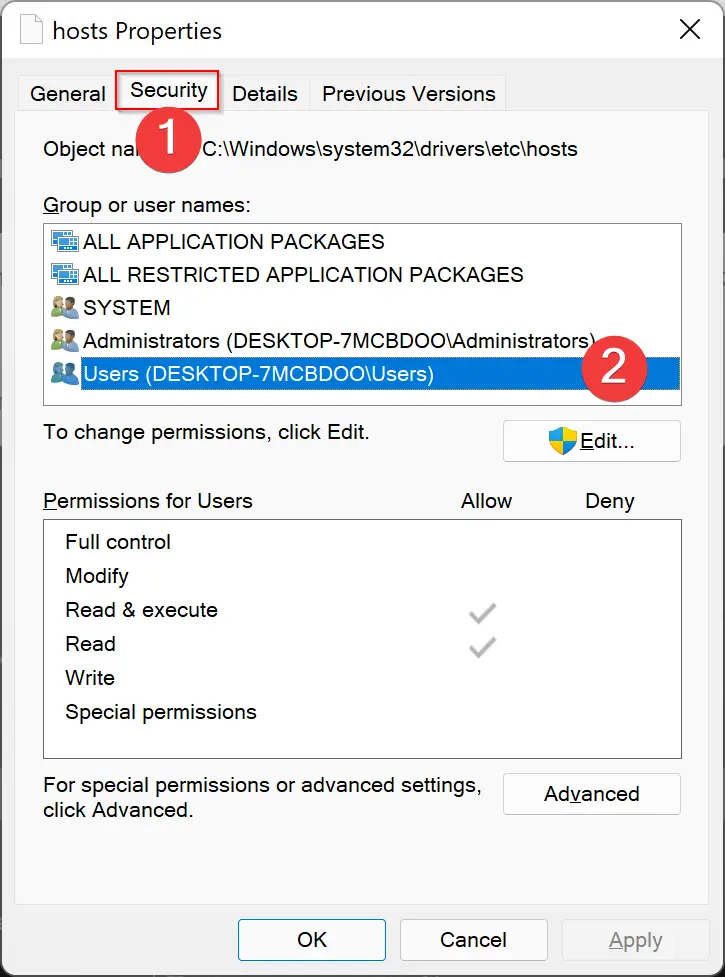
Step 5. Now, click on the Edit button.
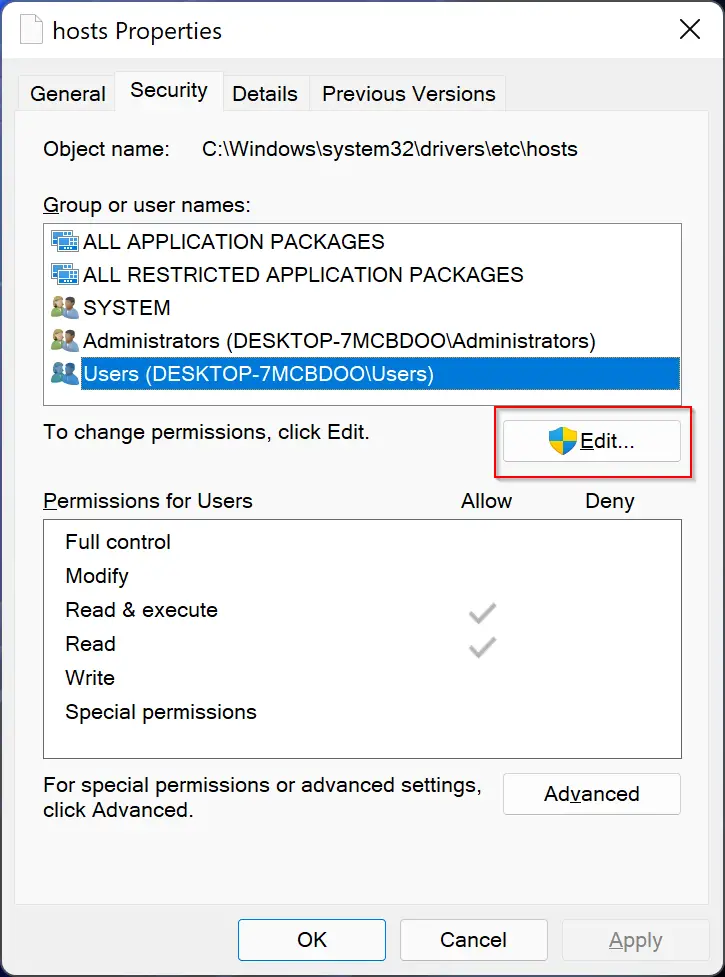
Step 6. A new pop-up window will appear. Again, select the Users group.
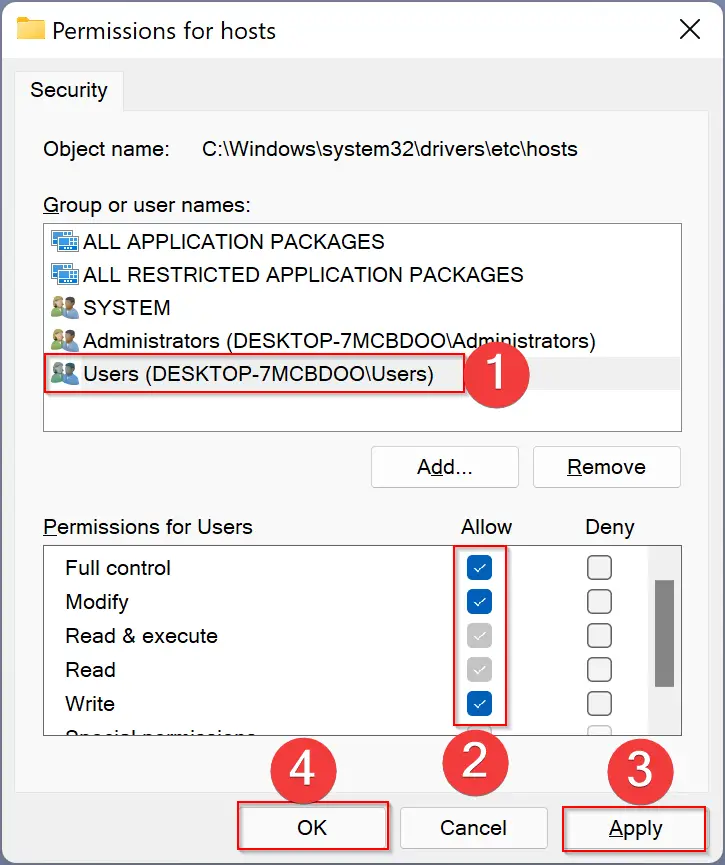
Step 7. Under the Allow column, check the Full control, Modify, and Write options.
Step 8. Click Apply.
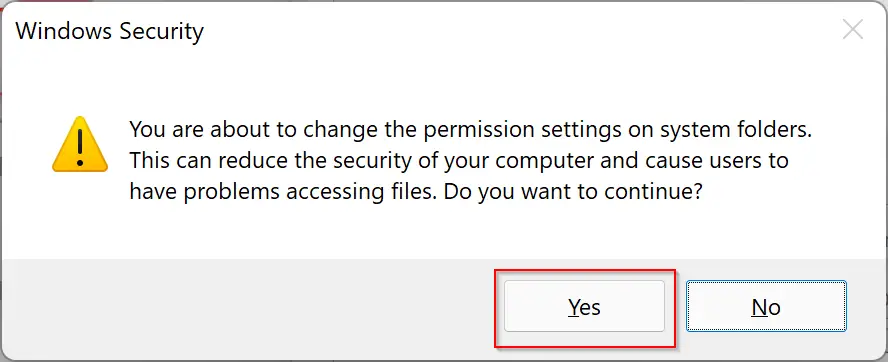
If the Windows Security dialog appears, click Yes to continue.
Step 9. Click OK.
Step 10. Click OK on the next window.
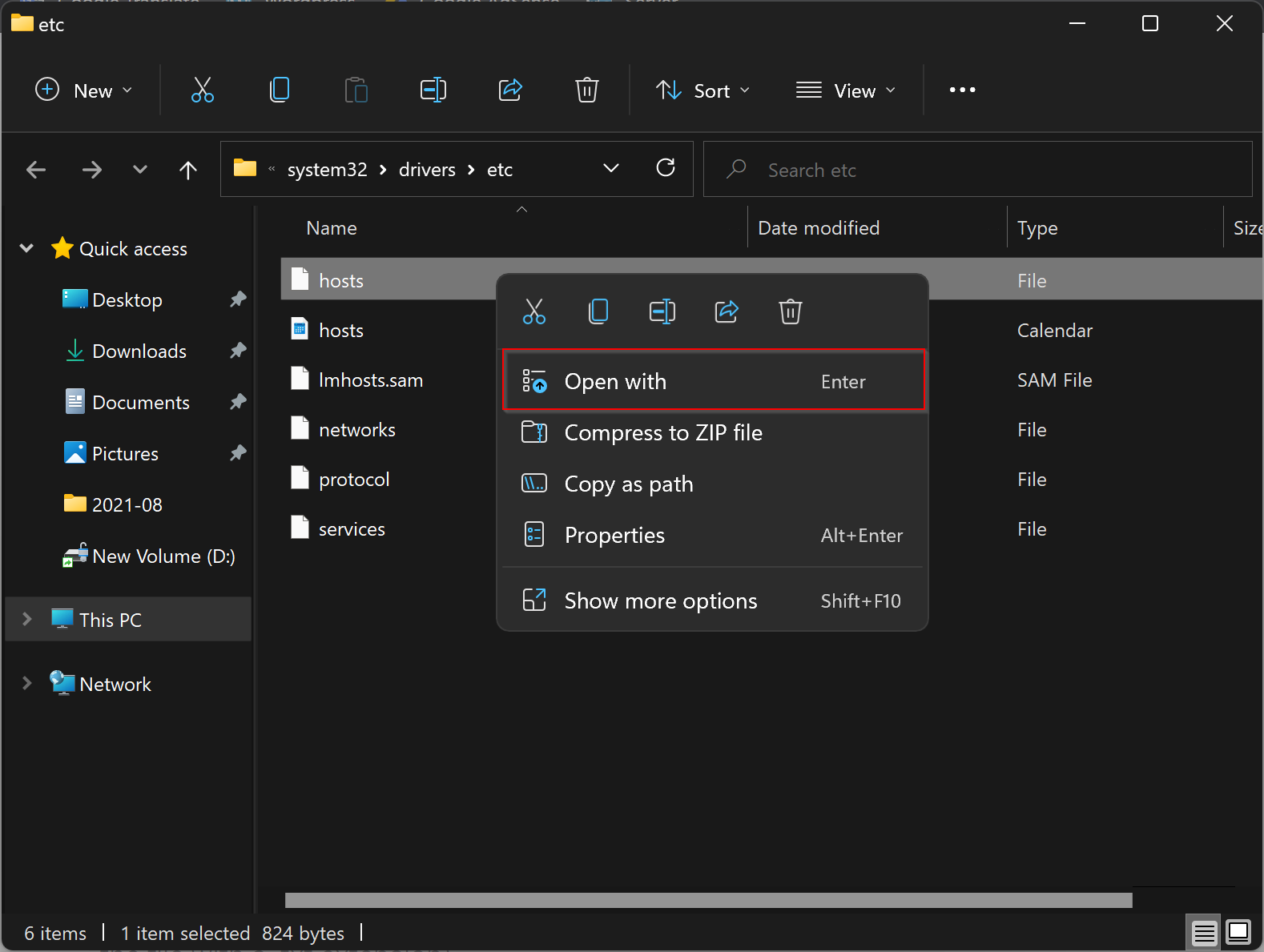
Step 11. Now, again right-click on the hosts file and select the Open with option.
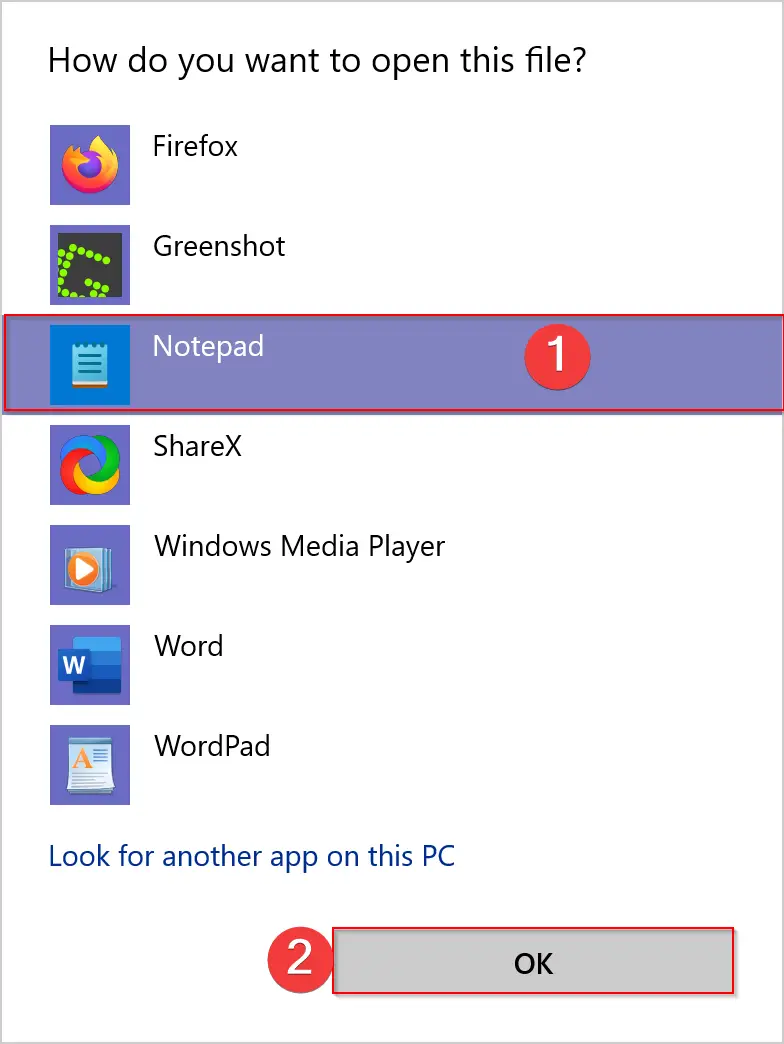
Step 12. From the drop-down menu, select Notepad and then click on the OK button.
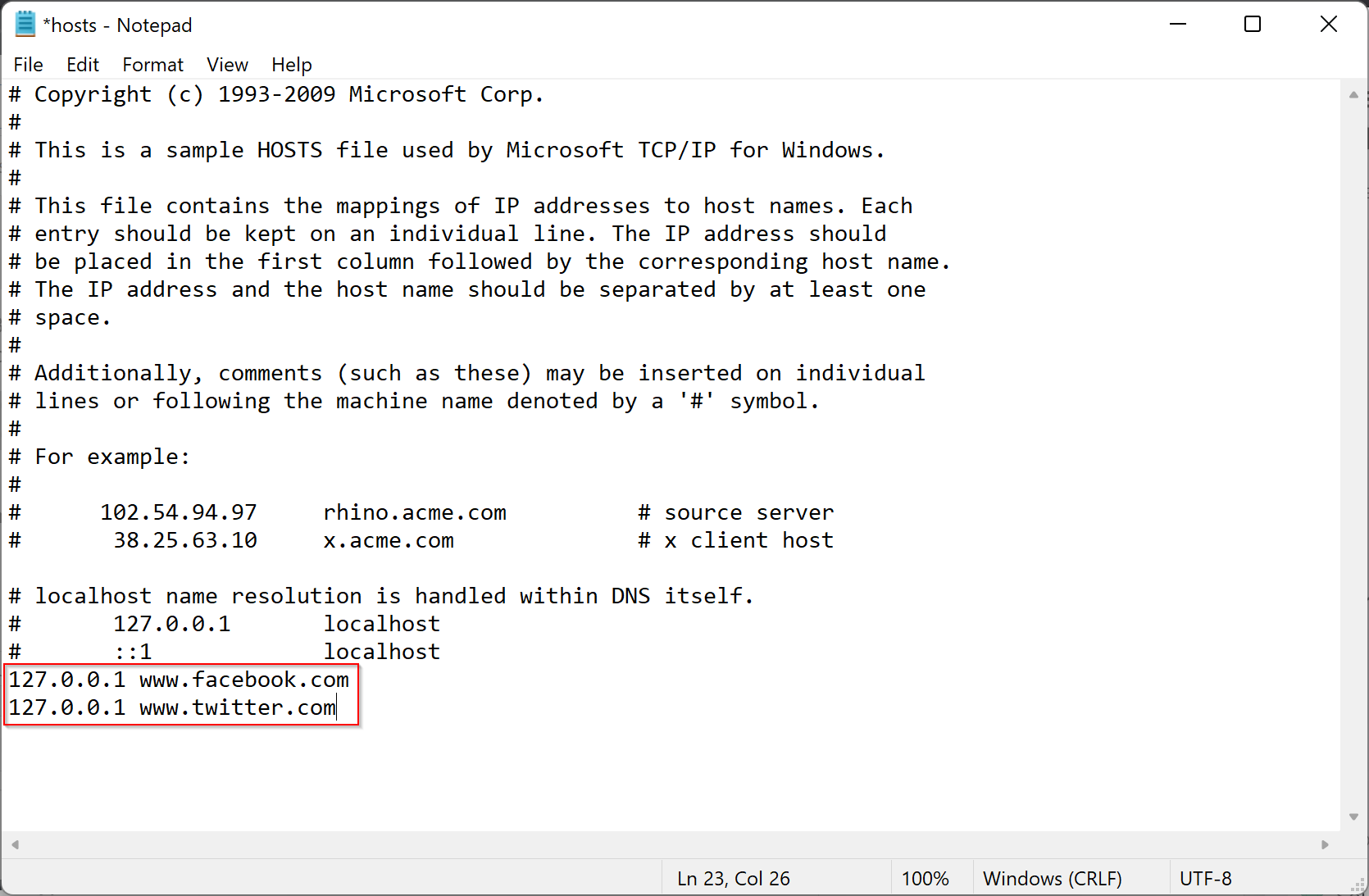
Step 13. Now, you need to add the website address in the hosts file that you want to block on your PC. Here, you need to add lines with your localhost IP in front of any domain you want to block, like:
127.0.0.1 www.facebook.com
127.0.0.1 www.twitter.com
Ensure there is a space between the localhost IP address and the website domain names. You need to add the new lines of code after the last commented line that starts with #.
Step 14. Now save the notepad file.
Step 15. Restart your computer.
That’s it! Try to visit any website in any browser on your computer that you have blocked in the hosts file. It will refuse to connect.
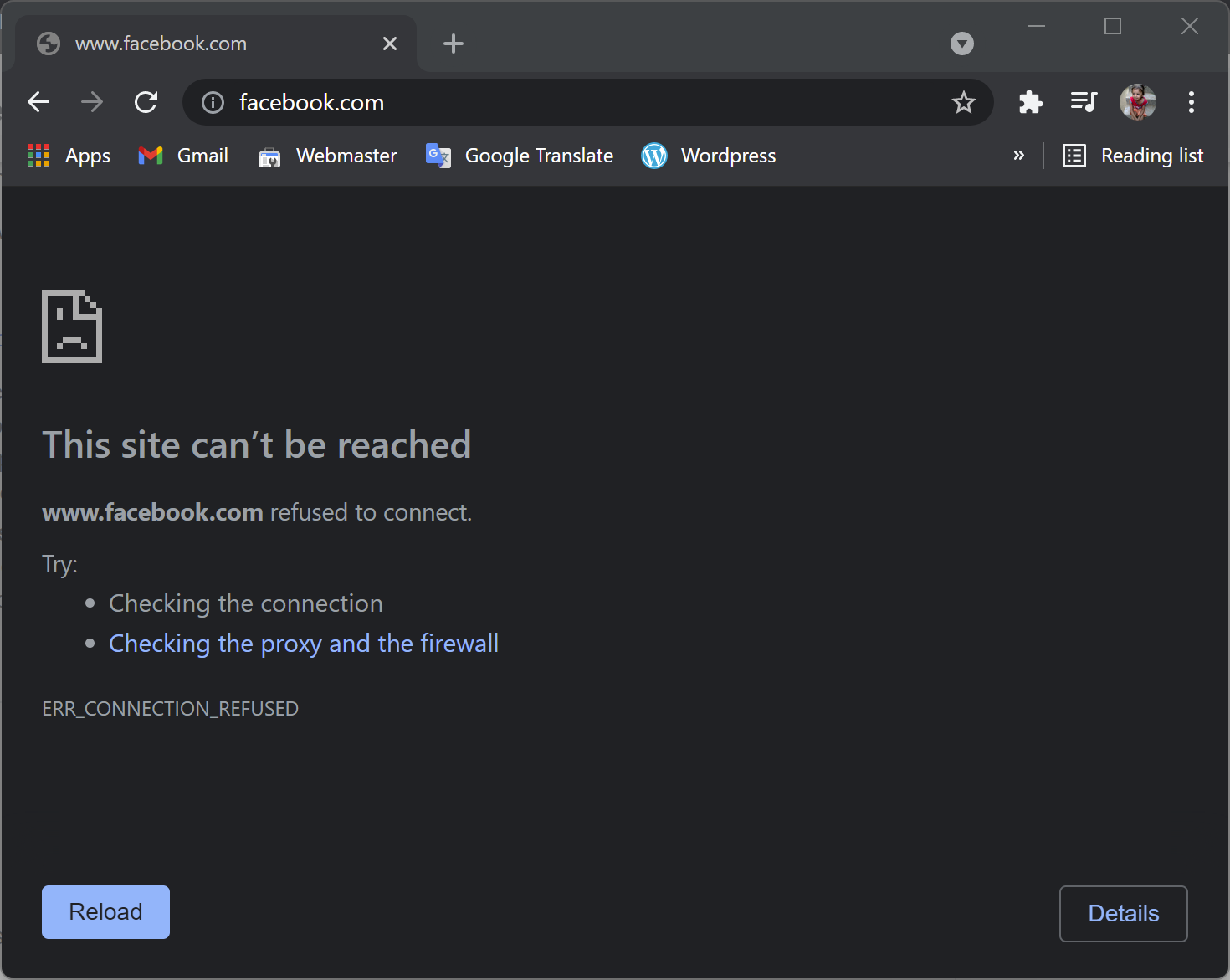
You can use the above-mentioned methods on any operating system, including Windows 11/10. It works without any issues.
Conclusion
In conclusion, ensuring that children are protected from harmful content on the internet is a significant concern for parents. The built-in SafeSearch feature on the Chrome browser can filter out explicit or inappropriate content and block certain websites. By following the steps mentioned above, you can easily turn on SafeSearch on Chrome and block specific websites by editing the hosts file. Moreover, by using the BlockSite extension, you can have more control over specific websites and add keywords to block them. These methods can be implemented on any operating system, including Windows 11/10, and provide a reliable and effective way to protect your children and yourself from harmful content on the internet.