

There are several ways available to install Windows 11 after bypassing the minimum hardware requirements. You can modify the Windows 11 bootable ISO that automatically neglect system requirements. Create a Windows 11 bootable USB flash drive and then ignore TPM 2.0 and Secure Boot. Even the popular software Rufus has now enabled the support to bypass TPM, Secure Boot, and RAM checks in bootable Windows 11 USB drives.
Apart from the abovementioned methods, you can also use the registry to bypass Windows 11’s strict requirements, including RAM, secure boot, and TPM 2.0.
How to Disable the TPM check in Registry to Install Windows 11 on Unsupported Hardware?
This method is helpful to bypass strict hardware requirements to install Windows 11 on unsupported hardware PCs. But your computer needs at least a TPM 1.2 module. Otherwise, you cannot bypass the TPM requirement to install Windows 11. If you have TPM 1.2, you can follow this tutorial to create Windows 11 Installation media on your computer. Otherwise, you can use any method above that you would like to use.
Step 1. Open the Registry Editor on the PC where you want to install Windows 11.
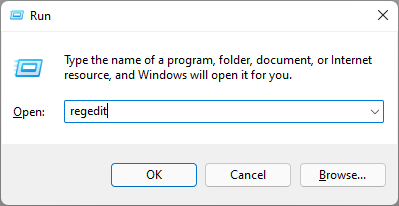
To do that, press the Windows + R keys on the keyboard to open the Run dialog box. In the Run box, type regedit and then hit Enter on the keyboard.
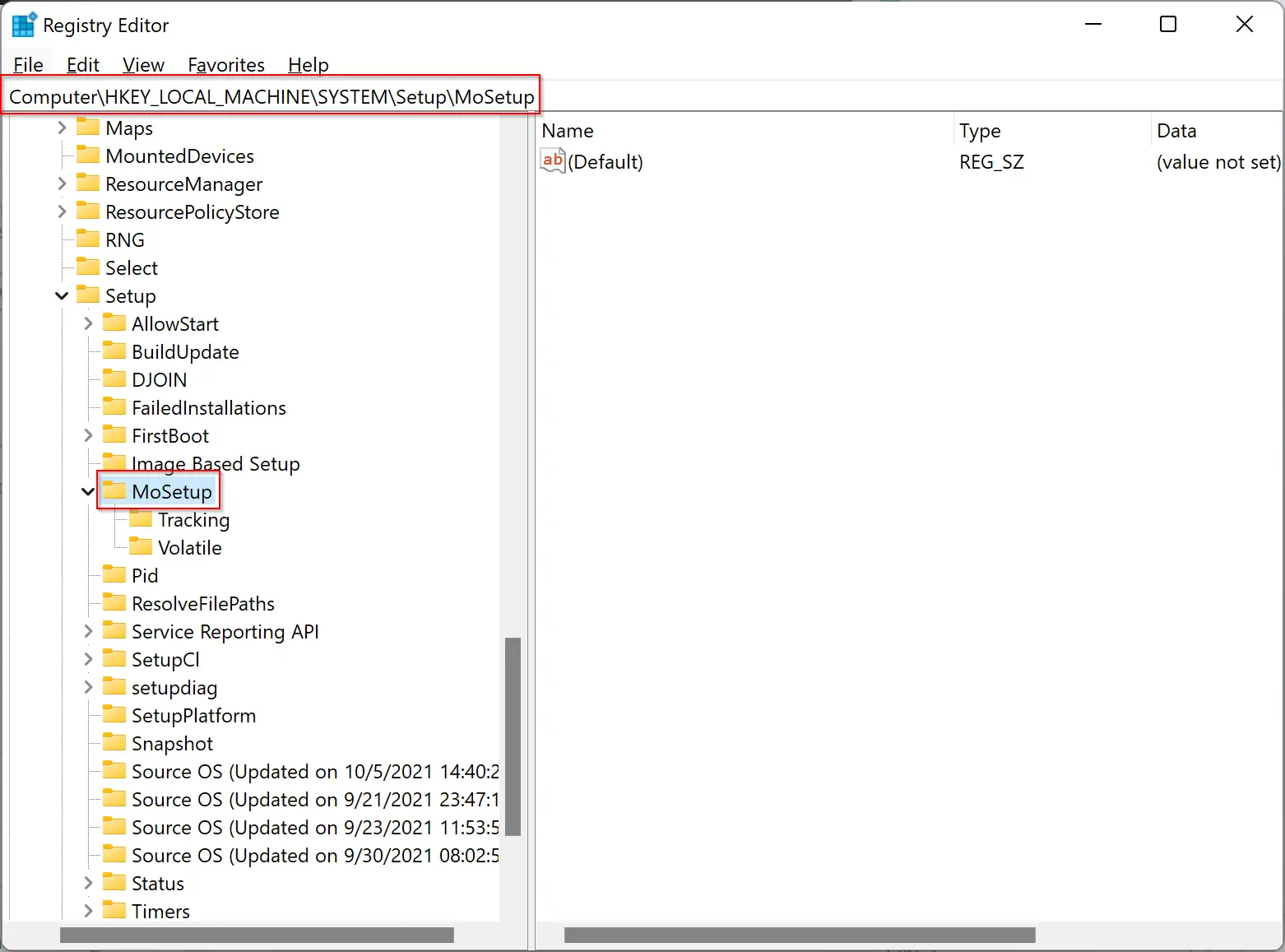
Step 2. When the Registry Editor window opens, navigate to the following key in the left sidebar:-
HKEY_LOCAL_MACHINE\SYSTEM\Setup\MoSetup
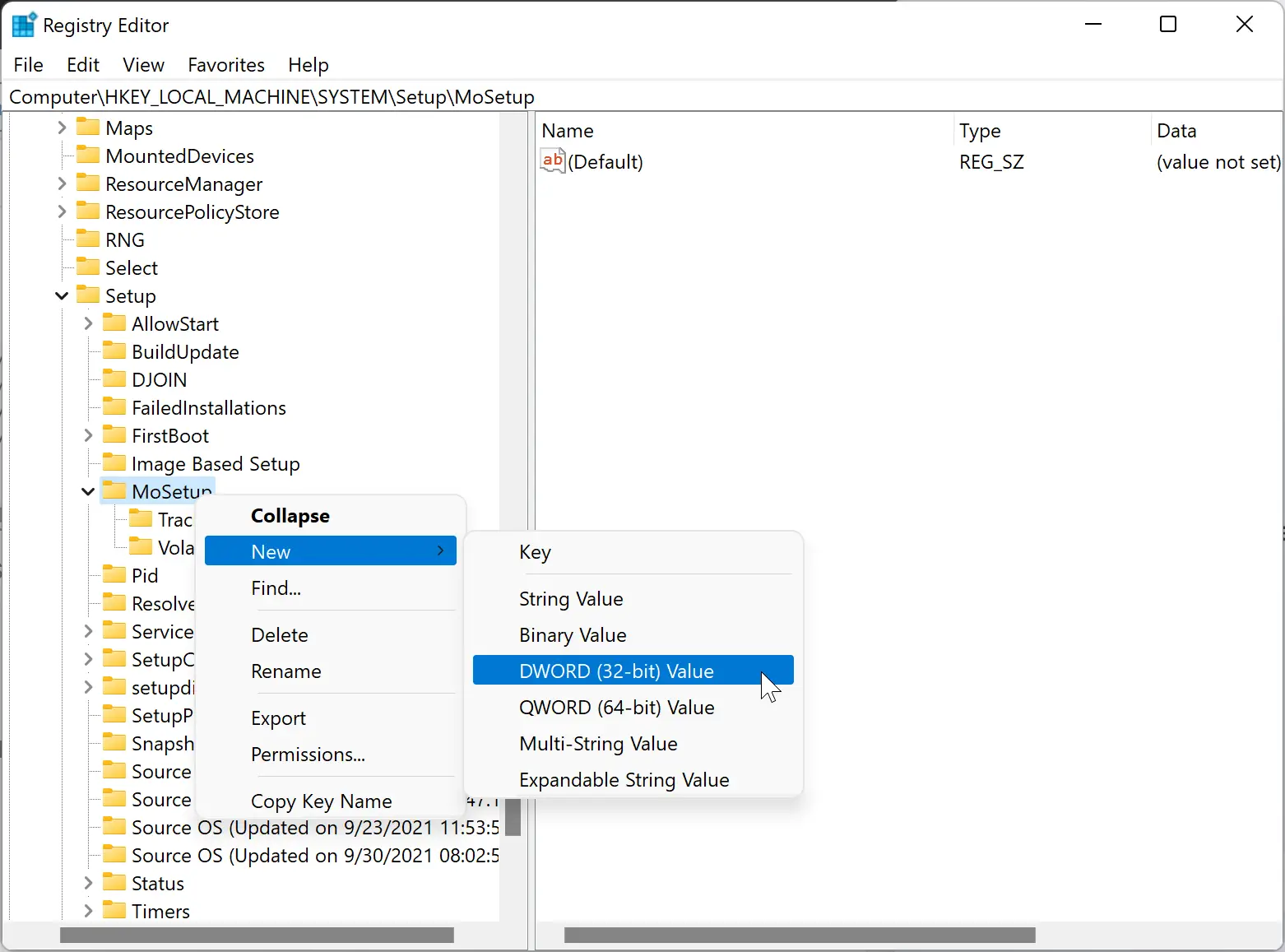
Step 3. Then right-click on the MoSetup folder and select New > DWORD (32-bit) Value. Name it AllowUpgradesWithUnsupportedTPMOrCPU.
Step 4. Next, double-click on it to modify its value. Set the “Value data” as “1.”
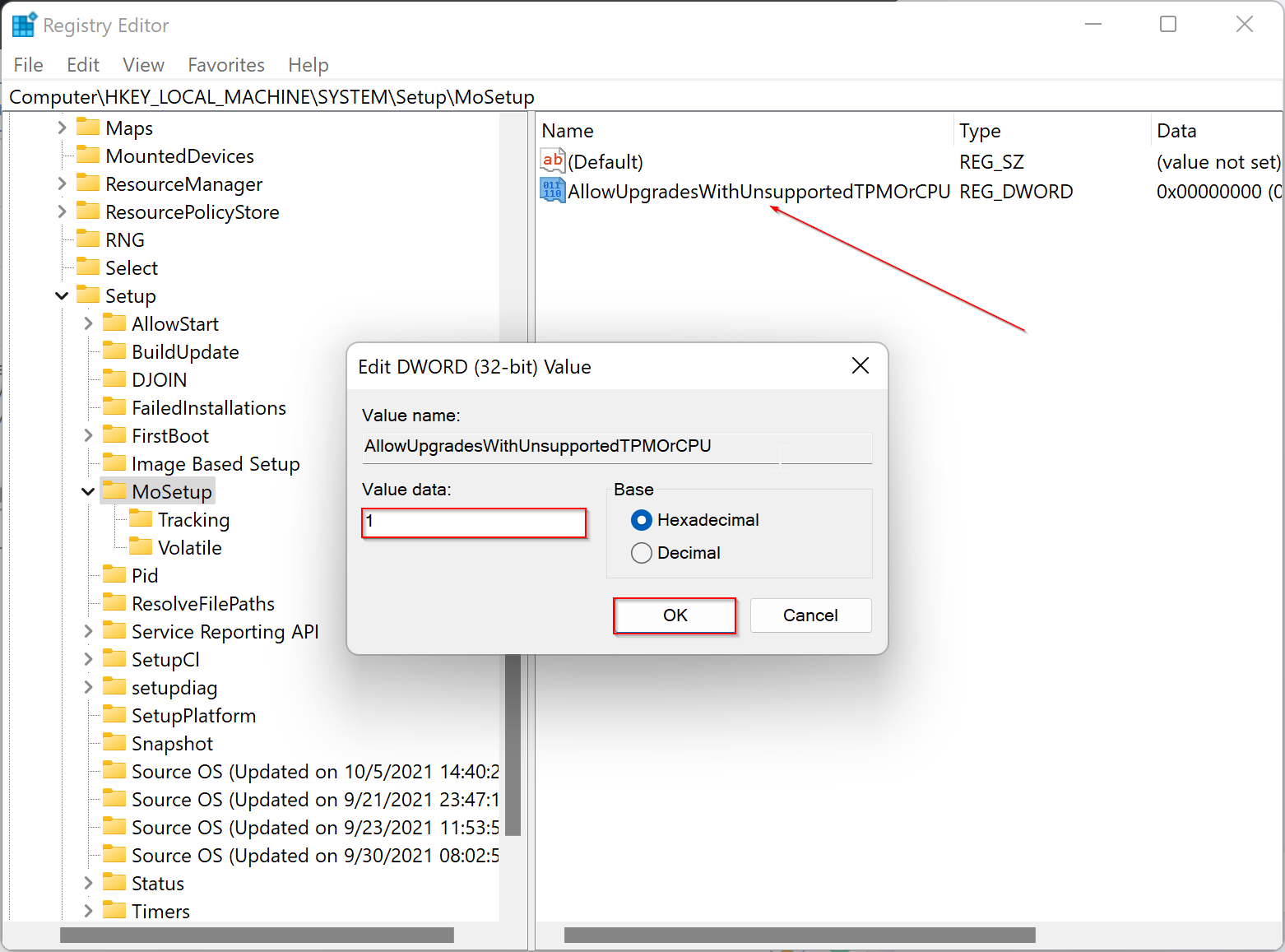
Step 6. When done, click the OK button.
That’s it! Now reboot your computer. Enter the boot menu by pressing F2, F9, DEL, or any other key combined with your PC. Set the boot order. Boot your PC with a bootable USB drive or DVD that you have created to install Windows 11 on your PC. You should not get any error of TPM or an unsupported CPU.
Good luck!
Conclusion
In conclusion, there are several methods available to bypass the minimum hardware requirements to install Windows 11 on unsupported hardware. You can modify the Windows 11 bootable ISO, create a bootable USB flash drive, or use the popular software, Rufus. Additionally, you can use the registry to bypass strict requirements such as RAM, Secure Boot, and TPM 2.0. However, it is important to note that if your computer does not have at least a TPM 1.2 module, you cannot bypass the TPM requirement to install Windows 11. By following the steps outlined in this tutorial, you can successfully disable the TPM check in the registry and install Windows 11 on unsupported hardware. Good luck with your installation!
How about the Android subsystem on an “unsupported processor”