

The default download location can be changed in the Opera browser, just like in Mozilla Firefox, Microsoft Edge, and Google Chrome browsers. There’s no need to install an add-on or make any registry tweaks.
Reasons to change the default Downloads location in Opera
There are several reasons why someone might want to change the default Downloads location in Opera:
- Organizational preferences: The default download folder may not fit a user’s personal file organization system, making it difficult to locate downloaded content. Choosing a custom folder that matches their workflow can boost efficiency and reduce confusion.
- Security concerns: By default, downloads might be saved in a shared or public folder. This can expose private files to unauthorized access. Changing the location to a secure, private folder can help protect sensitive data.
- Limited storage space: If Opera is saving files on a disk or partition with little space, it could lead to storage problems. Choosing a location with more space can help prevent these issues.
- Backup considerations: Some default folders aren’t included in regular backup routines. Moving downloads to a folder that is backed up ensures that files remain safe even if something happens to the device.
- Work-related requirements: Organizations may have policies about where files should be stored. Adjusting the download folder ensures compliance with company standards and avoids potential issues.
How to Change Default Downloads Location in the Opera browser?
Follow these steps to change the default Downloads location in the Opera browser:
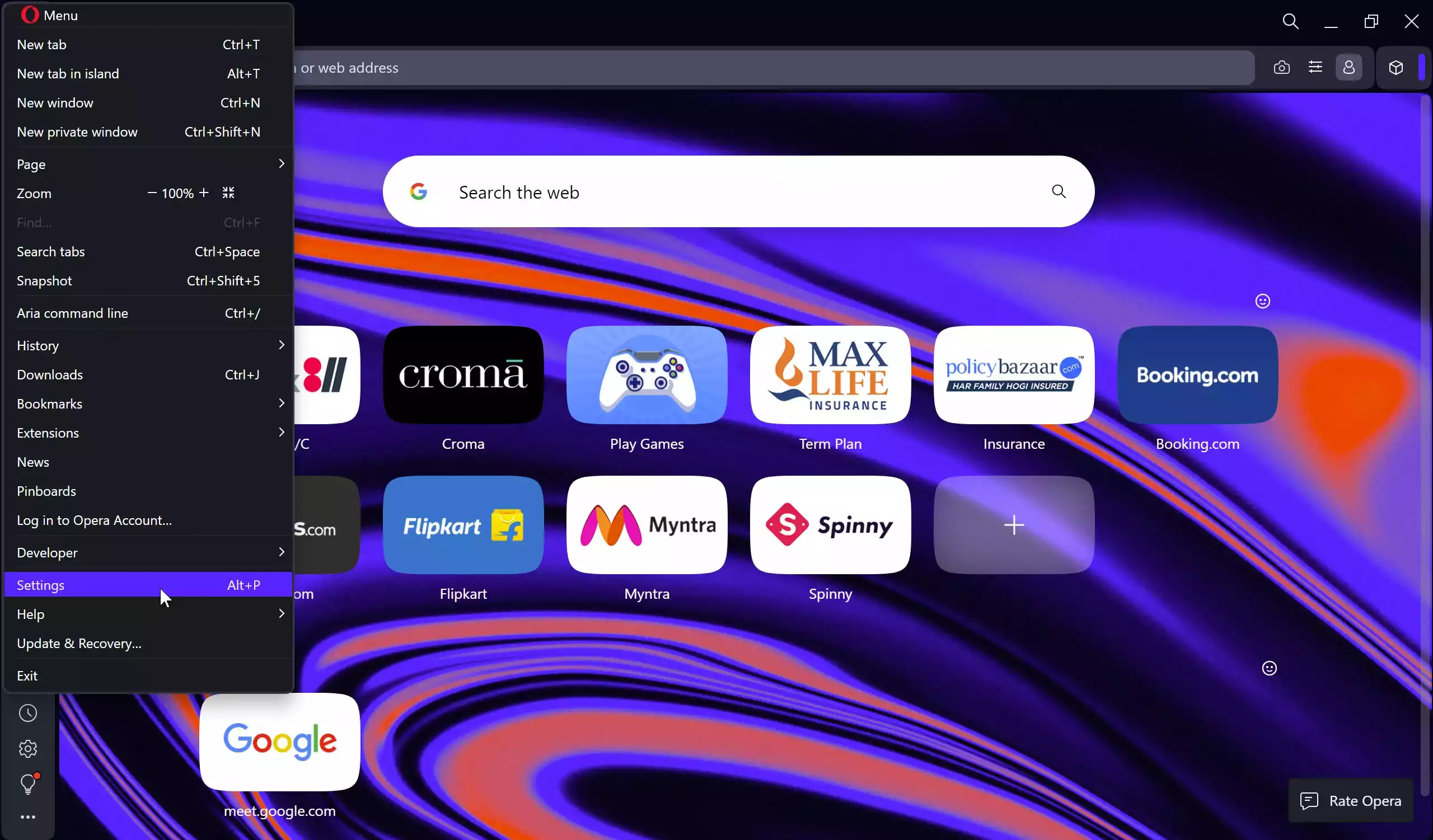
Step 1. Launch the Opera browser and click on the Opera Menu icon from the left side top and select Settings. Alternatively, you can also press the ALT+P keyboard shortcut to open Opera Settings.
Step 2. Scroll down to the bottom of the Settings page until you find the Advanced section.
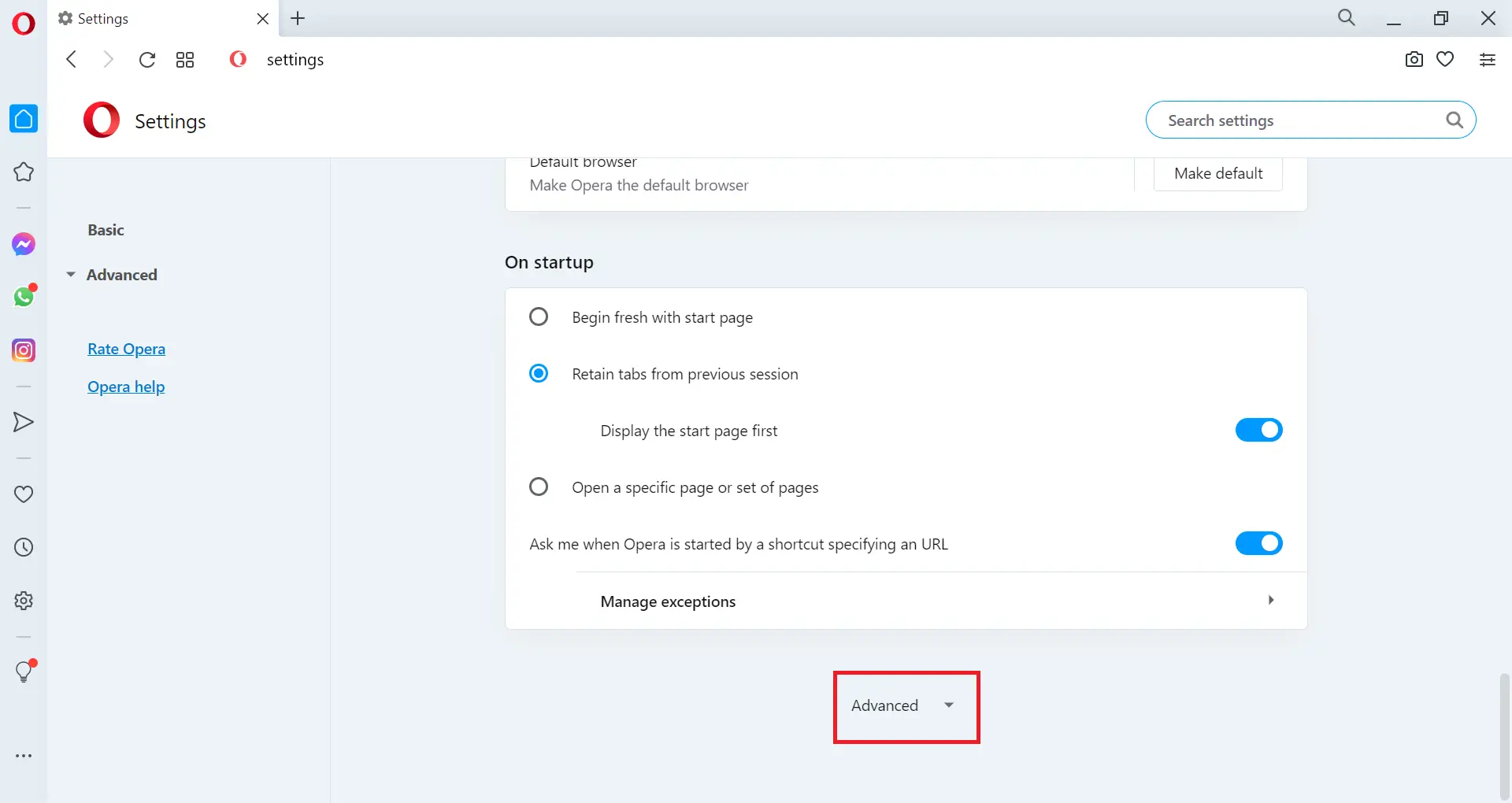
Step 3. Click on the Advanced option.
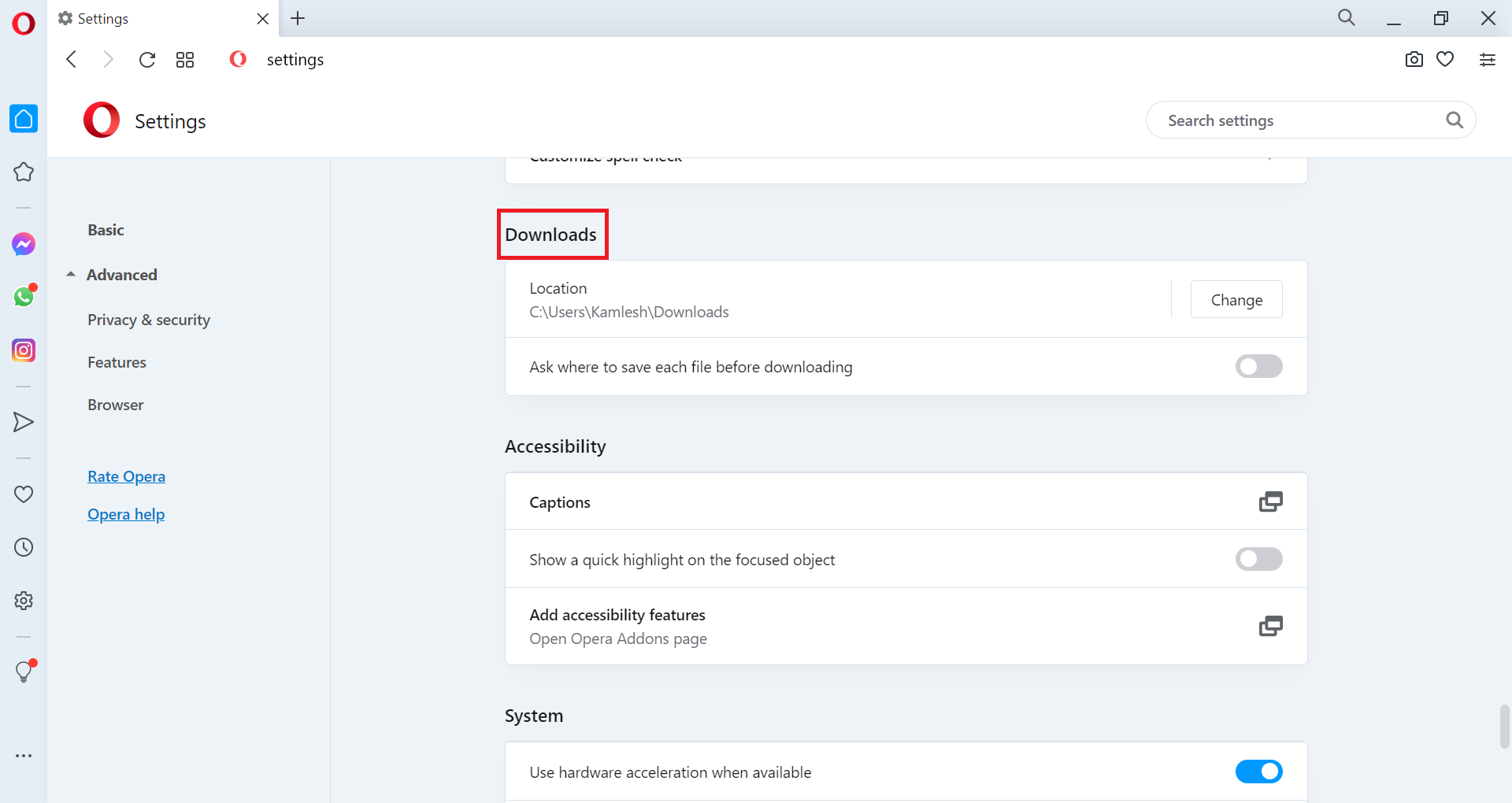
Step 4. Continue scrolling until you reach the Downloads section.
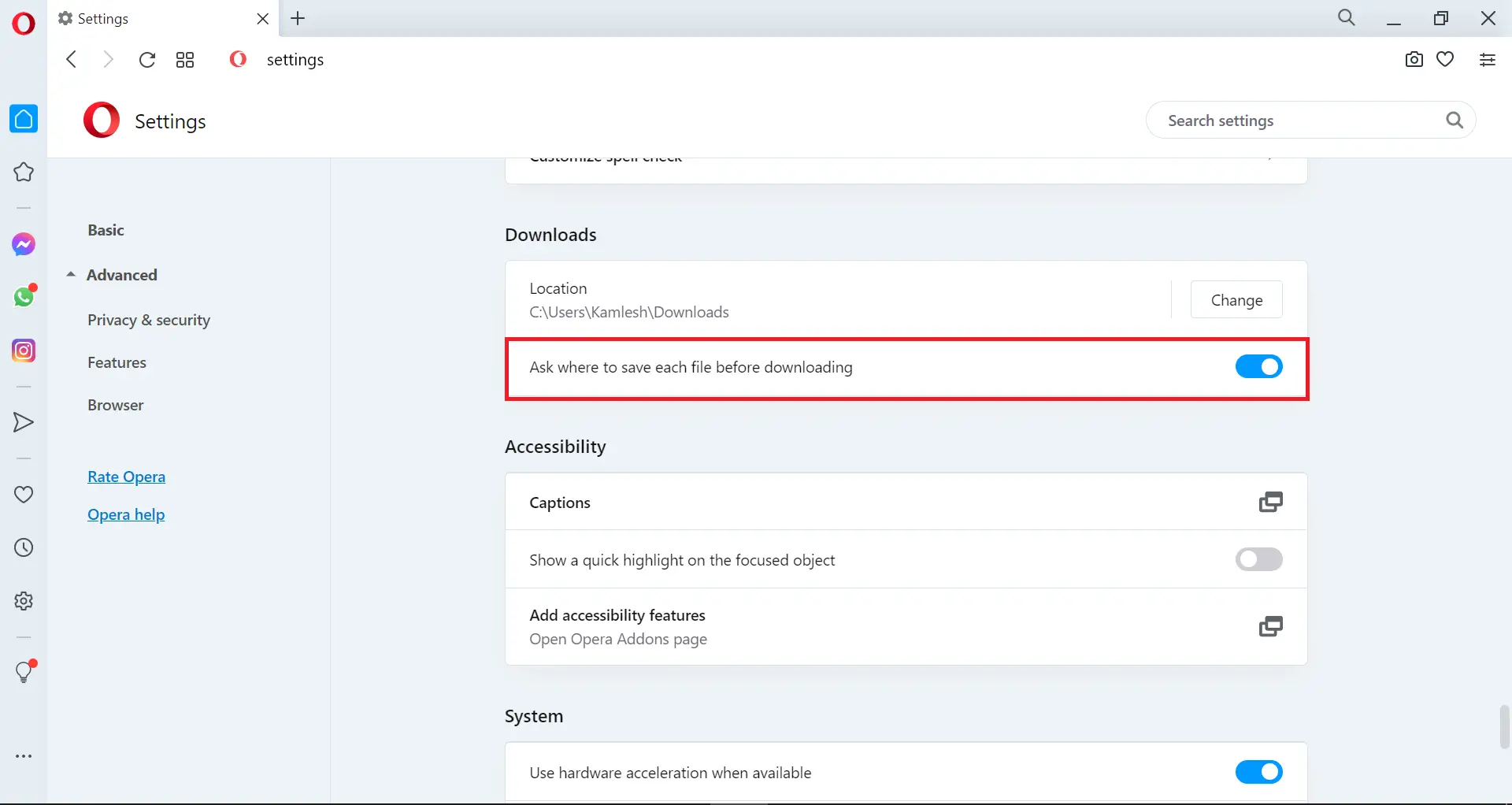
Step 5. In the Downloads section, next to the Location option, click the Change button. Then select the folder where you’d like Opera to save downloaded files and applications.
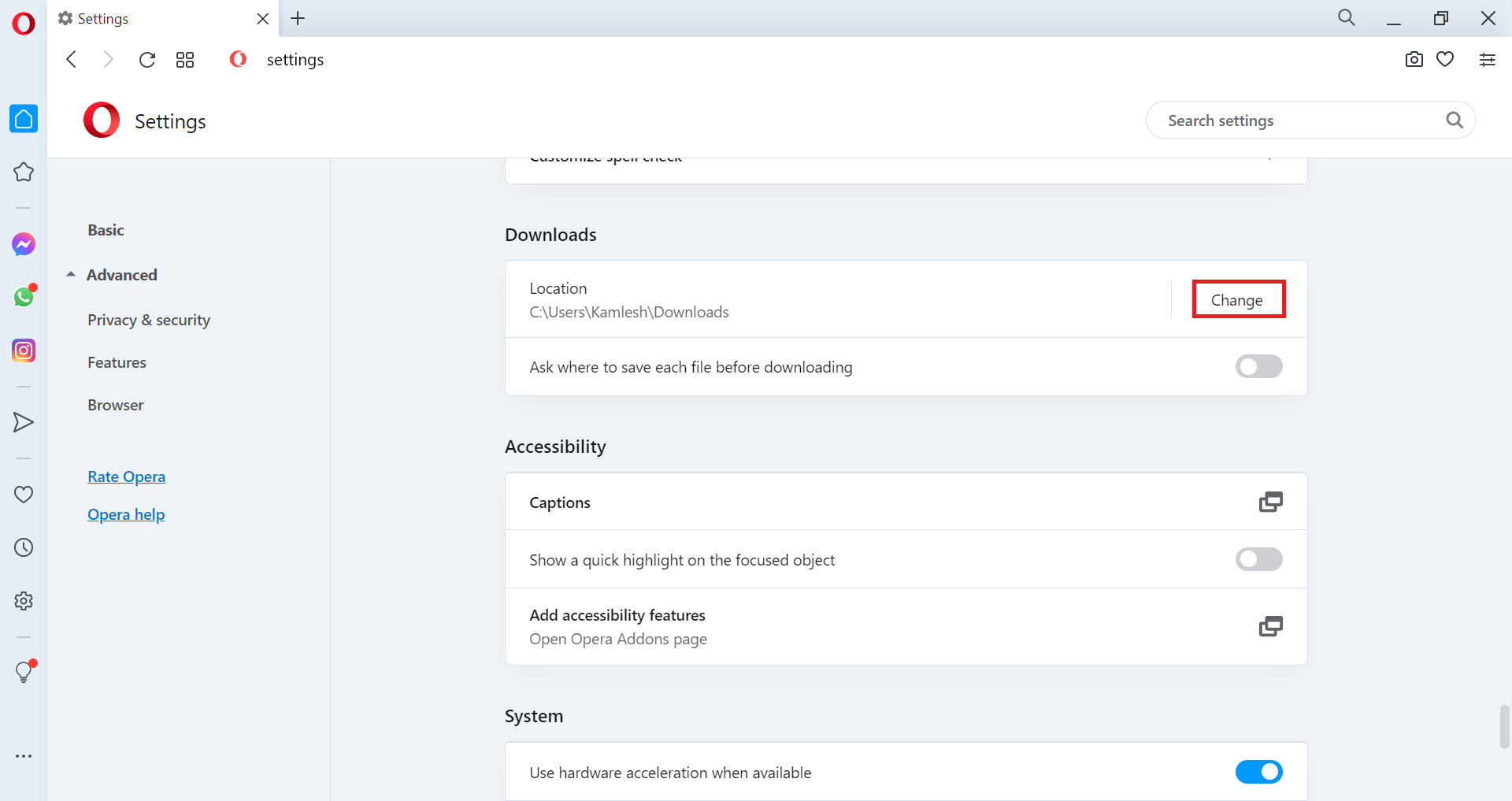
Under the Downloads section, you can also enable the option to “Ask where to save each file before downloading.” Turning this on will make Opera prompt you for a download location each time you download something from the Internet.
That’s it.
FAQs
Why should I change the default download location in Opera?
Changing the download folder helps improve organization, prevents storage issues, and keeps sensitive files more secure. It also ensures downloads go to a location that fits your workflow.
Does changing the download folder affect existing downloaded files?
No. Only future downloads will be saved to the new location. Previously downloaded files will remain in the old folder unless you move them manually.
Can Opera ask me every time where to save a file?
Yes. You can enable the option to ask for a save location before each download. This gives you complete control over where every file is saved.
Will changing the download location impact browser performance?
No. The change only affects where files are saved. It has no impact on browsing speed or system performance.
Can I set an external drive or network folder as the new download location?
Yes. Opera allows setting any accessible folder, including external drives, secondary partitions, or network locations. Just ensure the drive is connected before downloading.
Why can’t I see the folder I want to select?
If a folder doesn’t appear, it may require permission or may not be accessible due to system restrictions. Creating the folder beforehand or choosing a different directory usually resolves the issue.
Does this setting sync across devices using Opera Sync?
No. Download location settings are device-specific. You must configure the folder separately on each computer.
Conclusion
Changing the default download location in the Opera browser is a simple yet effective way to better manage your files and improve your workflow. Whether you want stronger security, more storage space, or better organization, customizing where your downloads are saved can make everyday browsing more convenient. Opera also offers the option to ask for a save location each time you download something, giving you full control. With just a few quick steps, you can set a download folder that suits your needs and ensures your files are always easy to find.