

Microsoft Edge, the modern browser included with Windows 10/11, is now based on Chromium and follows similar standards to other browsers. By default, when you download a file or program using the Edge browser, it will save to the Downloads folder. However, with the help of this article, you can easily change the default location of the download folder to a new location of your choosing.
How to change the default Downloads folder location in the Microsoft Edge browser?
Follow these steps to change the default Downloads folder location in the Microsoft Edge browser:-
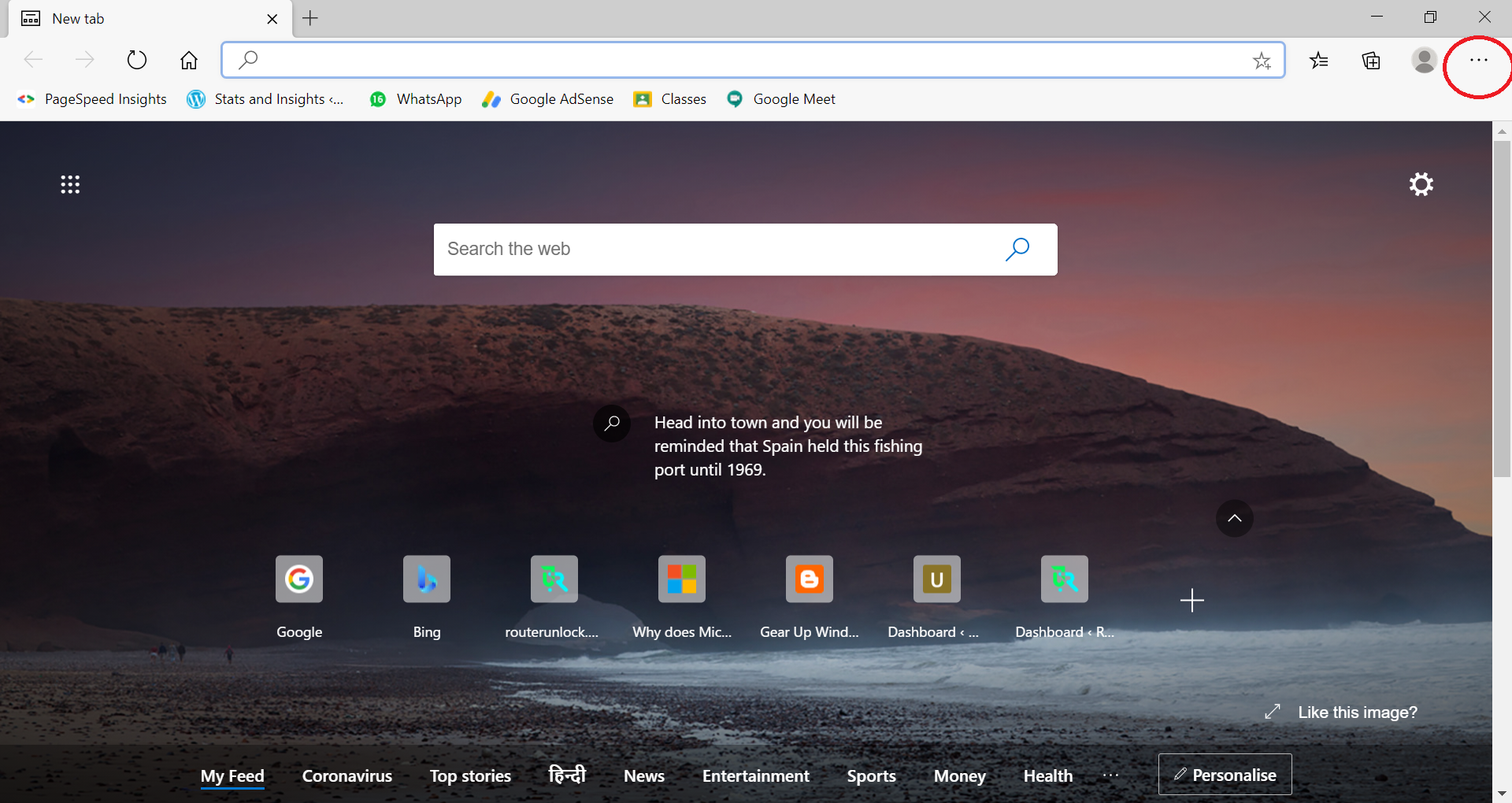
Step 1. Launch the Edge browser and click on the Menu button (three horizontal dots).
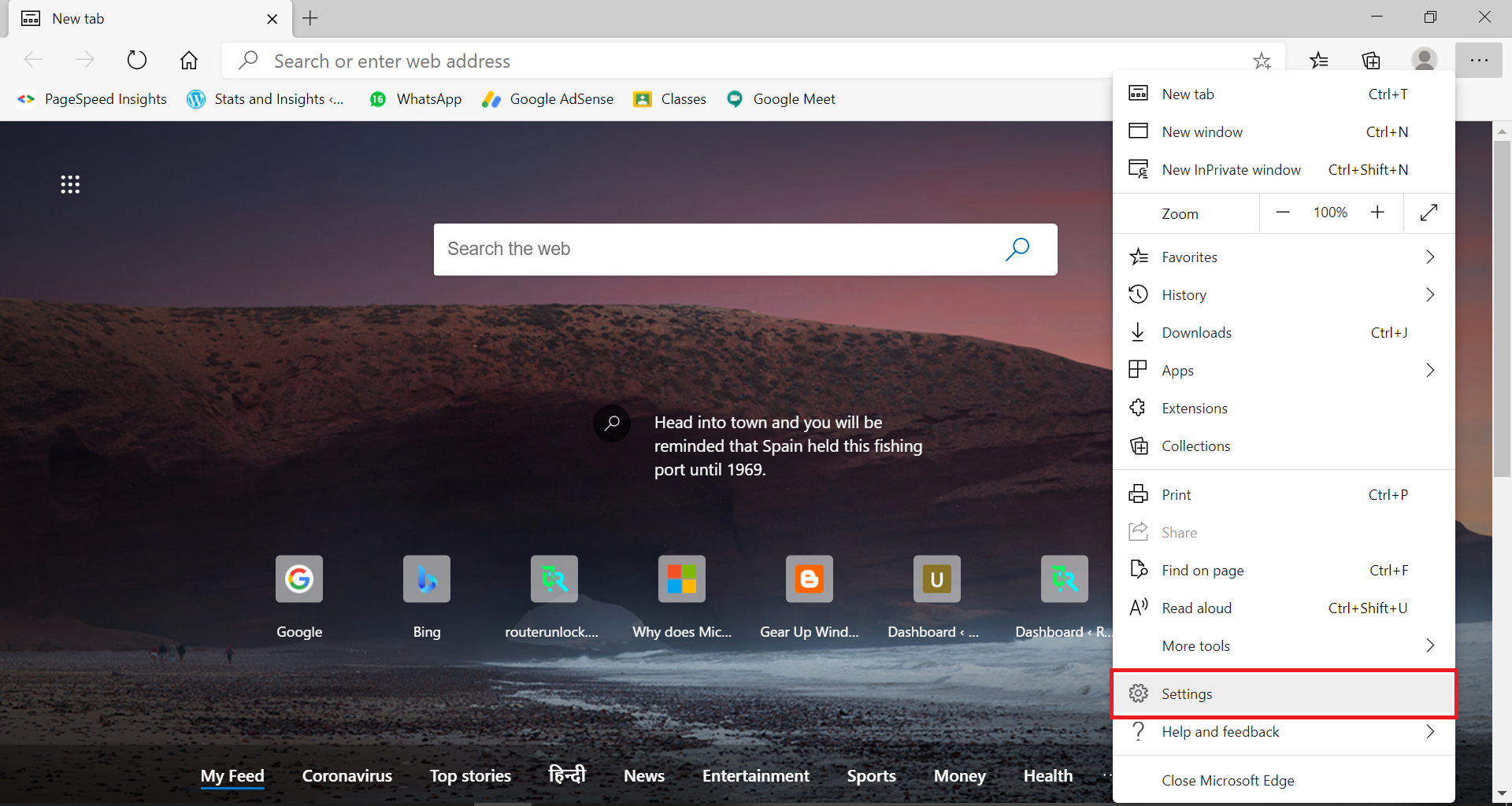
Step 2. From the drop-down menu, click on Settings to open the Edge settings.
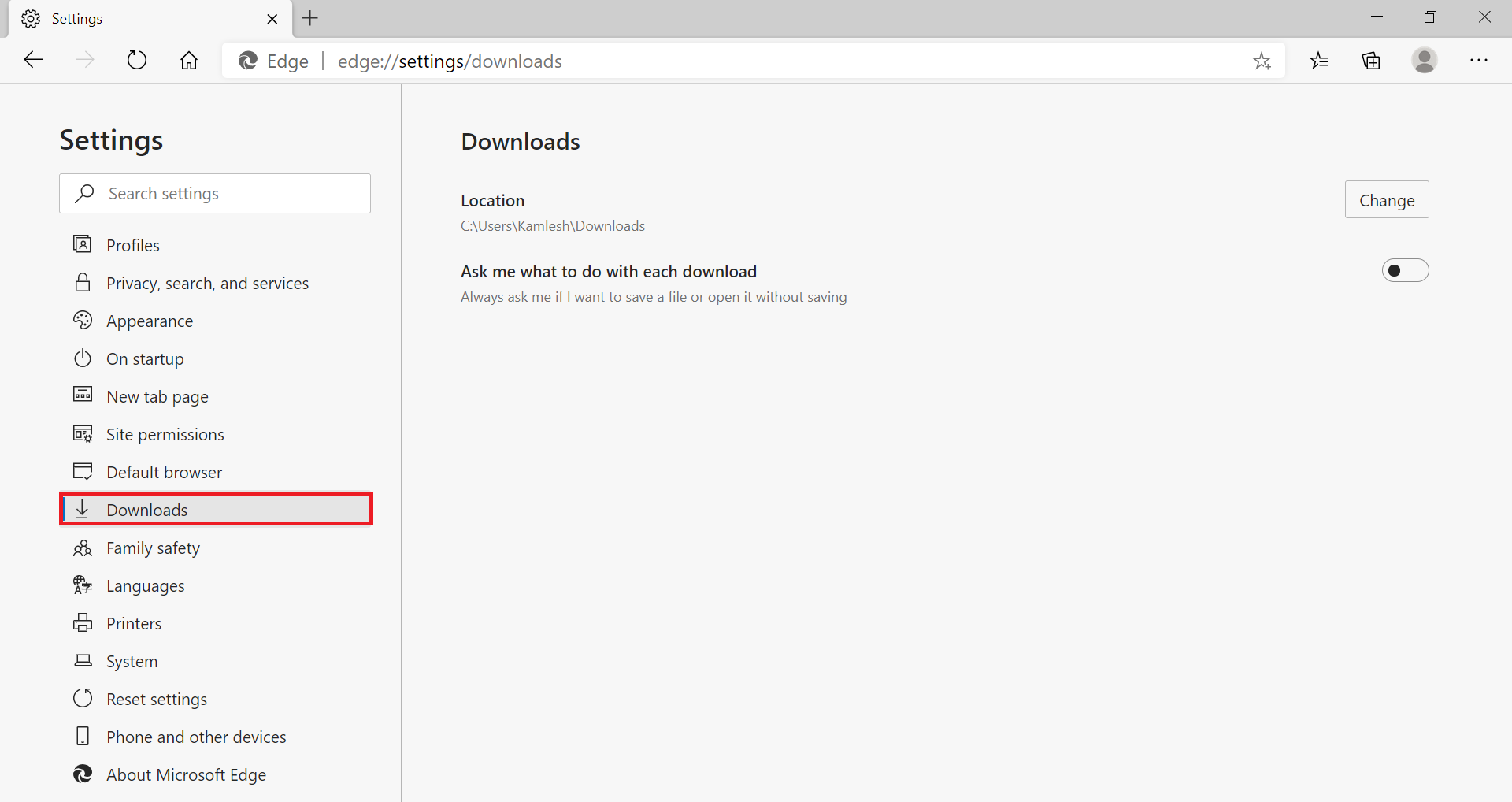
Step 3. From the left panel, click on Downloads.
Step 4. To change the location of the Downloads folder, click on the Change button next to Location.
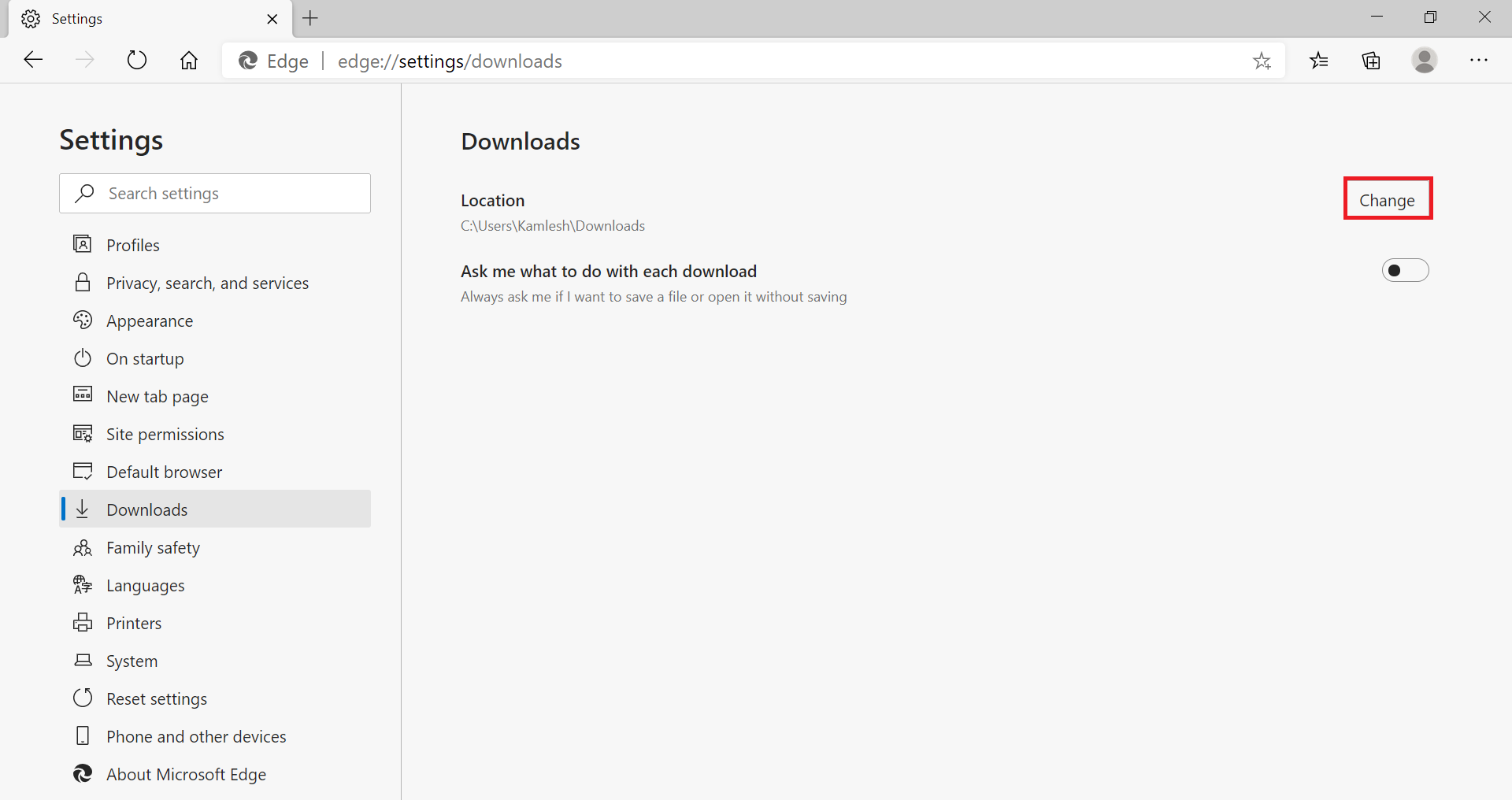
Step 5. Select the desired location/folder where you want to save the downloaded files from the Edge browser.
From here, you can also toggle on or off “Ask where to save each file before downloading.” If you want to get a prompt every time you try to download a file, you can toggle it on.
FAQs
Why should I change the default download folder in Microsoft Edge?
Changing the download folder helps you organize files better, improve privacy, and store downloads in a location that suits your workflow or storage requirements.
Can Edge ask me where to save each file before downloading?
Yes. Edge includes a built-in option that prompts you for a save location every time you download a file, giving you complete control.
Will changing the download location affect old downloaded files?
No. Existing files will remain in the previous folder. Only new downloads will go to the newly selected location.
Can I set an external drive, network folder, or secondary partition as the download location?
Yes. Edge allows choosing any accessible directory, including external hard drives, USB drives, network locations, or other partitions.
Why doesn’t my selected folder appear when I try to change the location?
The folder may require permission or may not exist yet. You can create the folder manually or adjust folder permissions to fix this issue.
Does changing the download folder sync across devices with my Microsoft account?
No. Download location settings are device-specific. You must configure the folder separately on each computer.
Does Edge save files differently because it’s based on Chromium?
Edge now behaves similarly to Chrome in how it handles downloads, including folder selection and prompts, making the process easy and consistent.
Conclusion
In conclusion, changing the default download folder location in the Microsoft Edge browser is a simple process that can be completed in just a few steps. Whether you want to save your downloads to a different folder on your local drive or to an external drive, this feature allows for greater flexibility and organization. With this guide, users can easily customize their browser settings to suit their needs and preferences better.
You might also be interested in changing the default download location to Opera, Mozilla Firefox, and Google Chrome.