

Environment variables are a crucial part of the Windows operating system. They are used to store system-wide configuration settings and provide easy access to various system directories and resources. Setting up environment variables can be helpful for customizing your system, running specific applications, and managing software development environments. In this gearupwindows article, we will guide you through the process of creating and managing environment variables on Windows 11 and 10.
Understanding Environment Variables
Before we dive into creating environment variables, let’s understand what they are and how they work.
What are Environment Variables?
Environment variables are dynamic values that affect the behavior of processes and applications running on a computer. These variables store information that is used by the operating system and various software programs. They can represent paths to directories, system settings, user preferences, and more.
Types of Environment Variables
There are two main types of environment variables:-
- System Environment Variables: These variables are set at the system level and affect all users on the computer. They store information that is critical for the proper functioning of the operating system and installed software.
- User Environment Variables: These variables are specific to each user and are used to customize their environment. User environment variables take precedence over system variables, allowing users to personalize their settings.
Common Environment Variables
Some commonly used environment variables include:-
- PATH: The PATH variable specifies a list of directories in which the operating system looks for executable files. This variable is crucial for running command-line tools and applications from any location on the system.
- TEMP and TMP: These variables define the location where temporary files are stored. Applications often use these variables to manage temporary data.
- USERNAME: This variable contains the name of the currently logged-in user.
- OS: It stores information about the operating system version and type.
- COMPUTERNAME: This variable holds the name of the computer.
How to Create Environment Variables on Windows 11 and 10?
Now that you have a basic understanding of environment variables, let’s learn how to create and manage them on Windows 11 and 10.
Method 1: Using the System Properties
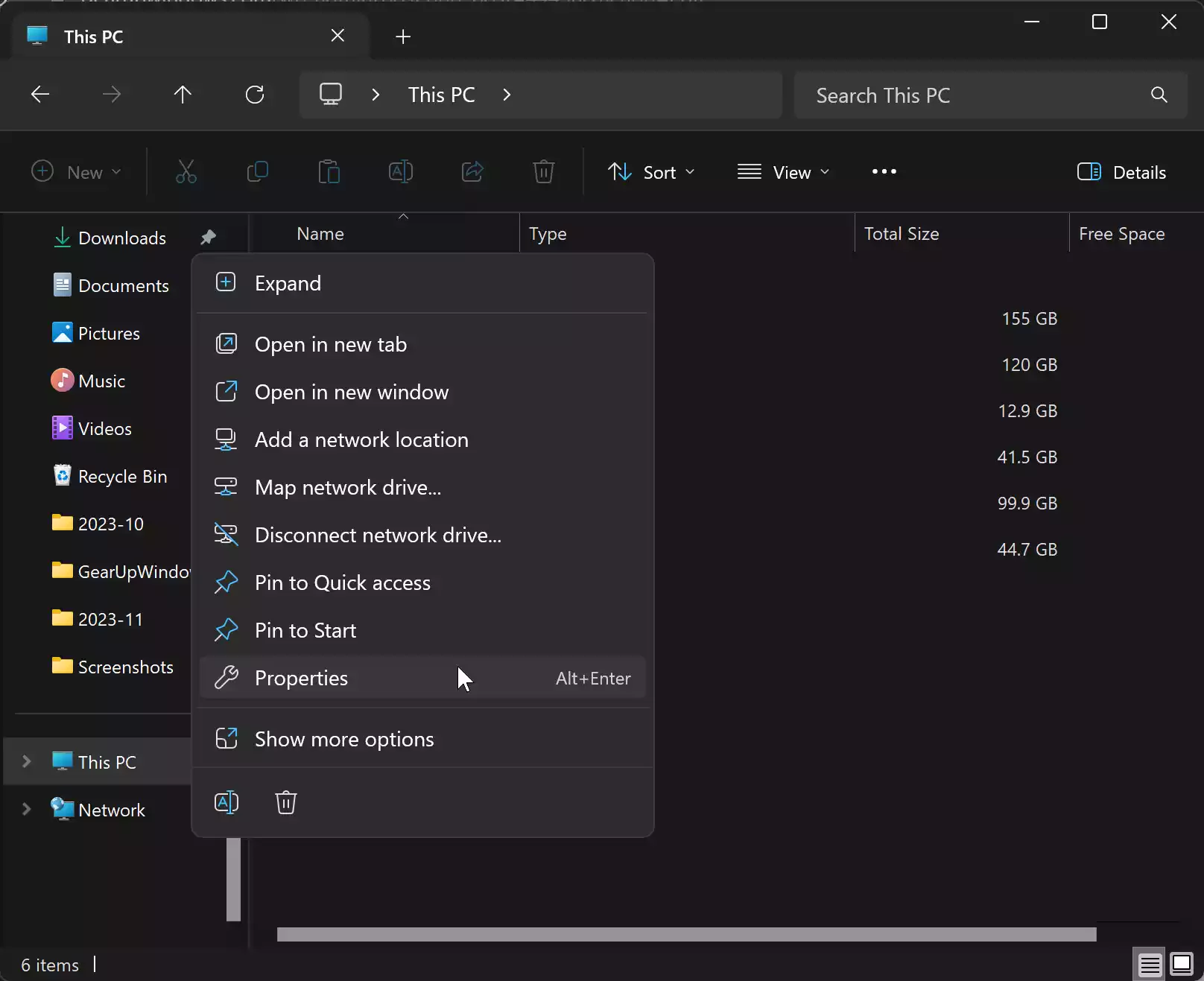
Step 1. Right-click on the “This PC” icon on your desktop or in File Explorer. Select “Properties.”
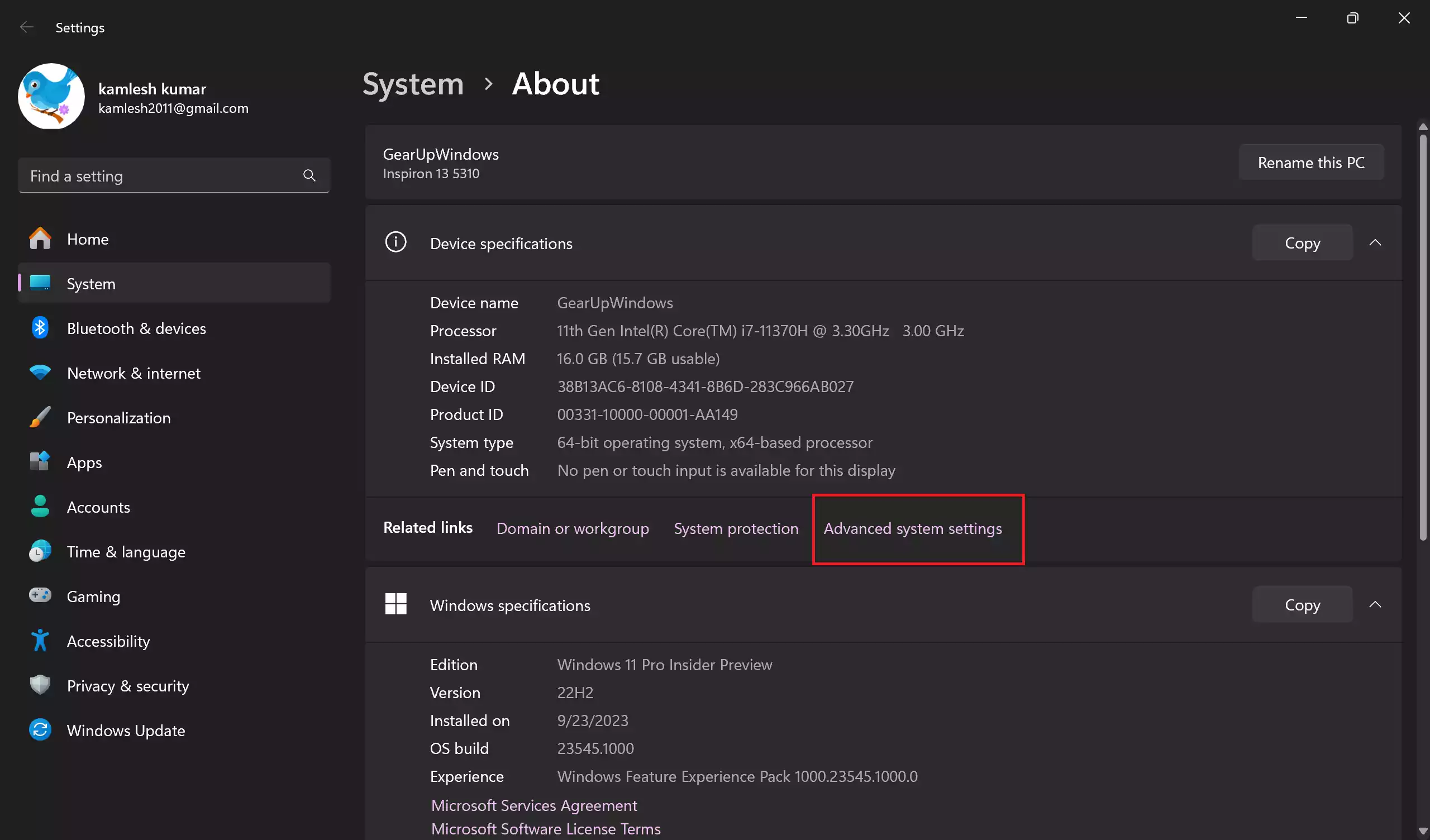
Step 2. In the “System > About” window, click on the “Advanced system settings” option.
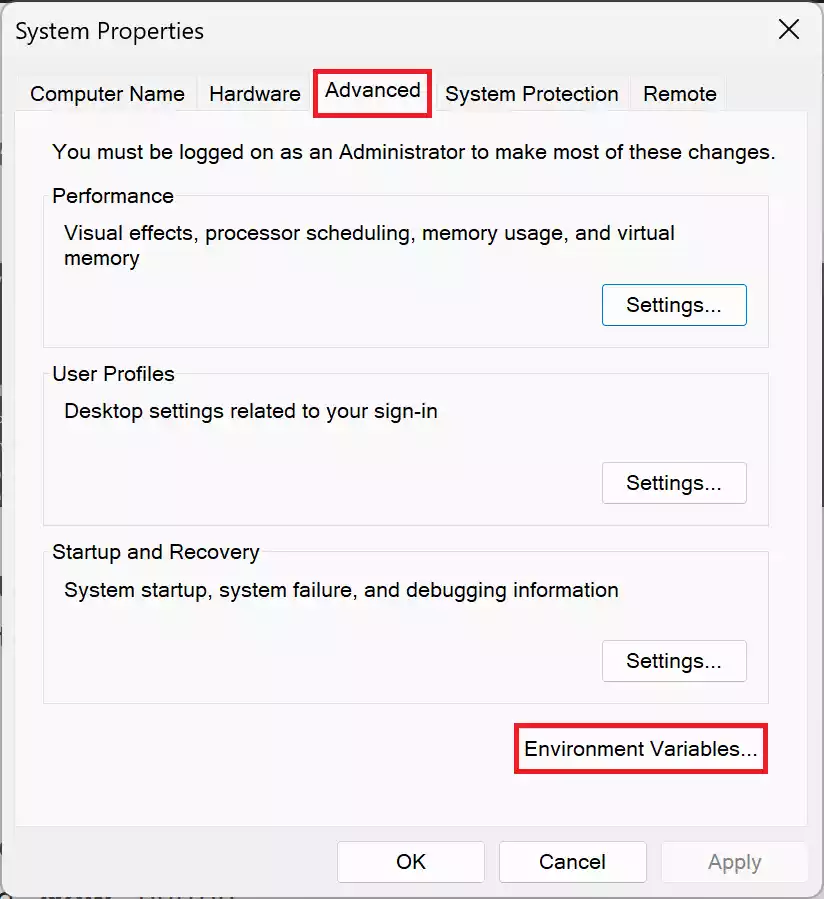
Step 3. In the System Properties window, under the “Advanced” tab, click the “Environment Variables” button.
Step 4. To create a system-wide environment variable, scroll down to the “System variables” section and click the “New” button.
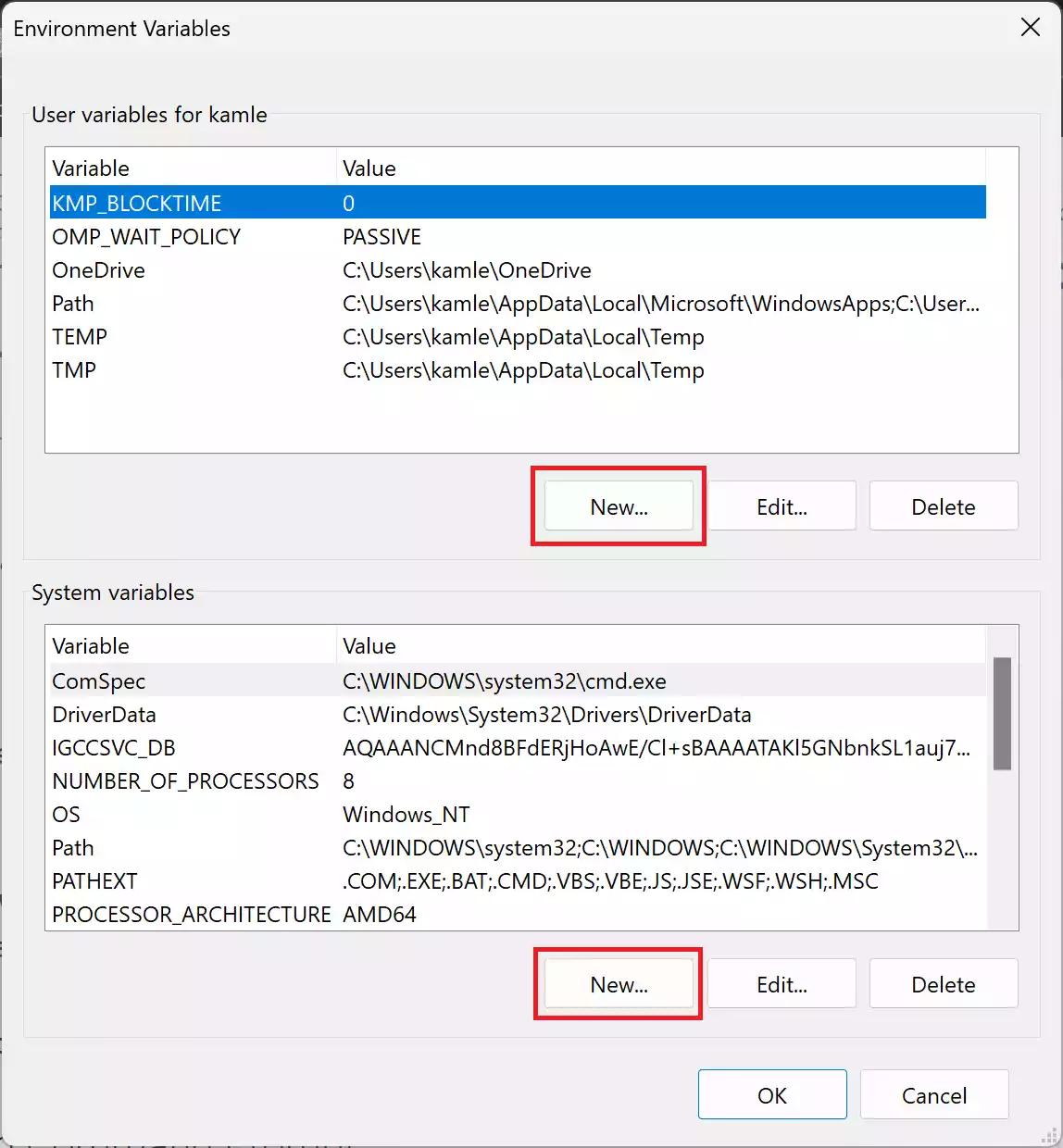
To create a user-specific environment variable, scroll down to the “User variables” section and click the “New” button.
Step 5. In the “New System Variable” dialog, enter the desired variable name and its corresponding value (path of the app, file, folder, etc).
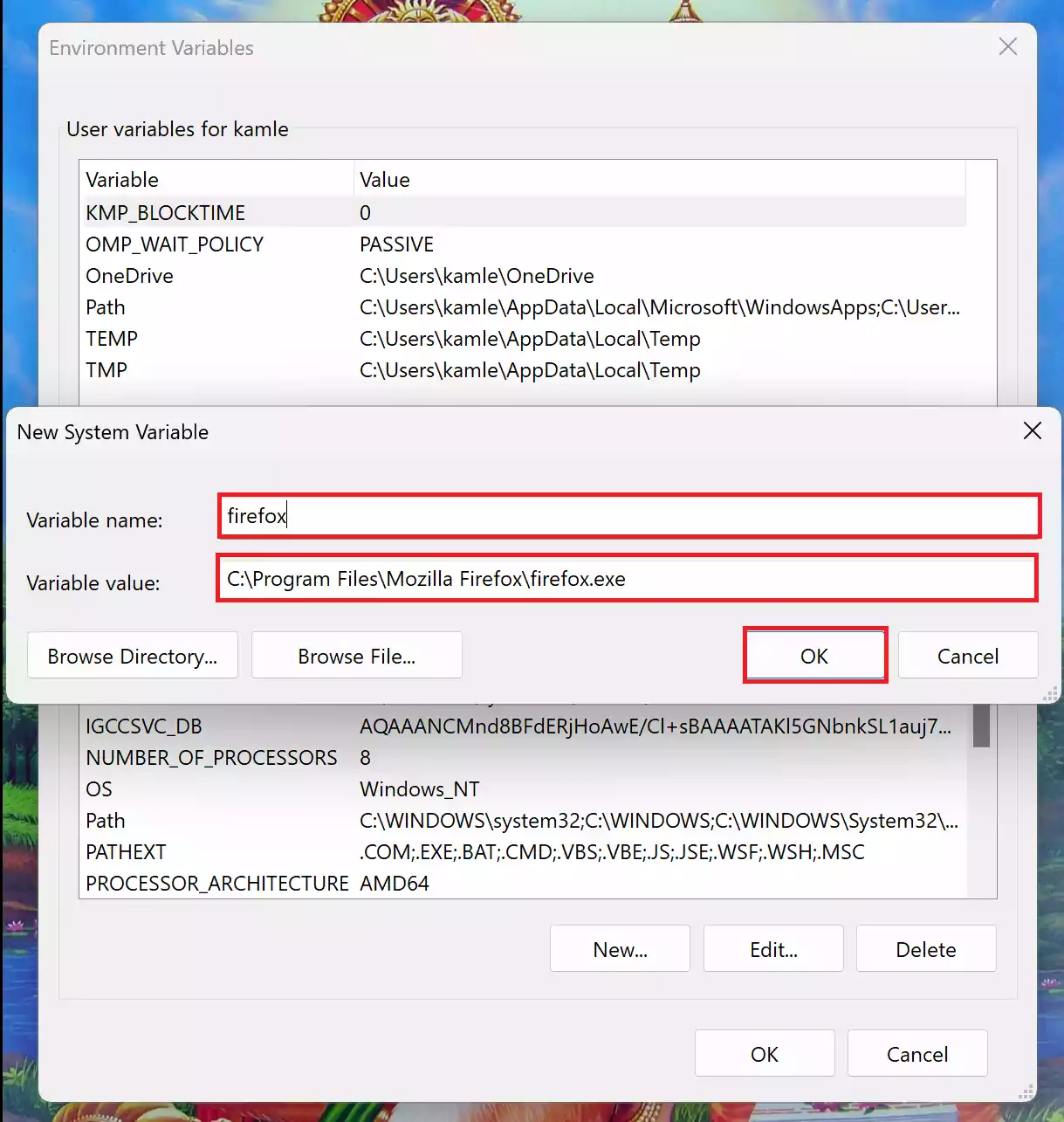
Step 6. Click “OK” to save the environment variable.
Step 7. Click OK.
Step 8. Click OK.
Method 2: Using Command Prompt
You can also create environment variables using Command Prompt.
Step 1. Open Command Prompt as an administrator.
Step 2. To create a system variable, use the `setx` command. For example, to add a new system-wide variable named `firefox` with the value `C:\Program Files\Mozilla Firefox\firefox.exe,` enter the following command:-
setx firefox "C:\Program Files\Mozilla Firefox\firefox.exe" /m
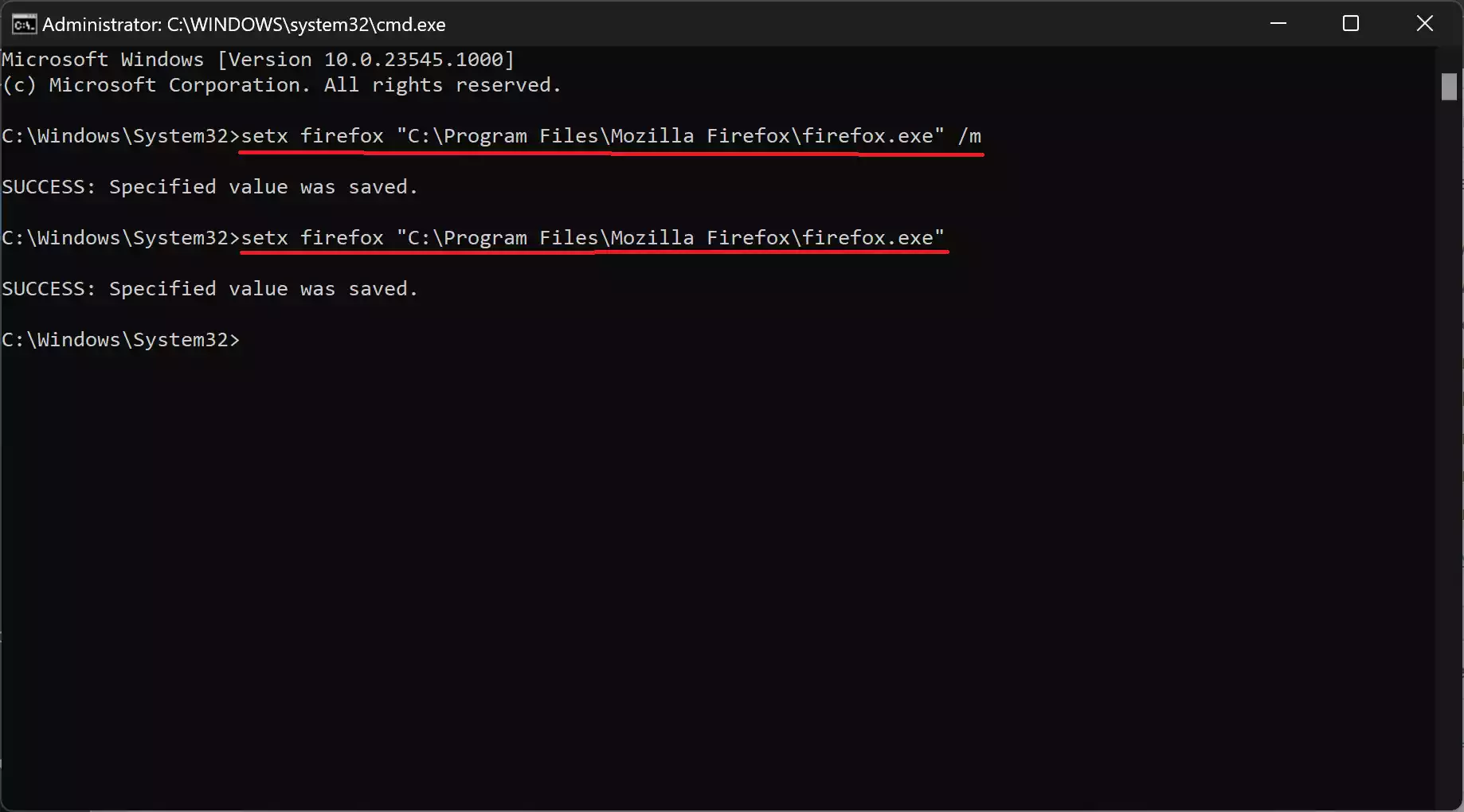
Step 3. To create a user-specific variable, omit the `/m` flag. For instance:-
setx firefox "C:\Program Files\Mozilla Firefox\firefox.exe"
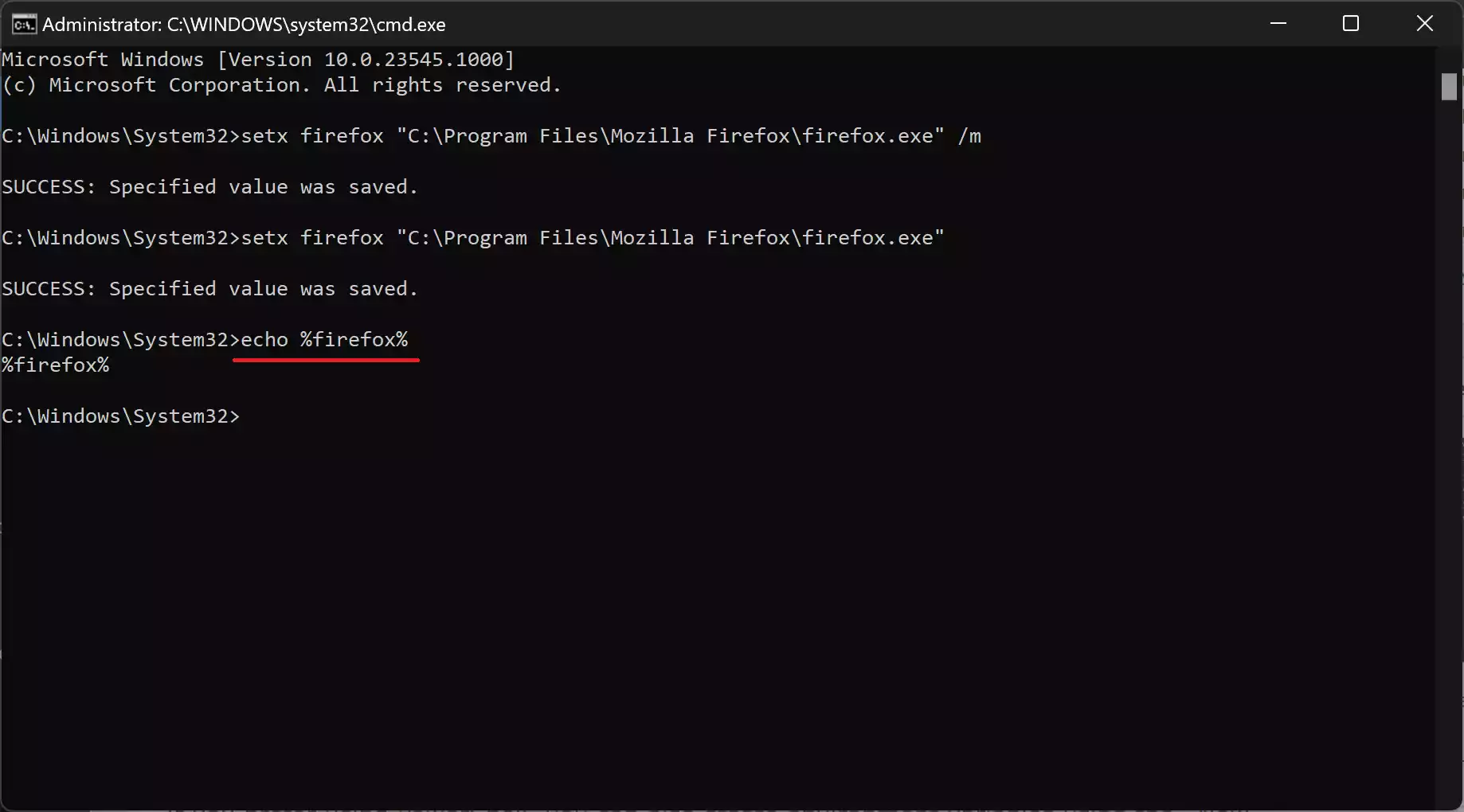
Step 4. You can verify that the variable has been created by typing `echo %variable_name% into the Command Prompt. For example, `echo %firefox%.`
Method 3: Using PowerShell
If you prefer using PowerShell, you can also create environment variables using the `New-Item` cmdlet.
Step 1. Press `Win + X` and select “Windows Terminal.”
Step 2. To create a system variable, use the following command:-
[System.Environment]::SetEnvironmentVariable("MY_SYSTEM_VARIABLE", "C:\MySystemFolder", [System.EnvironmentVariableTarget]::Machine)
Note: In the above command, replace MY_SYSTEM_VARIABLE with the variable name you want to use. And, replace C:\MySystemFolder with the complete path of the file or folder you want to open.
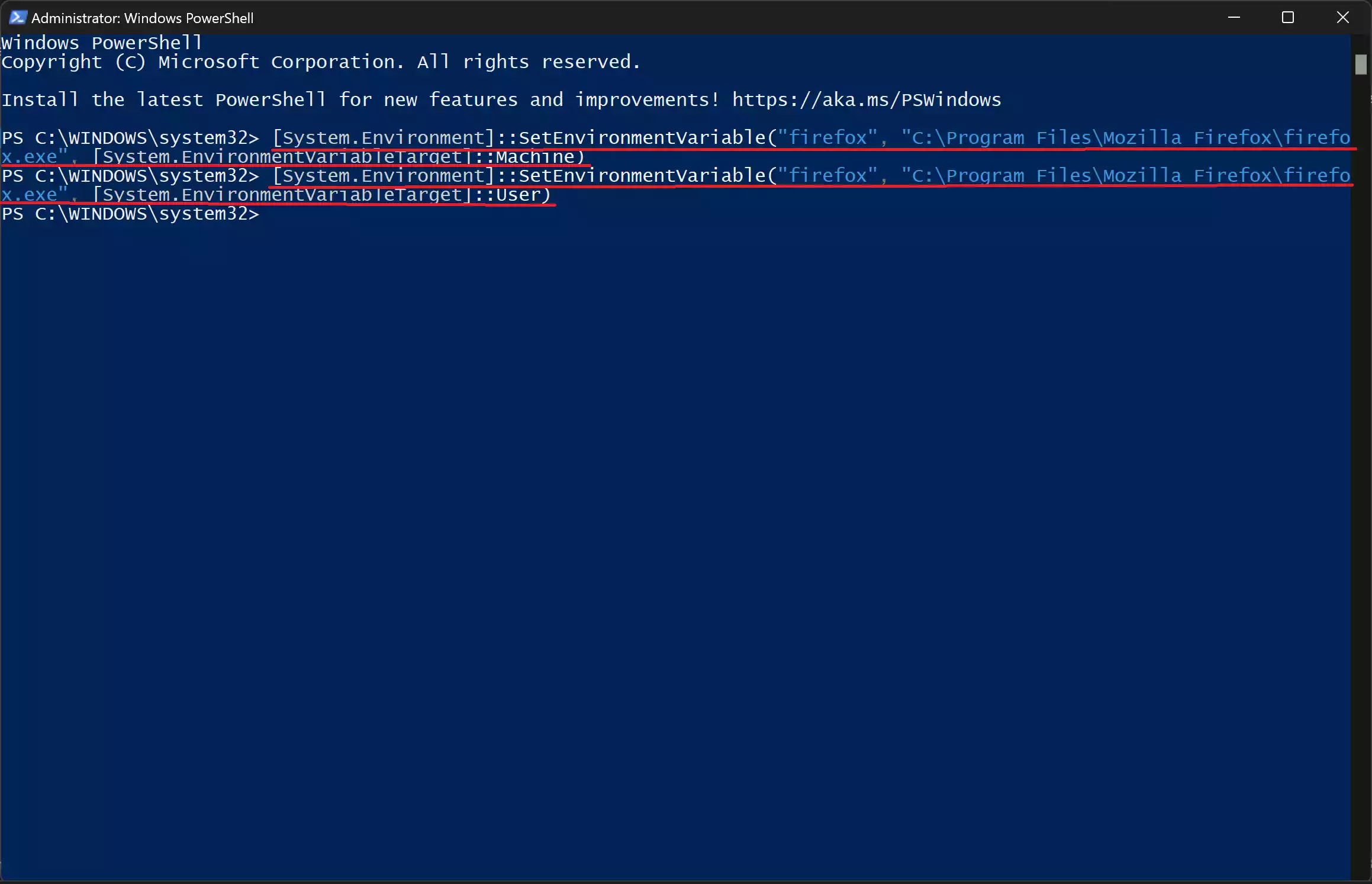
Step 3. For a user-specific variable, use this command:-
[System.Environment]::SetEnvironmentVariable("MY_USER_VARIABLE", "C:\MyUserFolder", [System.EnvironmentVariableTarget]::User)
Note: In the above command, replace MY_USER_VARIABLE with the variable name you want to use. And, replace C:\MyUserFolder with the complete path of the file or folder you want to open.
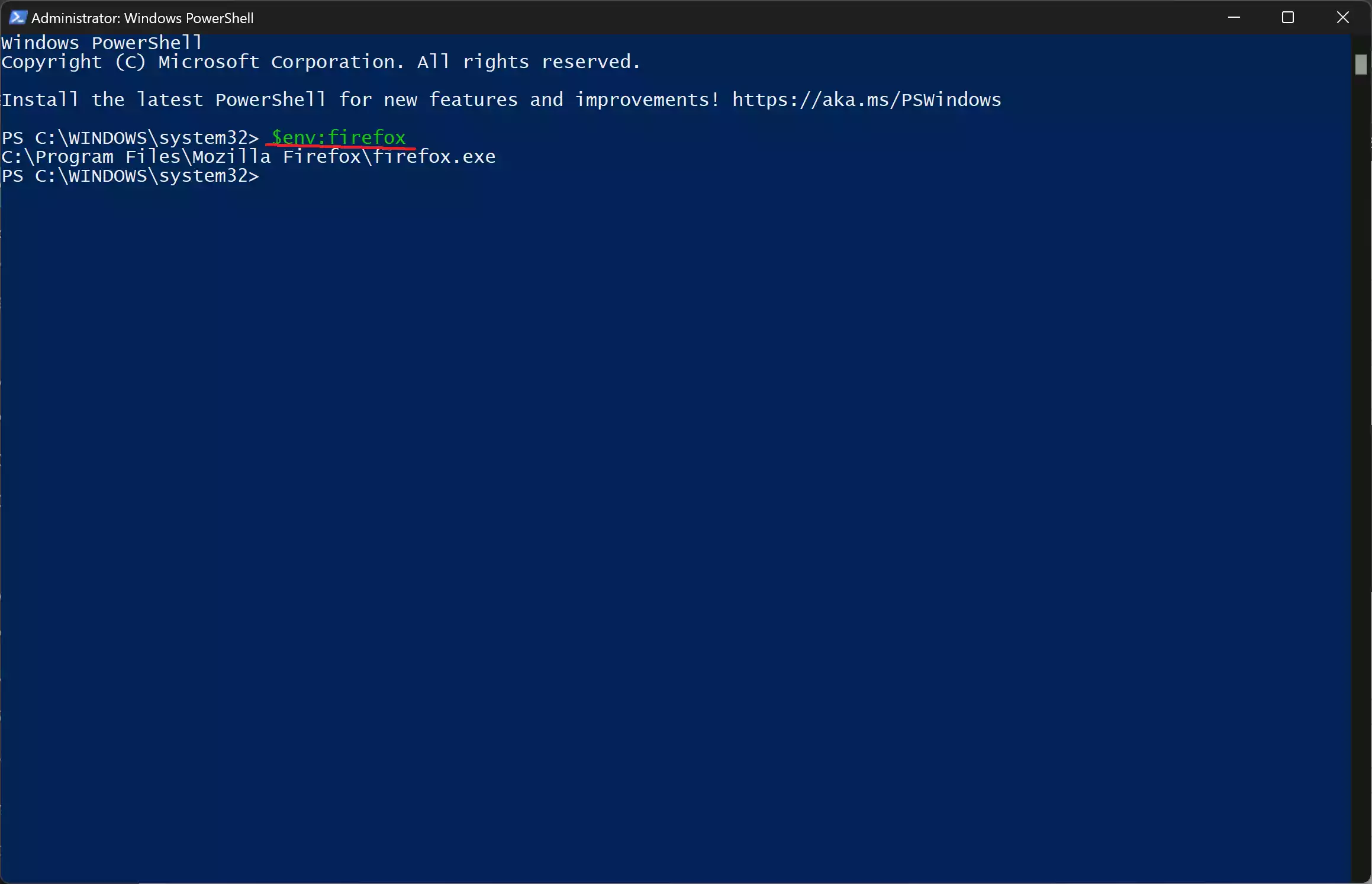
Step 4. You can verify that the variable has been created by typing `$env:MY_SYSTEM_VARIABLE` or `$env:MY_USER_VARIABLE` into the PowerShell window.
Note: In the above command, replace MY_USER_VARIABLE and MY_USER_VARIABLE with the variable name you defined earlier.
Modifying and Deleting Environment Variables
To modify or delete environment variables, follow these steps:-
Step 1. Right-click on the “This PC” icon on your desktop or in File Explorer. Select “Properties.”
Step 2. In the “System > About” window, click on the “Advanced system settings” option.
Step 3. In the System Properties window, under the “Advanced” tab, click the “Environment Variables” button.
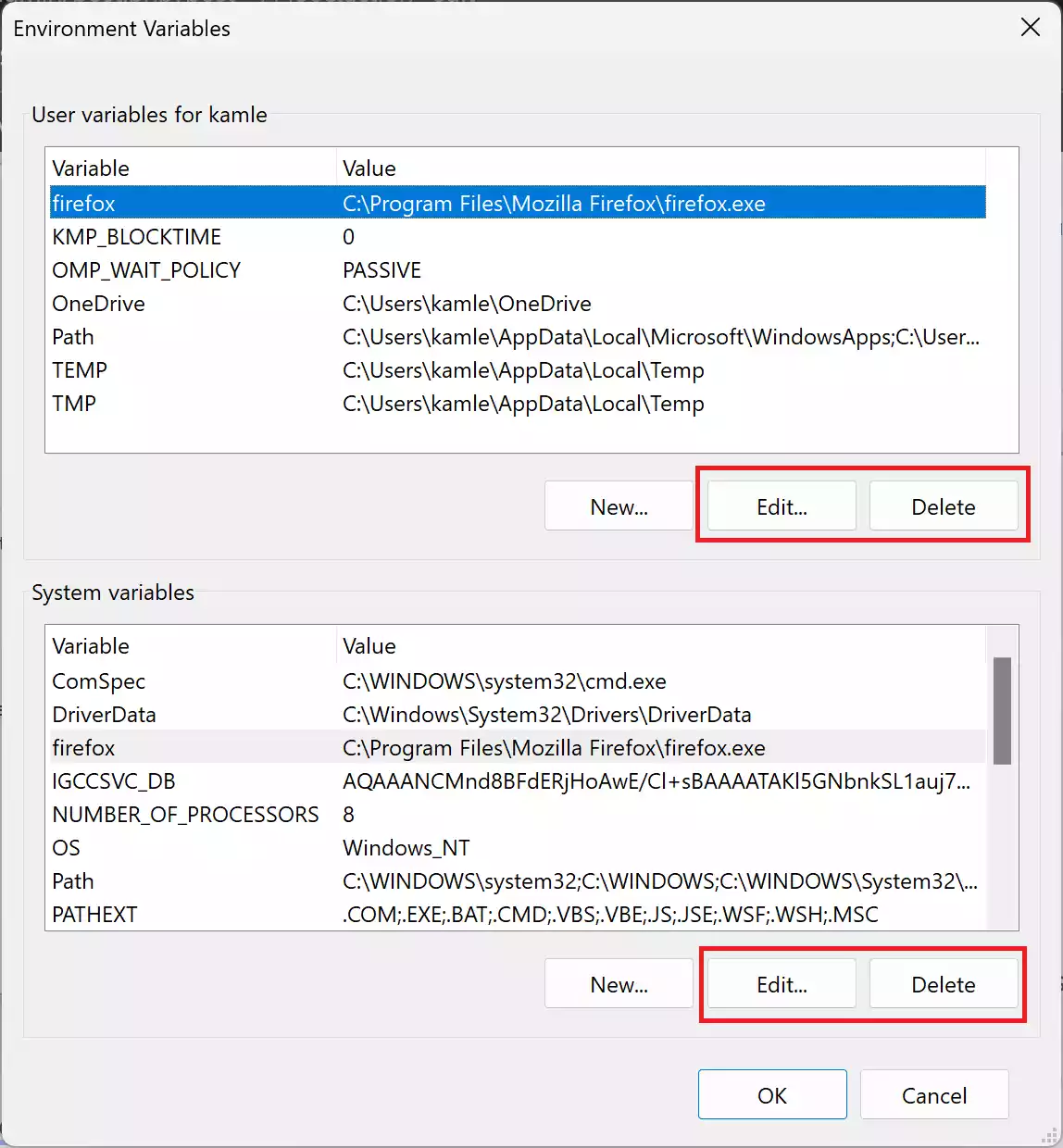
Step 4. To modify or delete a system-wide environment variable, scroll down to the “System variables” section, select a variable, and click the “Edit” or “Delete” button.
To modify or delete a user-specific environment variable, scroll down to the “User variables” section, select a variable, and click the “Edit” or “Delete” button.
Step 5. After making the necessary changes, click OK.
Conclusion
Environment variables play a vital role in the configuration and behavior of Windows and installed software. Learning how to create, modify, and manage environment variables is essential for customizing your system and ensuring that applications run smoothly. Whether you choose to use the graphical user interface, Command Prompt, or PowerShell, you now have the knowledge to create and control these variables on Windows 11 and 10.