

Can I delete the Windows.old folder? Why can’t I delete my Windows.old folder? When you install Windows 11/10/8/7 in the same directory as an earlier version or upgrade your system, Windows stores the previous version in a folder called Windows.old. This folder lets you downgrade or roll back to your previous Windows version if needed.
However, if you’re happy with the new version and don’t plan to downgrade, you can safely delete the Windows.old folder to free up several gigabytes of disk space.
As mentioned earlier, the Windows.old folder contains your old Windows installation files, along with previous documents, settings, and installed programs. Since it’s a protected system folder, you can’t delete it using the regular File Explorer Delete function—Windows will block that action.
To permanently remove the Windows.old folder and reclaim disk space, you first need to take ownership of the folder. Once you have full permissions, you can delete it without restrictions. Alternatively, the easier and safer method is to use built-in tools like Disk Cleanup or Storage Sense, which are designed to clean up such system files.
How to Delete Windows.old Folder in Windows 11 / 10 / 8 / 7?
Step 1. Download and install the TakeOwnershipPro freeware application.
Step 2. Right-click on the Windows.old folder and select TakeOwnershipPro from the context menu.
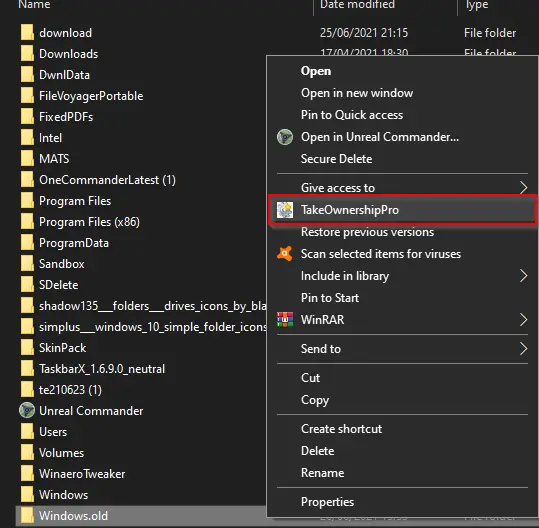
Step 3. The TakeOwnershipPro application window will open.
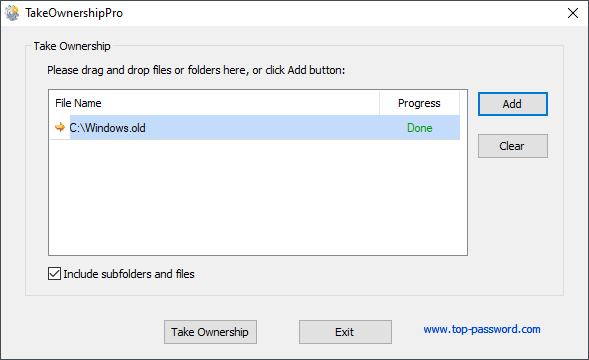
Step 4. Click the “Take Ownership” button. The program will start taking ownership of all files and subfolders within the Windows.old folder. Depending on the folder size and your system speed, this may take one to two minutes.
Once these steps are completed, your user account will have full ownership of the folder. After that, you’ll be able to delete the Windows.old folder without running into permission issues.