

Microsoft Edge displays a dynamic background image on the New Tab page, which often includes daily wallpapers, trending photos, or Microsoft content. While it looks visually appealing, many users prefer a cleaner layout or want to customize the background to suit their personal style. Whether you want to remove the default image, switch to a solid color, or use your own custom picture, Edge provides easy options to change or completely disable the background. This guide walks you through all the methods step by step.
Similar options are available in the Chrome browser to disable or change the Google Chrome Background Image.
How to change and use a custom background image in Edge New Tab?
Follow these steps to change and use a custom background image in Edge New Tab:-
Step 1. Open a new tab in the Edge browser.
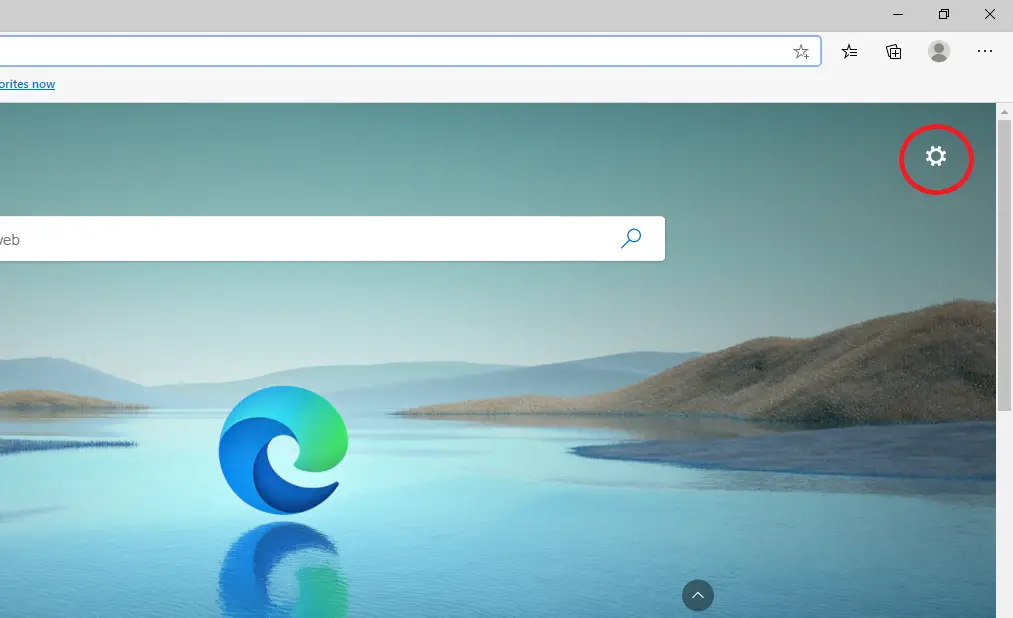
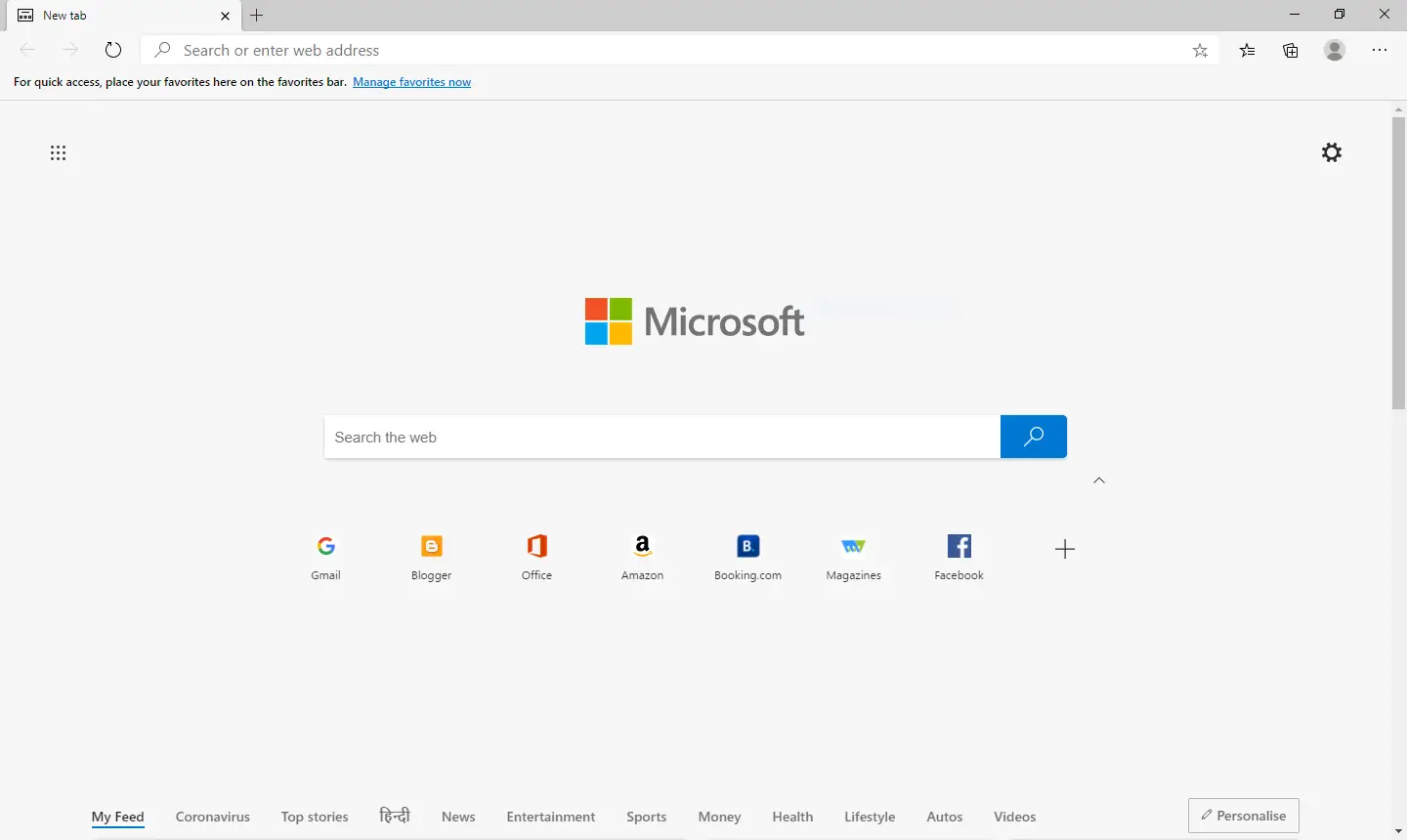
Step 2. Click on the Settings gear icon in the top-right corner to see the page layout flyout.
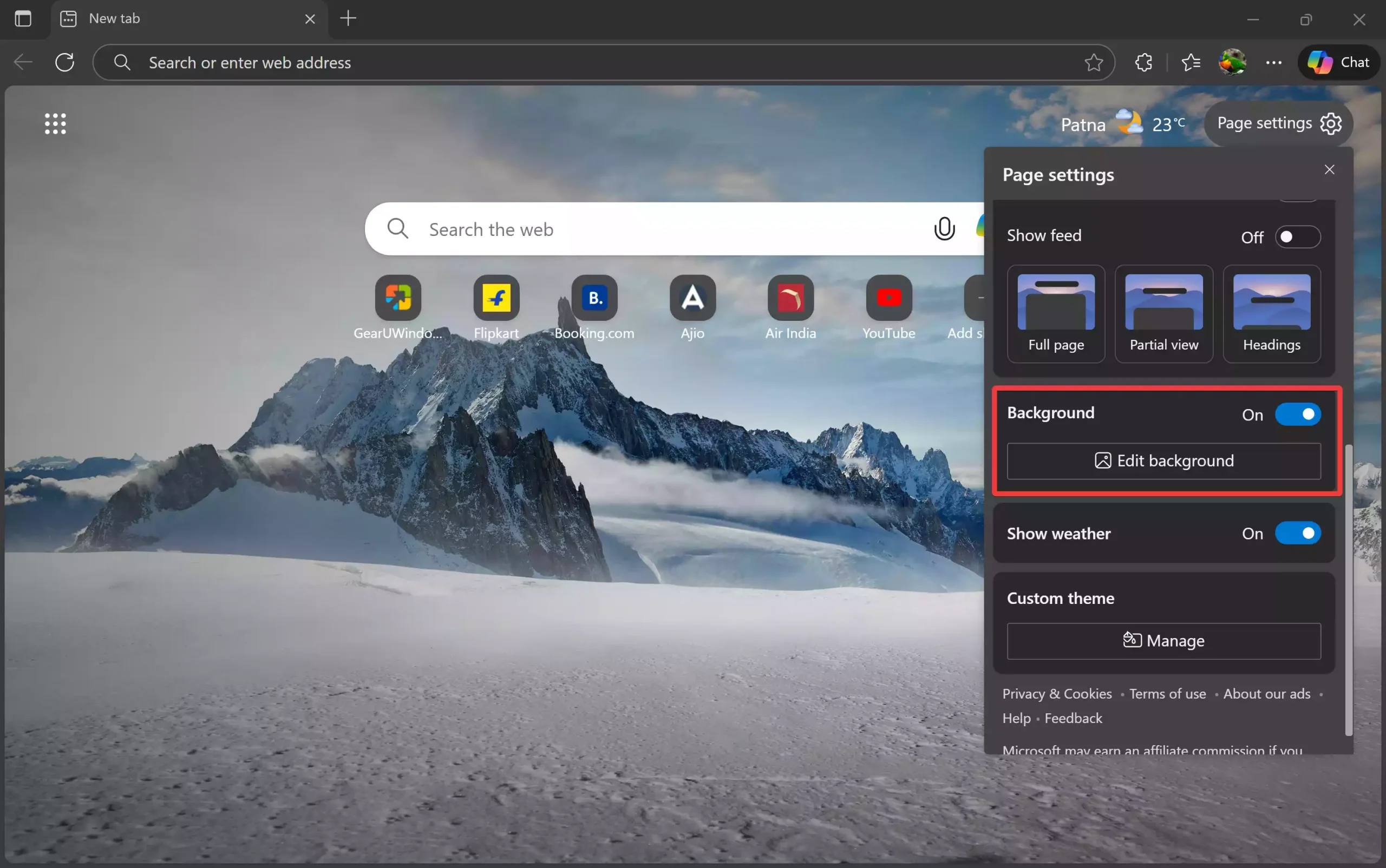
Step 3. Click on the Edit background button under the Background option.
Step 4. Under Background, ensure the Background toggle is turned on and then click on the “Upload image” link.
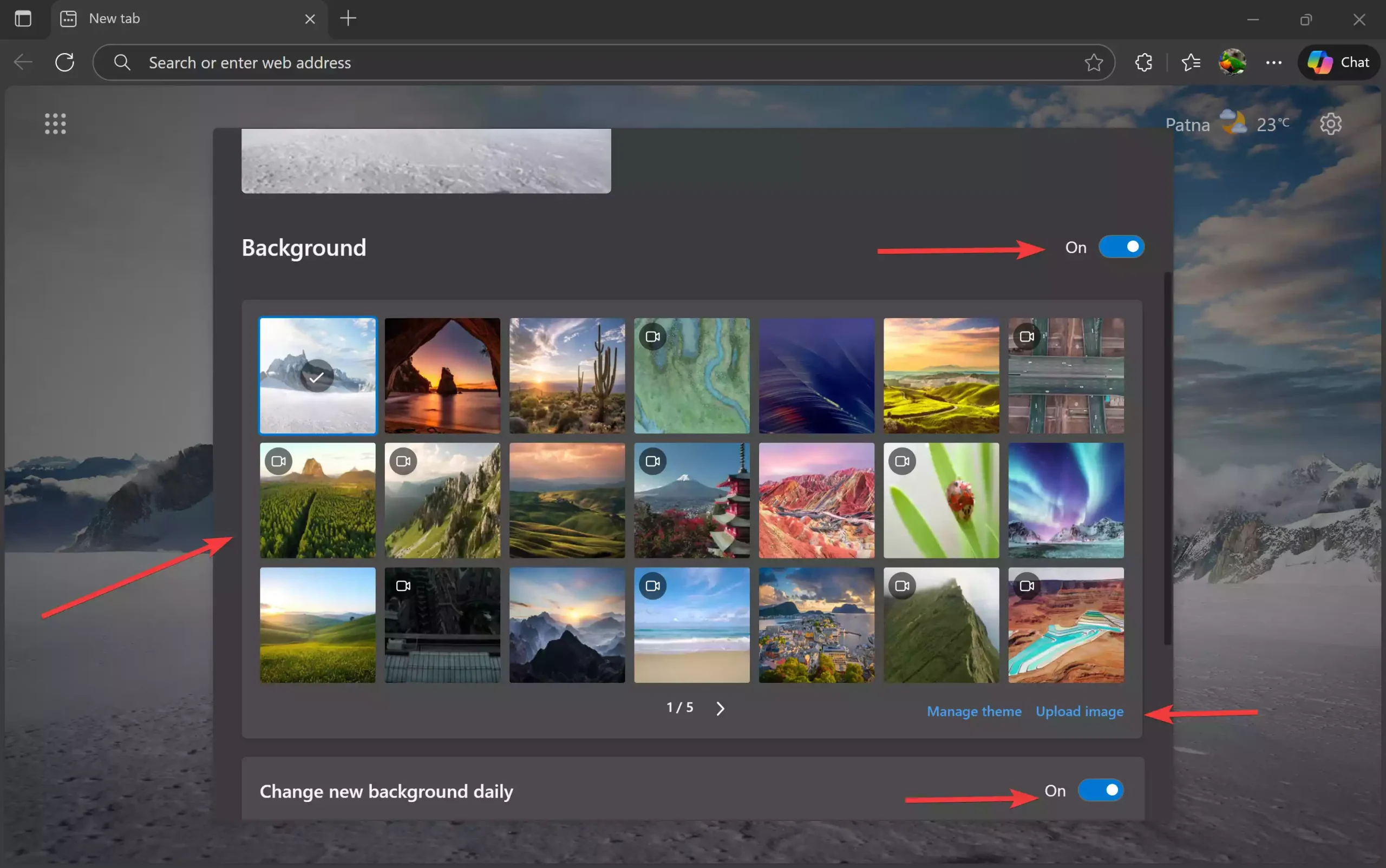
Additional Tips: Here, you can also choose any image group you want to set as your Edge New Tab background. You can even enable the “Change new background daily” option, which automatically updates the background with a new image every day.
Step 5. Select the image that you want to see as an Edge New Tab background picture. Once the image is selected, it will be applied to the Edge New Tab page.
How to remove the background image in Edge New Tab?
Follow these steps to remove the background image in Edge New Tab:-
Step 1. Open a new tab in the Edge browser.
Step 2. Click on the Settings gear icon in the top-right corner to see the page layout flyout.
Step 3. Click on the Edit background button under the Background option.
Step 4. Under Background, turn off the Background toggle.
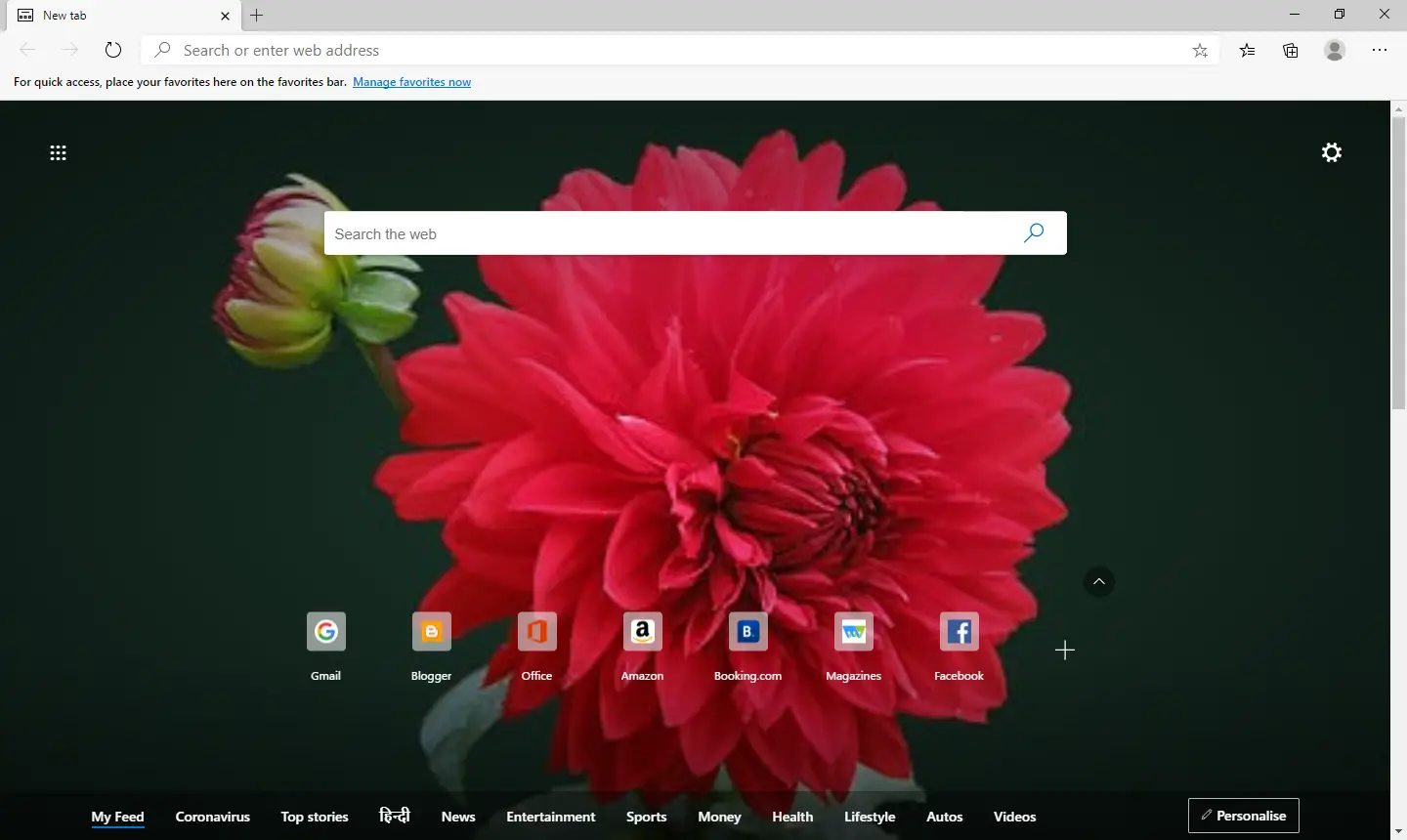
Now, when you open a New Tab in the Edge browser, the page will be loaded without a background image.
 FAQs
FAQs
Can I use my own photo as the Edge New Tab background?
Yes, Edge lets you upload any image from your computer. Just open a new tab, select the Settings gear, choose Edit background, and use the Upload image option.
Why is the Upload image option missing in my Edge browser?
This feature is available in newer versions of Edge. If you do not see it, update the browser by visiting edge://settings/help.
Does Edge support daily auto-changing wallpapers?
Yes, you can enable the Change new background daily option under Edit background to refresh the wallpaper automatically every day.
How do I remove the background image completely?
Open the Edit background settings and turn off the Background toggle. This will switch your New Tab page to a clean, plain layout.
Will my custom background sync across devices?
No, Edge does not sync custom uploaded images between devices. You must set the background image manually on each device.
Does changing the Edge background impact performance?
No, using a static or daily wallpaper does not noticeably affect browsing speed or system performance on modern PCs.
Can I switch back to the default Edge background later?
Yes, simply open Edit background and choose one of the image groups or re-enable the Background toggle.
Why does my background image look blurry?
This usually happens if the uploaded photo has a low resolution. Try using a high-resolution image for sharper results.
Conclusion
In conclusion, Microsoft Edge offers a way to change the default background image with your own selected picture on the new tab page. This customization feature was introduced with Edge version 86, and it allows you to use your favorite picture as the background image. You can also remove the background image if you prefer a simple, clean look. If you are not sure which version of Edge you are using, you can check it by typing edge://settings/help in a new tab. By following the simple steps outlined above, you can easily customize the background image of your Edge new tab page to suit your preferences.
The “apply” button is greyed out when you try to select “off” for background.