

Windows 11 brings many new visual improvements, and perhaps one of the most noticeable features is its rounded corners around the windows. Although rounded corners in File Explorer, third-party software, and browsers look good, a few Windows 11 users might not be happy with these changes and want to disable the rounded corners around the windows. However, Microsoft has not provided any option to change this GUI element, and users have difficulty finding it. If you want to further customize your Windows 11 experience and remove unnecessary features, you can also use LoveWindowsAgain, a free tool designed to tweak and simplify Windows 11 easily.
How to Disable or Enable Rounded Corners in Windows 11?
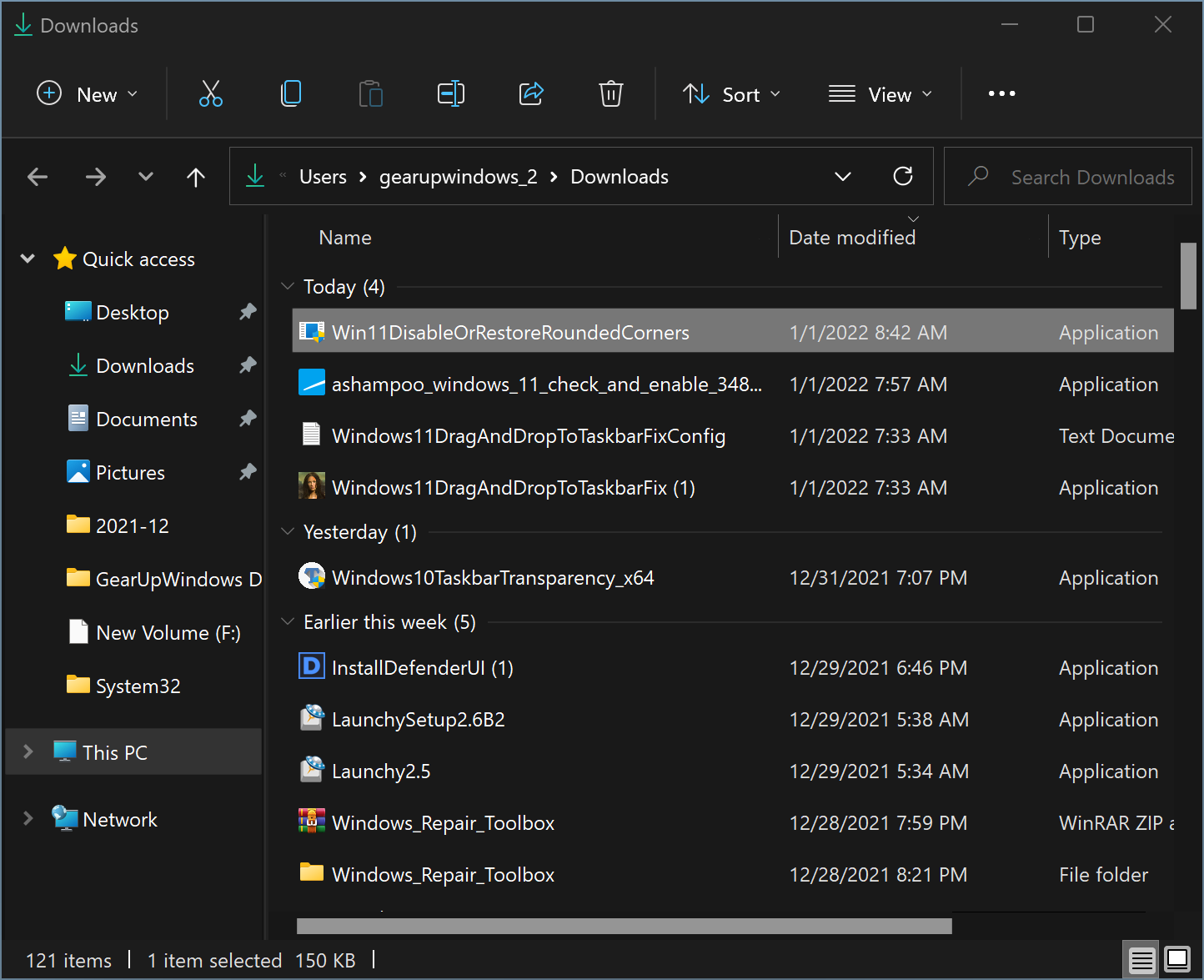
Win11DisableOrRestoreRoundedCorners is a free and tiny tool that allows you to enable and disable the rounded corners in Windows 11 with just a single click. The application is lightweight and portable, so simply download and launch this tool as an administrator to enable or disable rounded corners in your operating system. The app does not feature any GUI or settings, as it is basically a script that turns the process behind the visual element on and off. If the rounded corner is turned on when you run this app, it will turn off the rounded corner. Again, running the same script, you can restore the rounded corners.
According to the developer, it is recommended that you make sure that only one dwm.exe process is running to ensure successful patching and avert bricking your system. At the same time, the app needs an active Internet connection, as it downloads a registry key, namely uDWM.dll. If you prefer reverting to the classic Windows 10 look with squared edges and a familiar layout, check out this detailed guide on how to make Windows 11 look like Windows 10.
The Win11DisableOrRestoreRoundedCorners is a tiny and free tool for anyone who wants to improve their Windows 11 experience by adding or removing rounded corners. Any time you wish to switch to the standard, squared corners, it may be a perfect choice for you. If you’re interested in even more personalization tools, you might want to try Window Centering Helper, another lightweight freeware that controls how app windows appear on your desktop.
Download Win11DisableOrRestoreRoundedCorners
If you want to use Win11DisableOrRestoreRoundedCorners, you can download it from here. Once downloaded, run it as an administrator to quickly toggle between rounded and squared window corners.
Conclusion
Rounded corners are a signature part of Windows 11’s refreshed design language, but not everyone prefers them. Win11DisableOrRestoreRoundedCorners offers a straightforward solution for users who desire a sharper, more classic interface. To further boost system responsiveness, you can also disable Windows 11 visual effects to improve performance. And if you enjoy changing your system appearance regularly, try the Dark Mode Switcher to toggle themes instantly.