

Performing a factory reset on your Windows 10 PC can be a useful solution when you encounter persistent performance issues or malware infections. However, the thought of losing all your important files and data can be daunting. Fortunately, Windows 10 provides a built-in feature called “Reset this PC” that allows you to perform a factory reset without losing your personal files. This feature reinstalls Windows 10 while keeping your important data intact.
In this post, we will guide you through the steps to factory reset Windows 10 without losing any important files.
Reasons to Factory Reset Windows 10 Without Losing Important Data
There are several reasons why you might want to perform a factory reset on your Windows 10 PC while keeping your data safe:
- The PC is running slowly or experiencing performance issues that cannot be resolved by other methods.
- The PC is infected with viruses or malware that cannot be removed using antivirus software.
- You plan to sell or donate the PC and want to ensure personal data is erased securely.
- The PC is experiencing software-related issues that cannot be resolved by troubleshooting.
- You want a fresh installation of Windows 10 while keeping your personal files and settings intact.
How to Factory Reset in Windows 10 without Losing Important Files?
Follow these steps to factory reset Windows 10 without losing important files:
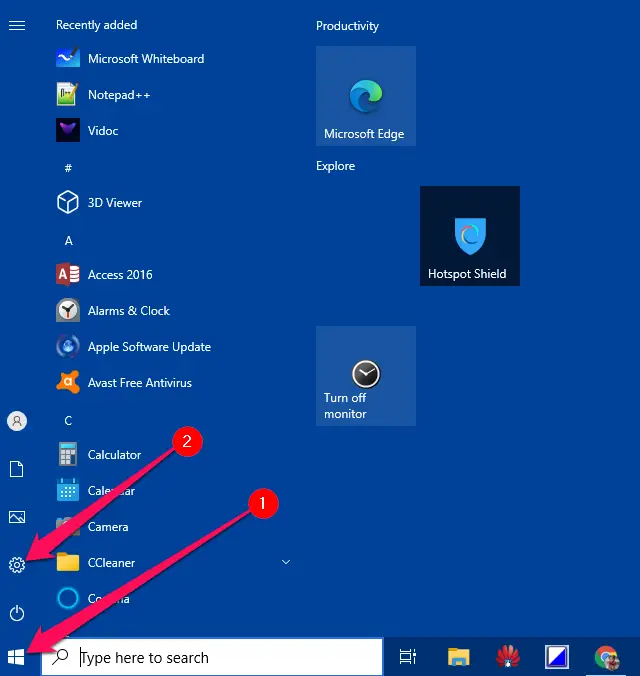
Step 1. Open the Settings app.
To open the Settings app, click on the Start button and type Settings. In the search results, click on Settings to open it.
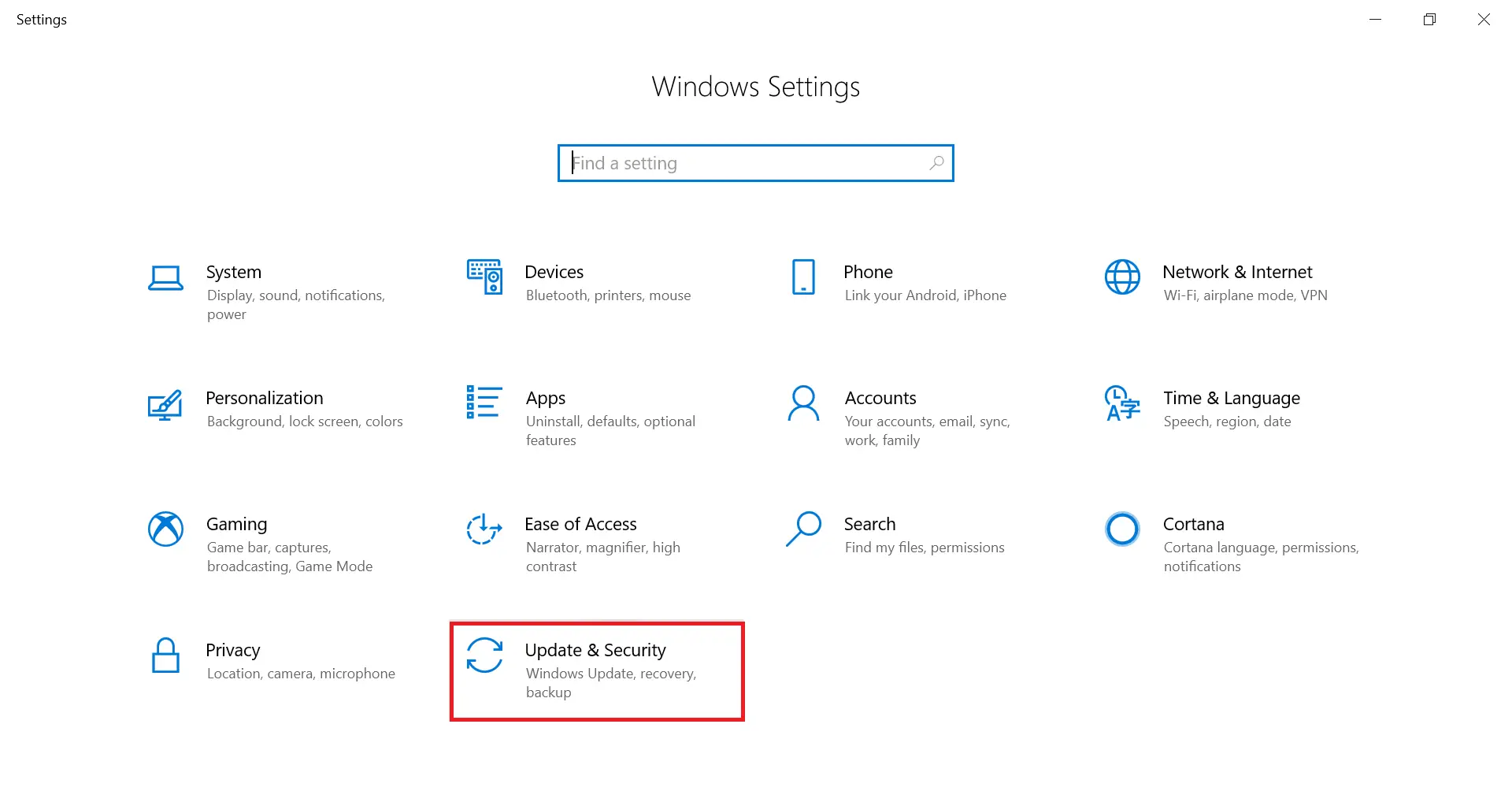
Step 2. Under the “Windows Settings” window, click on the Update & Security category.
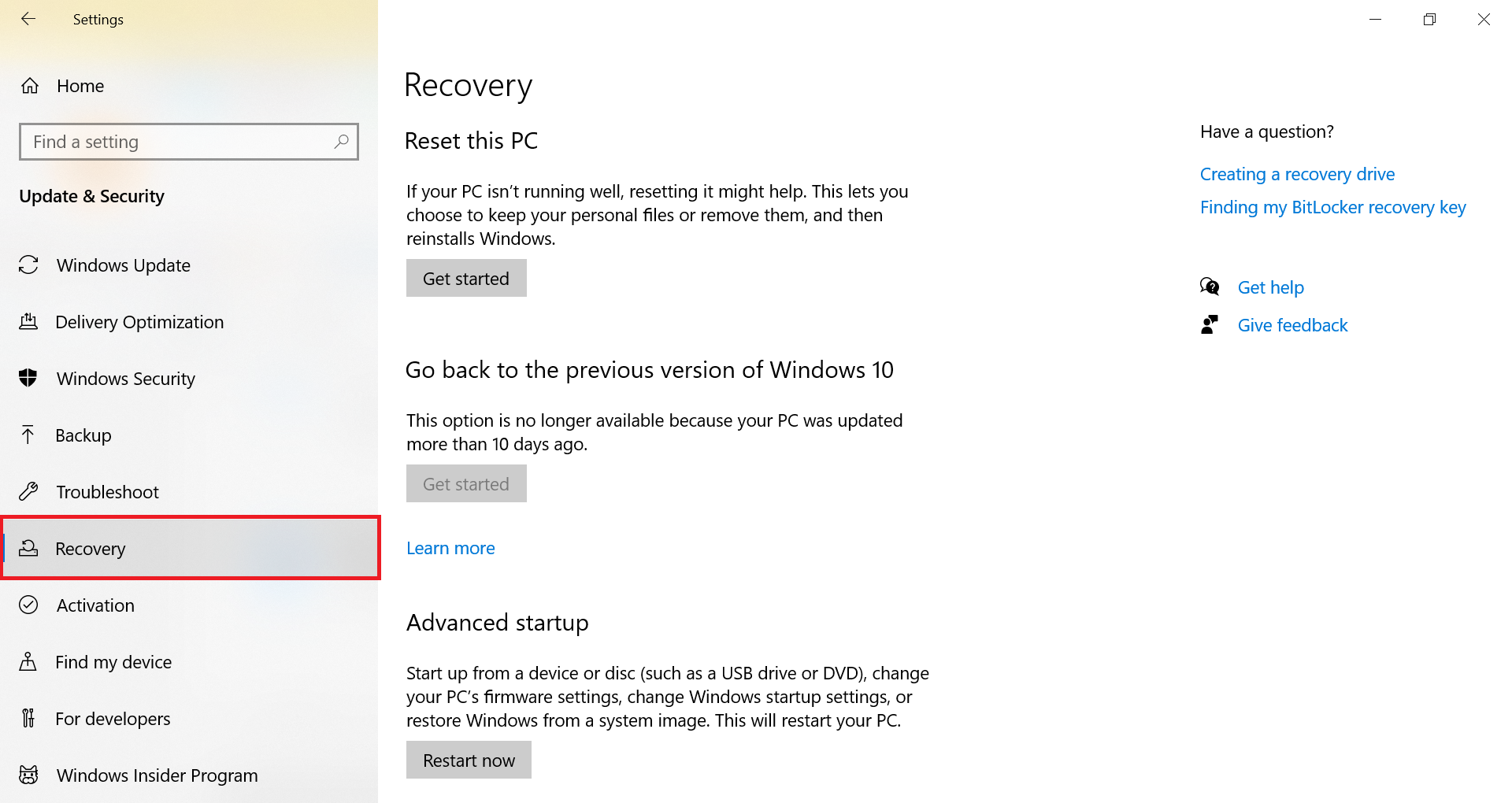
Step 3. From the left-hand side, select Recovery.
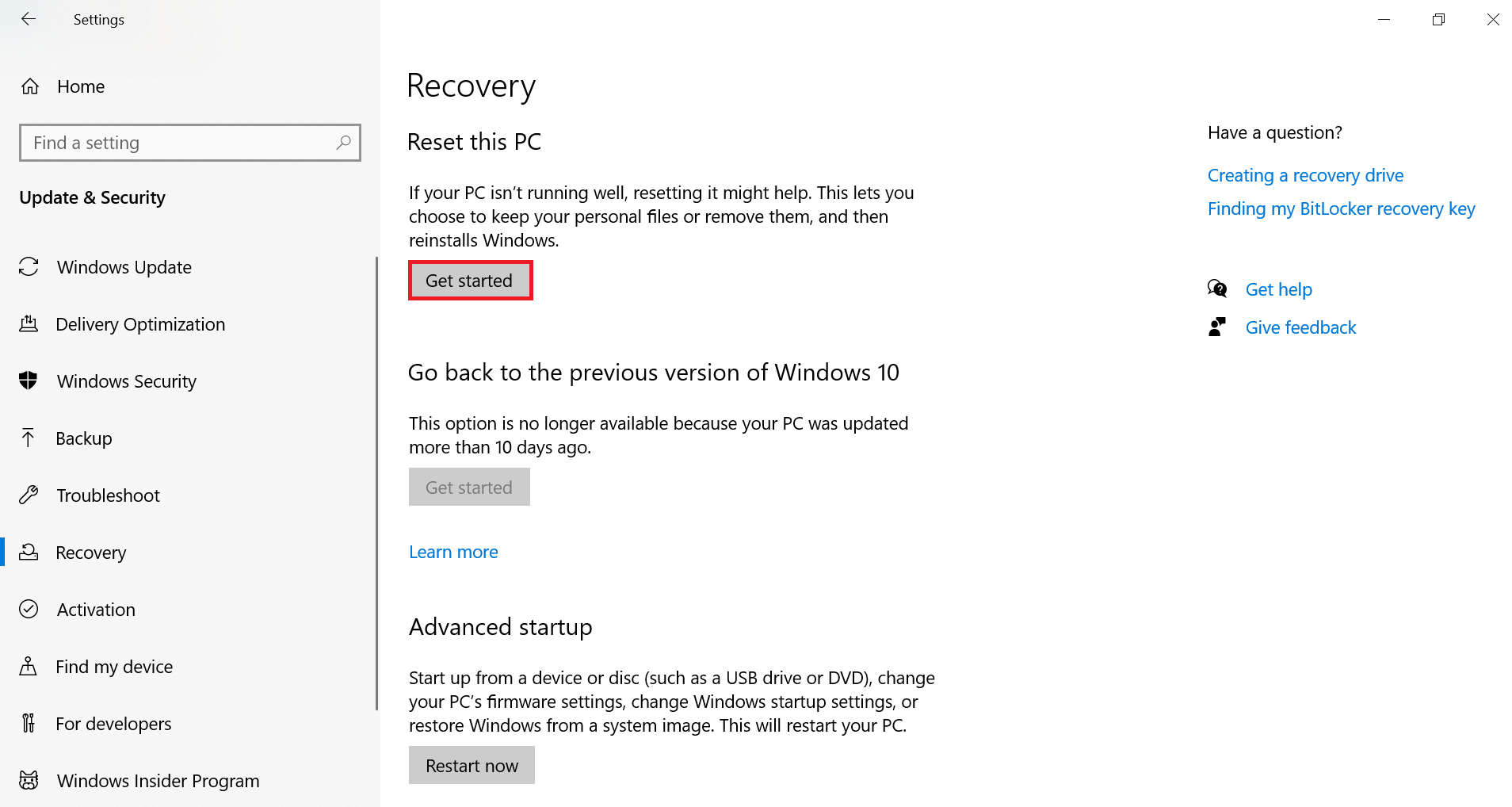
Step 4. On the right pane, under the “Reset this PC” section, click the Get started button.
Step 5. Under “Reset this PC,” select the option Keep my files.
Choosing this option will preserve your personal files, but remove installed apps and reset settings to default.
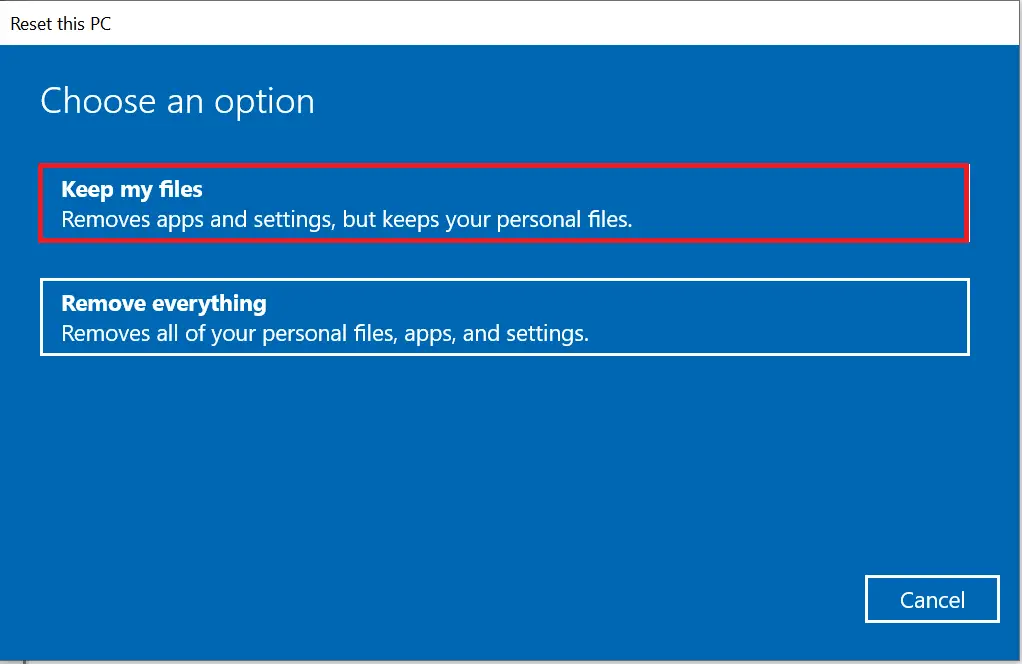
Quick Note: If you wish to reset your Windows 10 PC to its original state completely, you may choose the “Remove everything” option. This will delete all your files and restore the default Windows 10 installation. You will also be prompted to select whether to remove files from all drives or just the system drive, and whether to clean the drive.
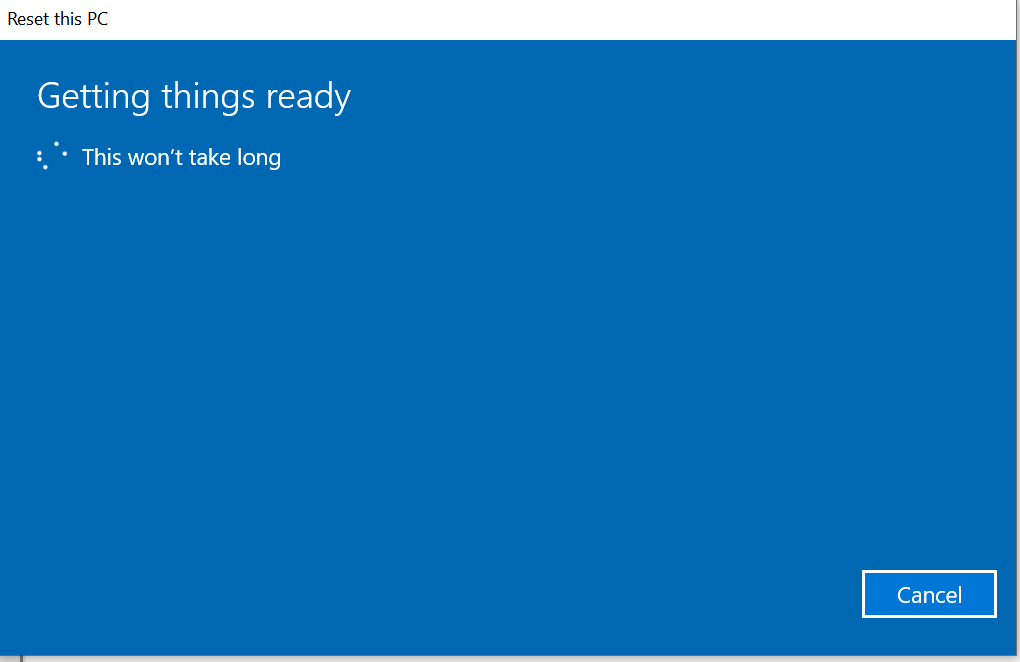
Step 6. Once you select the option, Windows will show “Getting things ready“.
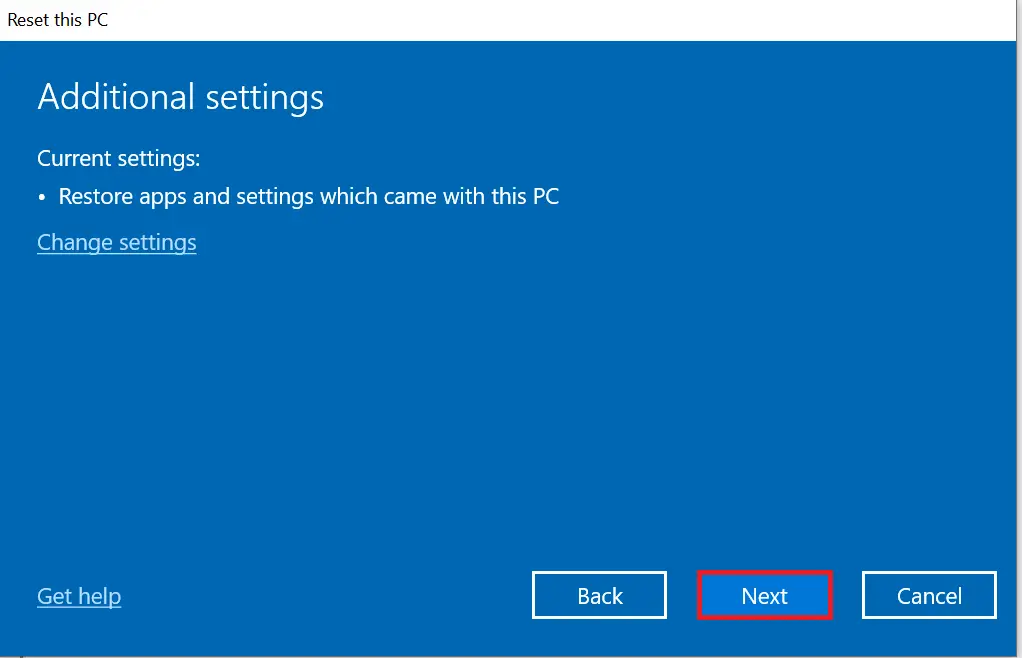
Step 7. Click the Next button.
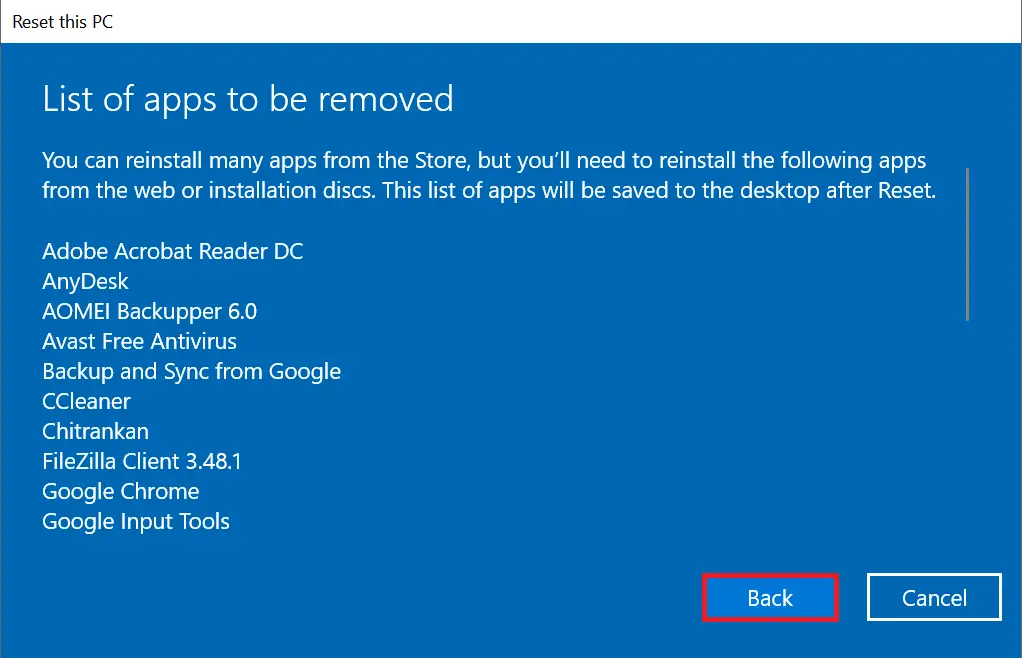
Step 8. Windows will display the list of apps that will be removed during the reset process.
Click the link “List of apps to be removed” to review which apps will be removed.
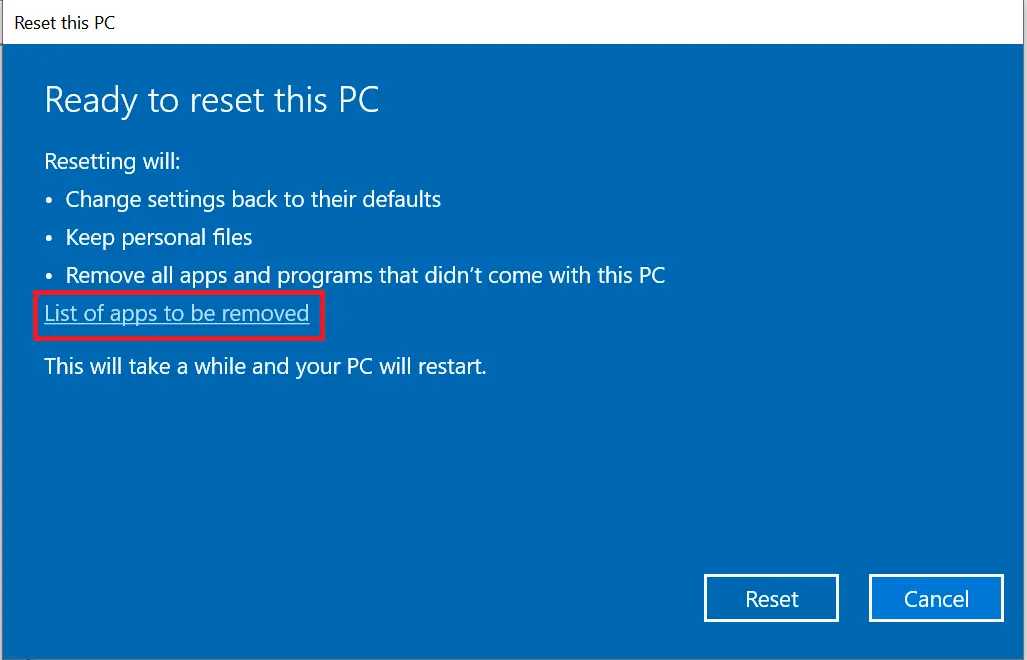
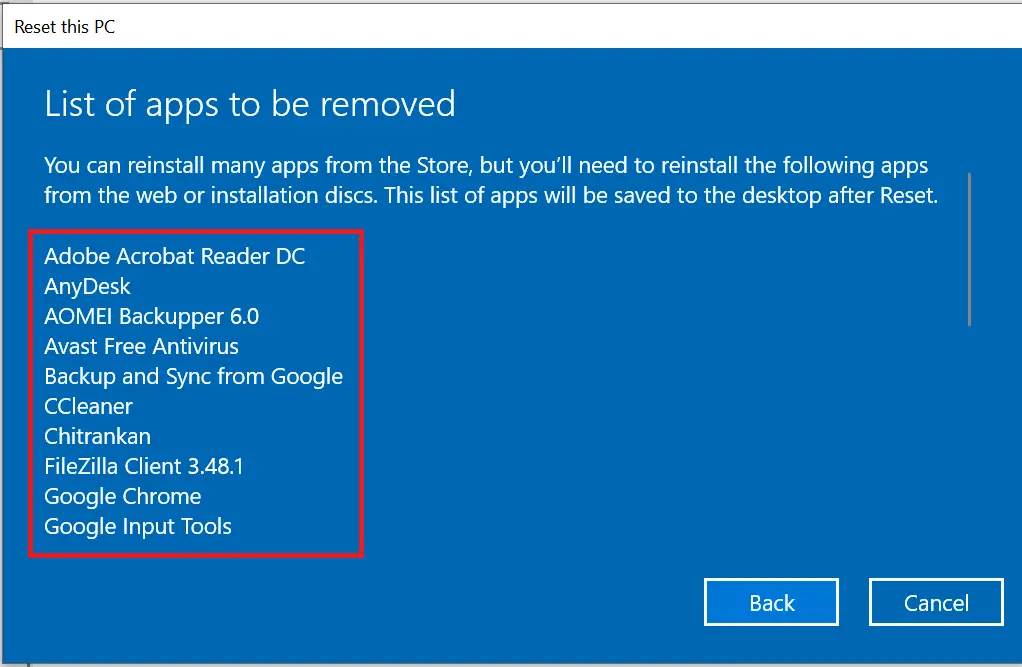
Step 9. Click the Back button if you want to go back and change anything.
Step 10. Finally, click the Reset button to begin the reset process.
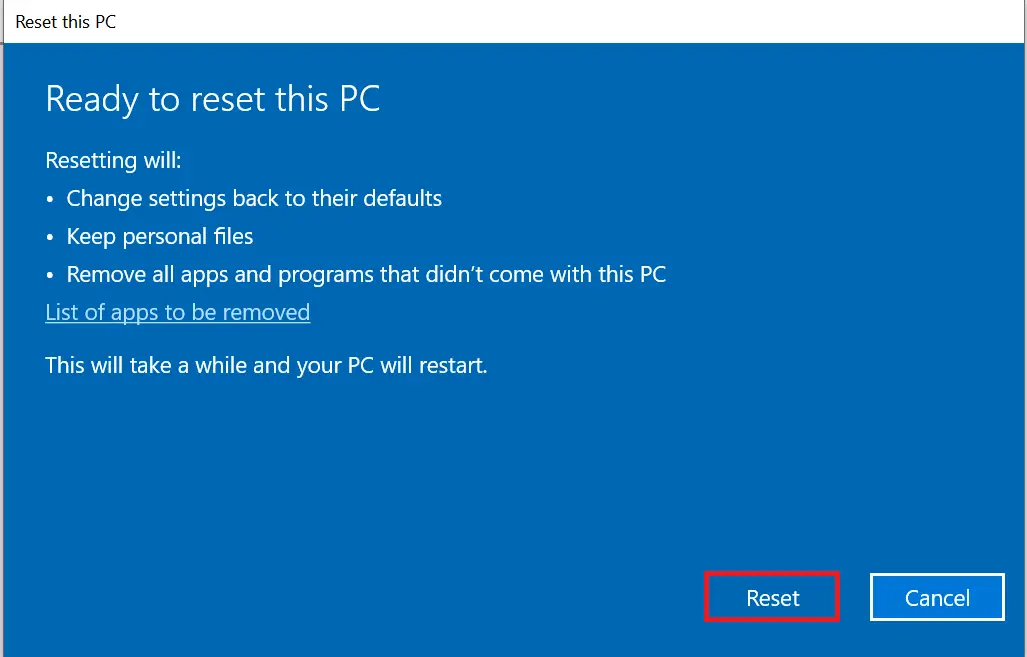
Step 11. Your PC will now restart to complete the reset process. This may take up to an hour, depending on your system.
After resetting, Windows will remove all apps, drivers, and settings that did not come with your PC. However, your personal files will remain intact.
Conclusion
In conclusion, performing a factory reset on your Windows 10 PC can be a powerful way to fix ongoing issues without risking your important files. Thanks to the Reset this PC feature, you can easily reinstall Windows and keep your personal data safe. Just make sure to select the “Keep my files” option during the process. Follow the steps above to reset your PC with confidence and give your system a fresh start.