

Windows 11 includes an optional feature that shows small checkboxes next to files and folders, making it easier to select multiple items. But sometimes these item checkboxes stay visible even after you’ve disabled them. If File Explorer keeps showing checkboxes no matter what you do, this guide will help you fix the issue and restore normal behavior.
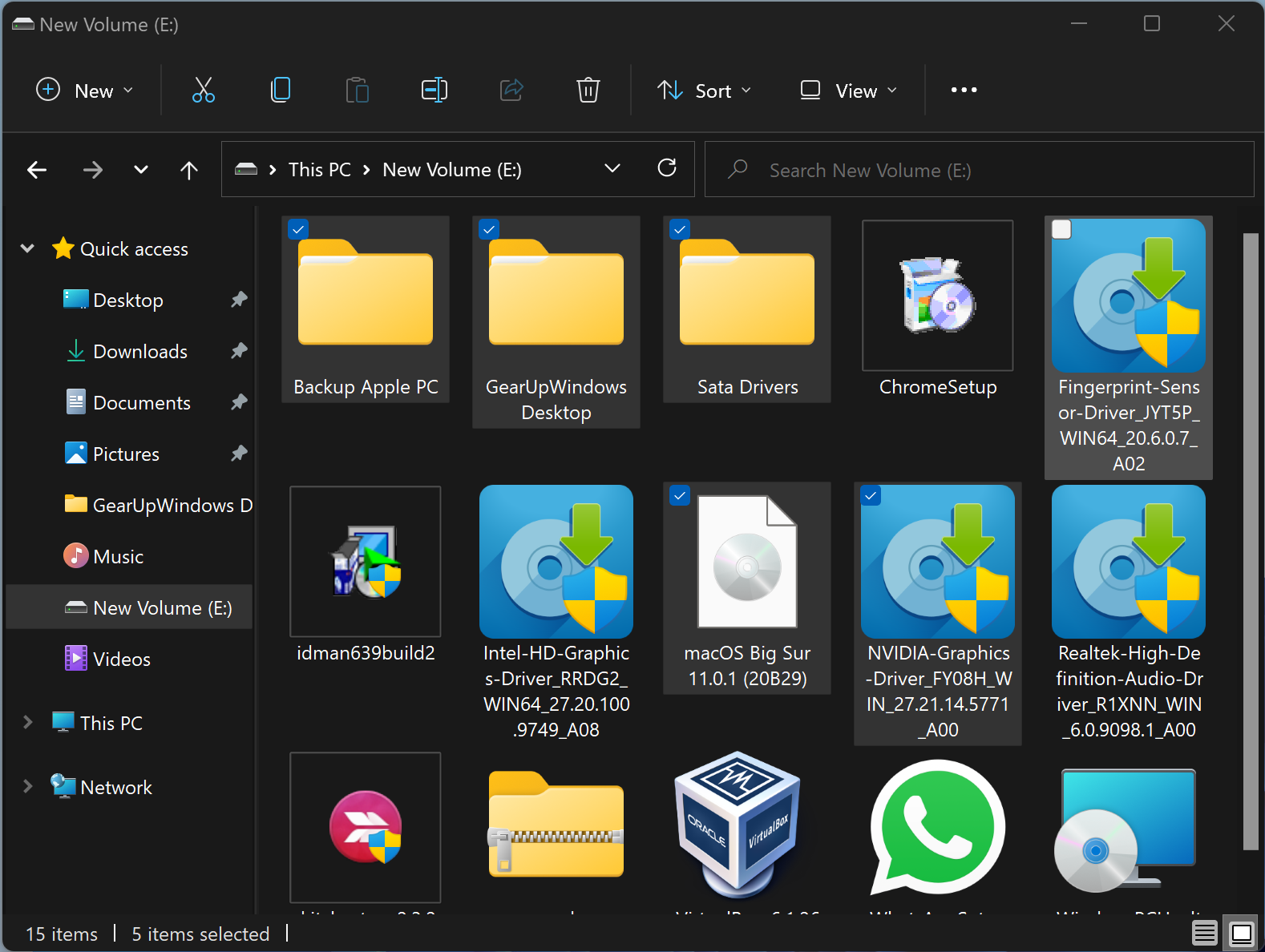
What Causes Item Checkboxes to Get Stuck?
There are a few common triggers for this problem:
• File Explorer settings not applying correctly.
• Folder Options corrupted after an update.
• View mode changed automatically by Windows.
• Explorer cache issues.
• Accessibility settings overriding your preferences.
Method 1 — Disable Item Checkboxes from Folder Options
This is the main switch that controls checkboxes. If it’s misapplied or gets overridden, the checkboxes may reappear.
Step 1. Open File Explorer and click the three-dot menu.
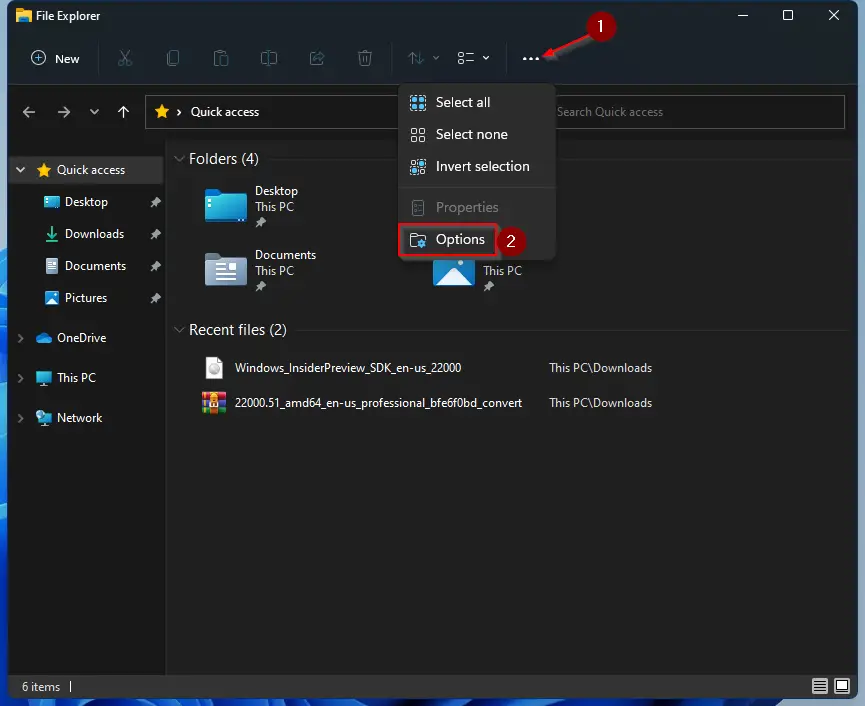
Step 2. Choose Options to open Folder Options.
Step 3. Switch to the View tab.
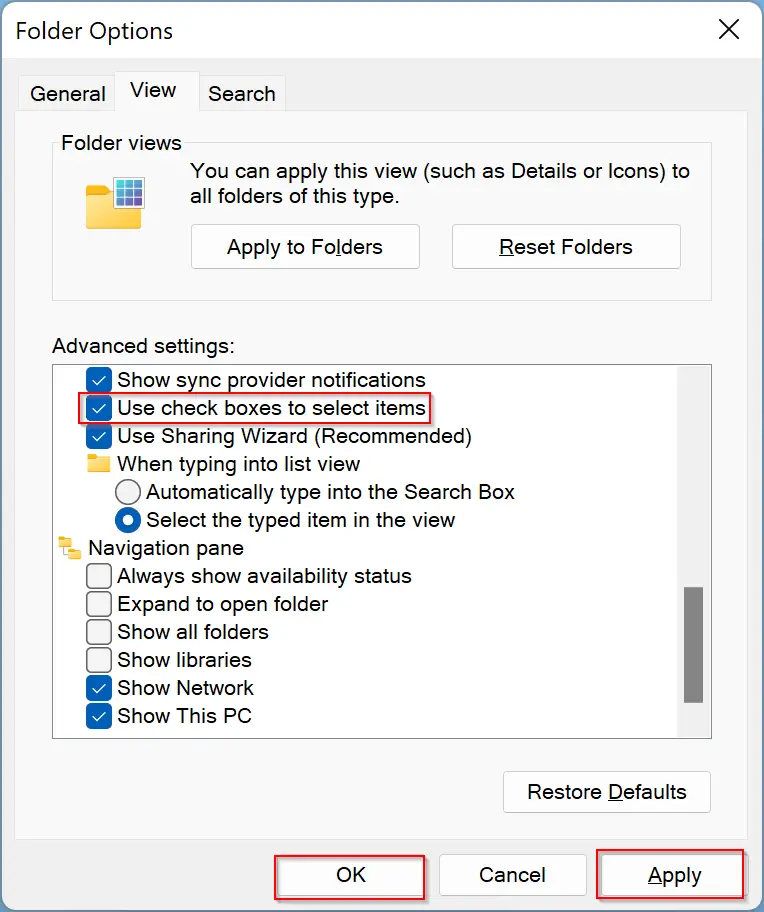
Step 4. Scroll down and uncheck Use check boxes to select items.
Step 5. Click Apply → OK.
You can also follow our full guide on enabling or disabling file selection checkboxes in Windows 11. How to enable or disable check boxes to select items in Windows 11.
Method 2 — Switch the View Mode and Switch Back
Sometimes the checkbox setting gets stuck because File Explorer didn’t refresh its layout. Changing to a different view forces it to reload.
Step 1. Open any folder.
Step 2. Click View → select a different option (for example, List or Details).
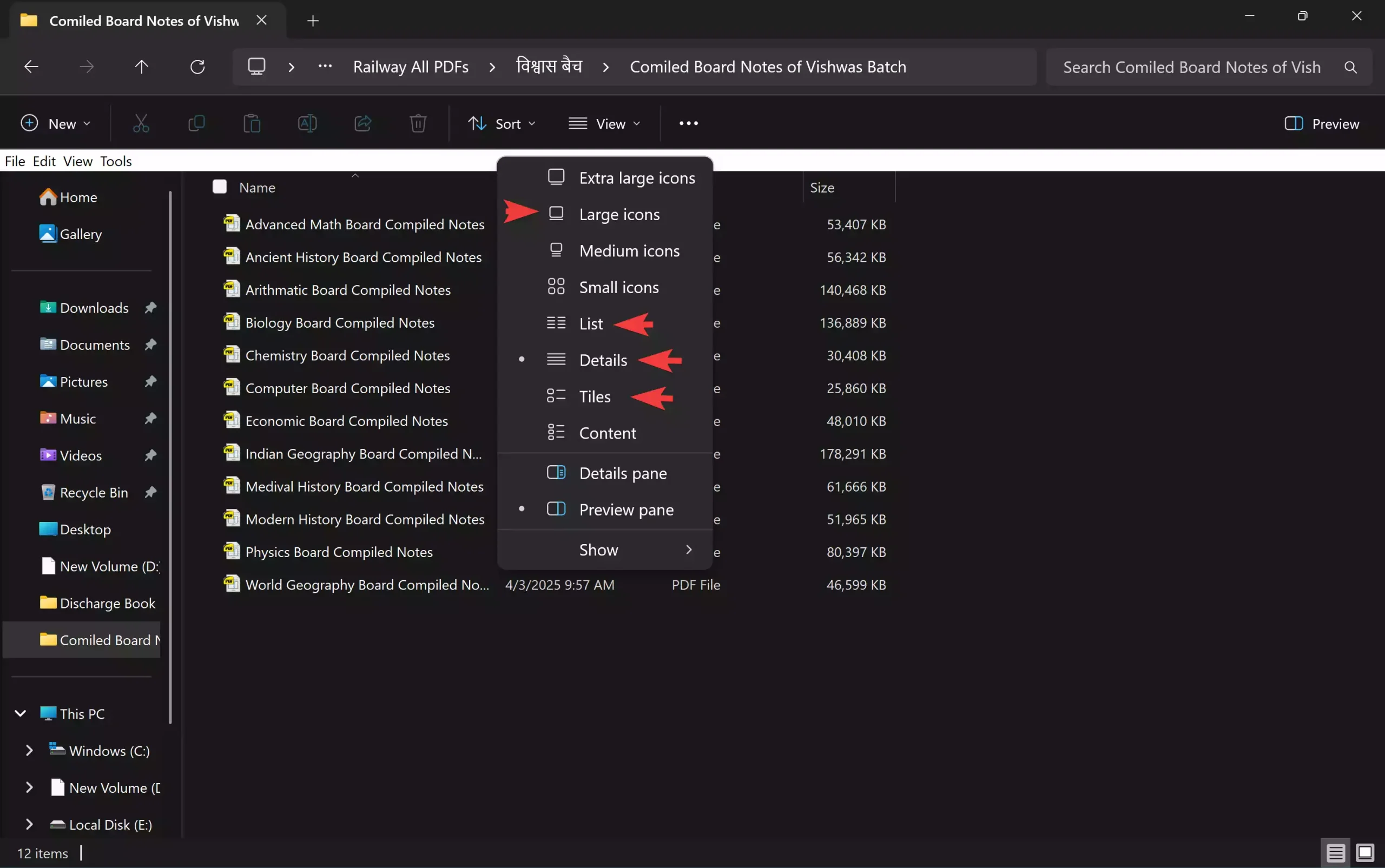
Step 3. Switch back to your preferred view (such as Large icons or Tiles).
Step 4. Close File Explorer and reopen it.
Method 3 — Reset Folder Options to Default
If Folder Options became corrupted, resetting them often clears the issue.
Step 1. Open File Explorer → three-dot menu → Options.
Step 2. Click Restore Defaults in the View tab.
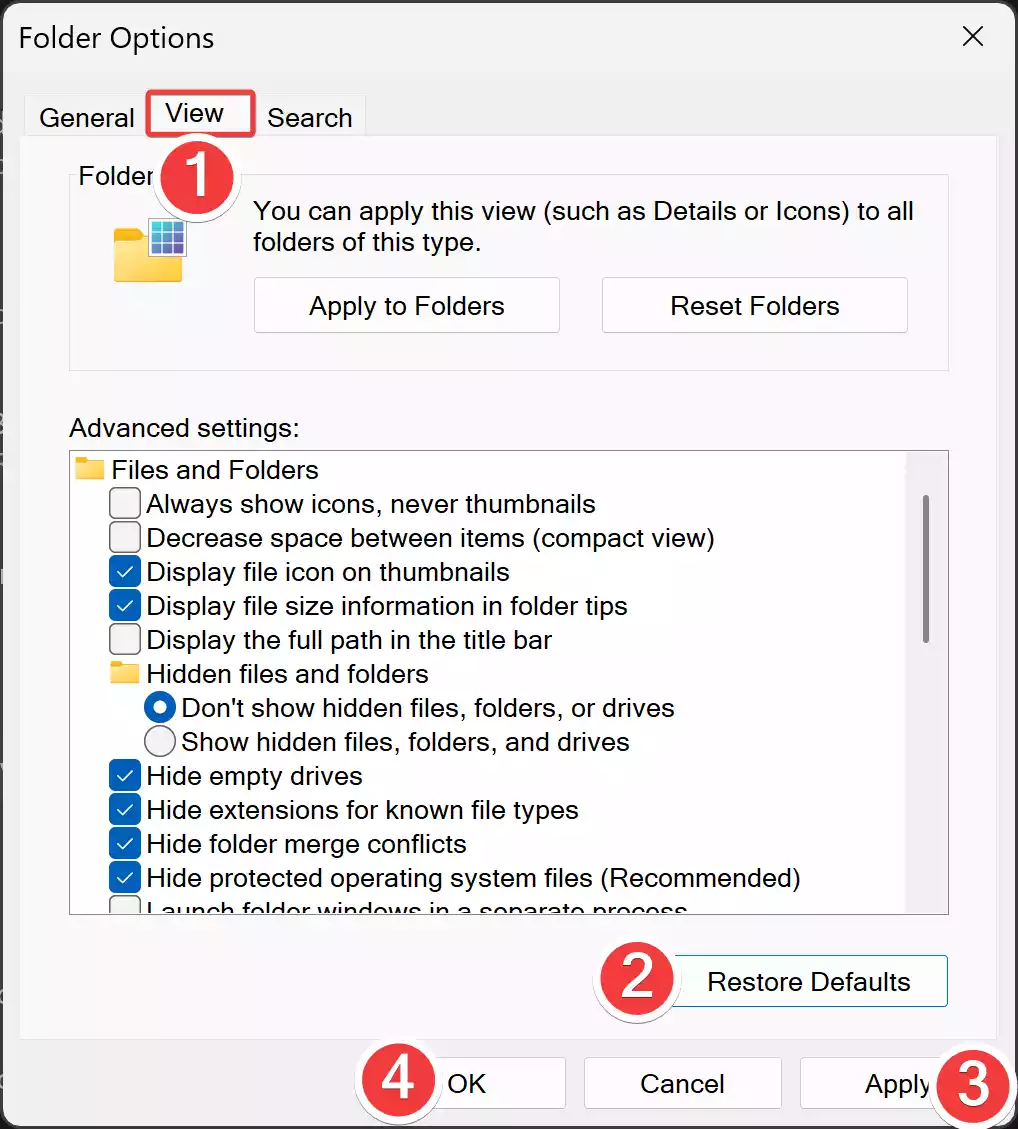
Step 3. Apply/OK and close File Explorer.
You may also want to review Quick Access–related settings if your view resets frequently. How to customize Quick Access settings in Windows 11.
Method 4 — Rebuild File Explorer Cache
Explorer keeps some visual preferences stored in cache files. If they become corrupt, checkboxes may appear even when disabled.
Step 1. Open File Explorer.
Step 2. Press Ctrl + Shift + Esc to open Task Manager.
Step 3. Locate Windows Explorer in the list.
Step 4. Right-click and choose Restart.
This refreshes Explorer completely and applies the checkbox settings properly.
Method 5 — Reapply the Setting Through Classic Control Panel
The same setting exists in the classic interface. Changing it here sometimes fixes conflicts.
Step 1. Open Start → type Control Panel and press Enter.
Step 2. Set “View by” to Large icons or Small icons.
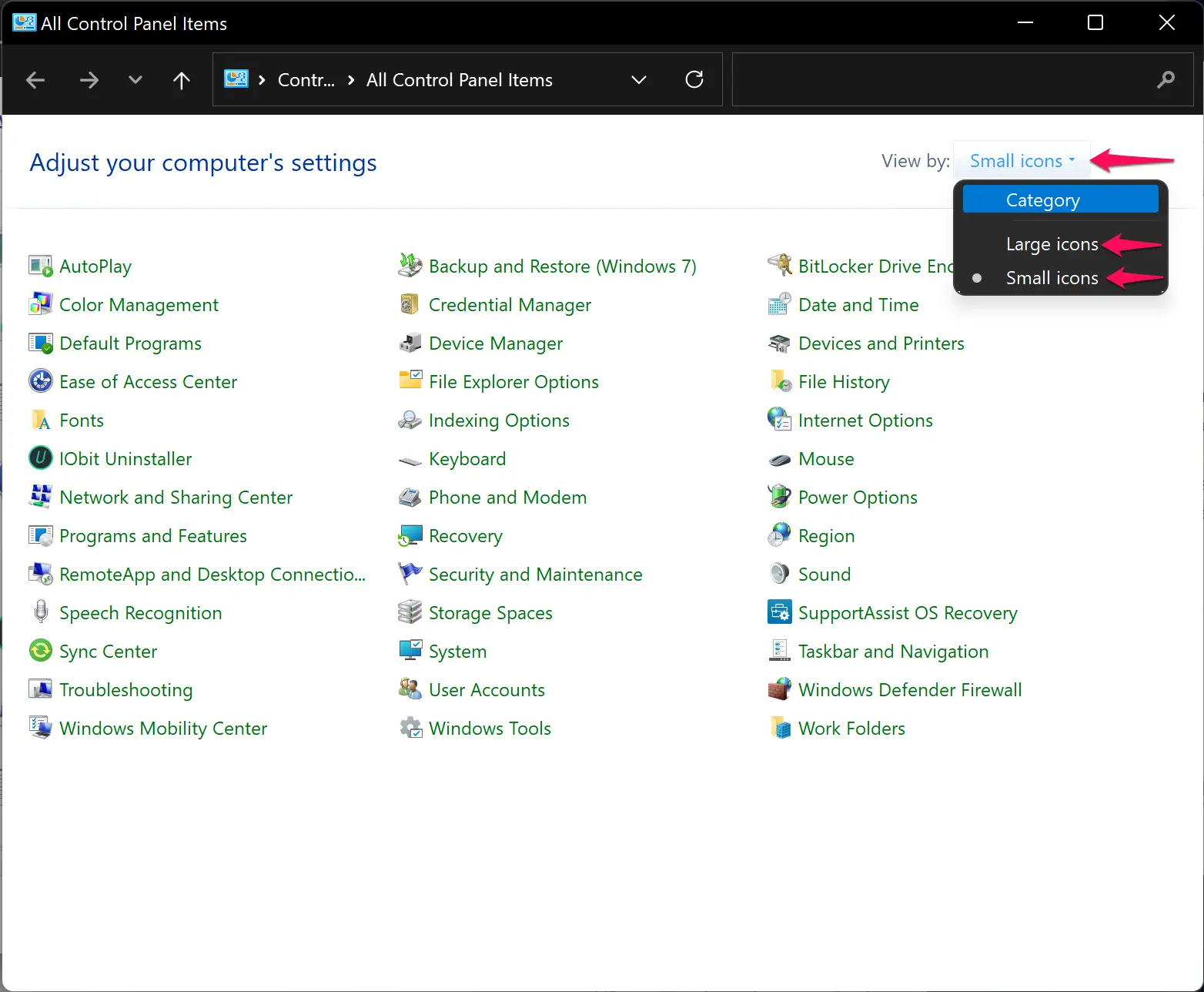
Step 3. Go to File Explorer Options.
Step 4. Disable “Use check boxes to select items”.
Step 5. Apply → OK.
Method 6 — Make Sure Accessibility Options Aren’t Forcing It
Certain accessibility settings may re-enable selection aids like checkboxes.
Step 1. Open Settings → Accessibility.
Step 2. Review Interaction settings.
Step 3. Ensure no options are forcing selection helpers.
You can also quickly check related File Explorer behaviors here: How to open Folder Options/File Explorer Options in Windows 11.
Method 7 — Reset File Explorer View for All Folders
If the view template for a specific folder type is stuck, resetting all folder types usually fixes it.
Step 1. Open Folder Options.
Step 2. Go to the View tab.
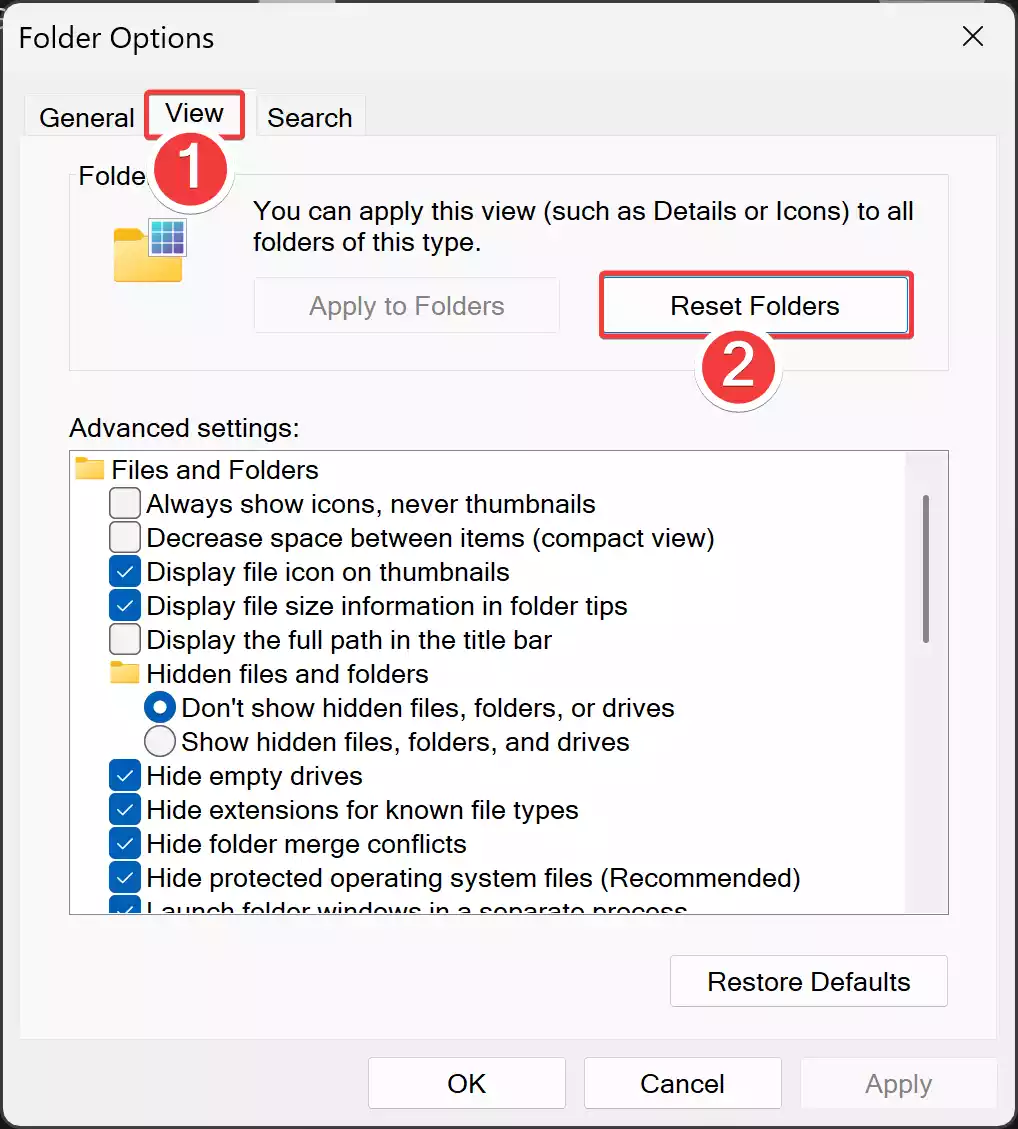
Step 3. Click Reset Folders.
Step 4. Confirm the action by clicking Yes.
Related Fixes You May Find Helpful
• Having issues with thumbnails? Learn how to restore them here:
How to display thumbnail preview in Windows 11.
• If folders behave oddly or Explorer options won’t save, this guide may help:
Customize Quick Access settings.
FAQs
Q. Why do checkboxes suddenly appear even though I turned them off?
Windows may switch views automatically, or Explorer cache may apply outdated settings. Updates can sometimes reset File Explorer preferences.
Q. Are item checkboxes harmful?
No — they are just a visual selection tool. They don’t change files or behavior.
Q. Do I need to restart my PC after fixing this?
Usually, restarting File Explorer is enough. A reboot is only needed if settings are blocked by another process.
Q. Will resetting Folder Options delete anything?
No. It only resets visual preferences and view templates.
Conclusion
Item checkboxes getting stuck in File Explorer is a common but simple issue to fix. Using Folder Options, refreshing the view, resetting Explorer, or clearing template settings usually resolves the problem instantly. If you ever want to toggle this feature manually or learn how checkboxes work, you can refer to our complete guide on enabling or disabling file selection checkboxes in Windows 11.