

Notepad and Wordpad are very old apps, and you might have been using them for a long time. A limited set of features is available in Notepad; hence, most Windows users prefer to use an online text editor or purchase the Microsoft Office suite. Still, Notepad has not lost its importance, and many of us use it as a note keeper. It is quite simple to use; press Windows + R to open the Run dialog box, type Notepad, and hit Enter on the keyboard to open it. Write whatever you want and save it on your PC. One can add spelling check support to Notepad and WordPad using a third-party tool, TinySpell.
Notepad comes inbuilt on all versions of Windows as a default text editor along with Wordpad. On the Windows 10 operating system, it comes pre-loaded, and one can access it. In the earlier versions of Windows up to Windows 8.1, it was impossible to uninstall Notepad from their PC; however, Microsoft has added support to install or uninstall Notepad from Windows 10. One can install or uninstall the Notepad text editor from the Settings app.
As brought out above, Notepad is an inbuilt text editor on Windows 10, and if you are unable to find it on your PC, it is highly chance that someone else has uninstalled it. One can install Notepad using the Settings app. Still, if your Settings app is not working or you cannot install Notepad, you will be happy to know that Microsoft has added Notepad to its Store. In other words, it is now possible to install Notepad from the Microsoft Store also.
How to install Notepad on Windows 10 from the Microsoft Store?
Follow these steps to get Notepad on Windows 10 from the Microsoft Store:-
Step 1. Click on the Start button of Windows 10 and type Microsoft Store.
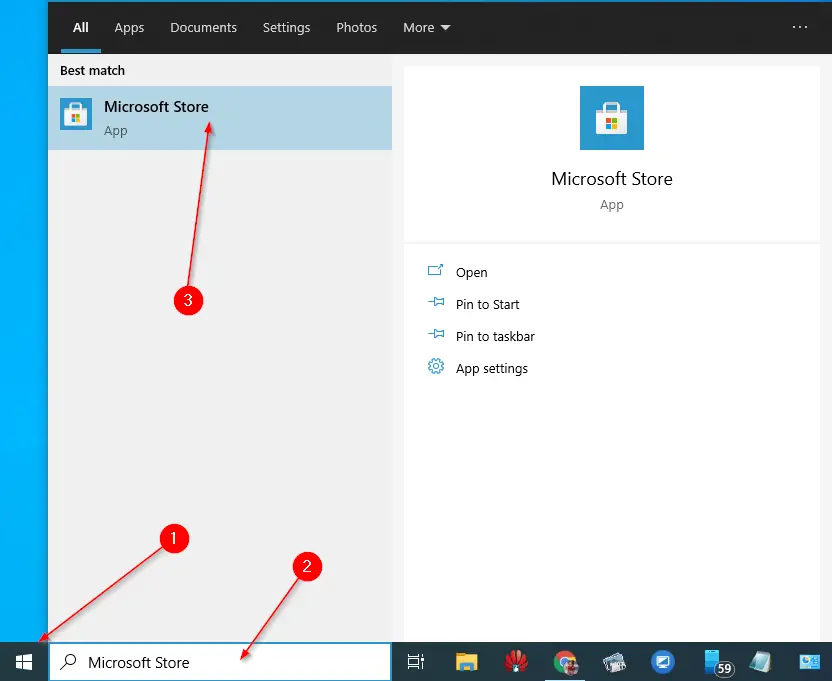
Step 2. On the available search results, click on the top entry “Microsoft Store” to launch it.
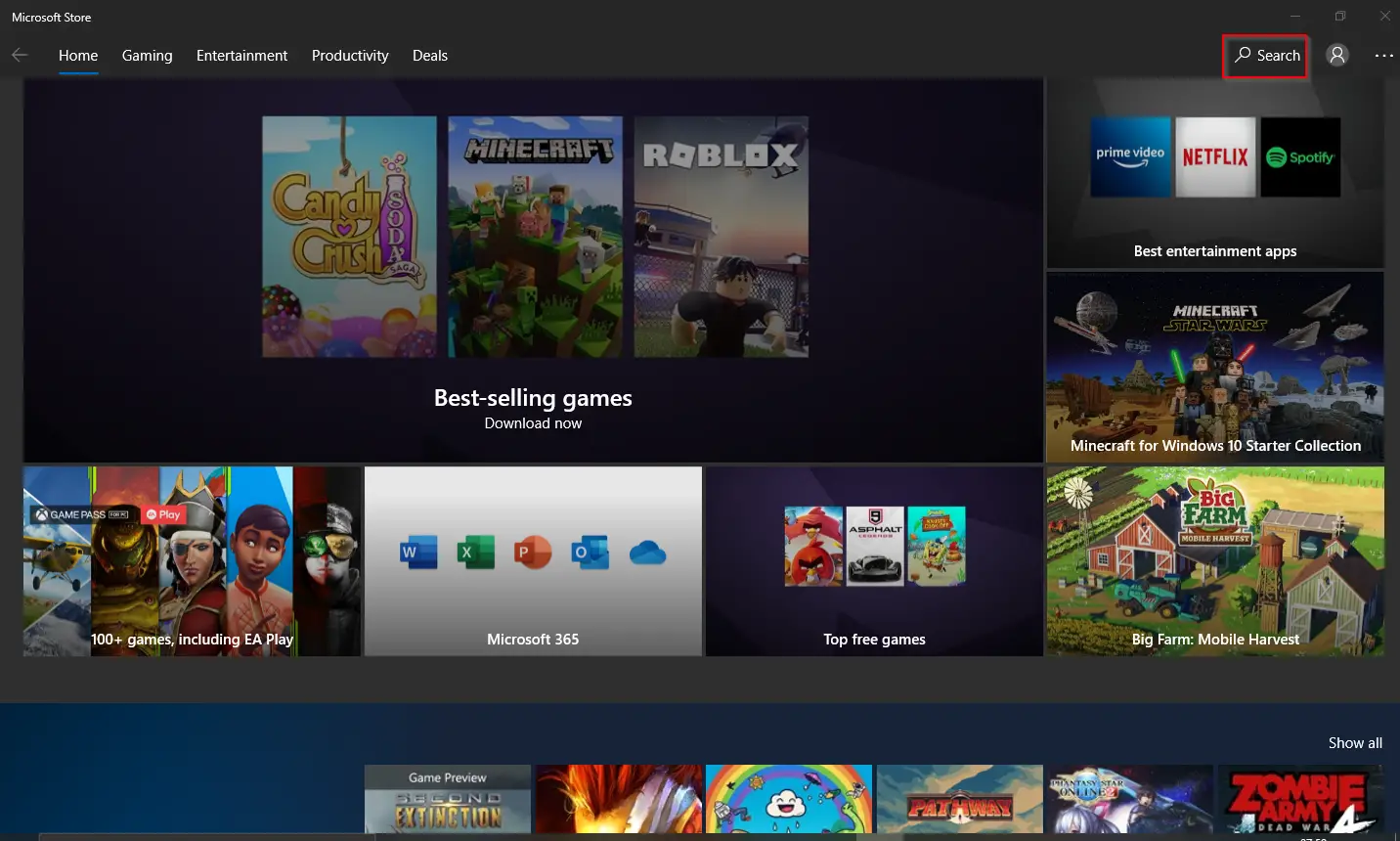
Step 3. On the Microsoft Store app, click on the Search in the top right corner and type in Notepad.
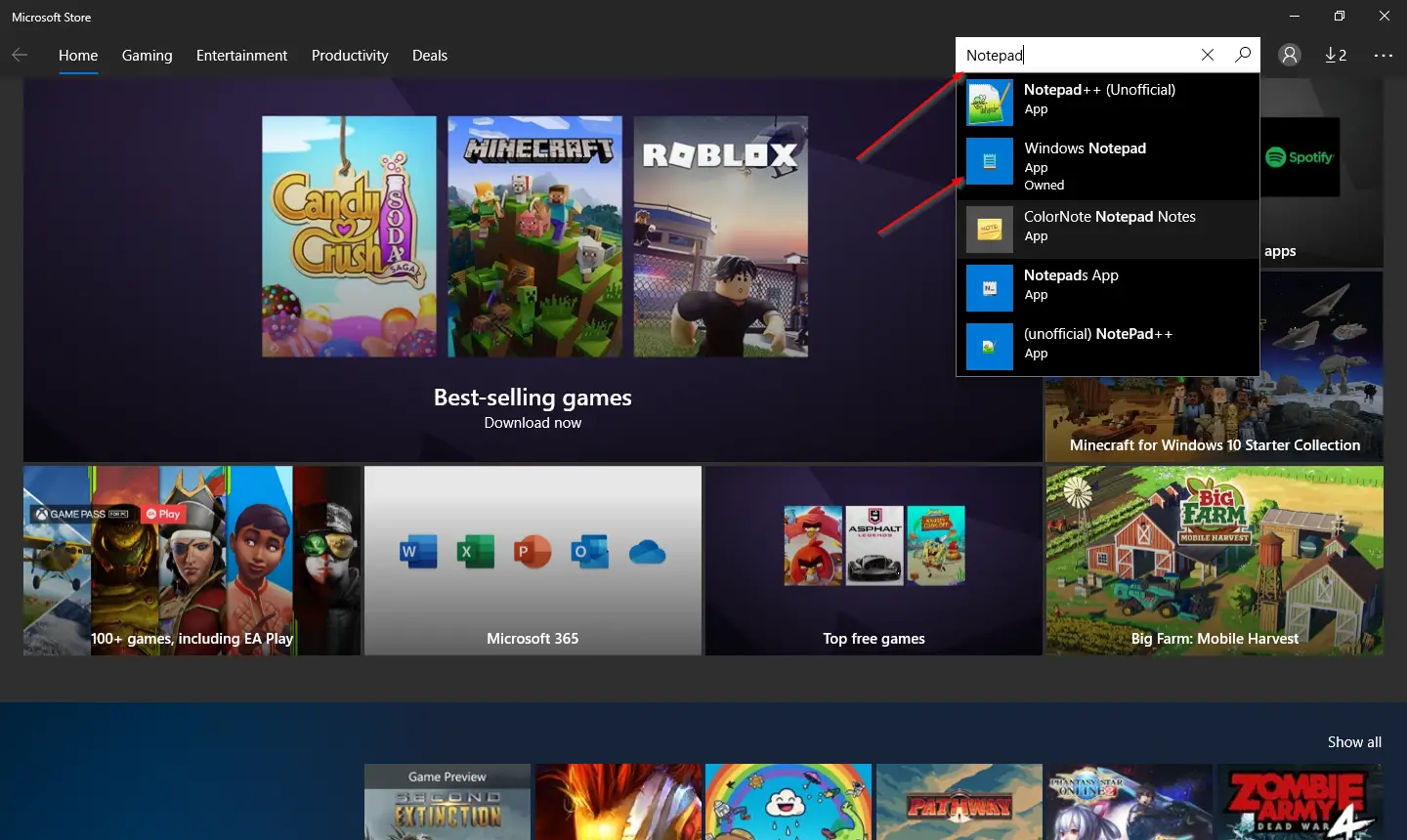
Step 4. In the available search, click on the Windows Notepad entry.
Step 5. Verify the publisher and then click on the Install button.
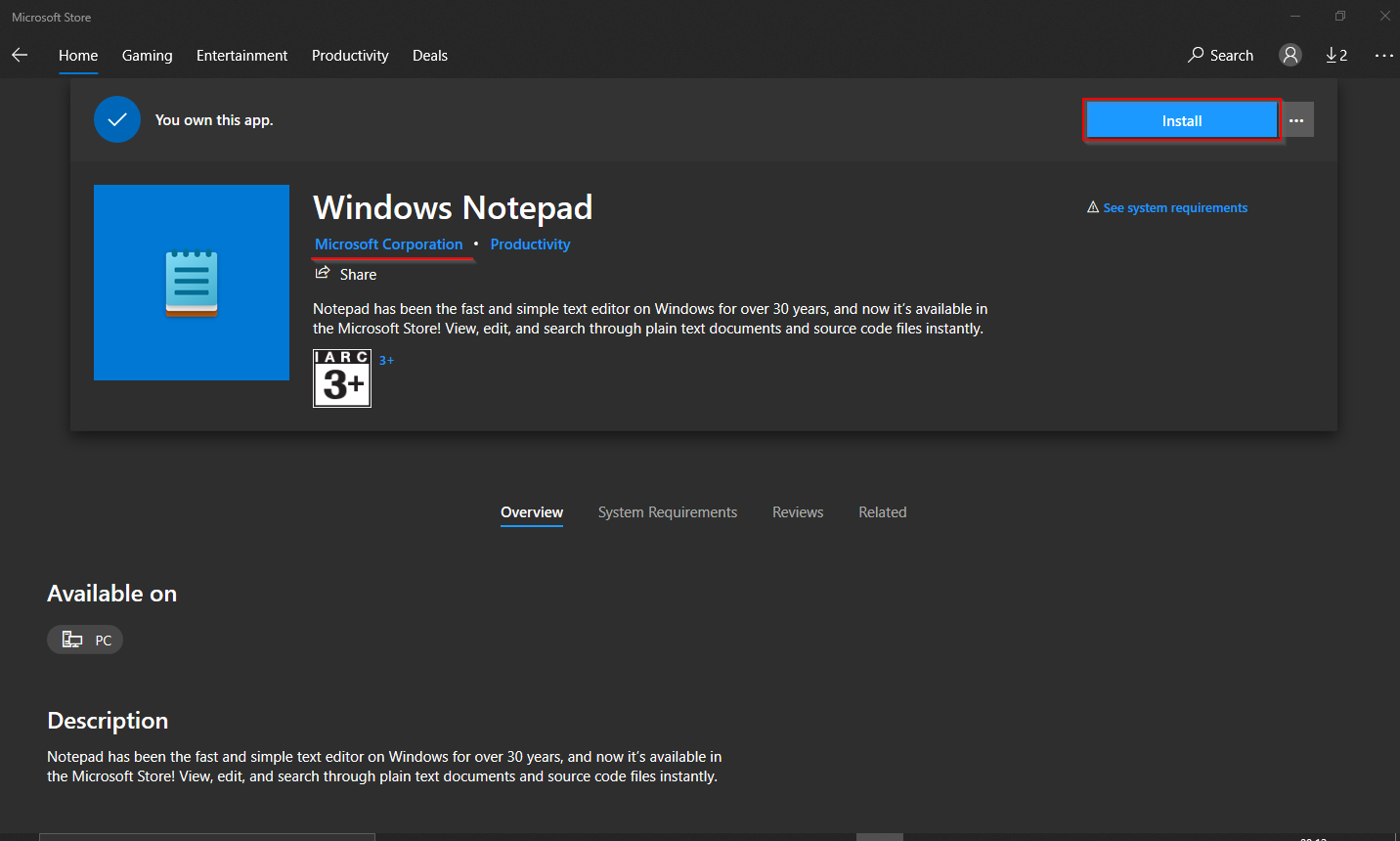
Step 6. After installation is completed, click on Launch to open Notepad.
You can even search for Notepad in Windows 10 Search and open it.