

WinRAR is the most popular compression tool available on the internet. It does not need any introduction. We often use WinRAR software to extract the ZIP and RAR extension files. Have you ever imagined that it can even extract the content of ISO files in a folder?
When you install WinRAR, by default, ISO (also known as disc images) is not associated with WinRAR. That means when you double-click on an ISO file, it will be mounted on a virtual drive under Windows 10 by default. However, you can see the content of an ISO file by right-clicking on the ISO and selecting the “Open with WinRAR” option.
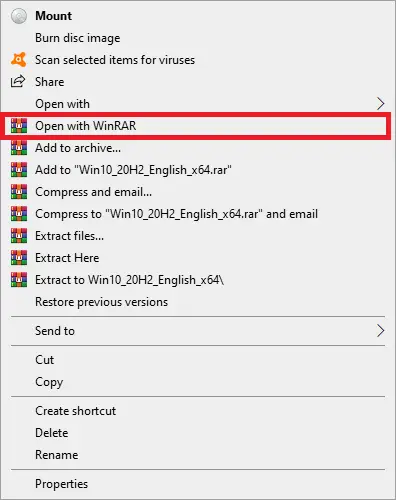
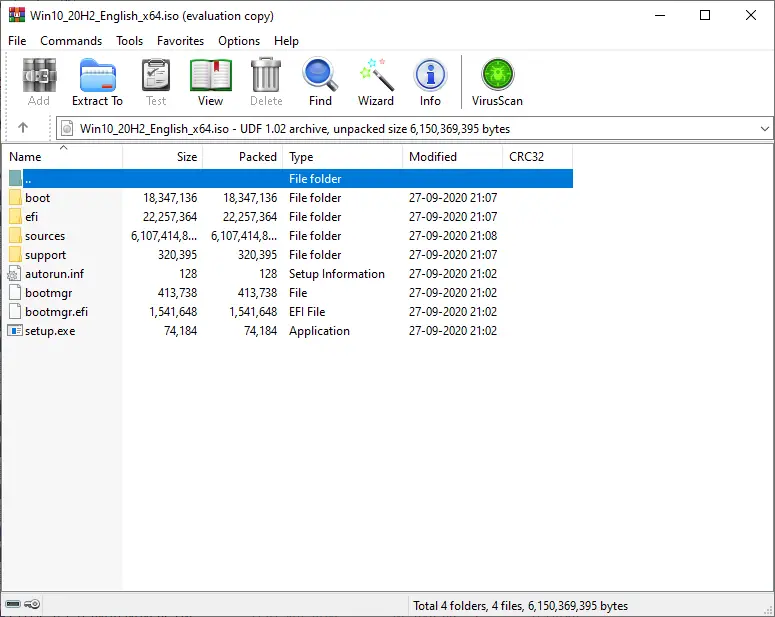
To make the task simple, you can associate the ISO extension with WinRAR, which means double-clicking on the ISO file will directly open the ISO file in WinRAR. This means ISO will not be mounted automatically in the virtual CD-ROM of Windows 10.
How to open ISO files using WinRAR?
Follow these steps to open ISO files using WinRAR:-
Step 1. Download, install, and launch the WinRAR tool.
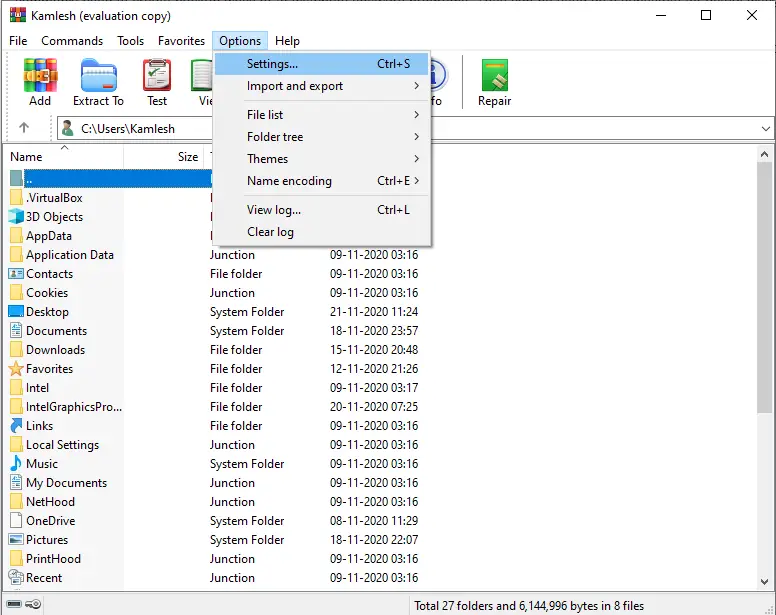
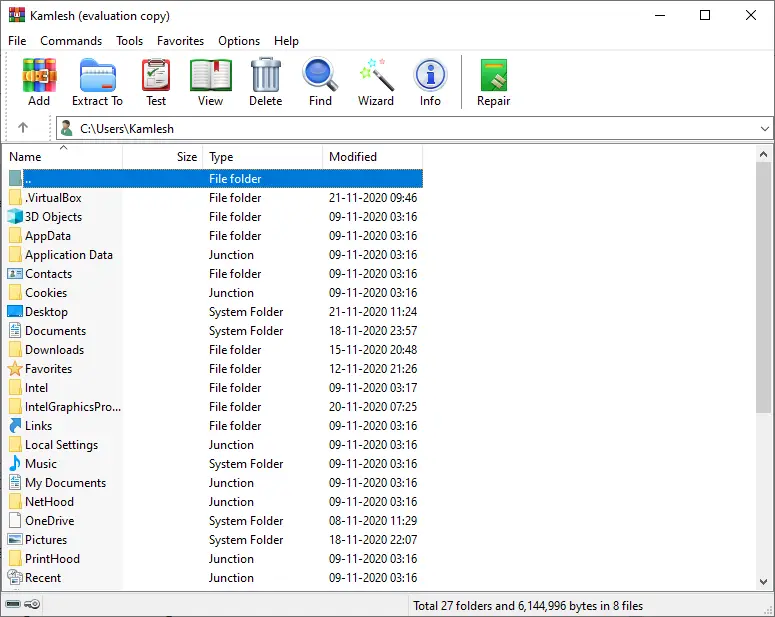 Step 2. From the WinRAR menu, click on Options and select Settings.
 Step 3. Under the Settings window of WinRAR, click on the Integration tab.
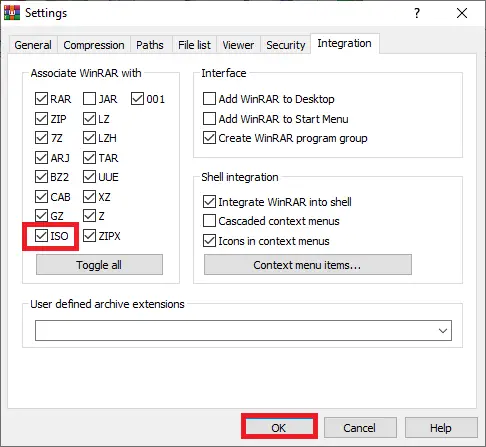
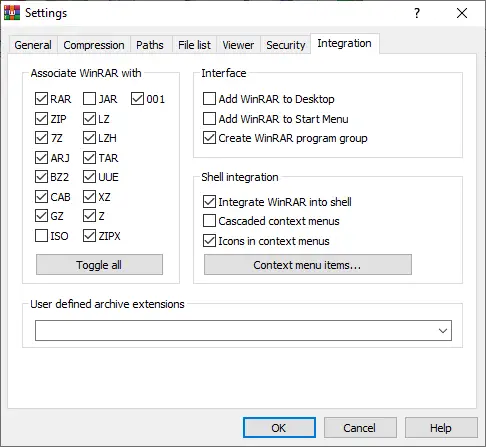 Step 4. By default, once you install the WinRAR app, it is associated with RAR, ZIP, 7Z, ARJ, BZ2, CAB, GZ, LZ, LZH, TAR, UUE, XZ, Z, ZIPX, and 001 file types. However, ISO remains unchecked by default. To associate ISO with WinRAR, select the ISO option and then click the OK button.
 Step 5. Now, you will notice the ISO file icon has been replaced with WinRAR.
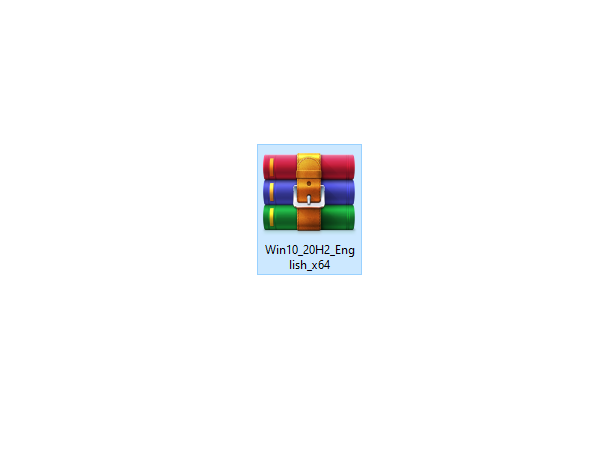
From now on, double-clicking on the ISO file will open it in the WinRAR app by default.
Download WinRAR
You can download the latest version of WinRAR software from here.
FAQs
Can WinRAR open ISO files?
Yes, WinRAR can open and extract ISO files. Although ISO is not associated by default, you can enable ISO support from the Integration settings.
Will associating ISO files with WinRAR stop Windows from mounting them?
Yes. After association, ISO files will open in WinRAR instead of mounting automatically in Windows 10.
Is WinRAR free to use?
WinRAR offers an evaluation version that continues to work even after the trial period, though it encourages you to purchase a license.
Can I still mount ISO files after associating them with WinRAR?
Yes. You can right-click the ISO file and choose Mount from the context menu if needed.
Does WinRAR modify the ISO file during extraction?
No. Extracting an ISO with WinRAR only copies its contents to a folder. The ISO file remains unchanged.
Conclusion
In conclusion, WinRAR is an incredibly useful tool for managing and extracting various file formats, including ISO files. By default, ISO files are not associated with WinRAR, but you can easily change this by following the steps mentioned above. Once you associate ISO files with WinRAR, opening them becomes a breeze. Whether you’re a power user or a casual computer user, WinRAR can save you time and hassle when it comes to managing your files. So, if you haven’t already, download WinRAR today and see for yourself how it can simplify your file management tasks.
Also Read: How to mount ZIP, RAR, and 7z Archives as Virtual Drives on Windows 10?