

The Settings app was first introduced on Windows 8 by Microsoft, and it is now part of the latest operating system, Windows 11. However, the legacy Control Panel is still part of the Windows operating system, including Windows 10 and 11. That means the Control Panel is not yet phased out on Windows 11 either. Many PC users are confused between Control Panel and Settings app; which is the perfect app to customize their operating systems?
Although Control Panel is no longer a powerful app on Windows 11, it still carries some settings that the modern Settings app does not allow. While most of the control panel item is now shifted to the Windows 11 Settings app, some features are still available in both places, including the Control Panel and the Settings app. A few are completely phased out from the Control Panel, and only you can find them in the new Settings app.
Both the Settings app and Control Panel are important for Windows 11 when it comes to customization. You can use any application to make changes to your operating system if it allows you to do so. There are several ways to find exactly what you want to do. Windows 11 allows you to find settings within the Settings app and Control Panel. Furthermore, you can even find any particular settings on Windows Search.
How to Search on Windows 11 using the Start Menu?
To search for any settings using the Start menu, open the Start menu and then type one or two words describing what you’d like to find—for example, type “mouse” to find mouse settings. Windows Search will display the settings related to your mouse.
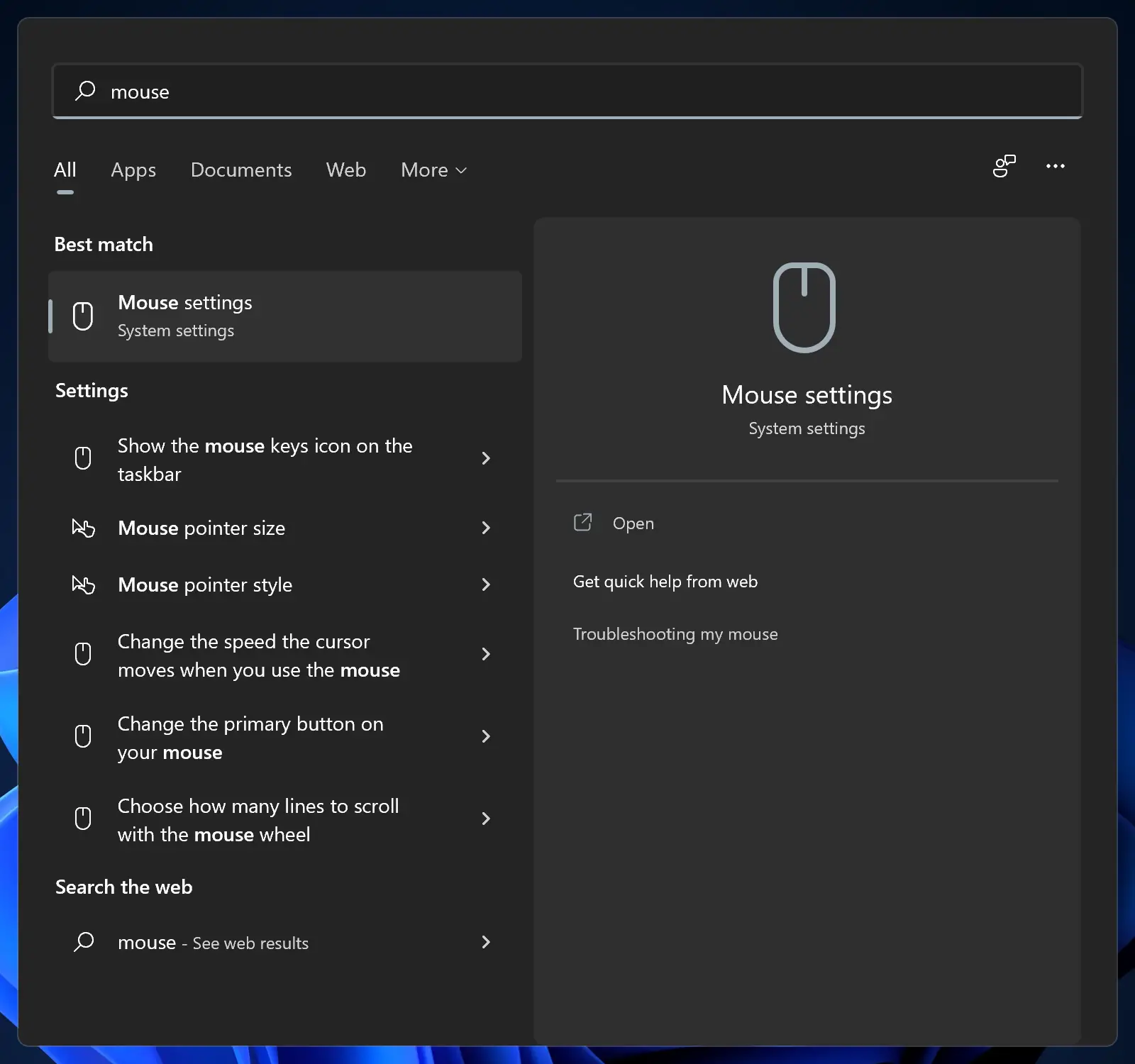
Windows Search may return several search results depending on your search keyboard. From there, click the result that most closely matches what you’re looking for. Now, it will take you to the appropriate configuration app.
In the search results, if you don’t see what you need and would like to dig deeper into more search results, click the Settings header to see a detailed list.
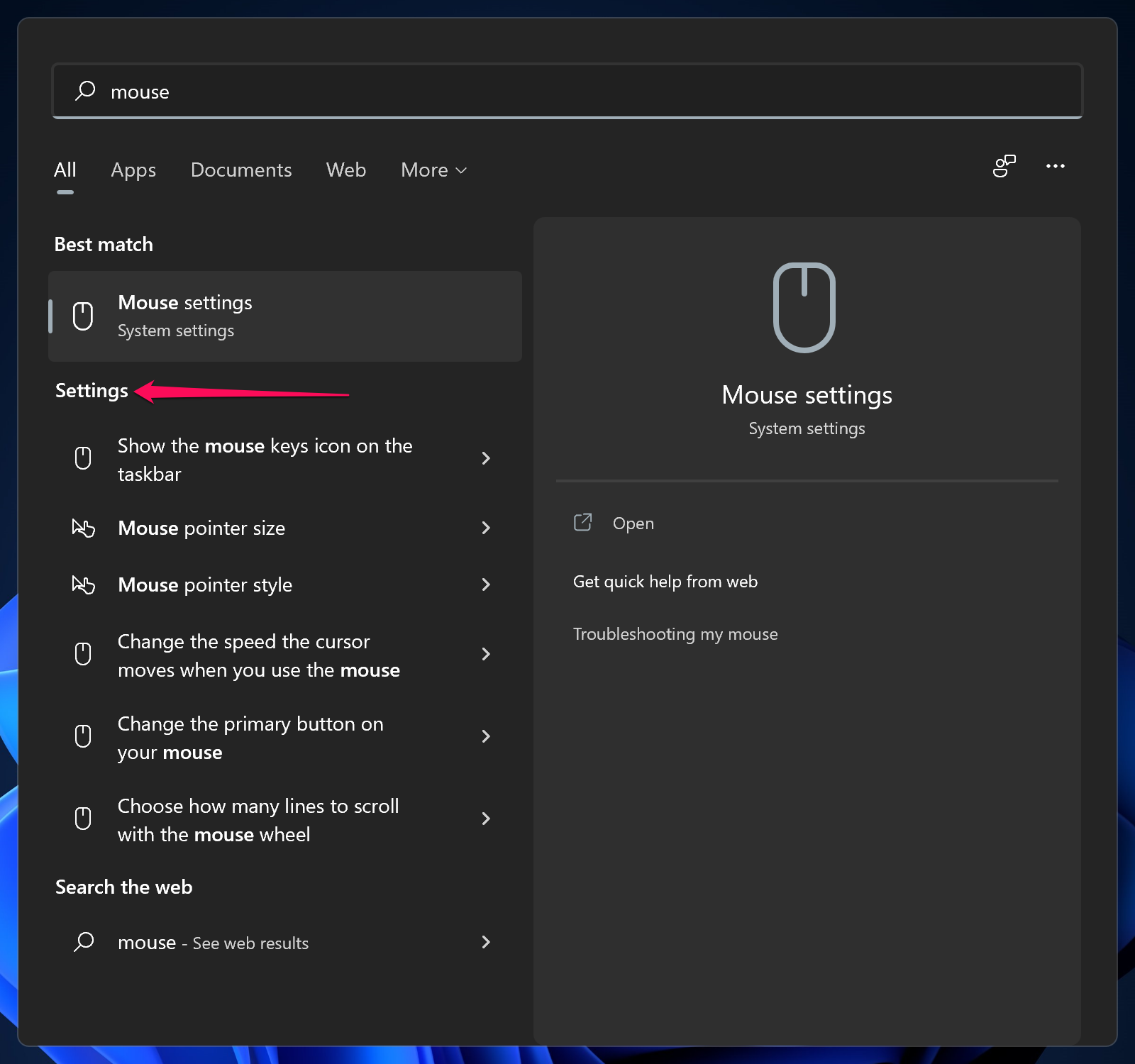
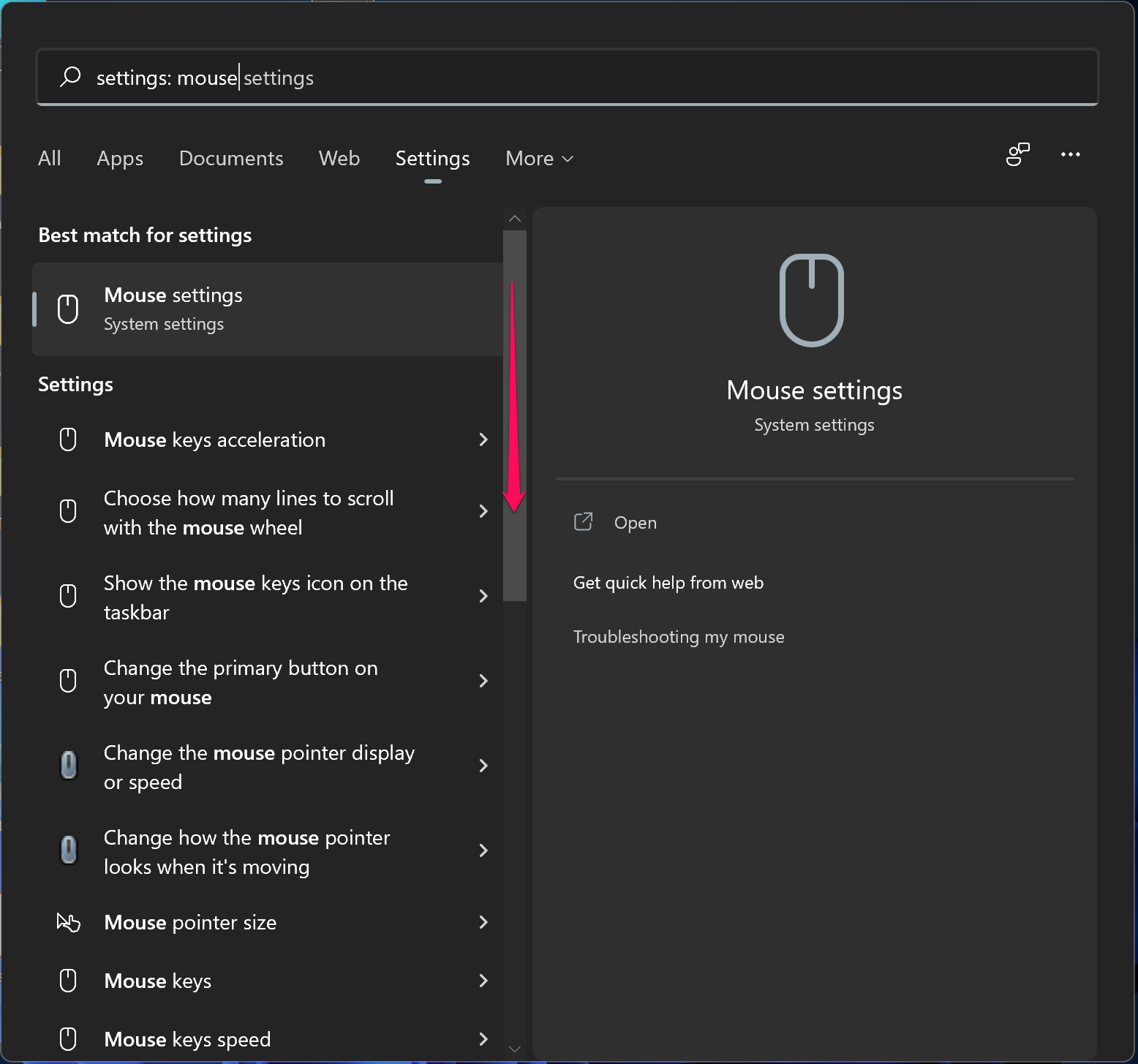
Now, even more results will appear if it is available for your search keyboard. Slide down to find your queries.
How to Search within the Settings App on Windows 11?
If you prefer to use the Settings app rather than Control Panel and want to search if the particular option is available in the Settings app, you can use its search option. To do that, open the Settings app by pressing the Windows + I keys from the keyboard, and now type the keyboard.
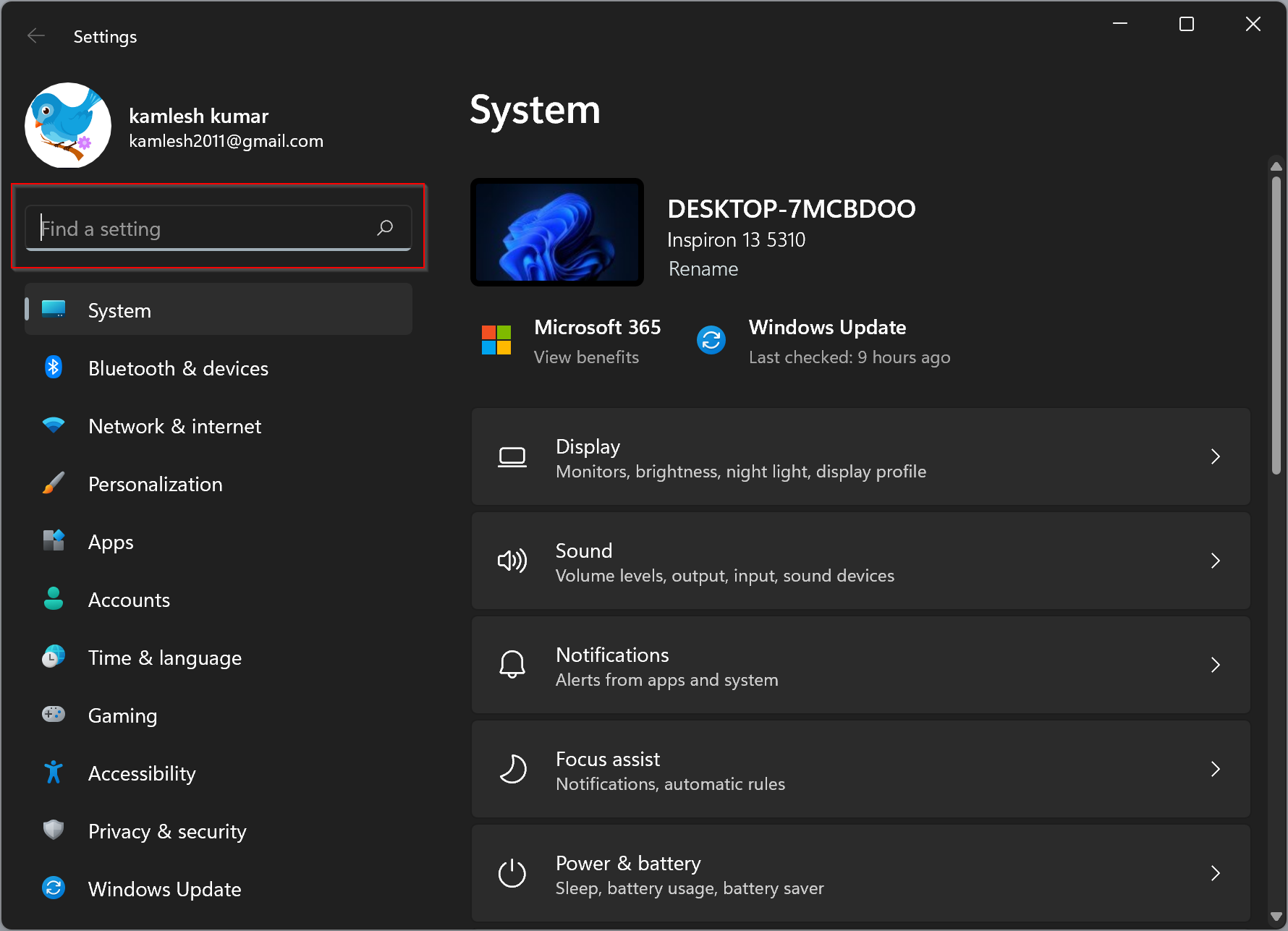
You can search for anything on Windows 11 Settings search for example, mouse, network, Bluetooth, etc. Results will appear instantly just below the box in a pop-up menu.
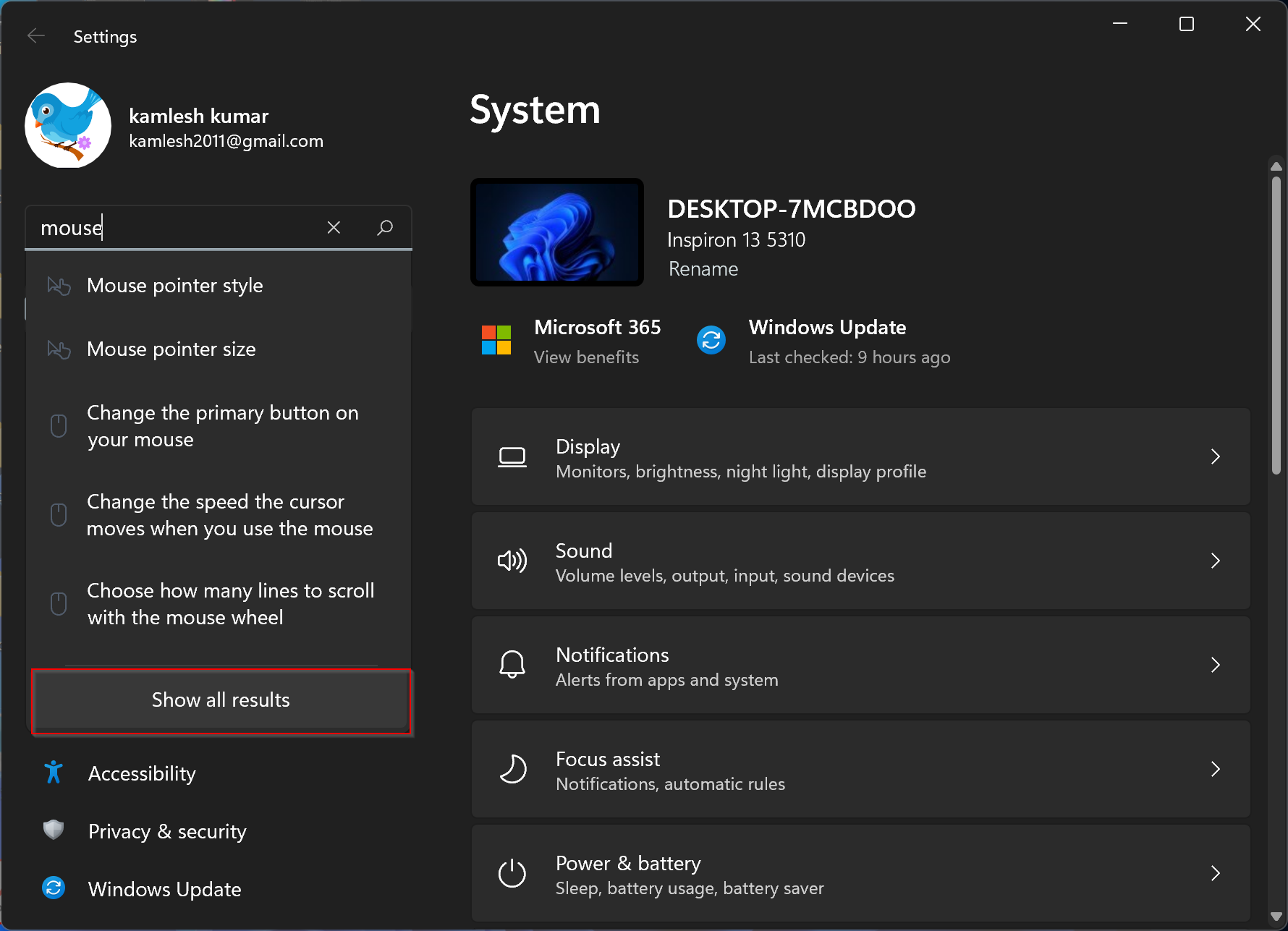
If you don’t get the desired results, click the Show all results button at the bottom of the list. Now open the particular settings, then apply the change and close the settings app. Mostly, you don’t need to save the changes.
How to Search within the Control Panel on Windows 11?
Similar to the Settings app of Windows 11, Control Panel also allows searching for keyboard(s). To do that, open the Control Panel. When the Control Panel opens up, locate the search bar in the upper-right corner of the window.

In the search box, type your desired keyboard, for example, Mouse, to find the results under Control Panel. The results will appear in the window below.
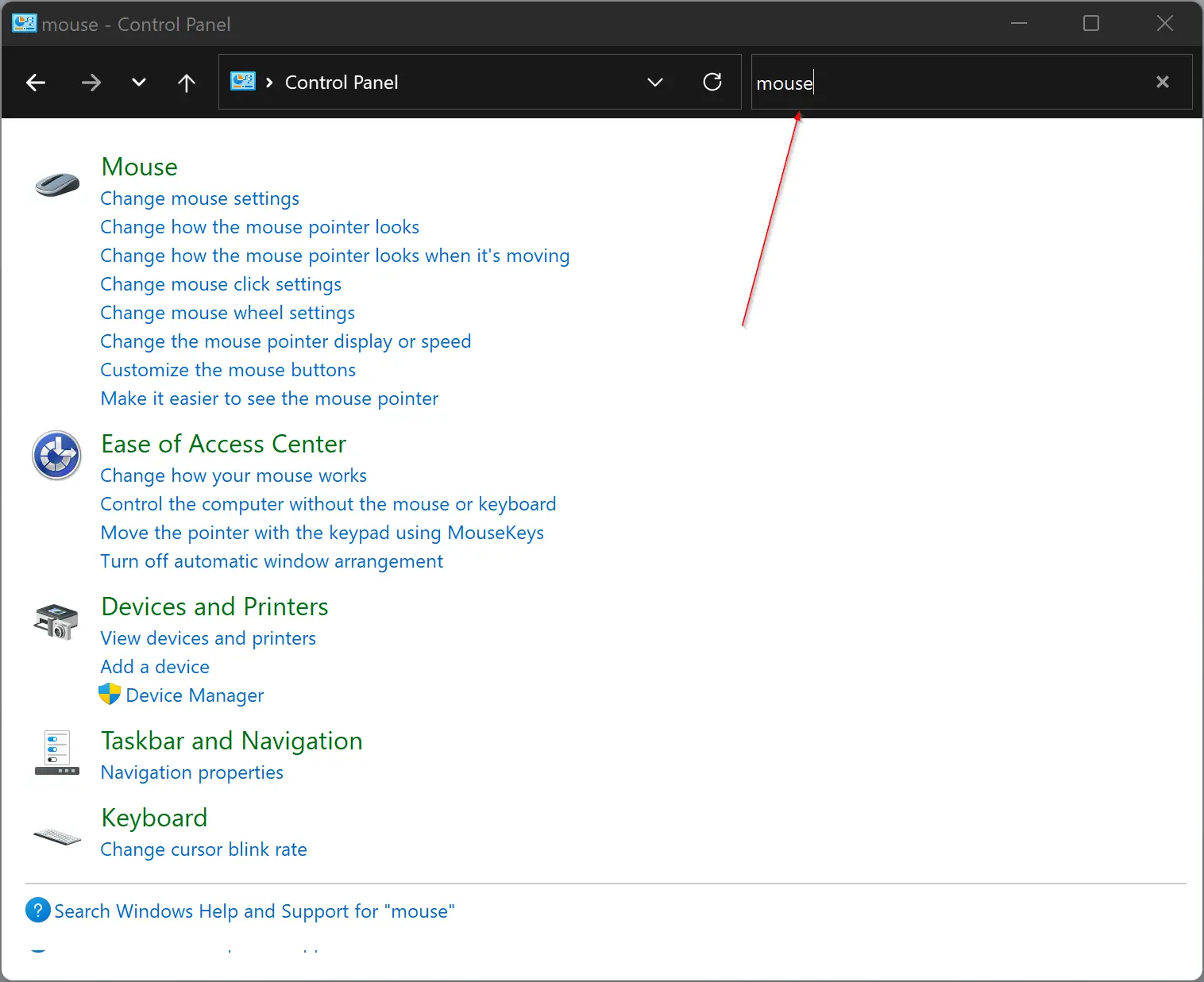
Clicking a result under Control Panel will open a new window containing the settings you’re looking for. After you make changes, remember to click the Apply/OK/Save button. Now, the settings will be stored.
That’s it.
Conclusion
In conclusion, both the Settings app and Control Panel are important for Windows 11 users to customize their operating system according to their preferences. While some features are still only available in the Control Panel, most settings have been shifted to the modern Settings app. Windows 11 also offers a powerful search function that allows users to quickly find the settings they need, whether it is in the Settings app, Control Panel, or through the Windows search function. With these options, Windows 11 provides users with an efficient way to customize their operating system to suit their needs.