

How do I enable or disable recent searches on Windows 11 when hovering over the Search icon? Windows 11 includes many features, and one of them is Search History. When enabled, Windows stores your recent searches and displays them when you hover your mouse over the Search icon on the taskbar. This makes it easy to relaunch previously searched apps without typing again.
However, if you prefer more privacy or want a cleaner experience, you can disable this feature. Likewise, if it’s turned off and you want to use it, you can re-enable it. In this guide, we’ll show you how to enable or disable recent searches on Windows 11 when hovering over the Search icon.
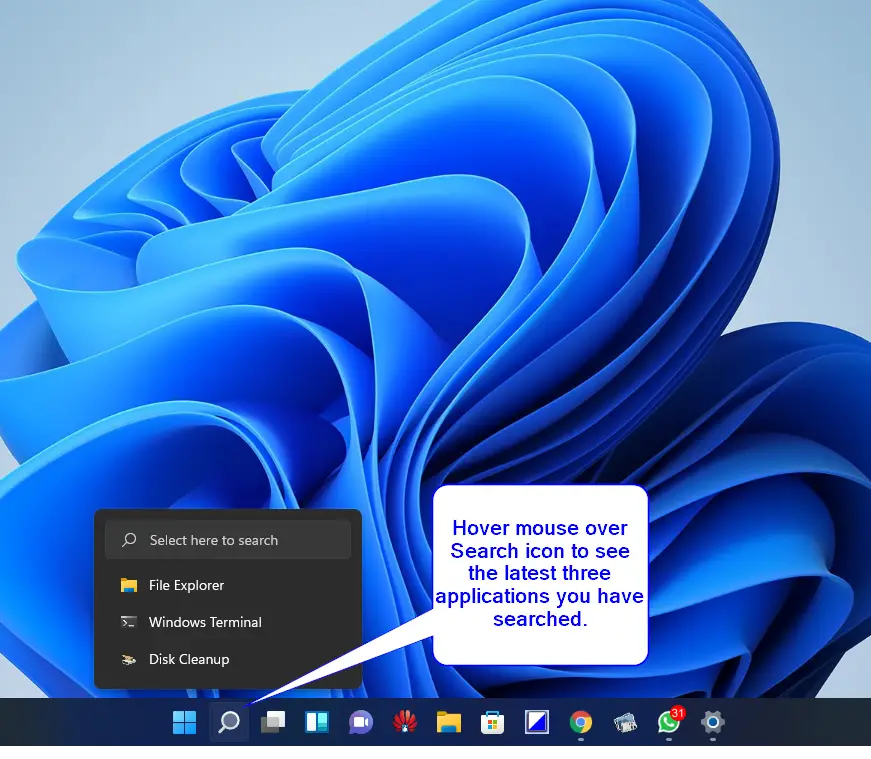
Although Search History is a pretty nice feature on Windows 11, unfortunately, it only remembers the latest three searches. As soon as you launch the fourth application by searching through the Search button, it will forget the first fourth programs.
Although Search history is a handy feature, you might have turned it off by mistake or want to disable it purposely; this gearupwindows article will help you. In this post, we will guide you with both options, enabling and disabling the search history feature on Windows 11.
How to Enable or Disable Recent Searches on Windows 11 when Hovering Over the Search Icon?
To turn on or turn off recent search history on Windows 11, perform the following steps:-
Step 1. Launch the Settings app by pressing the Windows + I keys simultaneously from the keyboard.
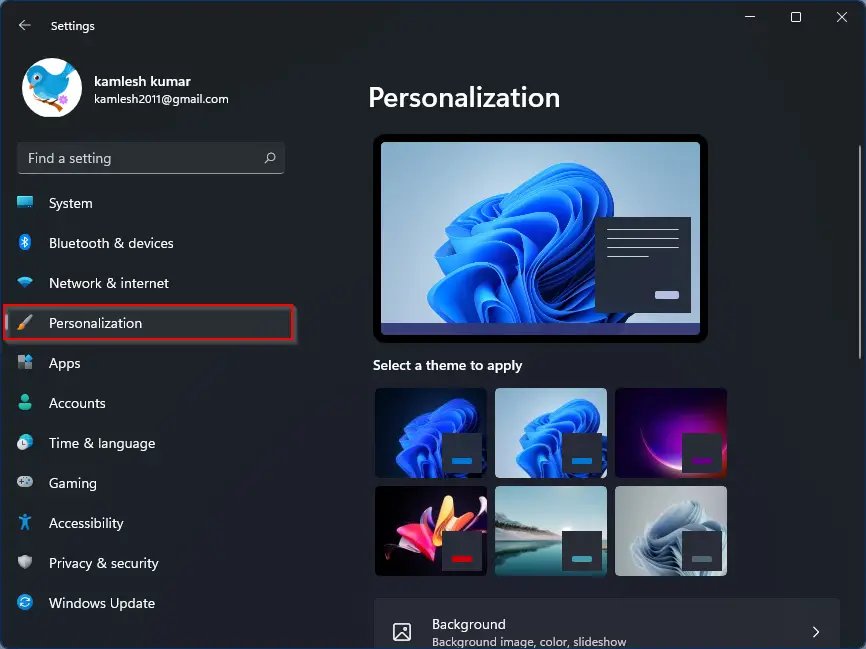
Step 2. In the Settings window that opens, click on the Personalization category on the left side pane.
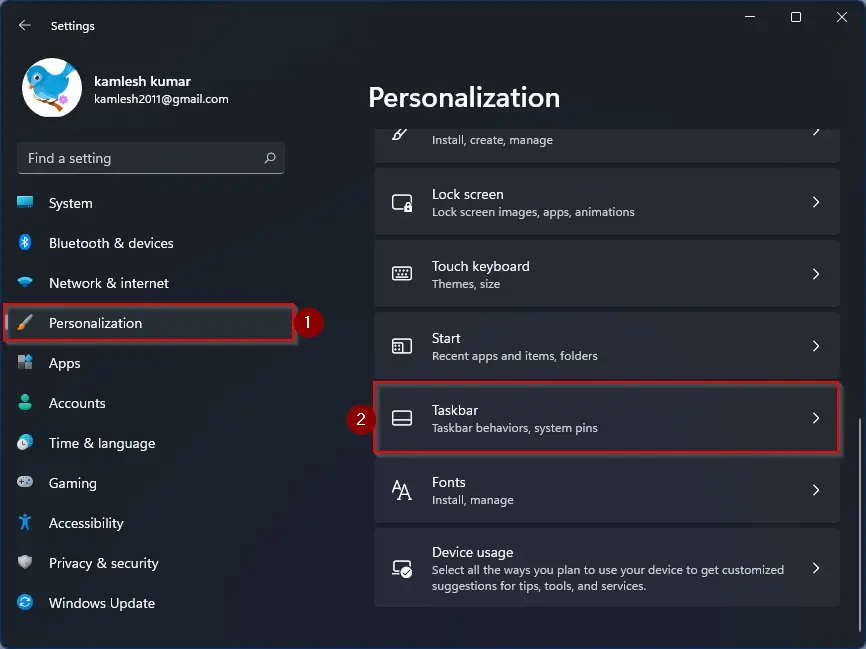
Step 3. On the right side of Personalization, please scroll down to see the Taskbar tab and click on it.
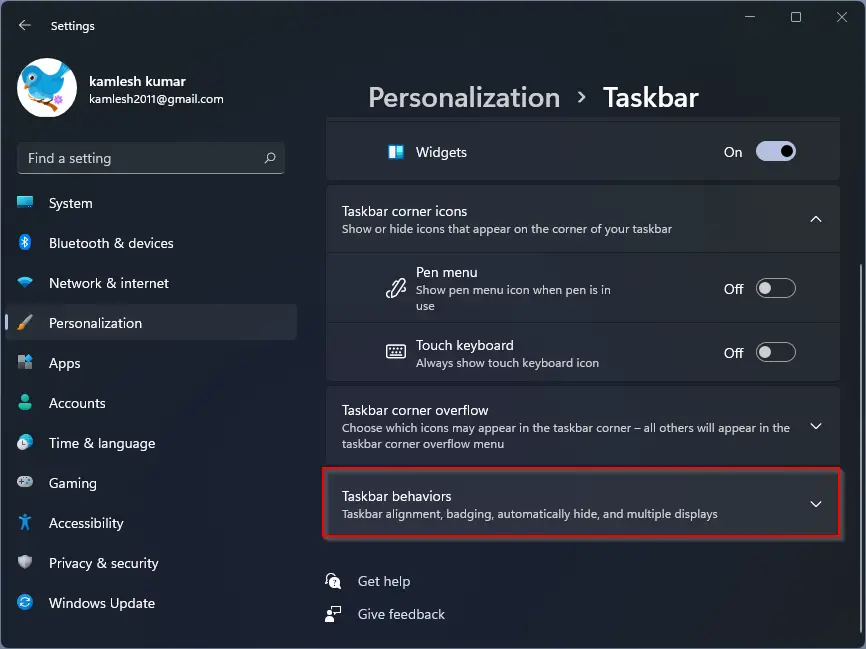
Step 4. Now, click on the Taskbar behaviors option.
Step 5. Check the checkbox labeled Show recent searches when I hover over the search icon. If you wish not to show the search history while hovering the mouse over the search icon, uncheck the option Show recent searches when I hover over the search icon.
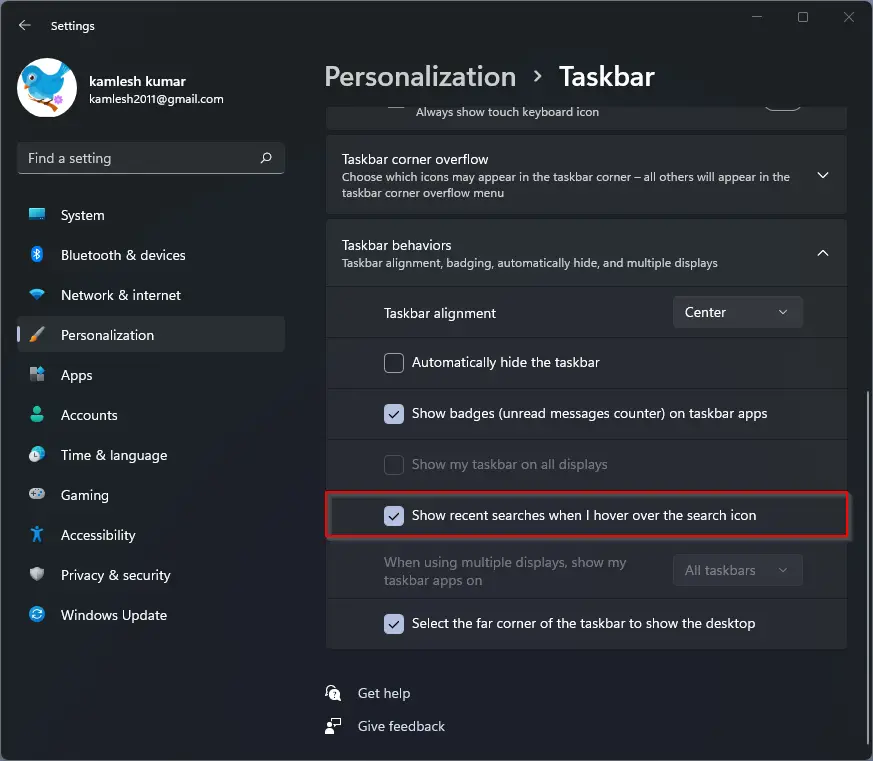
Once you have enabled or disabled the search history feature on your PC, you can close the Settings app. These changes are immediate, which means there is no need to restart your computer or laptop after changing the settings.
Conclusion
In conclusion, Windows 11’s recent searches feature is a handy tool that remembers the latest three searches and enables quick access to apps without needing to search again. However, if you want to disable or enable this feature, it can be done easily through the Taskbar behaviors option in the Personalization settings. This allows users to customize their Windows 11 experience and choose whether or not they want their recent searches to be displayed when hovering over the search icon.
there is no option like that
Dear Archit,
If you don’t find any option, please scroll down on the right side pane of Settings. Because of the a lot of settings, all does not appear at once.