

On a Windows PC, multiple user accounts can log in. Each user can work within their own account, which is a convenient way to keep settings and personal files separate for a more personalized experience.
However, users often forget to sign out of their accounts. While other users can log into their own accounts, the previous user’s apps, services, and background processes may continue running. This can consume significant system resources and negatively impact the performance of the current user.
If you share your PC with multiple people and someone forgets to log out in Windows 10/8/7, there are at least two ways to terminate the inactive session without restarting the PC. You can use either Task Manager or Command Prompt to sign out another user’s inactive session.
In this post, we will share two different ways to sign out other users in Windows 10. We will cover the following:
- Sign out other users in Windows 10/8/7 using Task Manager
- Sign off other users in Windows 10/8/7 through Command Prompt
How to sign out other users in Windows 10/8/7 using Task Manager?
To sign out any inactive user in Windows 10/8/7 PC using Task Manager, perform the following steps:-
Step 1. Right-click on the Windows Taskbar free space and select Task Manager.
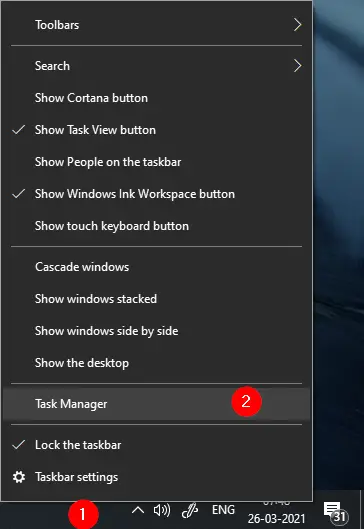
Alternatively, you can press the Ctrl + Shift + Esc keys from the keyboard to open the Task Manager window.
Step 2. The Task Manager window opens. Switch to the Users tab.
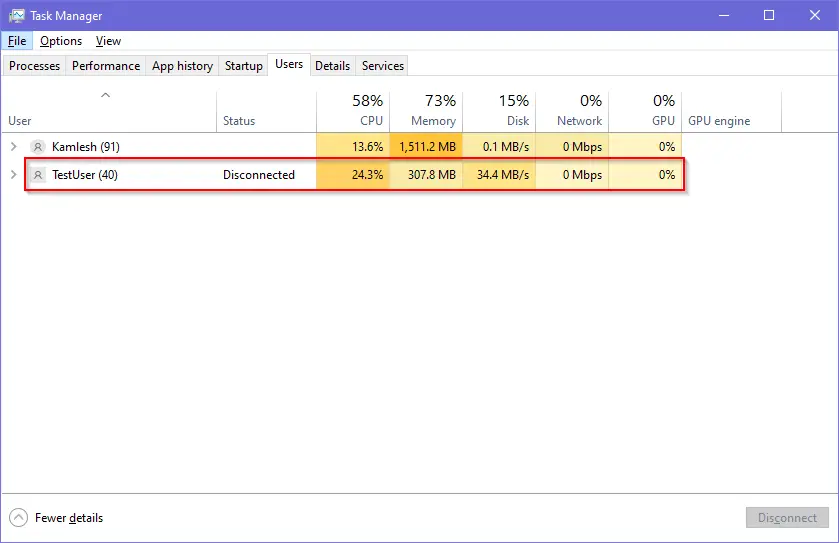
You can see in the above image, TestUser’s status is disconnected, but it is still consuming 307.8 MB of memory (RAM), which is useless, and I want to sign out of this account without restarting my PC.
Step 3. To sign out a user, right-click on the username and select the Sign off option.
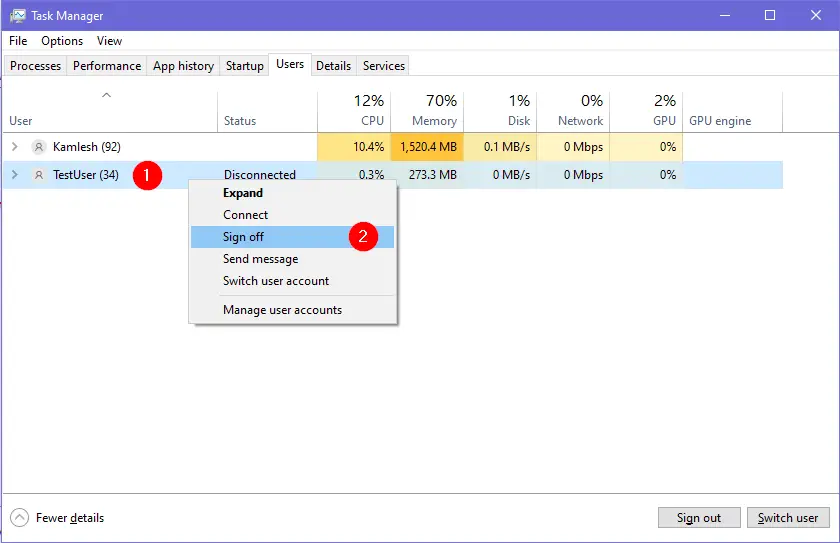
Step 4. Once you click the Sign off option, the Task Manager window will prompt with a warning, “Do you want to continue?”
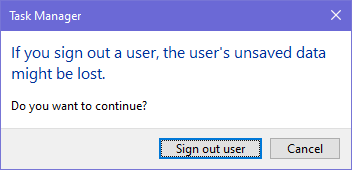
Step 5. Confirm by clicking on the “Sign out user.”
Once you complete the above steps, the selected user account will be signed out immediately.
How to sign off other users in Windows 10/8/7 using Command Prompt?
If you prefer to use Command Prompt to perform various tasks in Windows 10, to sign out other users using Command Prompt, use the following recommended steps:-
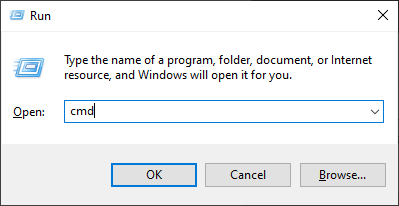
Step 1. Press and hold the Windows logo + R keys on the keyboard to open the Run command dialog box.
Step 2. In the Run box, type the following and hit Ctrl+Shift+Enter from the keyboard to launch the Command Prompt window with elevated rights:-
CMD
Step 3. On the Command Prompt window that opens with elevated rights, type the following command to view all current users signed in to your PC and hit Enter on the keyboard:-
query session
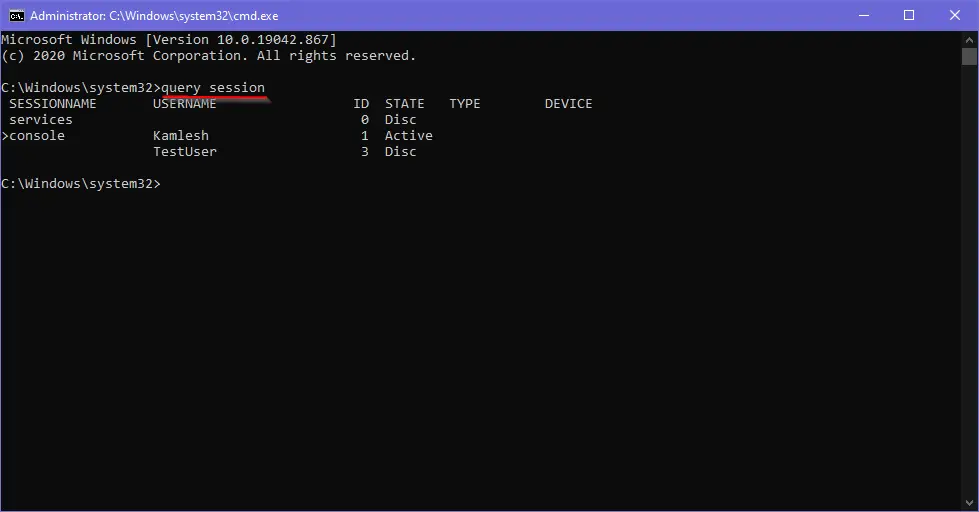
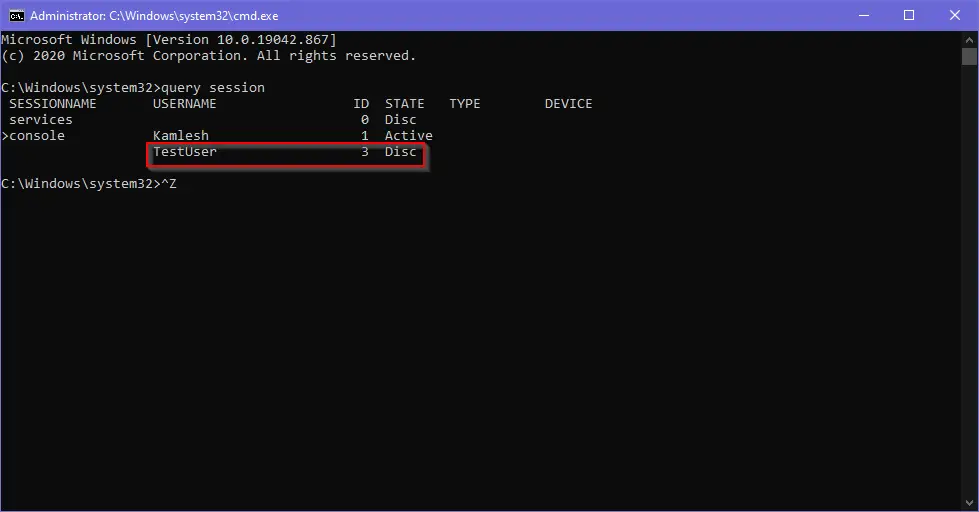
Step 4. Note down the ID number for the user account you want to sign out of your PC.
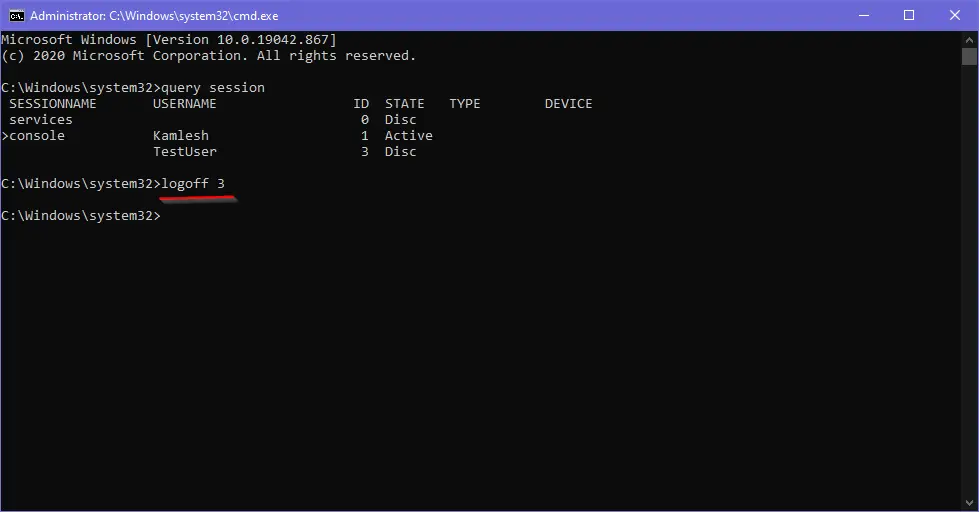
Step 5. Type the following command to sign out the other user and hit Enter on the keyboard to execute the command:-
logoff ID-Number
Note: Replace the ID Number with the username ID number that you want to sign out. For instance, we want to sign off the TestUser, and this account ID is 3. We will execute the following command in the Command Prompt window:-
logoff 3
Step 6. To check if a user is signed out from your PC, type the following command and hit Enter on the keyboard:-
query session
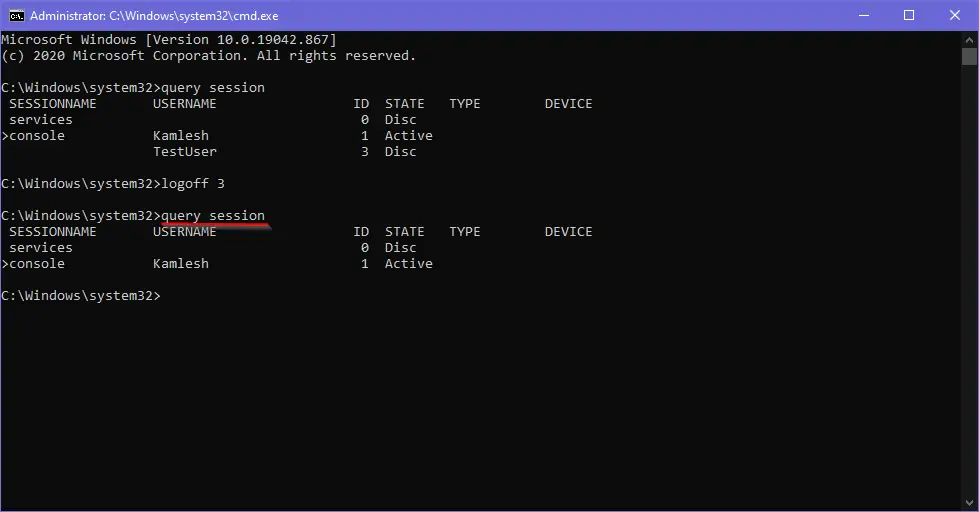
Once you complete the above steps successfully, the selected user account will be signed out of your PC. If any program or window is opened on that user account, it will be closed forcibly.
That’s all!