

KMPlayer, first released in 2002, has grown into a comprehensive media player for Windows, macOS, iOS, and Android. It supports a vast array of audio and video formats, delivers smooth playback up to 8K resolution, and offers unique tools like GIF capture and Wi-Fi file sharing. One standout option is its ability to resume playback right where you left off. This tutorial demonstrates how to enable this setting and highlights other powerful features that make KMPlayer a top choice for media enthusiasts.
Over the years, KMPlayer has built a loyal user base, competing closely with VLC Media Player for versatility and PotPlayer for customization. While VLC focuses on simplicity and PotPlayer on advanced control, KMPlayer strikes a balance — offering deep features without sacrificing user-friendliness.
Why Use the “Remember Last Played Position” Feature?
When watching long movies, listening to audiobooks, or following video tutorials, interruptions are inevitable. Without a resume feature, you’d need to note the exact timestamp and manually seek back to that position. KMPlayer’s Remember Played Position setting solves this by automatically saving your last location in both video and audio files, so you can pick up exactly where you left off.
How to Enable “Remember Last Played Position” in KMPlayer
Enabling this feature is quick and works for both video and audio files:
Step 1. Open KMPlayer.
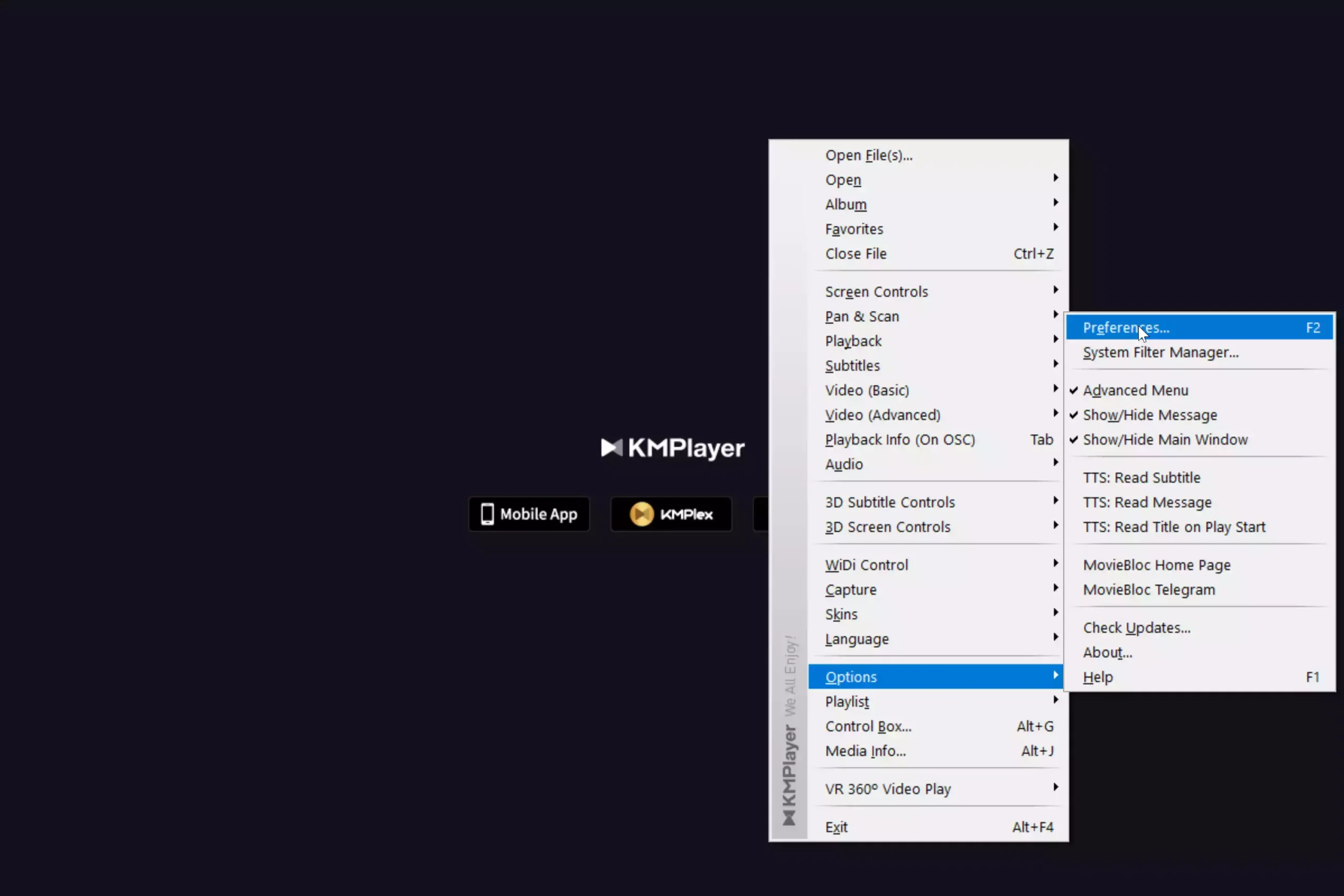
Step 2. Press F2 or right-click anywhere in the player window and choose Options > Preferences.
Step 3. In the left panel, select General, then click the General tab on the right.
Step 4. Check “Remember the played position of video files” and “Remember for audio files too”.
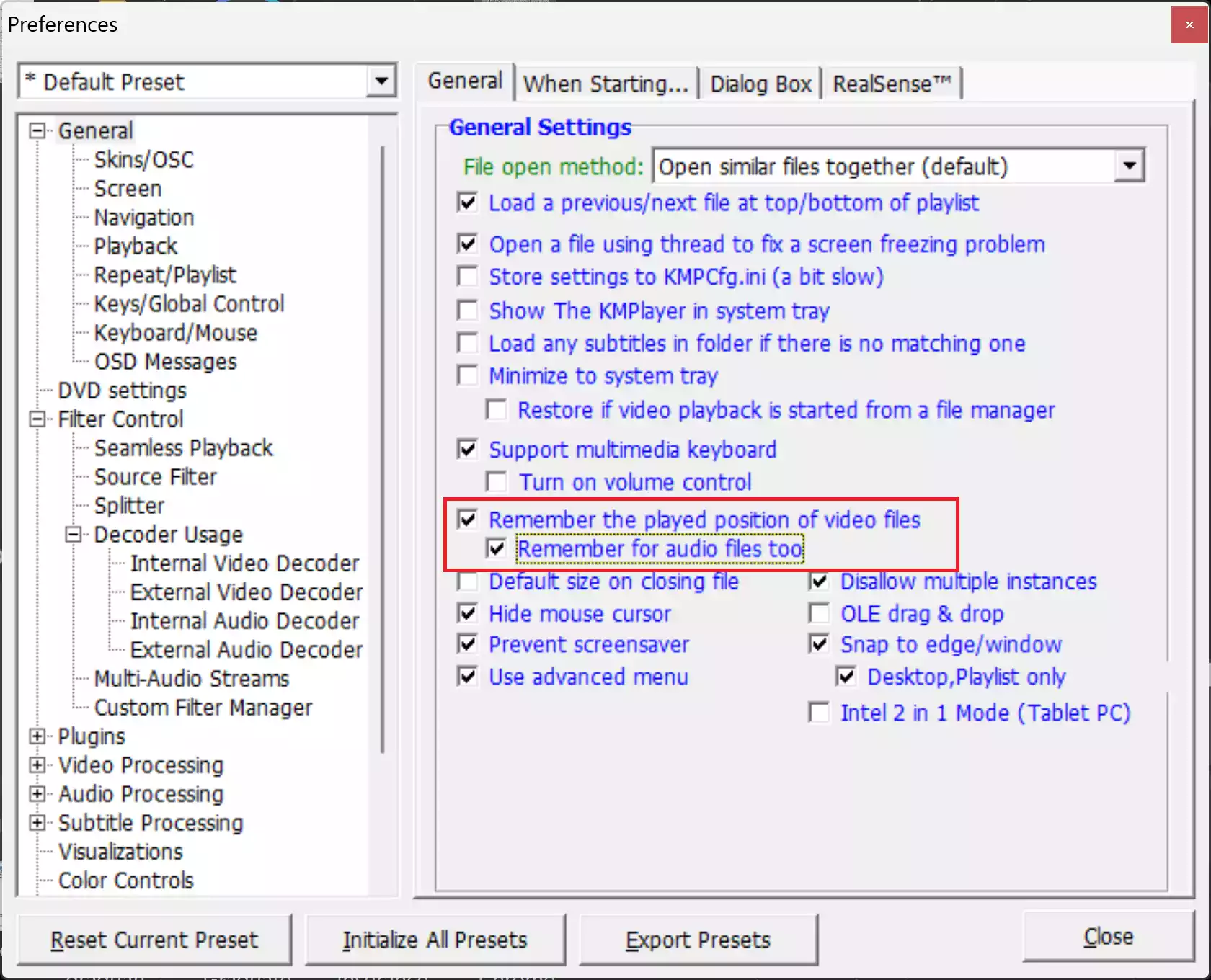
Step 5. Click Close to save your settings.
From now on, KMPlayer will automatically resume videos and audio files from the exact point you paused them.
Key Features of KMPlayer Beyond Resume Playback
- High-definition and 3D support: Plays videos in 4K, 8K, UHD, and Full HD at 60 fps, and can convert standard videos into 3D.
- GIF capture and basic editing: Extract GIFs from any video and perform trims or crops without third-party tools.
- Wi-Fi file sharing: Transfer media between your PC and mobile devices over the same network.
- Wide format support: Handles rare formats (MKV, TS, FLV) along with MP4, AVI, and MP3.
- Subtitle & audio controls: Customize subtitle fonts/position; normalize audio; sync audio/video timing.
- 360° and VR playback: View immersive 360-degree videos directly in the player.
- Cross-platform availability: Windows, macOS, Android, and iOS.
- Mobile enhancements: Picture-in-Picture (PIP), background play, floating window.
Pros and Cons of Using KMPlayer
Pros:
- Excellent format compatibility, including high-resolution and 3D content.
- Built-in tools like GIF capture, screen recording, and Wi-Fi transfer.
- Available on multiple platforms with deep customization options.
Cons:
- Free version shows ads (can be distracting).
- The interface may feel busy to first-time users.
Relevant GearUpWindows Articles & Helpful Links
- KMPlayer: The All-in-One Media Player for Windows
- PotPlayer: A Versatile and Advanced Media Player for Windows
- Top 9 Free MKV Player Apps for Windows 11/10
- Top 7 Free 4K Video Players for Windows 11/10
- Top 5 Free FLV Player Apps for Windows 11/10
- 10 Best Free Media Players for Windows 11/10
Conclusion
KMPlayer combines powerful playback capabilities with a wealth of bonus tools. Enabling the “Remember Last Played Position” feature ensures you never lose your place, whether you’re watching movies or listening to lengthy audio files. Add in high-resolution support, GIF capture, Wi-Fi file transfers, and broad codec compatibility, and you have one of the most versatile media players available today.
Frequently Asked Questions about KMPlayer
Does KMPlayer support 4K, 8K, and 3D videos?
Yes — it supports high-definition playback, including 4K, 8K, UHD, and even 3D conversions.
Can KMPlayer resume playback across devices?
KMPlayer remembers the last played position locally. For cross-device continuity, transfer your files or use mobile Wi-Fi sharing.
Is KMPlayer free?
KMPlayer is free but ad-supported. Upgrading to a paid version removes ads and may unlock extras.
How does KMPlayer compare to VLC and PotPlayer?
KMPlayer offers a more feature-rich interface (GIF capture, 360° playback), while VLC is simpler and ultra-stable, and PotPlayer delivers deeper customization on Windows.
Where can I download KMPlayer?
Download the latest version from the official site: kmplayer.com. Always use official sources to avoid bundled malware.