

Startup Delayer is a Windows utility that lets you control the order and timing of startup apps. By delaying non-critical programs and letting essential ones load first, you can reduce boot time, cut early CPU/RAM spikes, and make your PC responsive sooner after sign-in.
What is Startup Delayer?
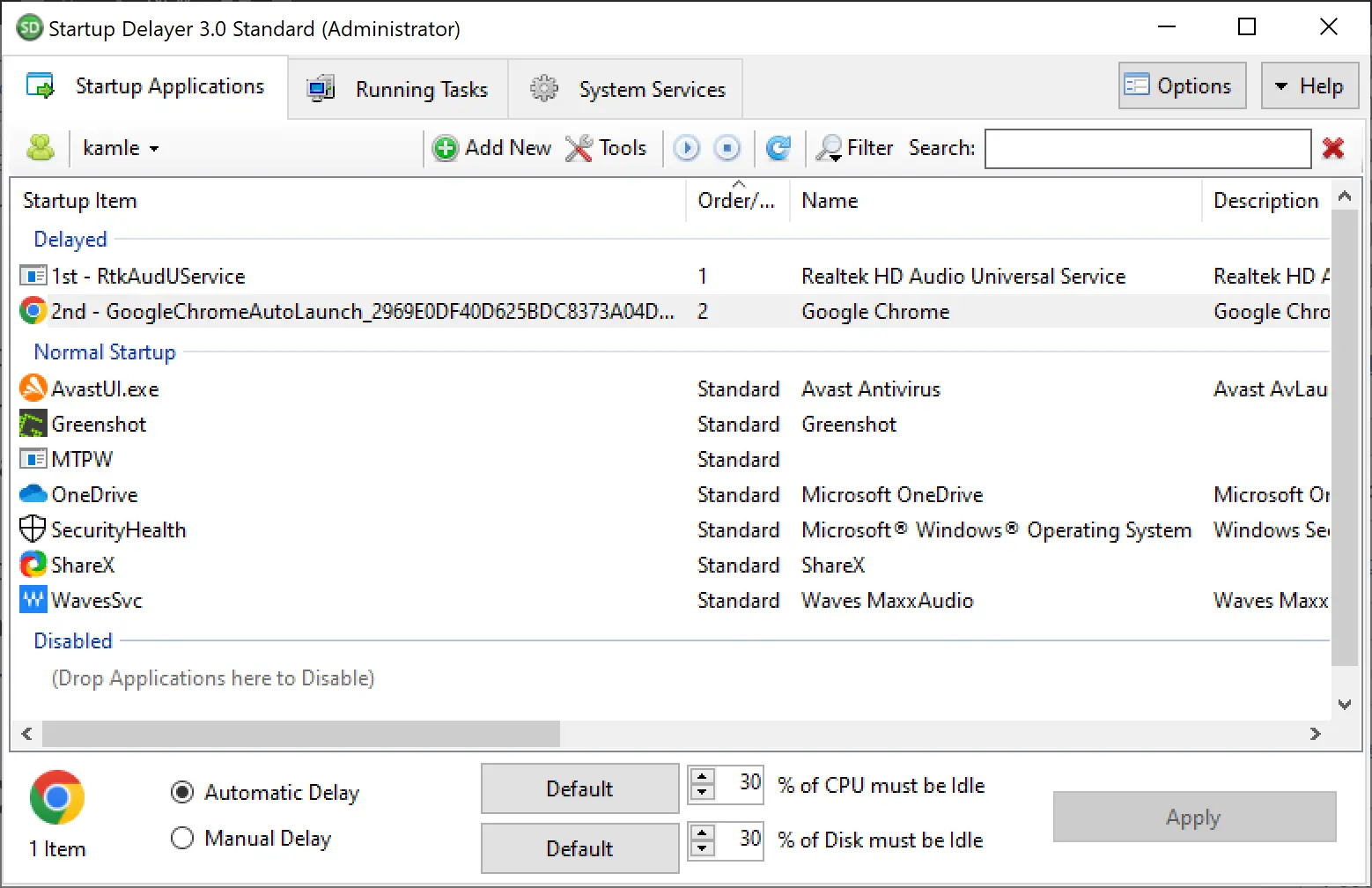
Startup Delayer maps everything that launches when Windows starts and allows you to delay startup programs by seconds or minutes—or wait until the CPU is idle—before launching them. Unlike basic startup toggles, it focuses on sequencing and timing so your most important tools can settle first.
Prefer an easy list of tools to tame startups? Check our roundup of free startup manager tools for Windows.
Key Features
- Delay startup programs by time or until the CPU becomes idle to avoid slow, crowded boots.
- Order of launch so critical that apps start first and background utilities wait.
- Lower resource spikes by staggering launches, improving early responsiveness.
- Manage entries: add, remove, or edit startup items and their delay values.
- Monitor launch timing to see how long each app takes and refine delays.
Key Benefits
- Faster usable desktop right after sign-in.
- Reduced CPU/RAM contention during the first minute after boot.
- Custom startup flow tailored to your workflow and priorities.
How to Use Startup Delayer
Step 1. Download Startup Delayer from its official website, then install it. If you need help with archives, see our guide on zipping and unzipping files in Windows 11.
Step 2. Launch Startup Delayer. It will read your current startup entries automatically.
Step 3. Click Add New to include a program, or select an existing entry to edit.
Step 4. Set a delay time in seconds/minutes—or choose Automatic Delay (CPU idle) so the app starts only after the system calms down.
Step 5. Drag and drop to arrange priority. Keep essential apps (e.g., input, sync, security UI) near the top and delay heavy background tools.
Step 6. Click Apply. On next boot/sign-in, Startup Delayer launches items in the order and timing you set.
Pros
- Fine-grained control over launch order and timing.
- Noticeable responsiveness right after sign-in.
- Simple interface for adding, reordering, and delaying apps.
Considerations
- Not a security tool: Use it for performance sequencing; don’t disable protections.
- Too much delay can postpone needed tray tools; tune gradually.
- Mixed results if apps depend on each other—keep related tools close together.
Safe Use Tips for Beginners
- Start small: Delay only heavy, non-critical apps first (cloud backup, updaters, launchers).
- Keep core services immediate (antivirus, input, display, VPN as needed).
- Measure & adjust: If boot feels faster, extend delays a bit; if you miss a tool at login, shorten it.
- To clean stale entries in Task Manager’s Startup list, see remove invalid or unwanted Startup entries.
When Startup Delayer Can Help You
- Slow post-login period where apps all rush to start at once.
- Older PCs or HDD systems that get overwhelmed on boot.
- Heavy app stacks (creators, devs, gamers) with many auto-launchers.
Download Startup Delayer
Get it from the developer: Startup Delayer (official). Install, then configure delays to match your workflow.
Frequently Asked Questions
Will delaying apps break anything?
Delaying doesn’t change the apps themselves—it only changes when they start. If two apps depend on each other, keep them close together or avoid delaying the prerequisite.
Which apps should I delay first?
Non-critical updaters, launchers, cloud backup/sync (if not immediately needed), helpers that don’t affect login (e.g., game launchers) are good candidates.
Can I use this with other startup tools?
Yes. You can still enable/disable entries via Settings/Task Manager. For simpler alternatives, see our free startup manager tools roundup.
Does this replace Task Manager’s Startup tab?
No. Task Manager toggles apps on/off. Startup Delayer adds timing and order—they complement each other.
What if I need an app immediately after login?
Place it near the top with a zero or short delay, or mark it to launch immediately.
Conclusion
Startup Delayer gives you the missing piece of Windows startup control: when and in what order apps launch. With sensible delays for heavy, non-essential tools, you’ll enjoy faster boot-to-ready time, fewer resource spikes, and a smoother first minute on the desktop—especially on busy or older PCs.