

Open Hardware Monitor is a free and open-source hardware monitoring tool for Windows and Linux that provides real-time information about your computer’s hardware. It is designed to monitor the temperature, voltage, fan speed, clock speed, and utilization of the CPU, GPU, and other hardware components.
In this guide, we will cover everything you need to know about Open Hardware Monitor, from its features and benefits to how to use it effectively.
Key Features
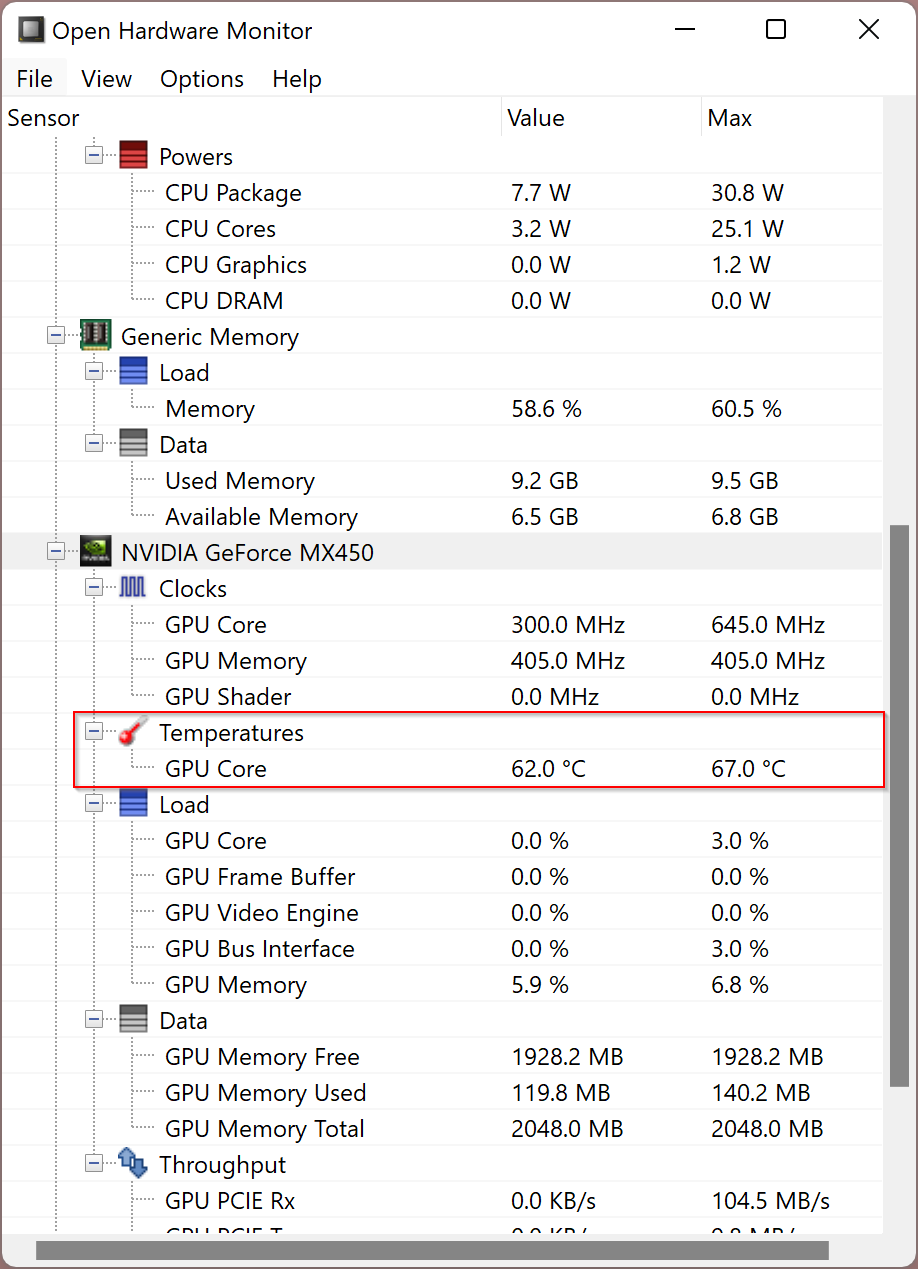
Open Hardware Monitor is a comprehensive tool that provides users with a wide range of features to monitor their computer’s hardware. Here are some of the main features of Open Hardware Monitor:
- Real-time monitoring of hardware components: Open Hardware Monitor provides real-time monitoring of various hardware components, including CPU temperature, fan speed, clock speed, and voltage. You can also compare your readings with other monitoring tools like Core Temp.
- Customizable interface: The interface can be customized according to your preferences. You can choose which components to monitor and also adjust the colors and font size.
- Support for multiple hardware sensors: It supports a wide range of sensors, including those found on CPUs, GPUs, and hard drives. Tools like CrystalDiskInfo can also complement your setup by monitoring drive health.
- Portable: This is a portable tool that does not require installation. You can simply download and run it from a USB drive or other external storage device.
- Log files: It allows you to save log files of your monitoring data, which is useful for troubleshooting or tracking performance over time.
- Compatibility: Open Hardware Monitor is compatible with a wide range of hardware, including Intel and AMD processors, Nvidia and ATI graphics cards, and many more.
Key Benefits
There are many benefits to using Open Hardware Monitor to monitor your computer’s hardware. Here are some of the main advantages:
- Prevent overheating: By monitoring temperatures, you can avoid overheating and protect your hardware. Tools such as Sidebar Diagnostics provide similar at-a-glance performance insights.
- Troubleshoot hardware issues: Monitoring voltage, fan speed, and other parameters can help identify the root cause of hardware problems.
- Optimize performance: Identifying system bottlenecks through utilization stats can help improve performance. You can also try SysGauge to further analyze your system’s resource usage.
- Customizable interface: Tailor the interface to your liking by selecting components to display and adjusting the appearance.
How to Use Open Hardware Monitor?
Using Open Hardware Monitor is easy. Here’s a step-by-step guide:
Step 1. First, download and extract the zip file’s contents to a folder on your computer.
Step 2. Open Hardware Monitor does not require installation, so you can run it directly from the folder. To start it, double-click the “OpenHardwareMonitor.exe” file in the extracted folder.
Step 3. Once it is running, you will see a list of the hardware components it is monitoring. You can customize this list by clicking the “Configure” button in the toolbar.
To monitor temperature, voltage, fan speed, or other parameters of a specific component, click on it in the list. A real-time graph of the component’s data will appear.
You can save log files by clicking the “Log” button in the toolbar. To adjust which components are displayed, click the “Layout” button.
Additionally, Open Hardware Monitor shows basic system information such as processor and memory details, OS version, and BIOS information. Click the “Computer” tab in the main window to view this.
Alternatives and Additional Monitoring Tools
Open Hardware Monitor is an excellent utility, but there are other reliable system and hardware monitoring tools as well. You can explore:
- HWiNFO – A detailed diagnostic and system information tool.
- BatteryCare – Perfect for monitoring laptop battery health and performance.
Download Open Hardware Monitor
You can download this monitoring application from its official website.
Conclusion
Overall, Open Hardware Monitor is a powerful and flexible tool for monitoring your system’s hardware and identifying potential issues. Its customizable interface and wide sensor support make it ideal for advanced users, while its user-friendly design makes it suitable for beginners. If you’re looking for a comprehensive hardware monitoring solution, Open Hardware Monitor is definitely worth trying.