

Many of us frequently install and uninstall freeware or shareware apps based on our needs. However, third-party apps are not necessary for installing and uninstalling, as these functionalities are already available in every Windows operating system, including Windows 11 and 10. Microsoft has not restricted app installation and removal on these platforms.
Still, after uninstalling an app, remnants like registry entries, folders, and configuration files may remain. Manually cleaning these leftovers can be difficult or even impossible for most users. Due to the inbuilt uninstaller’s tendency to leave these behind, many prefer using a third-party tool like Revo Uninstaller to completely remove desktop software and Microsoft Store apps.
Why Revo Uninstaller?
Key Features
- Complete powerful software uninstall
- Quick Uninstall one or more programs in a row
- The best Windows application to uninstall stubborn programs easily
- Remove junk files and unnecessary program files
- Compatible with all 32-bit and 64-bit versions of Windows Vista, 7, 8, 8.1, 10, 11, and Windows Server
- Portable version for all your personal Windows devices
- Customizable and flexible, easy-to-use user interface
- Free professional technical support
- Revo Uninstaller Mobile version
Uninstalling Software
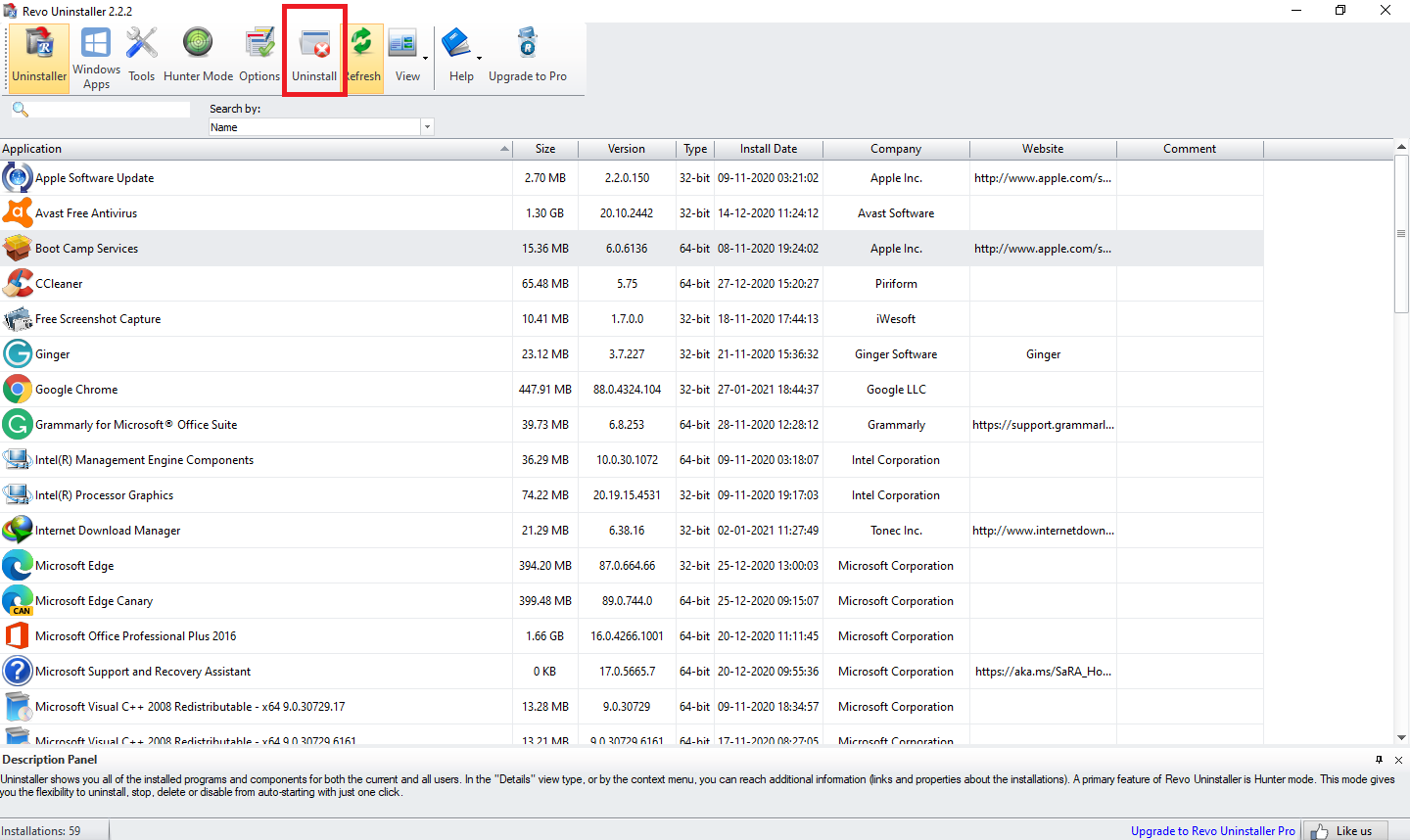
Revo Uninstaller comes with a user-friendly interface and straightforward options. Once launched, it displays a list of installed applications. Select any app and click the Uninstall button or right-click and choose Uninstall to remove it. The tool handles the rest.
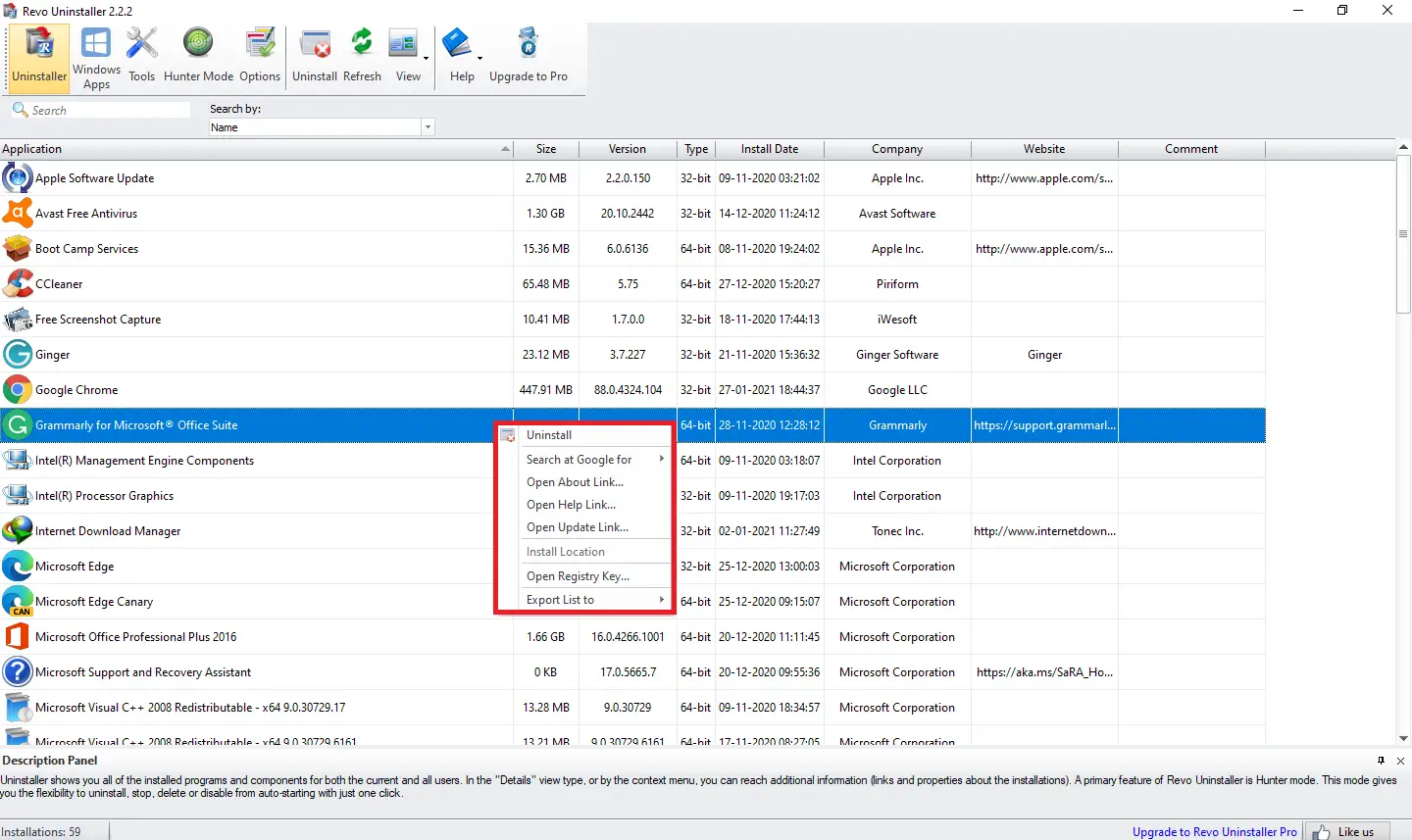
By right-clicking on any installed app, you can also perform the following actions:
- Uninstall
- Search Google for software and developer name
- Open About Link
- Open Help Link
- Open Update Link
- Open Install Location
- Open Registry Key
- Export List to text or HTML file
Revo Uninstaller simplifies the process of uninstalling apps, fixing registry entries, and removing leftover files.
Uninstalling Microsoft Store Apps
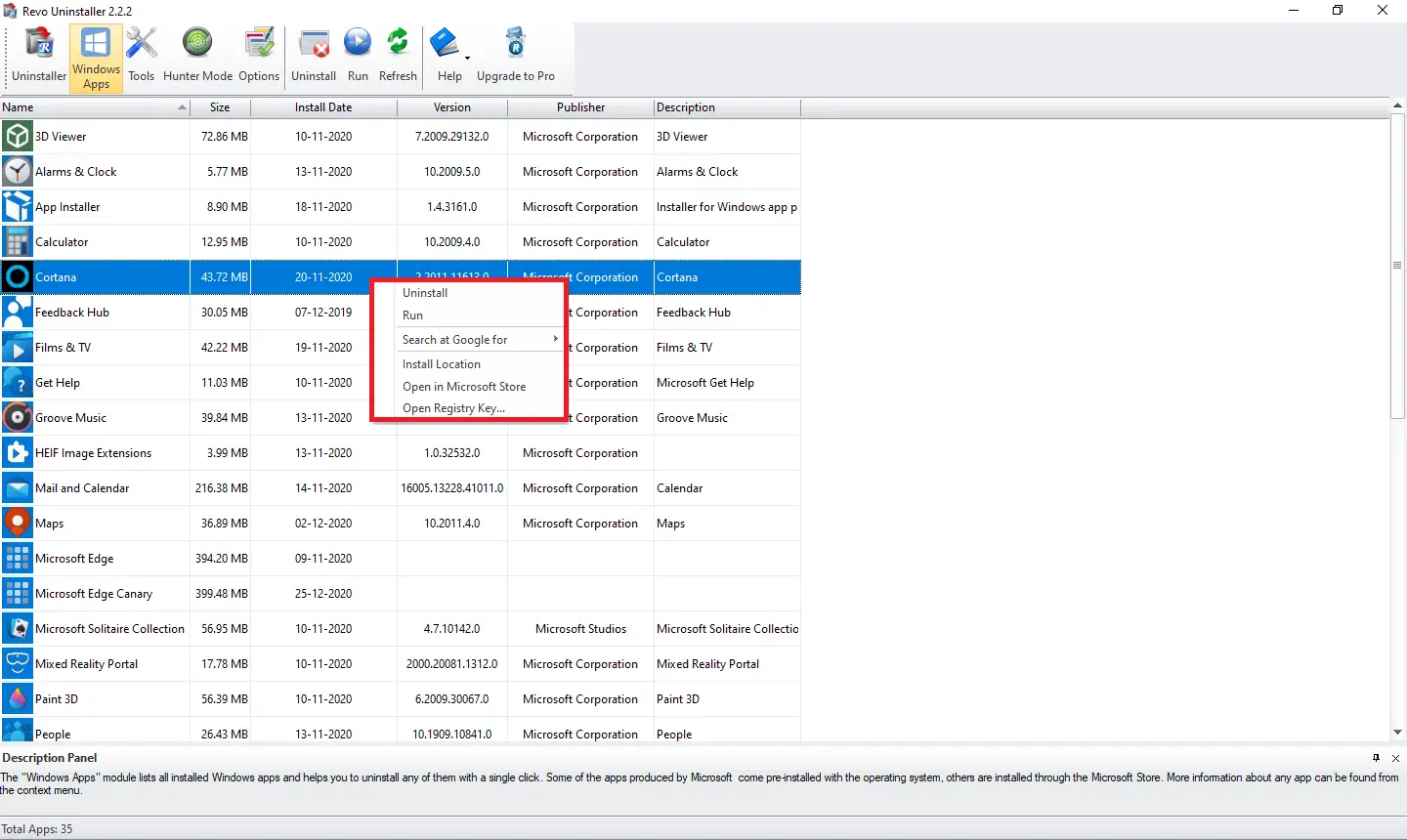
Unlike traditional software, Microsoft Store apps are installed differently. However, Revo Uninstaller can handle them just as efficiently. You can:
- Uninstall
- Run the app
- Search on Google for software and developer name
- Open Install Location
- Open in Microsoft Store
- Open Registry Key
Hunter Mode
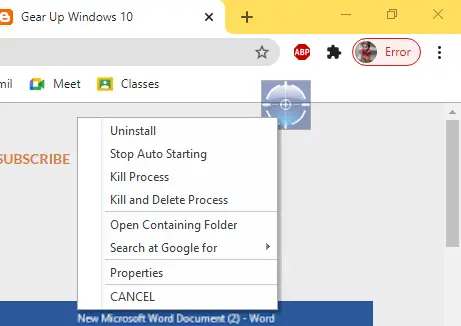
This is one of the most exciting features of Revo Uninstaller. It places a crosshair icon on the desktop. Drag it onto any running app to access powerful actions such as:
- Uninstall
- Stop Auto Starting
- Kill Process
- Kill and Delete Process
- Open Containing Folder
AutoRun Manager, Junk File Cleaner, Windows Tools, Browsers Cleaner, Microsoft Office Cleaner, Windows Cleaner
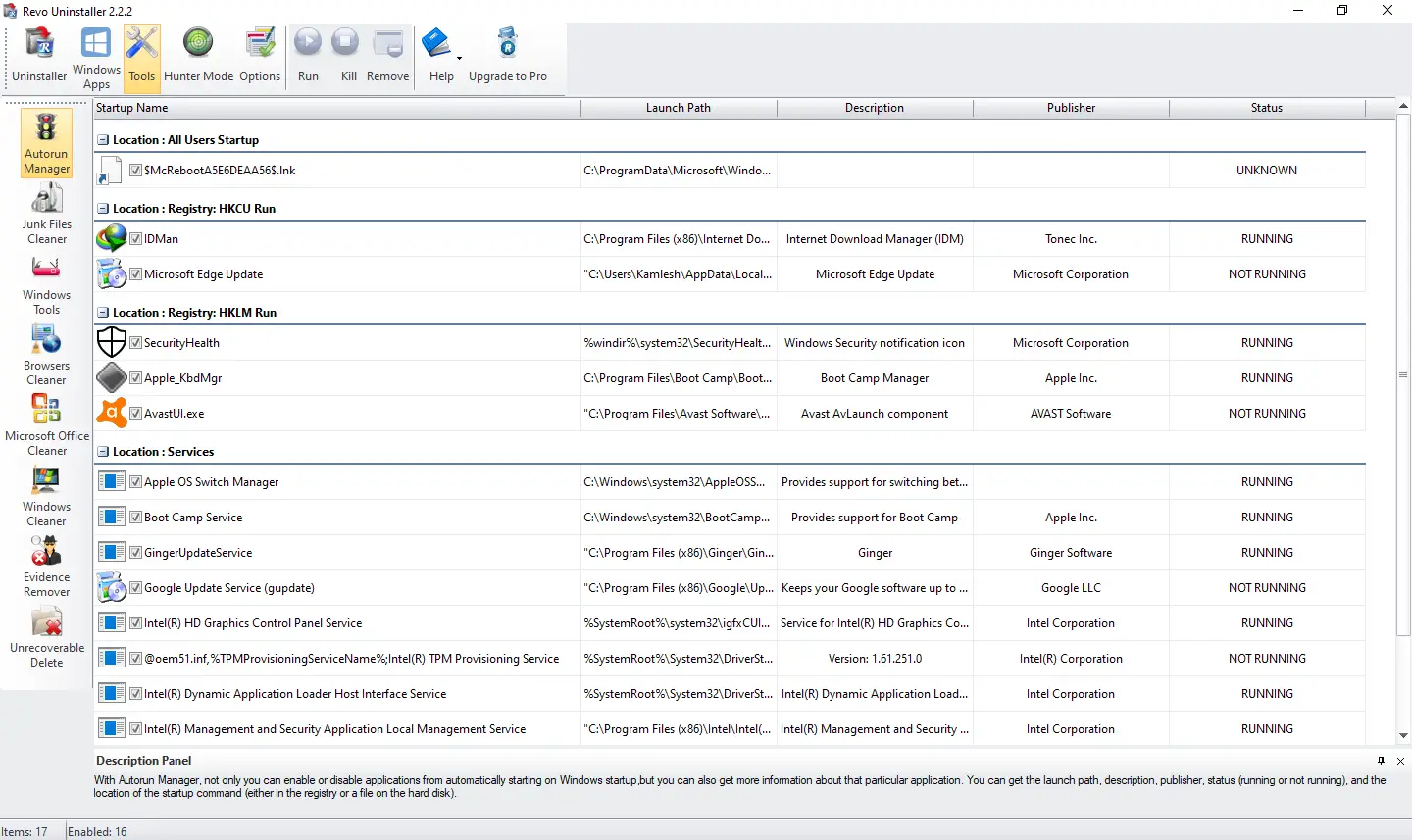
In addition to uninstalling software, Revo Uninstaller also offers powerful maintenance tools:
- AutoRun Manager enables or disables startup programs
- Junk File Cleaner deletes unnecessary files
- Windows Tools lets you access system utilities like System Restore, Disk Defragmenter, Services, Group Policy, and more
- Browsers Cleaner clears history and cookies from Firefox, Chrome, Edge, Opera, and Internet Explorer
- Microsoft Office Cleaner removes recent document history
- Windows Cleaner removes usage traces and temporary files
Under Windows Cleaner, you can clear:
- Recent documents history
- Start menu run history
- Find file history
- Printers, computers, and people history
- Recent files in MS Paint and Wordpad
- Registry last opened key history
- Open/save dialog recent folders
- Start menu usage logs
- Clipboard contents
- Recycle Bin
- Windows temporary files
- Crash memory dump files
- Recovered file fragments from Chkdsk
- Thumbnail cache
With so many built-in features, Revo Uninstaller ensures your system stays clean and efficient.
Download Revo Uninstaller
Revo Uninstaller also offers a portable version, so there’s no need to install it. Download the latest version of the free app from the official website.
Conclusion
While Windows provides a basic uninstaller, it often leaves behind unwanted files. Revo Uninstaller goes beyond by ensuring thorough app removal, including stubborn desktop software and Microsoft Store apps.
Its extra features like junk file cleaner, Windows tools, and browser cleaner add more value. You may also consider alternatives like Wise Program Uninstaller, Display Driver Uninstaller, or IObit Uninstaller.
Choosing an effective uninstaller is crucial for maintaining system performance and keeping your PC clutter-free.